
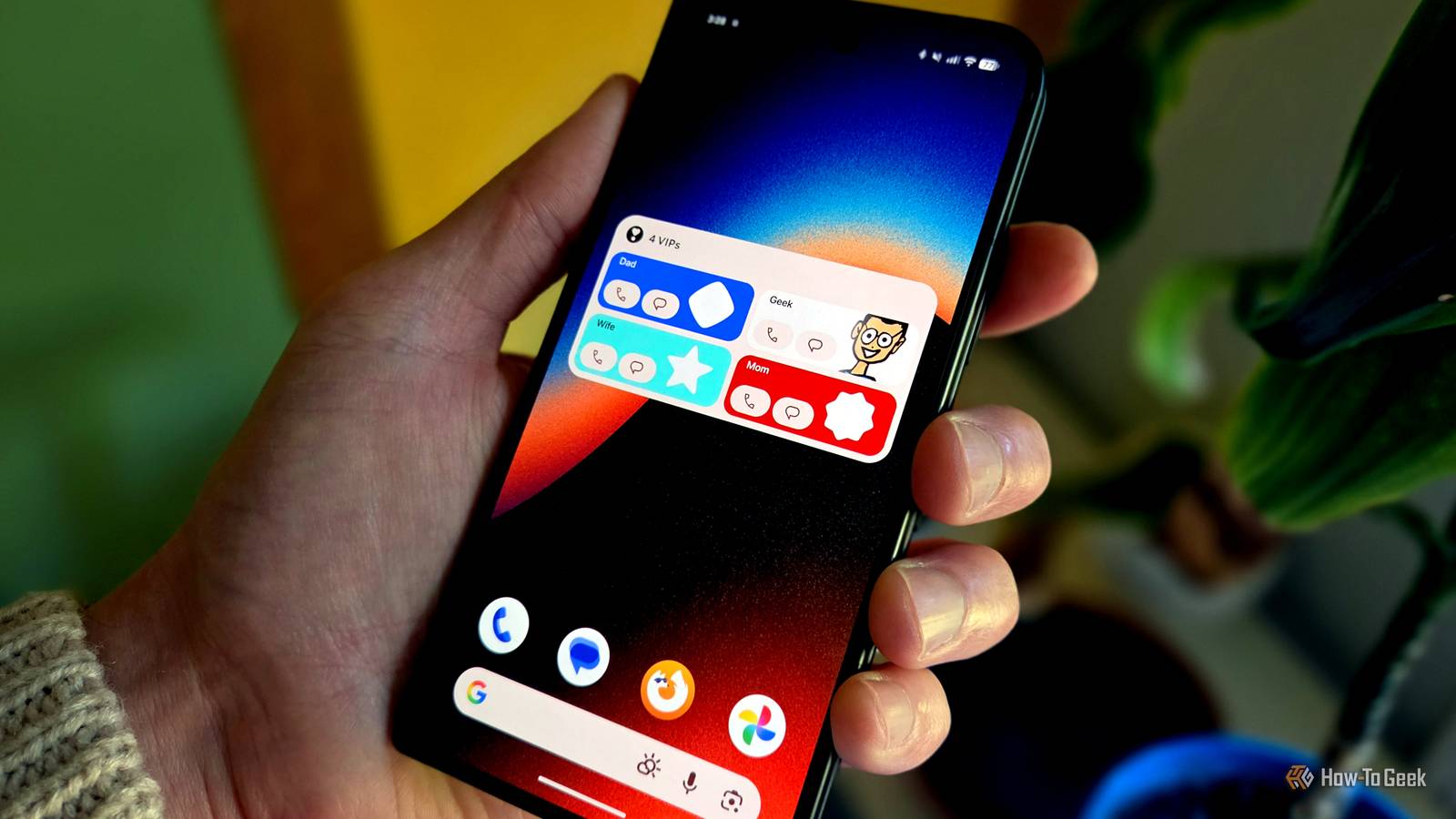
Published Oct 24, 2026, 6:31 AM EDT Joe Fedewa has been writing about technology for over a decade. Android and the rest of the Google ecosystem have been a focus for years, as well as reviewing devices, hosting podcasts, filming videos, and writing tutorials. Joe loves all things technology and is also an avid DIYer and food blogger. He has written thousands of articles, hundreds of tutorials, and dozens of reviews. Before joining How-To Geek, Joe worked at XDA-Developers as Managing Editor and covered news from the Google ecosystem. He got his start in the industry covering Windows Phone on a small blog, and later moved to Phandroid where he covered Android news, reviewed devices, wrote tutorials, created YouTube videos, and hosted a podcast. From smartphones to Bluetooth earbuds to Z-Wave switches, Joe is interested in all kinds of technology. After several years of jailbreaking and heavily modifying an iPod Touch, he moved on to his first smartphone, the HTC DROID Eris. He's been hooked ever since. Every few months, Google rolls out a "Pixel Drop" update with a few little goodies. Last year, "Pixel VIPs" was one of them, but it wasn't particularly useful at the time. The most recent update finally improved things, and you may actually want to use it now. Pixel VIPs first appeared in the June 2025 Pixel Drop with some very basic functionality. The general idea is that you can assign people as "VIPs," which essentially puts them on an elevated clearance level. The September Pixel Drop added some much-needed features. What the heck are Pixel VIPs anyway? It wasn't super useful at first Pixel VIPs have been around for a little over a year, but you're not alone if you're a Pixel owner who has never used (or even heard of) the feature. It's not the easiest thing to show off. However, the less flashy features can end up being genuinely useful in your life. The main purpose of Pixel VIPs is to give you quick access to your closest contacts. You choose VIPs in the Contacts app, and then they can be shown on the home screen with a widget. From the widget, you can quickly bring up the contacts information page, which shows recent conversations, shared location, and even their local weather. It also gives you shortcuts to call or message them. Credit: Google In addition to the widget, Pixel VIPs are automatically added to your "Favorites," which excludes them from Do Not Disturb mode. This is one area where VIPs are a bit confusing — all VIPs are favorites, but not all favorites are VIPs. Now, when the feature was first added to Pixel phones, it was a bit annoying to use. Tapping a contact from the widget would slide up the information card from the bottom of the screen. You'd then have to swipe it up to reveal the full details. It felt like an unnecessary step for something designed to be quick. There also wasn't much integration with anything outside of Google's ecosystem, limiting its usefulness. Both of those issues were addressed in the latest update. Tapping a contact now brings you directly to their information page. In addition to Google Messages, Meet, and Maps, WhatsApp has been added to the mix. Give your favorites the VIP treatment How to use Pixel VIPs Alright, let's get your VIPs up and running. As mentioned, this feature is part of the Contacts app, and it's exclusive to Pixel phones. Open the Contacts app and switch over to the "Organize" tab. Scroll down a bit and select "Pixel VIPs." You'll be greeted with a brief introduction of the feature — tap "Next." Google will make some suggestions based on the people you contact most often and have the most information filled out for. Select from the suggestions, or tap "Add" to pick from your full list of contacts. When you're done, tap "Next." Now you can put the widget on your home screen — select "Next" again, and you'll see the widget adding menu slide up. Go back to the "Pixel VIPs" screen in the Contacts app and tap the settings gear icon in the top corner. Ensure all the permissions are granted for the features you'd like to use. You don't have to do anything extra if WhatsApp is already on your phone. On the home screen, you can adjust the size of the widget to show more information. At its smallest, you'll see simple contact photos. Larger sizes show bigger profile photos and shortcuts for calling and messaging. If the contact uses WhatsApp, the messaging shortcut lets you choose the app. Occasionally, you'll see details such as upcoming birthdays on the widget. When you select a VIP from the widget, you'll see a bunch of information about them along with shortcuts to various forms of communication. You can switch between VIPs by swiping left or right, or selecting from the floating toolbar at the bottom of the screen. I'm actually using Pixel VIPs now The September Pixel Drop flew under my radar, but I was happy to see these VIP improvements. Every time I had tried to use the widget before, I quickly removed it when I remembered the swiping up nonsense. A simple contact shortcut was more useful. Now, I like having quick access to multiple people in one widget. Give it a shot if you previously gave up on it.
I gave up on Pixel VIPs until this update made the widget actually useful
Full Article
Original Source
Read the full article at Howtogeek →KhanList aggregates and links to publicly available news content. We do not host full articles from third-party sources. Always verify important information with original sources.