
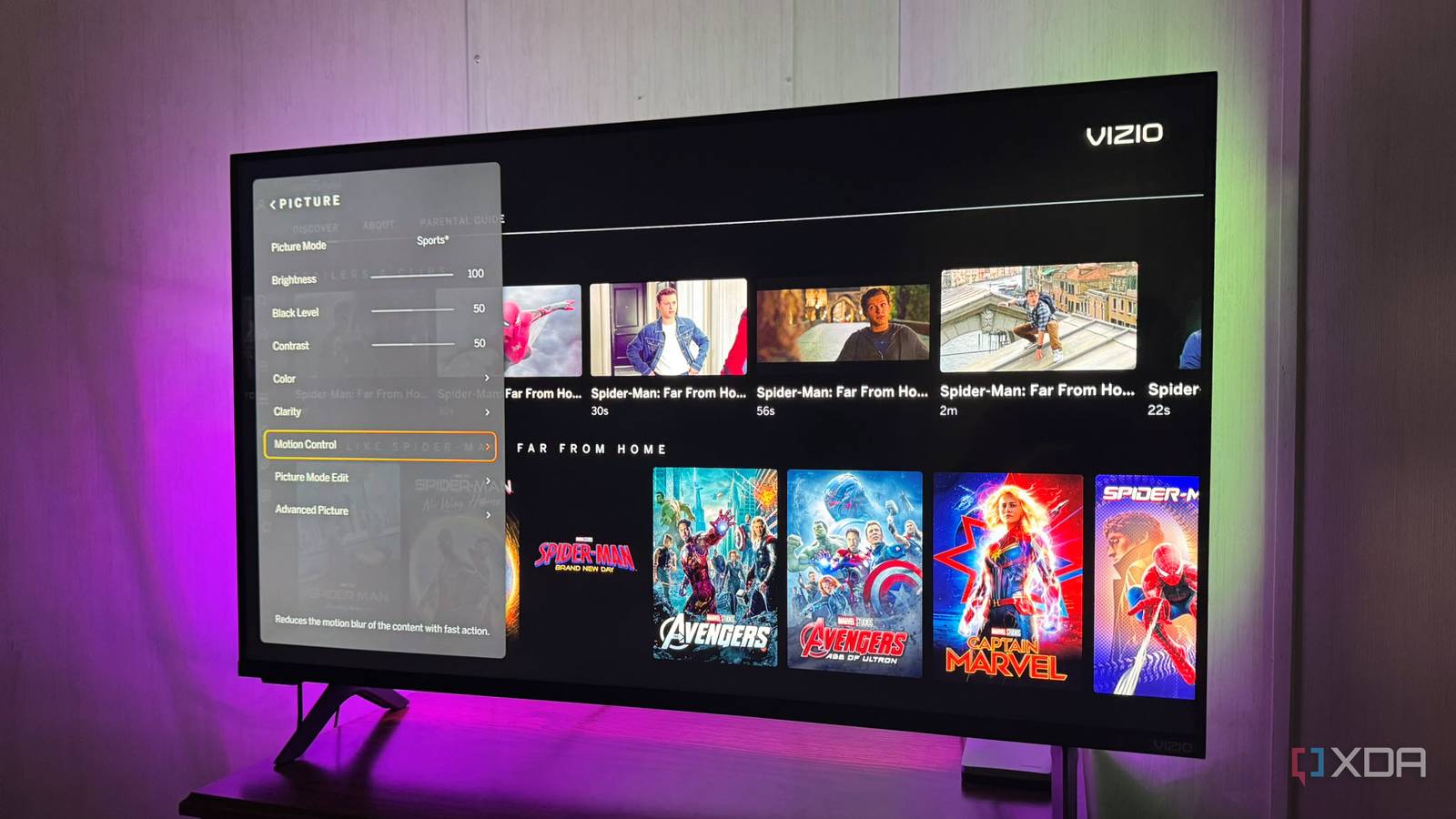
Published Oct 9, 2026, 6:00 PM EDT Based in rural Minnesota, Brian Burgess worked in IT for 10 years before finding his passion for writing about consumer technology. Brian earned his degree in computer and network technology in 2000. He held various IT positions, including help desk support, router installations for IBM, database administration, and other associate network administration roles. He's been a personal technology journalist for 18 years and has written thousands of articles about Microsoft products and services, Android, iOS, streaming, and more. He has written for notable tech sites including XDA, InformationWeek, How-To Geek, Byte, groovyPost, and others. When he is away from the keyboard, you will hear him playing guitar, working outdoors, and watching Star Trek. If your older (or brand new) smart TV starts to feel slow, you might think it is time to buy a new one. However, you can do a few simple things in the settings menu to perk it up. It had been a few years since I'd really dug into my main TV's settings menu, and I got it feeling new again. Plus, I didn't have to exhaustively search for the right code to access the factory service menu to make tweaks. You can boost your TV's responsiveness with a few changes in the regular settings menu you may have overlooked. If your smart TV is starting to feel sluggish, try adjusting these settings to speed it up. Update your TV's software It doesn't always update in the background One of the first places I look on smart TVs when the performance isn't optimal is the software updates section. Your TV is like a computer or your phone and needs software updates. TV manufacturers often release updates that fix bugs and improve performance and security. However, not all models download updates automatically, especially older TVs. Go to the Settings menu and find the section that lets you manually check for updates. If you can't find it, it is usually under the About or Preferences menu, or it has a clearly labeled Update Software option. While you're there, see if you can set it to check for updates automatically. Also, check the menu for a firmware update option. I updated an older TV's firmware for a relative, and it made the old set feel a generation newer and added new features. Clear app cache It builds up over time and slows down the TV Most people don't think of their TV as a computer, but it actually is. It has an operating system, processor, and RAM to run the apps. After switching between apps and using them often, the cache of temporary data can become bloated and corrupt, slowing the TV down. Like clearing the cache on your PC, clearing the cache on your TV can also make it feel faster. Most smart TVs have a dedicated option to clear the cache in the Settings menu, including Roku and Fire TVs. In your TV's settings menu, go to the Apps section, select your most used apps, and choose the Clear Cache, Clear App Caches, or Clear Data button. I've done this on many of my smart TVs, and it often improves UI responsiveness and app load time. Disable ACR It lets manufacturers track your viewing Automatic Content Recognition (ACR) lets TV manufacturers monitor your viewing habits. They use and share that data with third parties to target ads and content through the interface. It monitors app usage and program-viewing habits. It doesn't just monitor what you watch on the TV itself, but also on all devices connected to other input ports. It can even see what you are watching via an OTA antenna and self-hosted media platforms like Plex and Jellyfin. Turning it off will help improve your privacy. It can also improve performance by reducing background data processing and network traffic. That frees up the set's resources for better performance from the TV's operating system and the apps you want to run smoothly on your screen. Disabling ACR varies between sets and is buried in the menu system. But you'll often find it in the Privacy, Apps, About, or Personalization section of the settings menu. Once it's off, you can rest easy knowing you have a modicum of privacy while watching TV at home. Keep in mind it doesn't block all usage data, metrics, and analytics. For that, you'd need to run a Pi-hole. Restart your TV It never completely powers down It sounds simple, right? Turn it off every night. However, when you turn off your smart TV with the remote's power button, it enters a low-power state so it can resume quickly and pick up where you left off. It's like Sleep mode on a PC, so the television never completely reboots. Occasionally, rebooting your TV clears temporary files in memory and resets inputs, which can fix glitches that happen after it runs for a long time. It's like restarting your phone or computer when it is acting up or running slow. It can fix a sluggish menu system and frozen apps, and it refreshes the TV. Since I work with several streaming devices, I reboot my work TVs a lot, but I'm not so good at regularly restarting my personal televisions. When the TV runs slowly, a thorough reboot can cure it and is a good starting point for troubleshooting. Sets vary, but the restart option is typically in the power section of the settings menu. Also, while in the power section, disable energy-saving mode to preserve your display and improve picture vibrancy and brightness. Breathing new life into a smart TV You can make a smart TV run faster by adjusting menu settings. From turning off picture settings like motion smoothing (or TruMotion, Action Smoothing, or something else depending on the brand) to simply remembering to reboot your TV properly. Think of it like improving your computer's performance: updating, uninstalling unused apps, disabling animations, and tweaking other settings to speed it up.
I gave my TV a free speed boost by changing these 4 settings
Full Article
Original Source
Read the full article at Xda-developers →KhanList aggregates and links to publicly available news content. We do not host full articles from third-party sources. Always verify important information with original sources.