
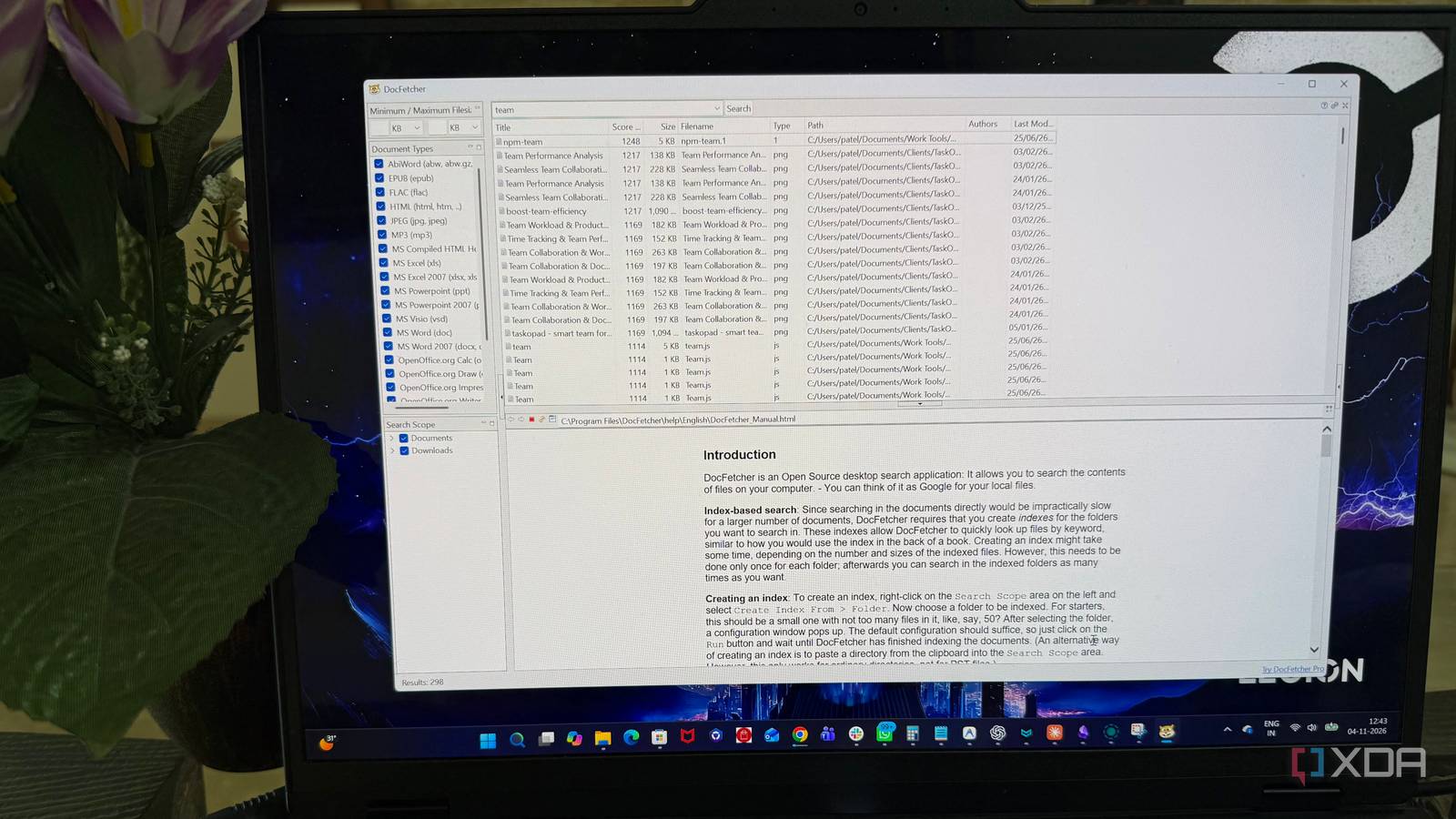
Published Nov 7, 2026, 7:30 AM EST Beginning his professional journey in the tech industry in 2018, Yash spent over three years as a Software Engineer. After that, he shifted his focus to empowering readers through informative and engaging content on his tech blog – DiGiTAL BiRYANi. He has also published tech articles for MakeTechEasier. He loves to explore new tech gadgets and platforms. When he is not writing, you’ll find him exploring food. He is known as Digital Chef Yash among his readers because of his love for Technology and Food. Some PC utilities solve problems I didn't even know had a better solution. DocFetcher is one such discovery. It's a free, open-source desktop application designed to make searching through large collections of documents easier. Unlike many tools that focus mainly on locating files, it puts document contents at the center of the search experience. I was curious to see how well it would fit into my daily workflow. So, I spent some time exploring its features, and there was more to it than I initially expected. Windows Search couldn't find what I remembered reading I remembered the contents, not the filename I often remember reading something in a document but have no idea what I named the file or where I saved it. This happens quite often with my collection of downloaded PDFs, work documents, research material, and old notes. I usually start with Windows Search and type a few keywords I think might help. Sometimes, it works, but other times, I end up scrolling through unrelated results or trying different search terms without much luck. The frustrating part is that I know the information is somewhere on my PC; I just can't get Windows to point me towards it. Renaming files and organizing folders helps to some extent, but it's not always practical when you deal with hundreds of documents. I wanted something that could make finding old information less of a guessing game. DocFetcher turns scattered folders into a searchable library Indexing the folders I actually need Getting started with DocFetcher was fairly straightforward. After installing the desktop app, I created an index by right-clicking inside the search scope panel and selecting the folder I wanted to include. DocFetcher then scanned the selected location and built an index of its contents. I started with the Documents and Downloads folder rather than indexing my entire PC, which kept things manageable. The initial process took a little time because I had quite a few files stored there, but I only had to wait for the first indexing pass to finish. Once it was ready, my selected folders became part of a dedicated search library. The best part is that more folders can be added whenever needed instead of starting everything from scratch. DocFetcher also offers good control over what gets indexed. The settings allow me to include specific folders, exclude locations I don't need, and adjust options such as file size limits and supported file formats. Separate indexes for different document collections make it easier to keep personal files and work-related materials organized without moving them from their original locations. Searching documents is more flexible than I expected Boolean operators, wildcards, and fuzzy searches DocFetcher stands out to me with the number of search options it offers without making the interface complicated. It supports more than basic keyword searches, which makes a noticeable difference when I'm looking for something specific. Boolean operators such as AND, OR, and NOT make searches more flexible by allowing me to combine or exclude specific terms. For example, a search can return documents containing one keyword while filtering out results that include another. It also supports wildcard searches, which are useful when I remember only part of a word or filename. The preview pane is another feature I find genuinely useful. When I select a search result, DocFetcher displays a text preview of the document and highlights every matching keyword in yellow. The highlighted matches make it easy to jump between occurrences without reading the entire document. When the results are too broad, filters for document type, file location, and minimum or maximum file size help narrow down the search. There are also options for fuzzy searching, which finds words similar to my search term, and proximity searching, which finds two words appearing within a specified distance of each other. These options make it easier to find relevant results even when I don't remember the exact wording. Sometimes, simple tools get it right DocFetcher doesn't have a modern interface or a fancy AI-powered feature set, and that's one of its biggest advantages. It stays grounded in what a desktop search utility should actually do instead of trying to be everything at once. There's no unnecessary complexity, subscription, or cloud dependency to worry about. Just a straightforward application that does its job reliably. While it may not look as polished as some newer alternatives, I appreciate that it focuses on functionality over flashy features. DocFetcher DocFetcher is a free, open-source, Java-based desktop search application that lets you search the full text of files on your computer.
I gave my PC a search tool that reads inside every document, and Windows Search can't compete
Full Article
Original Source
Read the full article at Xda-developers →KhanList aggregates and links to publicly available news content. We do not host full articles from third-party sources. Always verify important information with original sources.