
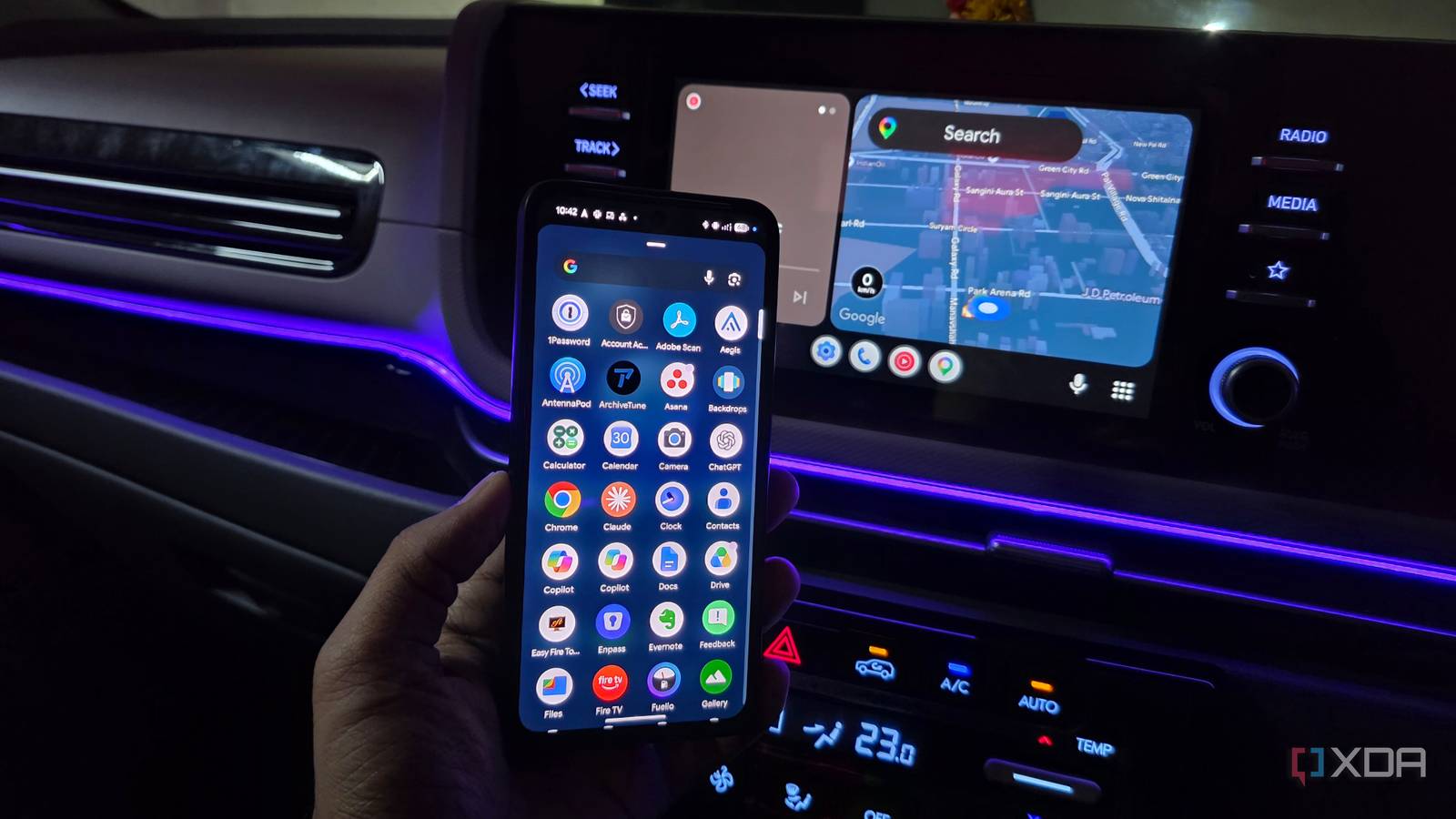
Published Oct 2, 2026, 8:30 AM EDT Parth, a seasoned tech writer, wields the keyboard (or pen) with finesse to unravel the intricacies of both Windows and Mac operating systems. He has covered evergreen content on mobile devices and computers for multiple publications over the last six years. You can find his work on AndroidPolice, GuidingTech and TechWiser. Whether it’s demystifying system updates, deciphering error codes, or exploring hidden features, Parth’s prose guides readers through the binary maze. When not immersed in tech jargon, you’ll find him sipping chai, pondering the next software review, and occasionally indulging in a friendly debate about mechanical keyboards. I had an old Android phone sitting in a drawer doing absolutely nothing, while my car’s infotainment system still felt far more limited than it should. So, I decided to combine the two. Instead of using the phone as a basic media player or navigation screen, I turned it into a dedicated Android Auto setup that I could customize around the way I actually drive. With more control over the interface, apps, shortcuts, and behavior, that forgotten phone became one of the most useful upgrades I have made to my car. My old phone was just collecting dust I gave it a new purpose I held on to my Pixel 8 even after permanently moving to the Galaxy S25 Ultra. There was nothing particularly wrong with the Pixel. It still had a great display, plenty of performance, a capable battery, and more than enough power for everyday Android tasks. But once I made the Galaxy my primary phone, the Pixel slowly turned into one of those devices that just sits in a drawer (unless I want to test the latest Android features). Selling it didn’t feel particularly appealing either. The phone was still perfectly usable, and I frequently need it to try out the latest Android goodies that Google releases every year. That’s when I started thinking about my car. I use Android Auto almost every day, and turning the Pixel into a dedicated Android Auto display sounded like exactly the kind of second life the phone needed. Open Headunit changed what the phone could do A game-changer for Android Auto users The app that made this whole experiment possible was Open Headunit. In simple terms, it turns a regular Android phone or tablet into an Android Auto receiver. Instead of my Pixel 8 being just another phone, I could make it behave more like the infotainment screen built into a car. My Galaxy S25 Ultra would still do all the heavy lifting, like running Android Auto, Maps, Music, messages, and everything else, while the Pixel became the screen I interacted with inside the car. Open Headunit is available as a paid app on the Google Play Store, which is probably the easiest way to install it and support the developer. However, the project is also open-source, and I could grab the APK from its GitHub repository for free. Once installed, the idea was straightforward: connect my main phone to the Pixel, launch Open Headunit, and the old phone essentially becomes my own portable Android Auto display. You can run it in the self mode too (where the current device acts as the Android Auto unit). What I liked most was that I wasn’t trying to hack or modify Android Auto itself. I was simply changing the hardware it was being displayed on. Setting it up was easier than expected I could fine-tune every detail I expected Open Headunit to require a complicated setup, but getting it running was straightforward. The only slightly hidden part is enabling Android Auto’s developer settings. I opened Android Auto settings on my Pixel 8, scrolled down to the Version section, and tapped it repeatedly until Developer Settings were enabled. From there, I opened the three-dot menu in the top-right corner and selected Start head unit server. That’s the Android Auto server Open Headunit needs to establish the connection. After that, I opened Open Headunit and went through the basic settings rather than immediately trying to start Android Auto. First, I checked the permissions section and made sure the app had everything it needed. I also ran the Auto-Optimize Settings option, which can recommend suitable resolution, DPI, and video settings for the device. Now, it’s time to choose how I want to connect. Most of the time, I use Self Mode, since I am running both Android Auto and Open Headunit on the same Pixel. It’s the easiest option for what I am trying to achieve. I am not limited to Self Mode, either. Open Headunit also gives me USB and Wi-Fi connection modes, so I can use the Pixel or any Android tablet (useful for them since they don’t have a cellular connection) as the display and connect my main phone to it. I can keep things simple with Self Mode when I am experimenting, or switch to USB or wireless when I want a setup that behaves more like a proper aftermarket head unit. I could finally build the screen around my car My main phone can stay where it belongs I have the freedom to build the screen around my car instead of working around whatever the factory head unit gave me. Since the Pixel 8 is just a regular Android phone, I can mount it exactly where I want, keep it in landscape mode, fine-tune brightness, and adjust the display scaling until Android Auto looks right from the driver’s seat. The phone also gives me controls that a traditional head unit doesn’t. I can automate brightness, enable DND, create automations, control charging behavior, and even shut down unnecessary background activity. I can even create routines around when the phone receives power. I unlocked a more flexible dashboard Open Headunit didn’t magically turn my Android phone into a factory-grade infotainment system, but that wasn’t really the point. What I gained was flexibility. I could tweak the display, experiment with scaling, and build something that fits the way I actually use Android Auto. There are still quirks, especially with wireless connections, but I am willing to accept those trade-offs for this level of control. More importantly, a phone that was gathering dust is now doing something useful every time I get behind the wheel.
I gave my old Android phone an Android Auto makeover, and my car is better for it
Full Article
Original Source
Read the full article at Xda-developers →KhanList aggregates and links to publicly available news content. We do not host full articles from third-party sources. Always verify important information with original sources.