
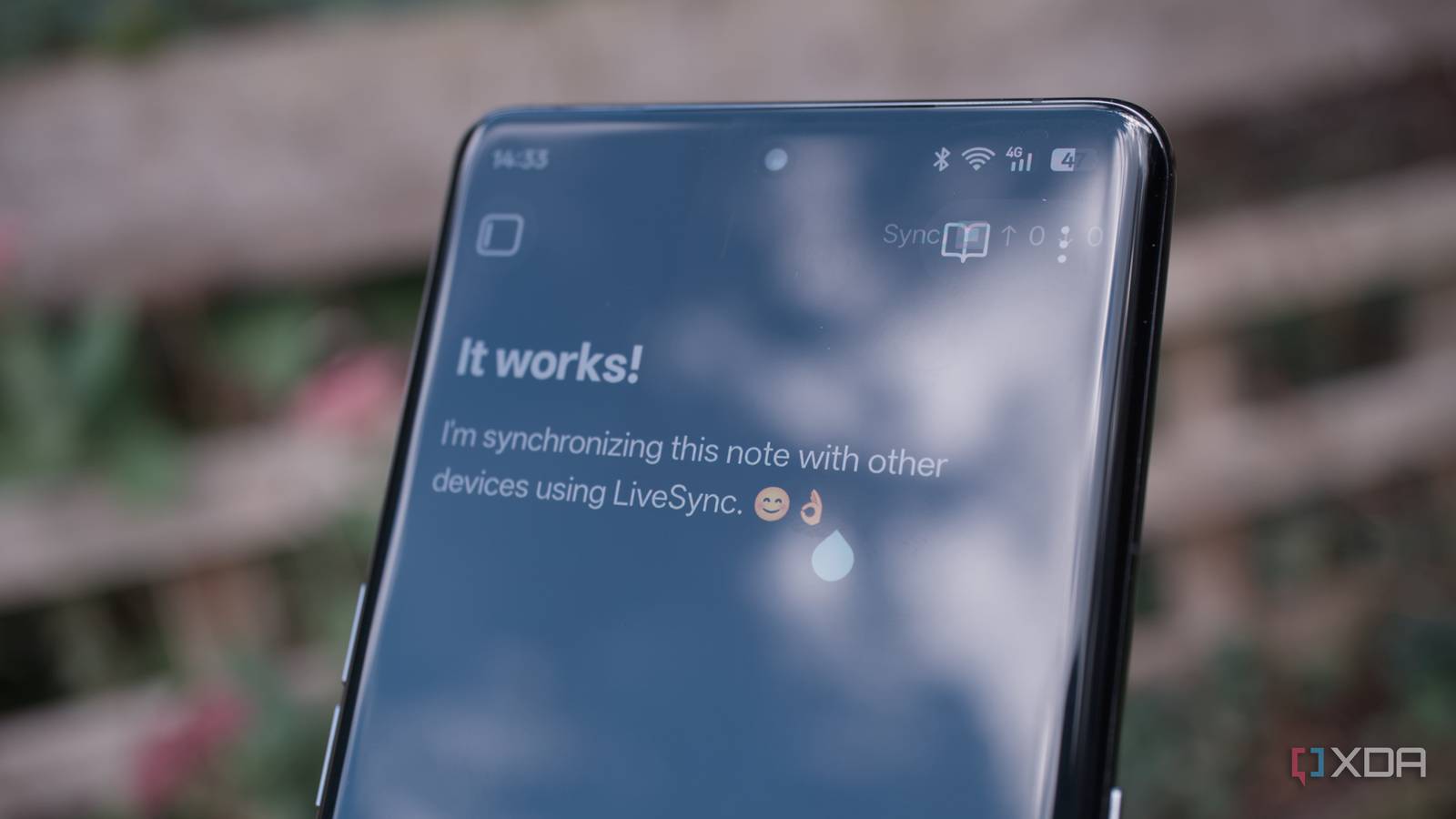
Published Sep 23, 2026, 7:30 AM EDT Richard is the PC Hardware Lead at XDA and has been covering the technology industry for almost two decades. He's been building PCs since young, and when not creating content, you can often find him inside a chassis somewhere. I've used my fair share of productivity apps and integrated development environment (IDE) offerings, but I always seem to eventually switch back to Obsidian, especially for documentation and brainstorming. It's my go-to app for creating content and synchronizing data across devices, all thanks to one community plugin called LiveSync. It's such a good plugin that it allows me to save just shy of $100 each year on hosting my vaults on Obsidian's own servers. All I needed was my NAS. Creating my own Obsidian Sync at home Using Obsidian to create my own cloud-backed productivity suite Obsidian has some great apps for almost every platform I use, be it Android or Linux. There are also some fine options for iOS and Windows users. The most straightforward way to bring all these together isn't with any synchronization plugin, but Obsidian's own commercially available service called Obsidian Sync. You pay a small amount per month, and your vaults are available to all platforms. Then there's the self-hosted method, which essentially runs Obsidian on a NAS or server. This second method drops the app requirement entirely. You simply open up a browser tab, load the IP or domain name, and you're greeted by a web-based Obsidian instance with centralized vaults. But if you're like me and neither of these appealed, then there's always LiveSync. Instead of relying on a web instance or paying for between 1 and 10 GB of online storage, LiveSync essentially leverages an already configured home server or NAS that runs 24/7 to form your own Obsidian Sync. Once configured and up and running, each of your Obsidian clients has access to shared vaults. This alone is invaluable to me, since it allows me to start a note on the desktop, move across to a tablet, and finish off on a laptop all without transferring a single bit of data via a USB drive or NAS shared folder. Everything is synchronized to a remotely hosted CouchDB instance running on my NAS, acting as the sync backend. Livesync simply keeps all the local vaults aligned, allowing the apps to behave like local-first installations, but with the ability to sync when required. From paying out more to more headaches Obsidian Sync is perfectly fine if you don't have a NAS or home server available and/or enjoy the convenience of using a cloud-based service to synchronize all your notes and documents between devices. A simple SMB share on a NAS may seem like the ideal solution. It's similar to what has likely already been configured for data storage; there's no downtime, and it'll use your NAS operating system's features for permissions and synchronization. The primary drawback I found with this is it's not collaborative-friendly. If I'm editing the same vault notes on my desktop PC as the laptop, which will be viewed as the source of truth. What if we lose connection mid-transfer? Vaults aren't really in sync. Should you accidentally push through an older version to the NAS, you're out of luck without recent backups. That's what LiveSync works to solve. It offers the best of both worlds. I get to enjoy a local vault experience on every device without needing to worry about moving these changes to other platforms. The plugin is a lot smarter than a simple SMB share too. It can handle conflicts and supports offline usage, so I can take my laptop out into the wild and work on Obsidian, only to sync when at home or connected to Wi-Fi. It's vital for collaborative platforms such as Obsidian, where multiple clients may be connected together, to ensure synchronization progresses smoothly. There's a selection of providers for the database, including CouchDB and S3 object storage. I opted for the former, which works well on NAS. The best part about all of this is it happens completely behind the scenes. There's no annoying popup when synchronization takes place. There's a simple UI change where some status indicators are added, but that's just to provide insight into what's happening underneath. So long as the CouchDB instance is happily running away and you have a valid, stable internet connection, there shouldn't be anything to take note of. Simply use Obsidian as you would with a normal local-only setup. Everything you require is on Docker You'll be up and running in no time Setting up a NAS is one thing, but if you've not really ventured out into self-hosting apps and services, doing so outside of the NAS app store may seem rather daunting. Luckily, Obsidian LiveSync is available as a plugin through Obsidian. All that's required is for it to be installed on each Obsidian instance. As for CouchDB, should you follow yours truly, this can be configured as a Docker container or Linux container (LXC), depending on where you wish to host it. Regardless of the route selected, CouchDB can literally be up and running within a few minutes. The only advice I have to provide is to ensure there's an HTTPS endpoint for clients if accessing stored data from outside the home network. This helps keep your data safe without sacrificing functionality. For my first Obsidian LiveSync client setup, the process was to install the plugin and connect to the local CouchDB IP, and that's about it. The process can be even simpler on subsequent clients. That's all thanks to a setup URI, which can be used to automatically bring everything into the fold, and it works flawlessly. No additional manual setup required. If you're like me and almost depend on Obsidian, it's worth giving Livesync a shot before trying alternatives, as it may just transform the way you take notes.
I gave my Obsidian vault to my NAS instead of Obsidian's servers and saved $96 a year
Full Article
Original Source
Read the full article at Xda-developers →KhanList aggregates and links to publicly available news content. We do not host full articles from third-party sources. Always verify important information with original sources.