
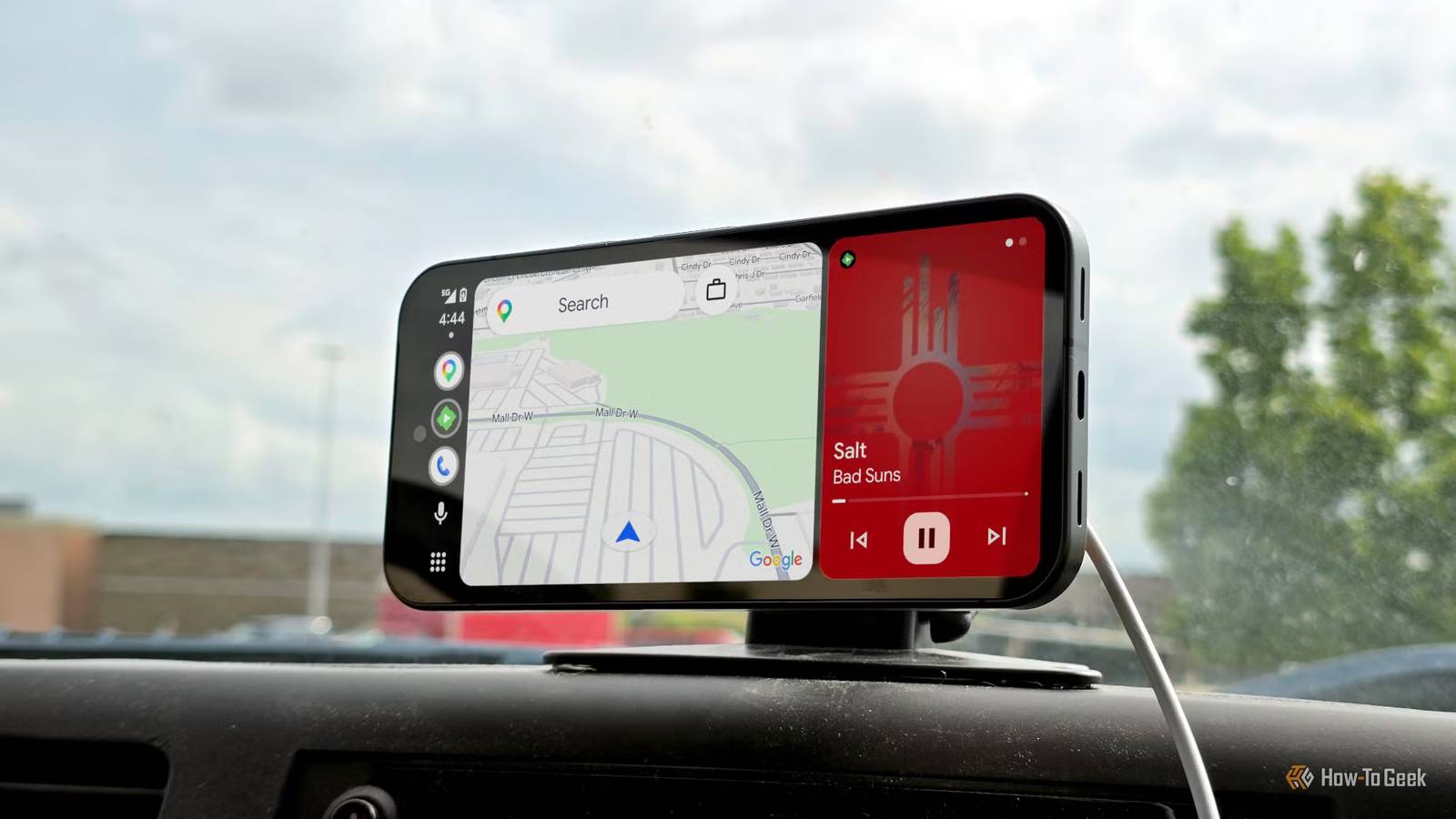
Published Nov 29, 2026, 2:00 PM EST A Computer Engineer turned tech-savvy. Sanya is part of the How to Geek team, and she covers Android, Samsung, Google, apps, and everyday technology, combining hands-on experience with thorough research. She helps readers understand technology without getting lost in technical jargon. My computer already has Spotify, messaging, maps, and plenty of ways to stay connected, so bringing Android Auto to my desk might seem unnecessary. But I wanted a separate screen for a few phone functions, rather than another window on my monitor. Android Auto’s simplified, touch-friendly interface makes that possible, while voice commands let me do certain things without reaching for my phone. Android Auto is designed for compatible car displays, not desks, so getting it running elsewhere is a workaround. Once I set it up on a spare Android device, I found uses beyond playing music. It became a handy companion for quick phone-based tasks while I worked hard. How I got Android Auto running on my desk Turning a spare Android device into an Android Auto display I didn’t need to buy a new display for this. I used a spare Android tablet as the screen and my Galaxy phone to connect to it. The tricky part was getting Android Auto to run outside a car, since tablets don’t normally support it as a receiver. I used a third-party app called Headunit Reloaded, which emulates an Android Auto head unit and lets my tablet act as the receiver. Once I installed the app, I followed its connection instructions and paired the two devices. A USB data cable made the initial setup easier. After granting the required permissions and allowing the connection, Android Auto appeared on the tablet, ready to use. Keep in mind that Android Auto only supports compatible apps, so you won’t be able to access every app installed on your phone through the interface. Why I’ve kept Android Auto on my desk It’s a handy second screen for my phone The first question is why I like Android Auto on my desk. It's because it gives my phone a separate space without taking me away from my computer. Because of my job, I spend hours writing, researching, and jumping between browser tabs, and I don’t always want to unlock my phone to do something small. I can keep Spotify open on the tablet, skip songs, switch playlists, or pause music without interrupting my work. I use voice commands to play a work playlist or a motivating podcast. When I’m working on a long article or have already passed the deadline, having music playing in the background keeps my eyes open, even at 2:00 a.m. I also find voice interaction useful. If a WhatsApp message comes in, I can use the supported messaging controls to hear and respond to it using voice commands instead of opening my phone. I can ask Gemini to perform supported tasks or answer quick questions. Google Maps is another useful addition. I can look up an address, check a place, or get an idea of a route before heading out. These aren’t things my computer can’t do, of course. I just like having them on a separate screen. Once everything is connected, using the setup feels effortless. I can glance at my tablet, tap a large control, or use my voice and get back to writing. I don’t need to mirror my entire phone screen or keep another browser window open. I know, I know, Android Auto isn’t a replacement for my computer, and it will never be. It only displays compatible apps, and some interactions are still easier on a phone or desktop. For me, it’s a convenient little addition to my desk, especially when I want quick access to my phone. A few tweaks make my desk setup even better I changed a few Android Auto settings to suit my workflow I made a few small changes to make Android Auto easier to use at my desk. I rearranged the app launcher, so Spotify, Google Maps, and WhatsApp stay at the top. I also hid apps I rarely use to avoid scrolling through unnecessary options. I placed my tablet on a stand beside my monitor and kept it plugged in throughout the day. I adjusted its screen timeout, so I don’t have to wake it up repeatedly. These small changes have saved me time, and I enjoyed setting everything up. I no longer have to pick up my phone, unlock it, and search for an app just to skip a song or check a message. Android Auto has found a new home on my desk I didn’t expect a feature built for cars to become part of my work routine, but here we are. What I like most is that I can keep experimenting with the setup. I can try different apps or even use another spare Android device if I want a bigger display. There’s no perfect way to set this up, and that’s part of the fun. If you enjoy tinkering with Android and have a spare tablet or phone, this is a project worth trying. You might discover that a feature you usually associate with driving has a completely different use at your desk.
I gave Android Auto a second job at my desk
Full Article
Original Source
Read the full article at Howtogeek →KhanList aggregates and links to publicly available news content. We do not host full articles from third-party sources. Always verify important information with original sources.