
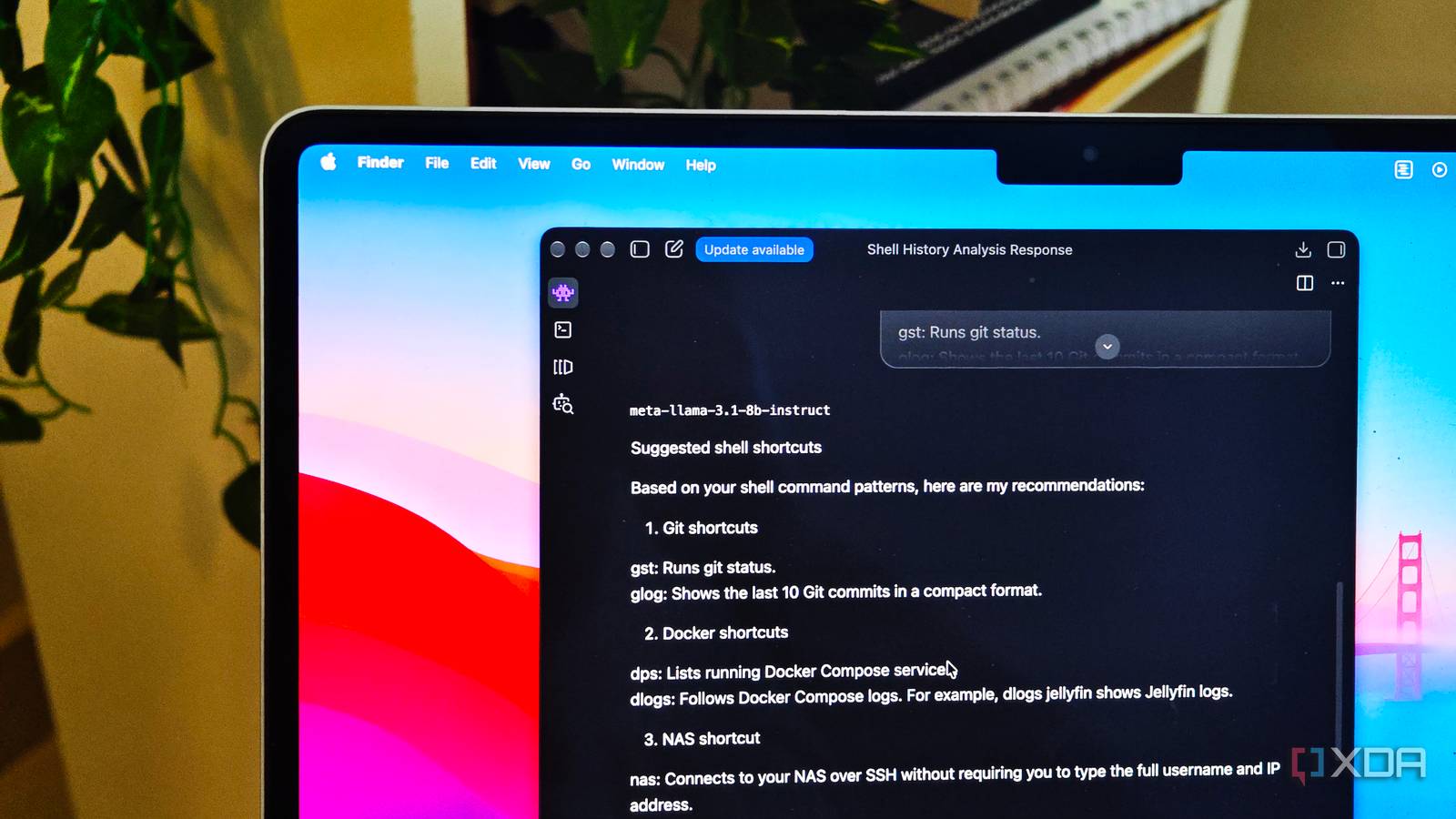
Published Nov 24, 2026, 7:31 AM EST Anurag is an experienced journalist and author who’s been covering tech for the past 5 years, with a focus on Windows, Android, and Apple. He’s written for sites like Android Police, Neowin, Dexerto, and MakeTechEasier. Anurag’s always pumped about tech and loves getting his hands on the latest gadgets. When he's not procrastinating, you’ll probably find him catching the newest movies in theaters or scrolling through Twitter from his bed. I spend a lot of time in the terminal, whether I'm managing Docker containers on my NAS, working with Git, or tinkering with Home Assistant. Yet my shell configuration has barely kept up with how I use it. I still type out the same commands repeatedly, even though a few aliases could save me the trouble. I've always known I could set those up, but I've never bothered to figure out which ones would actually be useful. I figured AI could help me out with this, so I took six months of my shell history, fed it to a local LLM, and asked it to identify repetitive commands and generate useful aliases based on my actual usage. It ended up suggesting several shortcuts I should have created years ago. Your shell history knows more than you think Getting the data ready for a local LLM Your terminal already keeps a record of the commands you execute, and you can access that history without installing anything. On macOS, Zsh is the default shell, and it typically stores your command history in a file called .zsh_history in your home directory. This includes everything from simple commands like checking Git status to longer commands involving Docker containers, SSH connections, and other tools. There are a couple of things worth checking before using this data. Your shell history doesn't necessarily contain every command you've executed, since the number of saved entries depends on your configuration. Zsh can also record timestamps, which makes it easier to isolate commands from a particular period. For my experiment, I wanted to analyze roughly six months of usage rather than a handful of recent terminal sessions. It goes without saying that Shell history can contain sensitive information, including server addresses, authentication tokens, and passwords accidentally entered directly into commands. It's worth reviewing and removing these entries before processing the file. This is also one reason I wanted to use a local LLM, since I could analyze the data without uploading my command history to a cloud service. For the analysis itself, I wanted more than a list of popular shell aliases. I asked the model to identify commands I frequently repeated, group similar commands together, and recommend shortcuts based on their frequency and complexity. I also instructed it to suggest shell functions for repetitive workflows that couldn't be handled by simple aliases. The shortcuts hiding in my shell history From Git commands to Docker workflows Some of the model's suggestions were quite basic. It recommended gst for git status and glog for git log --oneline -10, two Git commands that are easy enough to remember but become repetitive when you're using them regularly. Docker Compose gave me a lot more to work with. I use it to manage Jellyfin, Immich, and Nextcloud on my home server, and I often run the same commands when a service acts up. The model suggested dps for docker compose ps and dlogs for docker compose logs -f. From the appropriate Compose project directory, I can enter dlogs jellyfin to follow Jellyfin's logs without typing the full command. It also suggested nas as an alias for the SSH command I use to connect to my NAS. That way, the shortcut can expand to the full connection command, including the username and IP address. The most useful suggestion, though, was a function called immichlogs. My history showed a repeated sequence of switching to the Immich Compose directory and then running a command to follow its logs. The function combines those steps, so immichlogs takes me to the right directory and starts streaming the logs in one go. Not every shortcut deserves an alias Keeping the useful suggestions and discarding the rest Credit: One problem with generating aliases using an LLM is that it can get a little too enthusiastic. Just because a command appears frequently in your history doesn't mean it needs a shortcut. There's little point in shortening an already simple command, and creating dozens of aliases makes them difficult to remember. You also shouldn't blindly copy the generated configuration into your shell. Some aliases can conflict with existing commands, and others might depend on specific directories or environments. This is very important with Docker, since commands that work inside one project directory won't always work elsewhere. I'd also avoid creating convenient shortcuts for destructive operations, especially anything that deletes files, removes volumes, or resets configurations. Once you've reviewed the recommendations, adding them to Zsh is easy. You can open your .zshrc file, add the aliases and functions you want to keep, and reload the configuration using source ~/.zshrc. From there, you can test the shortcuts directly in your terminal and make adjustments if something doesn't work as expected. I'd also recommend revisiting the configuration after a week or two of regular use. If you find yourself repeatedly forgetting an alias or typing the original command anyway, there's probably no reason to keep it. Give local models smaller jobs Six months of commands gave the model enough context to suggest shortcuts I'd actually use, including one that combines several steps. I found the same value in giving a local LLM a dedicated morning job. These focused tasks have become my favorite use for small local models.
I gave a local model six months of my shell history, and it wrote the aliases I should have written years ago
Full Article
Original Source
Read the full article at Xda-developers →KhanList aggregates and links to publicly available news content. We do not host full articles from third-party sources. Always verify important information with original sources.