
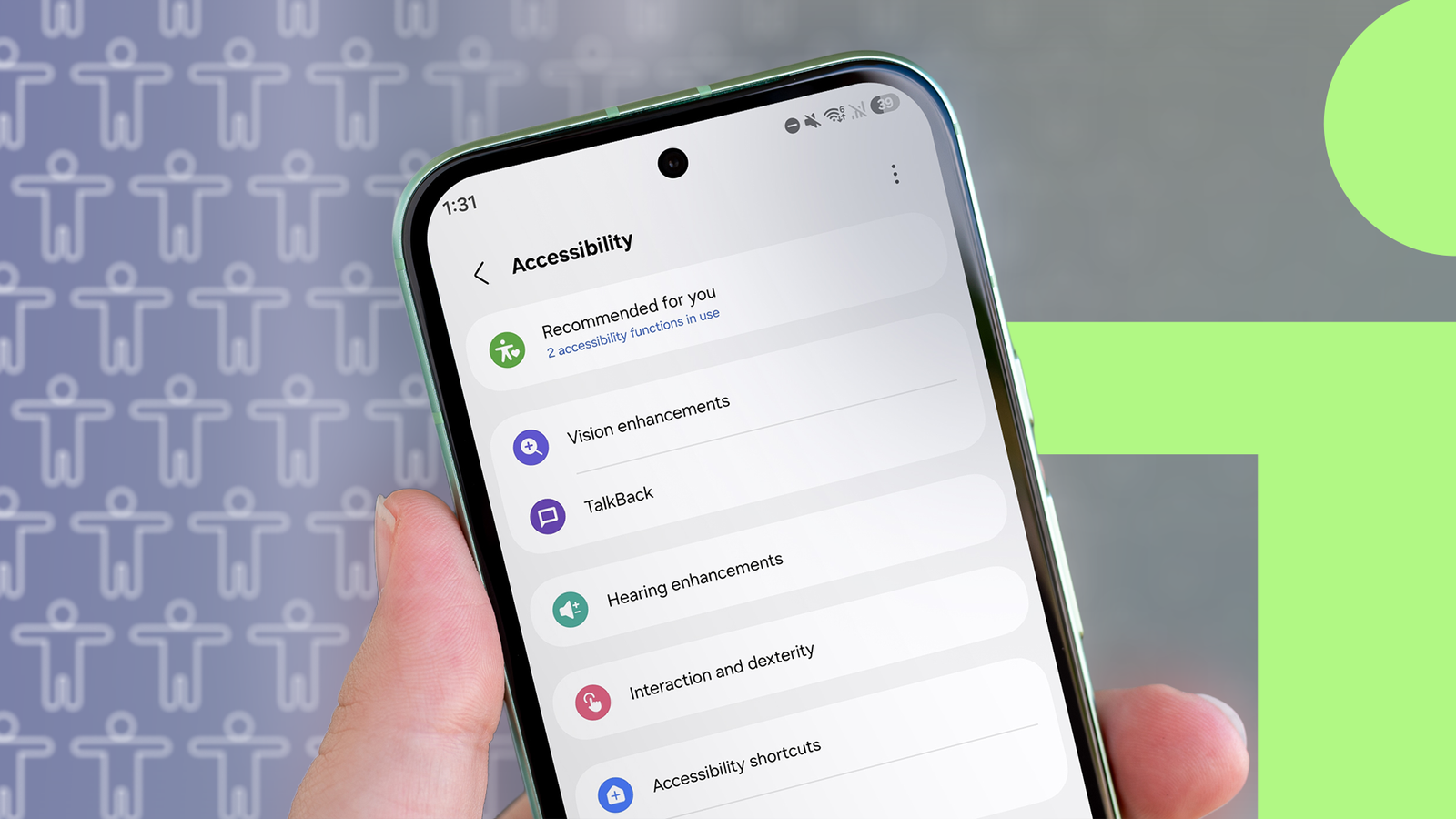
Published Sep 5, 2026, 8:15 AM EDT Ali has spent more than a decade covering consumer technology, with a knack for looking beyond the specs, tinkering with software, and uncovering the bigger stories behind Android, Google, Apple, and everyday devices. I opened the Accessibility menu for the first time in years, but not for myself. I wasn't looking for speed or a performance boost; I was fixing a font-size issue on my mom's phone. To my surprise, I found settings that made me faster at using my phone, and it had nothing to do with the chip or the GPU. This isn't about your phone processing anything quicker; it's about you spending less time waiting on it. The screenshot shortcut alone was worth the trip, and there were a few other shortcuts worth digging up too. The Accessibility menu isn't only for vision and hearing Most people open it once and never go back Android's Accessibility settings exist for people who need screen readers, larger text, or motor assistance. That's why the menu exists, and to be fair, it should stay that way. But a few toggles cut steps out of things you do constantly. Taking screenshots through the Accessibility menu skips the volume and power button combo. The same approach applies to Quick Settings. Instead of reaching to the top of the screen and swiping down, one tap from the Accessibility menu gets you there directly. Neither of these settings will make your phone faster. They make you faster at doing the thing you were already trying to do. I know it's confusing, but that's basically the gist of it. Remove Animations makes me faster, not my phone One toggle skips the wait, not the work If you've previously messed with the animation scale sliders in Developer options, you know they don't pull the plug on every animation. Some transitions still slip through those settings, depending on your phone and Android version. To access it, go to Settings > Accessibility > Text and display or Color and motion (depending on your Android version), and turn on Remove Animations. Turning it on doesn't change how fast your phone processes anything; the processing speed remains the same. However, it changes how long you would have to sit there watching a transition end before you can act again. It's only a matter of moments, and while it doesn't seem long, the difference is noticeable. I noticed the biggest difference in small display quirks that don't show up on a spec sheet, but can change how quickly you use your phone. Reduce Transparency and Blur does the same job on Samsung phones Less to render means less time before the next tap works Credit: Lucas Gouveia / Android Police If you're on a Samsung phone, there's another option worth knowing. Go to Settings > Accessibility > Vision enhancements, and turn on Reduce Transparency and Blur. This option reduces some of the visual effects behind your Quick Panel, notification shade, and app pop-ups, making the interface feel cleaner and less noisy. This tweak is Samsung-specific, so stock Android and Pixel phones won't have an identical toggle under that name. High Contrast Text doesn't touch performance, and that's fine It still makes you quicker, just not the way you'd expect High Contrast Text, or Outline Text if you're on Android 16 and newer versions, doesn't speed up your phone in any technical sense. It only thickens the outline for better readability, nothing more. This is a tricky one and can easily be questioned, but reading quickly means reacting quickly. If you can identify a button half a second sooner, you're moving through your phone half a second sooner too. The High Contrast setting, conjoined with the rest of them, will contribute to a faster overall user experience, even though it has nothing to do with the hardware. This isn't a benchmark win None of this will move a single number on the spec sheet Geekbench only reflects the SoC and hardware optimizations, since it has nothing to do with these settings. What changes is how much time you save by eliminating the transitions, blur effects, and text you have to squint your eyes at. Removing animations gets you to the end of your task faster. High Contrast is a smaller win, but it's still a real one; probably not for many, but it does have an impact. Developer Options is not the only tinkering place Most people skip this menu; I know I did. This is because nothing about the name suggests it's worth their time unless they need it. That's exactly why so much sits in there untouched. Give it 10 minutes before assuming Developer options is the only place worth tinkering with. There's also a feature that's apparently stopped people from walking into poles, so it's worth checking what you've been missing. Start with Remove Animations if you have to try one setting. It has the clearest effect, and it's available across a wide range of Android phones.
I found the best Android performance tweaks hiding in the Accessibility menu
Full Article
Original Source
Read the full article at Androidpolice →KhanList aggregates and links to publicly available news content. We do not host full articles from third-party sources. Always verify important information with original sources.