
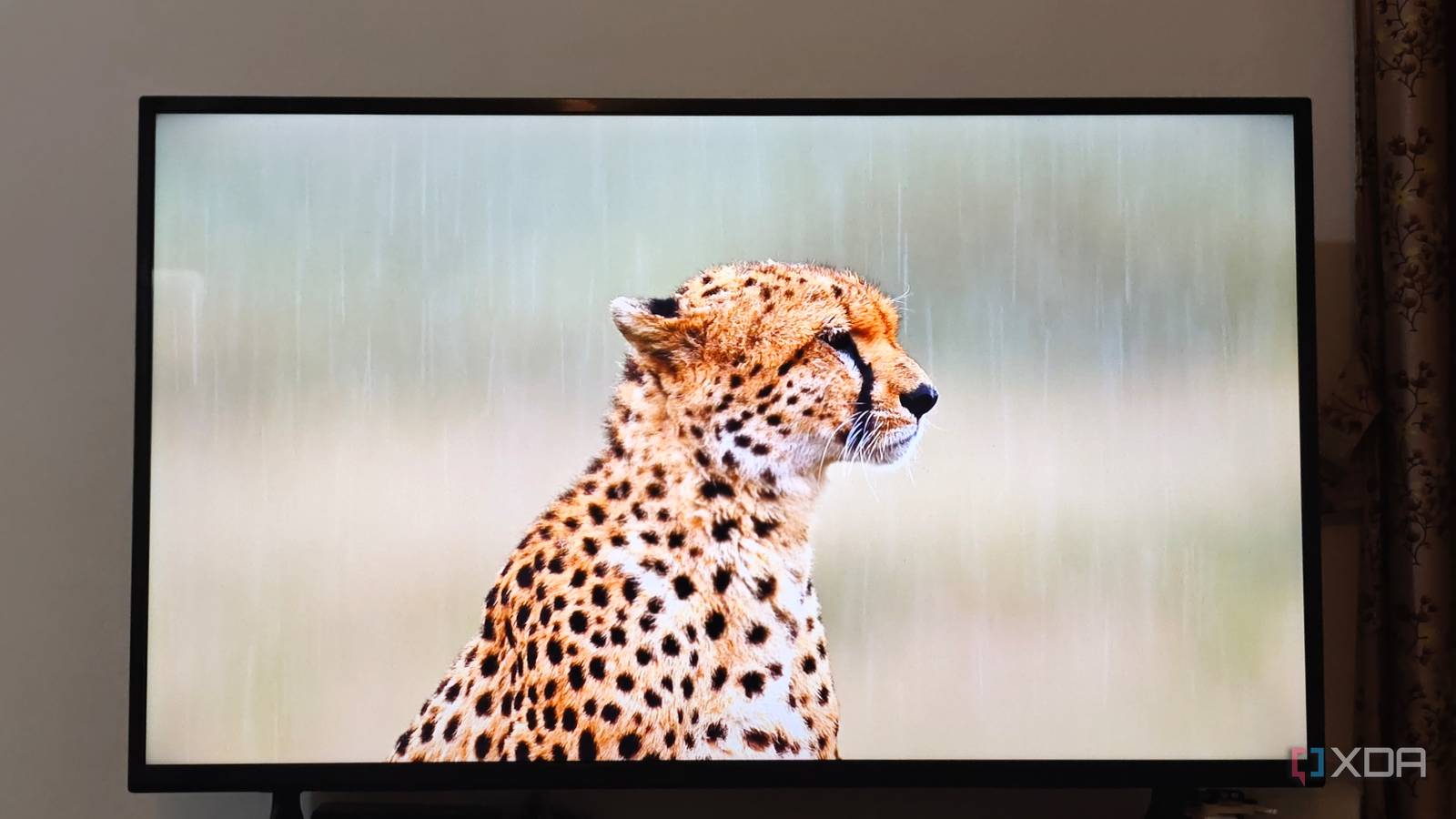
Published Jul 28, 2026, 3:00 PM EDT Anurag is an experienced journalist and author who’s been covering tech for the past 5 years, with a focus on Windows, Android, and Apple. He’s written for sites like Android Police, Neowin, Dexerto, and MakeTechEasier. Anurag’s always pumped about tech and loves getting his hands on the latest gadgets. When he's not procrastinating, you’ll probably find him catching the newest movies in theaters or scrolling through Twitter from his bed. If you have ever gone TV shopping in a store, you've likely noticed how good all the displays look. You feel like you can pick up any TV unit and go home, and if you give in to that temptation, you're probably disappointed to find out the display isn't as good at home. I fell for this once. The rigged display and sweet talk from the salesperson convinced me to buy an abysmal Sony TV. I'm better informed now, and after speaking to several TV manufacturers, I finally discovered why TVs look so much better in stores than they do at home. The display units are specifically configured for retail environments, and certain settings make the demo videos look brilliant. Retail mode is designed to sell the TV And that means misleading you The first thing you need to understand is that the TV you see in a showroom is rarely running the same picture settings you'll use at home. Most display units are set to Retail Mode or Demo Mode, which is designed to make the screen stand out in a brightly lit store. It pushes the panel much harder than the standard Home Mode and changes almost every setting that affects how punchy the picture looks. Brightness and contrast are usually turned up, colors are heavily saturated, and sharpness is increased to make every edge look more defined. Most stores also use the Vivid or Dynamic picture preset, which makes reds look redder, greens look greener, and highlights appear much brighter than they actually should. These settings don't produce an accurate image, but accuracy is not the goal here. The goal is to grab your attention before the television placed next to it does. Motion smoothing or MEMC is often enabled as well, which makes demo footage look extremely smooth and detailed. This works particularly well with slow camera movements, wildlife clips, sports footage, and aerial shots of cities. The moment you take the TV home and start watching a film, the same setting can make everything look artificial, almost like it was shot on a cheap video camera. The store environment is doing half the work The content being played is also the problem The TV settings are only part of the reason the picture looks better in a store. The content being played and the environment around the TV are equally important. Most showroom units run carefully selected 4K HDR demo footage that's designed to show off bright highlights, deep blacks, vivid colors, and sharp details. You're watching the best possible source material the TV can handle. Don’t take my word for it. Just look at the images in this article. I’m playing one of those videos labeled "8K Dolby" on YouTube, and the colors pop while everything looks pleasing. The picture is sharp, and it makes you think the display is fantastic. It’s a half-a-decade-old Sony Bravia I'm using, and let me tell you, this TV is abysmal. I’ve never enjoyed watching anything on it, and I’m going to replace it soon. But it should give you an idea of how these stores fool you. These demo clips are often played locally through a USB drive or an internal media player, which means they avoid the compression and inconsistent quality you deal with at home. The footage usually includes colorful landscapes, wildlife, city skylines, food, and slow camera movements because these scenes make almost every display look impressive. Showroom lighting also changes how you judge a display. Stores are extremely bright, so TVs with aggressive brightness and saturated colors stand out immediately. Two TVs placed side by side also create an unfair comparison because your eyes naturally move towards the brighter and more colorful panel, even when the other TV is producing a more accurate picture. Salespeople know this and usually compare TVs using the same demo loop instead of normal content. Test the TV with normal content before buying Watch stuff you'd usually watch The easiest way to avoid being misled is to stop judging the TV using the demo footage. Ask the salesperson to switch the TV from Retail Mode to regular mode and change the picture preset from Vivid or Dynamic to Movie, Cinema, or Filmmaker Mode. The image will immediately look less dramatic, but it will give you a much better idea of how the TV will perform at home. You should also ask them to play normal content. Open YouTube, play a familiar movie trailer, stream a dark scene from Netflix, or carry a USB drive with a few videos you already know well. Try a mix of content, including sports, dark scenes, low-resolution videos, and fast movement. Also, don't compare TVs only by brightness. Check whether blacks look grey, whether bright objects create halos, whether faces look natural, and whether the picture changes when you move away from the center. You need to pay attention to reflections as well, especially if your living room receives a lot of daylight. You should still read reviews before making a decision because a short store demonstration will not reveal every problem. Reviews from real people can tell you about software performance, panel consistency, local dimming, HDR performance, input lag, and issues that only appear after extended use.
I found out why my smart TV looks worse at home than it did in the store
Full Article
Original Source
Read the full article at Xda-developers →KhanList aggregates and links to publicly available news content. We do not host full articles from third-party sources. Always verify important information with original sources.