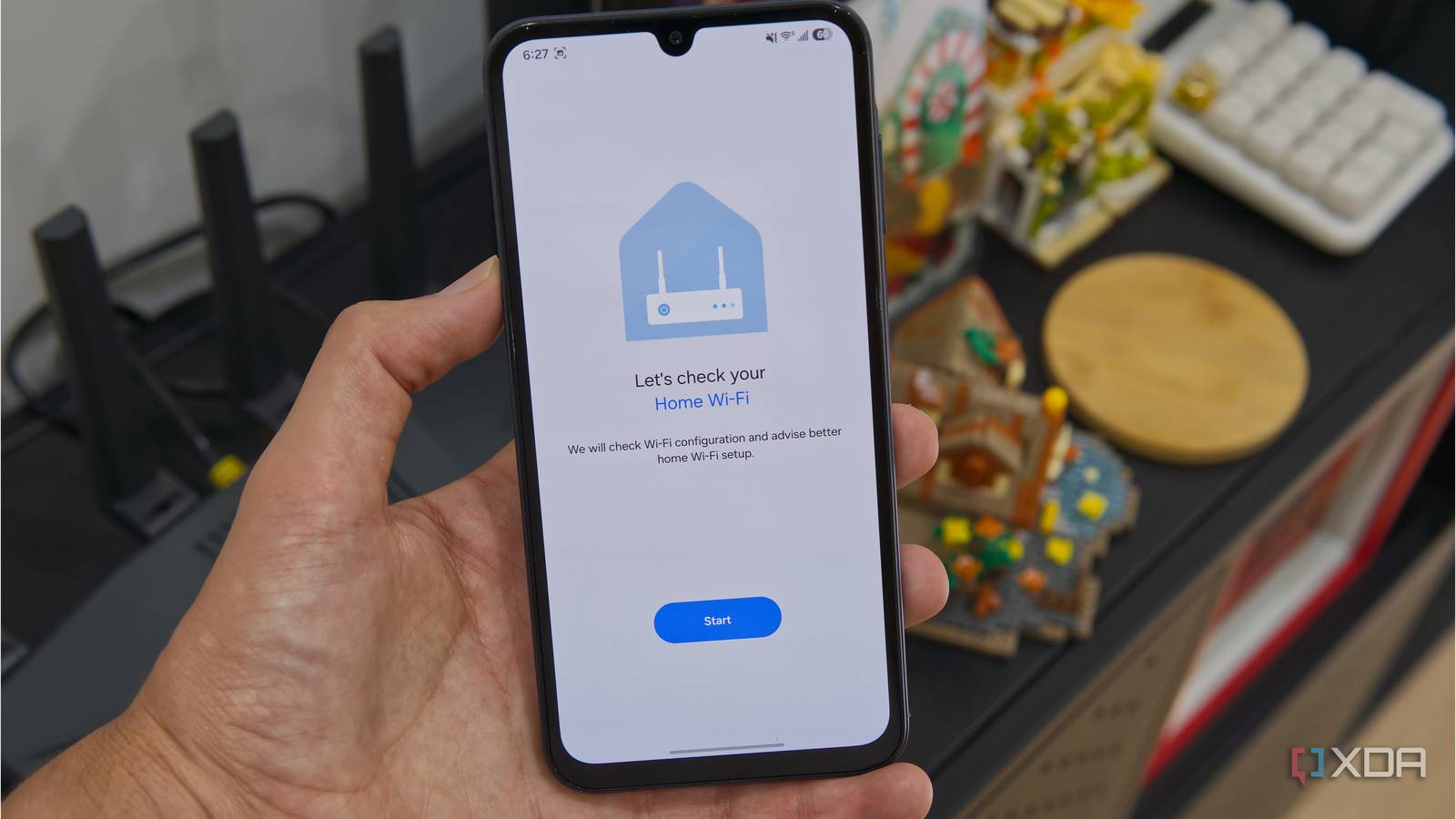
Published Aug 12, 2026, 5:00 PM EDT João has been covering the tech world for over 7 years, with a heavy focus on laptops and the Windows ecosystem. I also love all things tech and videogames, especially Nintendo, which he's always happy to talk about. Prior to joining XDA in 2021, he worked at Neowin: https://www.neowin.net/news/poster/jo%C3%A3o-carrasqueira/ Wi-Fi internet is one of those magical things that you typically don't have to think about, but when it starts having problems, it can be a nightmare to hunt them down. So many factors can influence Wi-Fi signal quality that finding the fix for your specific problem is harder than it should be. Unbeknownst to me, Samsung has actually had one of the best tools for diagnosing Wi-Fi on my phone for some time now, and if you have a Galaxy phone, you might want to check it out. It's called Connectivity Labs, and it packs way more information than I would expect for something that's built into my phone. You have to enable it first Samsung hides it from you For such a useful tool, Connectivity Labs is surprisingly hidden in Samsung's One UI software, but you can enable it relatively easily. Here's how you do it: Open the Settings app. Tap Connections and then choose Wi-Fi. Once you see the list of Wi-Fi networks, tap the three-dot icon in the top-right corner of the screen, then choose Intelligent Wi-Fi. Tap the version number under Intelligent Wi-Fi 5 times to unlock the Connectivity Labs option. It will appear underneath. It told me where the signal is weakest in my house Dead zones begone With Connectivity Labs enabled, you can start digging into everything that it offers, and one of the first you should check out is the Home Wi-Fi inspection. This lets you select one or more networks in your home and scan for any weak spots in your Wi-Fi coverage. If you split your 2.4GHz and 5GHz networks like I do, the app will actually tell you to set a unified Wi-Fi name, though I prefer it this way. Getting past that, the phone will start monitoring signal strength for the networks you selected, and you can simply walk around the house to see where the Wi-Fi signal is weakest. Samsung considers anything below -70dBm to be weak signal, and there were a few weak spots for my Wi-Fi network, which included my office, bathroom, and, to my surprise, the kitchen, which is one of the rooms closest to my router. I assume there's something special about the walls between the router and the kitchen, but thankfully, I've never had major connection issues. Most of those problems were exclusive to my office, though, where both the 5GHz and 2.4GHz fell below the threshold. I am testing this on a relatively low-end phone, so the results are portrayed more negatively. Generally, my internet coverage is solid in every room of the house, but I have had some issues setting up the smart home display in my kitchen occasionally, and this helps me understand why those problems are more prevalent there. Check busy channels and more Get the optimal setup Another common problem with Wi-Fi connections is that in densely packed areas, Wi-Fi channels can get overcrowded and slow down performance for everyone connected. Samsung Connectivity Labs helps address this too, as you can check the channels being used by all the connections in your vicinity. As you can tell from the images above, 5GHz channels are pretty clear in my apartment, so I could use just about any channel I want. I did notice that the 5GHz channel being used by my router wasn't being detected by the scan, but this may be because my router is set to use 160Mhz of bandwidth, and this enabled dynamic frequency selection (DFS) by default. Otherwise, the 2.4GHz channel my router picked already seemed to be optimal, but if I wanted to play it safe, I could simply force a specific channel in my router settings based on these recommendations. In addition to this, Connectivity Labs can help visualize nearby networks in terms of signal strength, show detailed information about your current connection, and graphs depicting the strength of your signal over time. There are a few more tools including a Wi-Fi diagnosis tool that shows you a record of Wi-Fi changes on your device, as well as a network diagnosis tool that tests your connection to websites of your choosing. It's a pretty complete set of features. There's quite a bit packed in here. It's an interesting summary, too Visualize your network usage On top of all this, there are a few smaller things here and there that Connectivity Labs offers. For example, the main screen shows you a summary of your network usage over the past week, such as when Wi-Fi was enabled and when you were actually connected to a network, whether that network uses the 2.4GHz or 5GHz band, what version of the Wi-Fi protocol it supports, and how much data was downloaded and uploaded through it. You can even customize your Wi-Fi connection list to filter out networks below a specific signal strength value, or add information about signal strength to the list. A few other options pertaining to auto-switching networks are also available here, though I admittedly didn't have much use for these. This is surprisingly good I often accuse Samsung of bloating up its software with unnecessary features and apps, but Connectivity Labs is a genuinely useful feature I didn't expect to find built in. You usually need a third-party app to get this kind of information, but Samsung gives it all to you out of the box if you know where to look, and I highly recommend enabling it if you want to troubleshoot your Wi-Fi connection.
I found dead zones in my Wi-Fi using a Samsung Galaxy feature nobody knows about
Full Article
Original Source
Read the full article at Xda-developers →KhanList aggregates and links to publicly available news content. We do not host full articles from third-party sources. Always verify important information with original sources.