
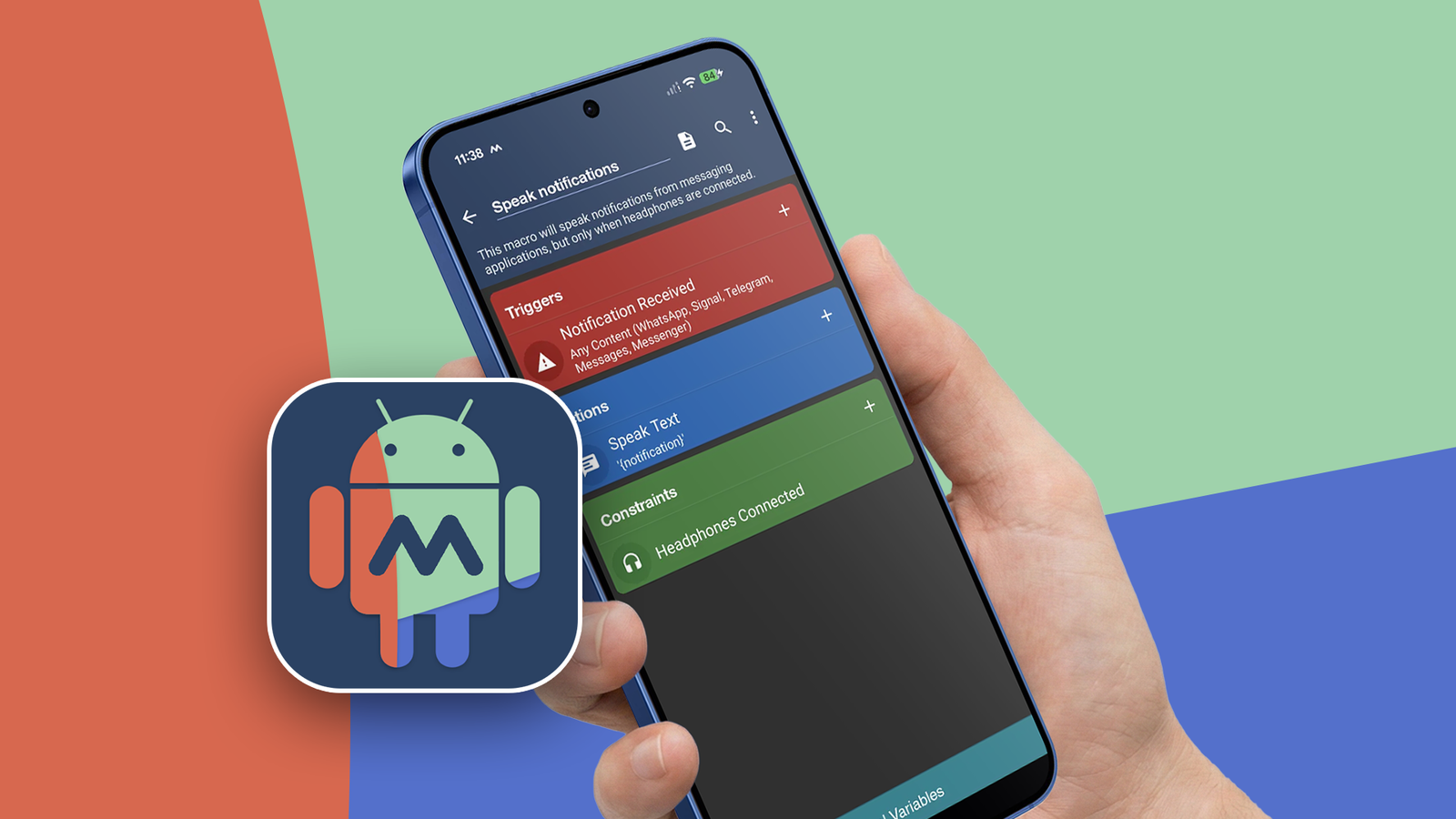
Published Sep 12, 2026, 3:00 PM EDT Akshay Bhalla was the former game guides editor for Screen Rant and the technology editor at MensXP. He has previously written about smartphones, apps, streaming, gadgets, and games for print, digital, and TV media outlets. When he isn’t writing about tech, he can often be found playing JRPGs, listening to music, or playing with his three dogs. You can reach Akshay at bhallanator @ proton dot me. I use my phone a lot, and even though I might be a power user, I still forget to turn a few settings on and off every day. Sometimes I forget something as simple as silencing my phone during meetings or launching a music app when I'm driving. But on busy days, these friction points pile up, and I wanted to automate these menial settings so I could get them out of the way. MacroDroid lets me build macros to automate basic phone tasks Automating menial things I use macros on my desktop when I'm gaming and for specific apps, and I wondered if I could do the same on my phone. But instead of tapping macro keys manually, I want an app that runs them automatically based on my location, time, or an event. After some research, I found two apps that fit the bill: Tasker and MacroDroid. Tasker looked robust, but I wanted something easier to set up and wouldn't take much time. I also wasn't sure whether any of the macros would work, so I wanted to start small before I made the big leap to Tasker. Manually turning certain settings on and off to save battery life or for specific situations can become annoying. For example, I like to turn off the tap-to-wake gesture on my phone each time I step out of the house, so I don't waste battery life on accidental screen wakes in my pocket. Similarly, I turn off mobile data when I'm at home since I'm always connected to Wi-Fi. But there have been many instances where I've stepped out and forgotten to turn on mobile data. Needless to say, I've missed important notifications from messaging apps and still regret it when it happens. Thankfully, I found MacroDroid to save the day, and I no longer worry about these small tasks. MacroDroid runs like a background assistant that handles all the tasks you don't want to do yourself. This is especially handy on a busy day when you don't want to worry about these tasks. MacroDroid works on one core principle, and you need to remember it when setting up a macro. It's fairly simple, but it works in the following format: Trigger > Action > Constraint (optional) When setting up a macro, define what triggers it and what action it takes. For example, you can set the trigger to geofencing around your home, then turn your Wi-Fi or mobile data on or off whenever you leave or arrive home. How I use MacroDroid to automate my phone tasks Automating my daily life Setting up MacroDroid is fairly simple if you know what actions you want the app to take. If you're new to this, the app has a wizard that lets you set up your first macro with simple prompts. It only took a few minutes, and then I was ready to set up my own. After I learned how MacroDroid macros work, I set up actions I would most often forget. The community has also built a large library of macros I can use. I can edit them for my use case and have them ready to go in no time. This is a great feature for beginners who might not want to dabble with creating their own macros and want to automate basic tasks. In my case, I wanted to set up key tasks that I know I need every day. For example, I set up a macro that triggers when I leave or arrive home. I set the trigger to my Wi-Fi and GPS location, which would toggle mobile data and Wi-Fi. My second macro is also related to the one I set up earlier. Whenever I jumped into a car, I set up a macro that launched YouTube Music, opened Maps, and navigated to work or home whenever I was connected to Android Auto. Similarly, I have MacroDroid connected to my calendar to silence my phone when the event starts and then turn on my ringer when it ends. If you want your macro to ignore or not take a certain action due to some exceptions, you can also set up Constraints. I haven't dabbled much with this option, but power users who know what to limit in the macro can take advantage of it. The free tier of MacroDroid lets you set up five macros. The premium tier unlocks unlimited macros, removes ads, and lets you back up macros to the cloud. You can also have fun with the app and set up cool macros that will launch certain actions. For example, I could set up a macro where, when I shake my phone, the flashlight turns on. I don't know about you, but in a dark room, this macro would come in handy. Automating my phone tasks has made a massive difference Automating most menial phone tasks relieved me of making many micro-decisions every day. It reduced the number of taps I made on my phone, and I no longer worry about decision fatigue. While Tasker offers more options for automating tasks on Android, I preferred a simpler alternative. If you forget certain phone tasks as I do, set up a few macros in MacroDroid and see if it makes a difference over the next few days. In my case, I'm going to try Tasker next.
I found an app that helped me stop doing repetitive phone tasks every day
Full Article
Original Source
Read the full article at Androidpolice →KhanList aggregates and links to publicly available news content. We do not host full articles from third-party sources. Always verify important information with original sources.