
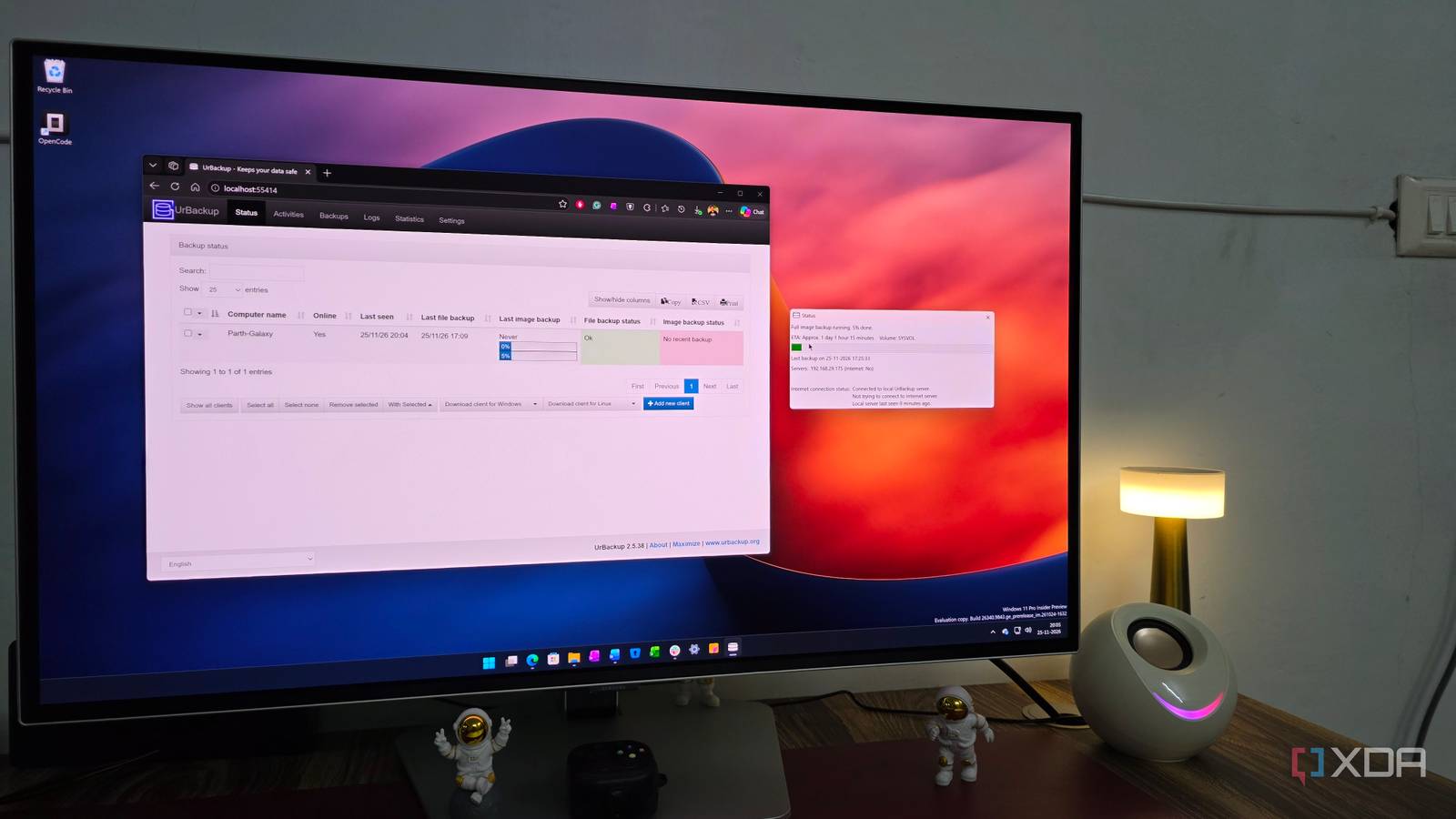
Published Nov 25, 2026, 1:00 PM EST Parth, a seasoned tech writer, wields the keyboard (or pen) with finesse to unravel the intricacies of both Windows and Mac operating systems. He has covered evergreen content on mobile devices and computers for multiple publications over the last six years. You can find his work on AndroidPolice, GuidingTech and TechWiser. Whether it’s demystifying system updates, deciphering error codes, or exploring hidden features, Parth’s prose guides readers through the binary maze. When not immersed in tech jargon, you’ll find him sipping chai, pondering the next software review, and occasionally indulging in a friendly debate about mechanical keyboards. Backing up my important files has always been one of those tasks I know I should take seriously, but managing multiple devices, external drives, and cloud storage subscriptions can become a headache. That's when I came across UrBackup, a free, open-source tool that promised to turn an ordinary computer into my own private backup cloud. It sounded almost too good to be true, so I decided to set it up and see whether it could simplify my entire backup routine. Why I wanted my own backup cloud Meet UrBackup, my unexpected discovery Between my Windows desktop and MacBook, I have thousands of documents, personal photos, work projects, and other important files. Although I have external SSDs and cloud storage services to protect my data, neither approach has been convenient. Manually copying folders to an external drive requires discipline, while relying on commercial cloud services means dealing with storage limits, recurring subscription fees, and privacy concerns. I wanted a centralized system where I could decide which folders to protect, how frequently to back them up, and how long to retain older copies. I wanted the entire process to happen automatically without interfering with my daily workflow. Here is where UrBackup comes into play. Unlike traditional backup utilities, UrBackup uses a client-server architecture. I can turn an existing computer into a dedicated backup server, install lightweight clients on my other computers, and manage everything from a central web dashboard. I like how flexible UrBackup is. It supports full and incremental file backups, system image backups on Windows, customizable backup schedules, and automatic cleanup of older backups. I can also browse previous backups and recover individual files without restoring an entire system. UrBackup is completely free and open-source. There are no premium tiers or subscriptions. My available storage is determined by my hardware rather than a cloud storage quota. Turning my PC into a backup server Automatic backups changed my entire routine Setting up UrBackup was straightforward. I downloaded the server application on my Windows PC, completed the installation, and accessed the web dashboard by entering localhost:55414 in my browser. Unlike several self-hosted tools I have experimented with, UrBackup didn’t require me to deal with Docker containers, terminal commands, or complicated configuration files. I created a dedicated backup folder on a secondary drive and specified its location in UrBackup’s server settings. Next, I installed the UrBackup client and selected the folders I want to protect. The server automatically discovered the client on my local network. I could follow the same process on other supported computers to consolidate their backups in one place. My favorite part about UrBackup is its set-and-forget nature. I can customize the intervals for full and incremental backups, specify how many previous backups to retain, and let the software handle everything in the background. Instead of copying my entire collection of documents and photos every time, incremental backups focus on files that have changed since the previous backup. This saves time, bandwidth, and storage space. I can also configure backup windows to avoid running intensive backups during my working hours. Once everything is set, I no longer need to remind myself to back up my important folders. One dashboard controls all my backups Restoring files was straightforward UrBackup’s web dashboard is where the entire setup starts to feel like my own private cloud. Instead of checking backup status on individual computers, I can monitor connected clients, ongoing backup activities, storage consumption, and backup history from a single interface. I can also configure individual backup schedules for different computers, check logs to identify potential issues, and initiate manual backups whenever necessary. Although the interface looks dated, I like how everything is logically organized and easily accessible through a web browser. A backup solution is only as good as its recovery capabilities, and UrBackup doesn’t disappoint here. I can head to the Backups section, select a computer, choose a specific backup date, and browse through its directory structure. UrBackup also supports system image backups on Windows, which provides another layer of protection against more serious system failures. UrBackup is open-source It’s not perfect, but it’s close The fact that UrBackup is free and open-source makes its extensive feature set even more impressive. However, there is room for improvement. The web interface looks dated, and some settings could use better explanations for beginners. I also wish the initial configuration for remote backups were more intuitive. Besides, maintaining my own backup server means I am responsible for its storage, security, and availability. I built my own backup safety net With UrBackup, you don’t need expensive NAS hardware or a complicated self-hosting setup to build your own private backup cloud. With an existing computer, sufficient storage, and a few minutes of configuration, I had a dedicated backup system under my control. From automatic incremental backups to accessing older versions of my files through a browser, UrBackup checks every box for my needs. Now, it may not have the polished interface of its rivals, but its flexibility, automation, and lack of fees make up for it. UrBackup UrBackup is a cross-platform backup tool.
I found a free open-source backup tool that works like my own private cloud
Full Article
Original Source
Read the full article at Xda-developers →KhanList aggregates and links to publicly available news content. We do not host full articles from third-party sources. Always verify important information with original sources.