
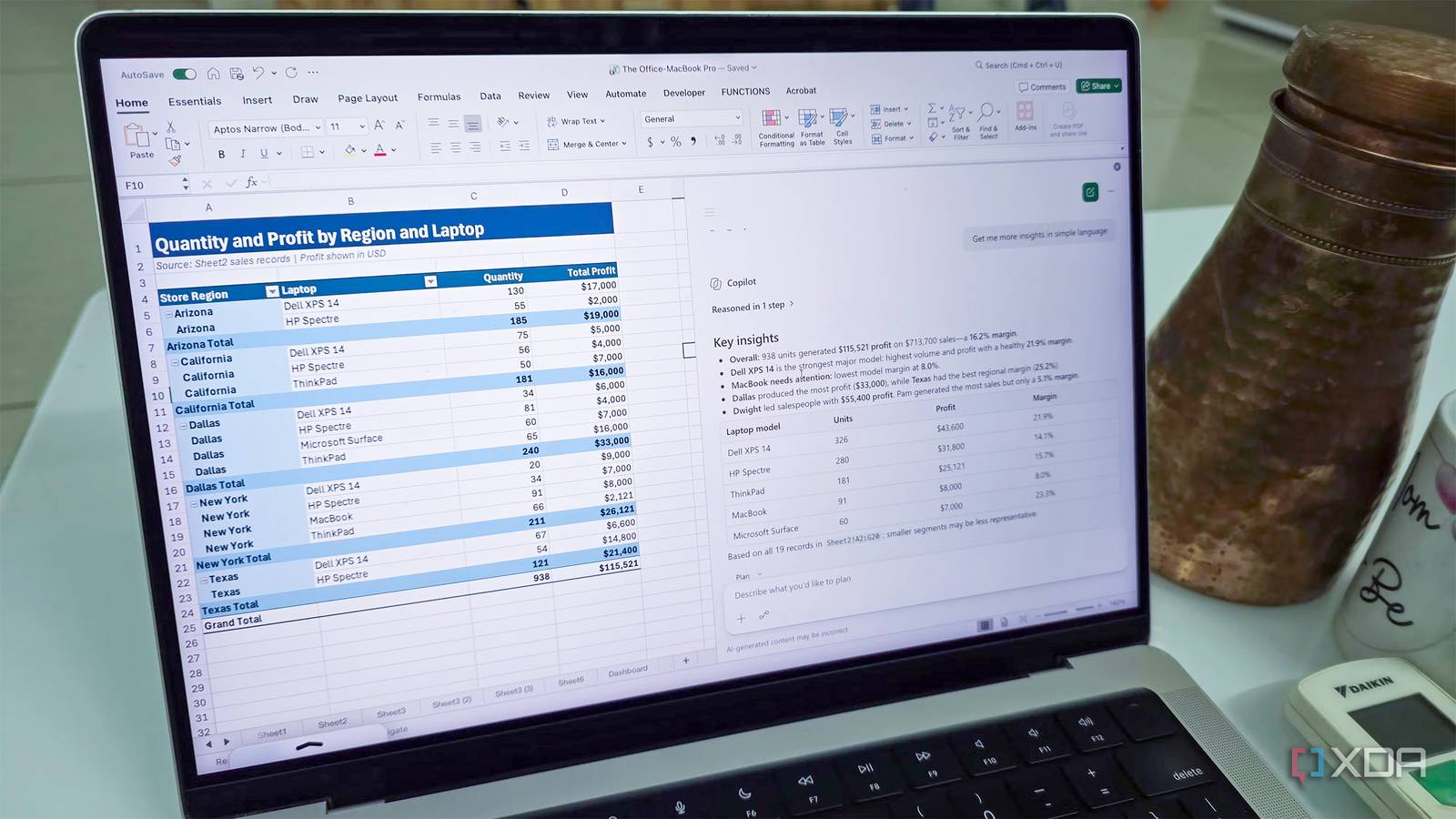
Published Sep 2, 2026, 2:00 PM EDT Parth, a seasoned tech writer, wields the keyboard (or pen) with finesse to unravel the intricacies of both Windows and Mac operating systems. He has covered evergreen content on mobile devices and computers for multiple publications over the last six years. You can find his work on AndroidPolice, GuidingTech and TechWiser. Whether it’s demystifying system updates, deciphering error codes, or exploring hidden features, Parth’s prose guides readers through the binary maze. When not immersed in tech jargon, you’ll find him sipping chai, pondering the next software review, and occasionally indulging in a friendly debate about mechanical keyboards. I will admit, I was skeptical about Microsoft baking Copilot into Excel. I didn’t think I needed an AI sidekick hovering over my grid. But after finally letting Copilot handle my raw datasets, build out complex nested lookups, and automate tedious formatting in plain English, I realized my hesitation was a mistake. It doesn’t just trim minutes off routine tasks – it changes how I approach spreadsheets, and I regret waiting this long to make it part of my daily routine. The initial skepticism Breaking my doubts about spreadsheet AI When Microsoft first rolled Copilot into Excel, I completely ignored it. I have seen AI getting forced into every app lately, and most of it feels like useless marketing fluff that gets in the way. I figured my muscle memory, familiar keyboard shortcuts, and trusty nested formulas were more than enough. Plus, I assumed that typing prompts into a sidebar would be slower than doing the work myself, so I left that ribbon icon untouched for months. Cleaning messy raw exports in seconds Dealing with messy CSV exports instantly If you regularly pull raw CSVs from payment gateways, ad dashboards, or initial databases, you know the drill: the data is almost always an unreadable mess. Customer names are jammed into a single cell, timestamps use weird delimiters, and random trailing spaces break every lookup you try to build. Usually, that means wasting fifteen minutes writing string functions like TRIM, TEXTSPLIT, and nested LEFT/RIGHT formulas, or manually toggling Text to Columns and hoping it doesn’t overwrite an adjacent row. With Copilot, I cut that entire routine down to a simple prompt. I opened the pane and typed: "Split Column A into separate First Name and Last Name columns, fix the title casing, and remove any blank rows." Instead of troubleshooting text formulas, Copilot showed a quick preview of the transformed columns, explained the logic, and applied it straight to the sheet. It used to be the dullest, most repetitive point of working with new data, and now Copilot does everything in thirty seconds. Writing complex lookups without syntax headaches Leave nested formula syntax behind Even after years of using Excel, nested lookup formulas still give me pause. The moment a project requires matching data across different tabs based on multiple conditions – say, pulling a specific regional rate while matching both a product SKU and a fiscal quarter. Suppose you have an inventory sheet in one tab and an updated pricing matrix buried in another. Instead of manually stitching together a multi-criteria XLOOKUP, you can fire up Copilot and add a prompt like "Add a new column called Current Unit Cost that pulls the price from the Q3_Pricing sheet by matching the SKU and Region columns and return 0 if there is no match." Within seconds, Copilot writes the exact formula, drops it into the table, and provides a brief, plain-English breakdown of how the logic works. That breakdown is the real win: it acts as an immediate check and lets you verify everything before committing it to the sheet. Digging for trends and outliers Uncovering hidden outliers Whenever I got handed a massive sales dataset with hundreds of rows, my instinct used to be to build a quick scratchpad: creating temporary filter views or throwing together a pivot table (more on that in a minute) just to answer a couple of high-level questions. This is where Copilot comes into play. I can interrogate the sheet without worrying about accidentally overwriting formulas or modifying cells. Recently, I was working through a hefty set of sales export tracking columns: Sales Person, Laptop Model, Region, Quantity, Price, and Profile Margin. Instead of slicing the raw numbers manually, I switched Copilot and treated it like a data analyst sitting next to me. I asked, "Which laptop models are generating high sales volume but sit in the bottom 10% for profile margin, and in which regions?" Within seconds, the sidebar pointed out that the HP Specter was flying off the shelves in the Dallas region. It cited the exact rows and provided a clear summary table right in the chat window. I can even ask questions like ‘Show me any sales reps whose total revenue is above the team median,’ and it does the job in no time. Building one-click visual summaries and pivot tables Instant visual dashboards in plain English Once I have spotted an interesting trend in the raw numbers, the next hurdle is usually turning that data into something presentable for a meeting or a quick status update. In standard Excel, that means dealing with the familiar PivotTable. With Copilot, I can now add a prompt like "Create a PivotTable on a new tab showing Quantity and Profit broken down by Region and Laptop." Copilot didn’t just suggest how to build it. It executed the entire task. It generated a fresh sheet, neatly structured the pivot layout with proper number formatting, and dropped in an editable, dynamic chart right next to it. My spreadsheets will never be the same Let’s be real: Copilot isn’t going to turn Excel into an autonomous machine that does your entire job while you grab tea. You still need to structure your tables properly, double-check their math, and guide them when a prompt generates something slightly off-target. But if you view it as a fast, capable sidekick rather than an autopilot, it earns its place very quickly. If you already have access to a Microsoft 365 plan and have been leaving that sidebar closed out of habit, I highly recommend taking 20 minutes to test Copilot on your next messy project.
I finally started using Copilot in Microsoft Excel and I should have sooner
Full Article
Original Source
Read the full article at Xda-developers →KhanList aggregates and links to publicly available news content. We do not host full articles from third-party sources. Always verify important information with original sources.