
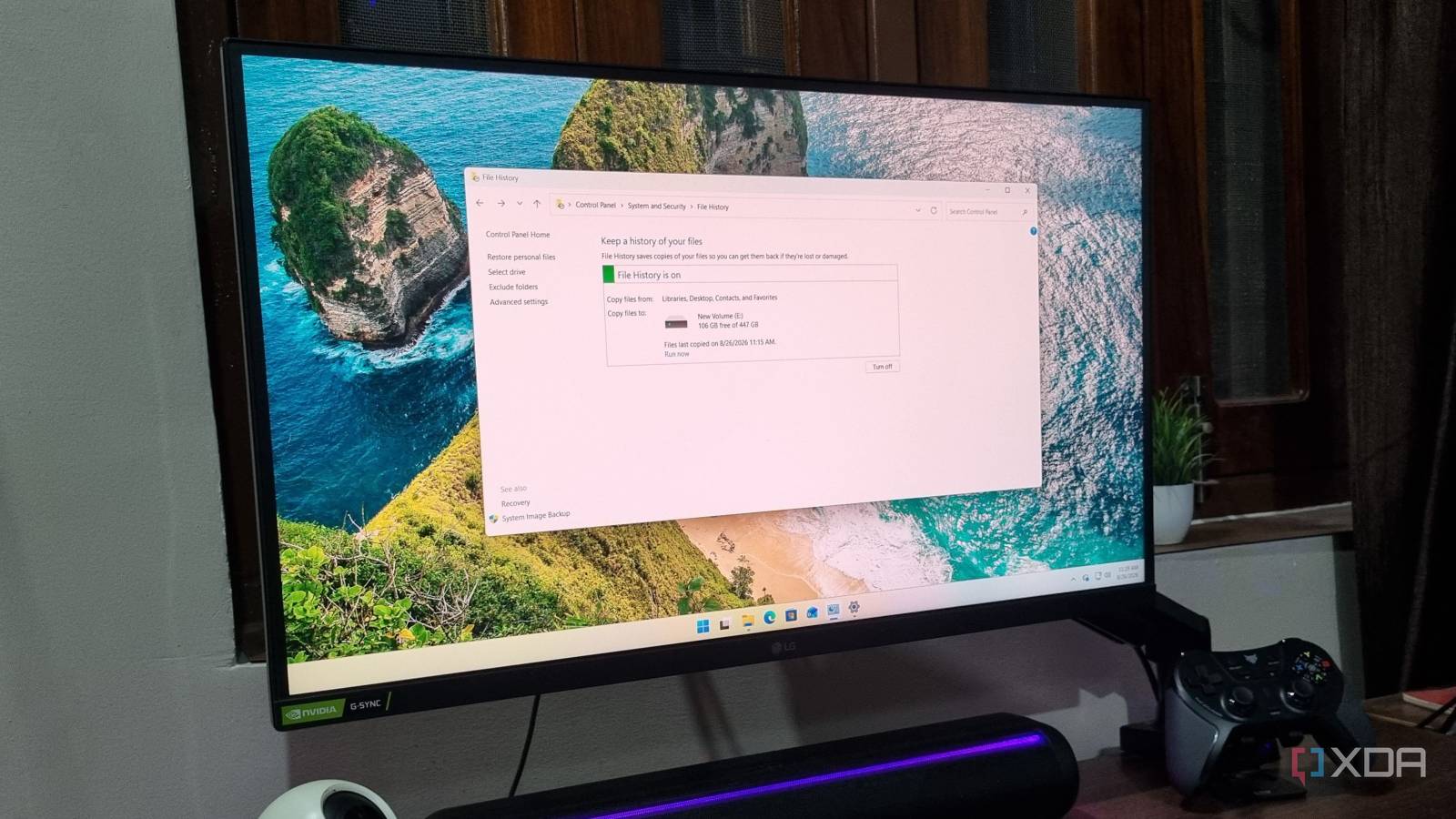
Published Sep 4, 2026, 6:00 AM EDT Abhishek is an author at XDA who covers computing. He has loved computers since he got the Lenovo G570 in 2012. Abhishek holds a master's degree in computer applications and began his writing career in 2018. He loves writing how-to articles, listicles, and informational posts on popular operating systems and web services. He closely follows the Windows Insider program and tests new Insider builds to discover upcoming experimental features and upgrades. His past work includes long-term collaborations with reputed publications like Tom's Hardware, and Windows Latest. When not writing anything, he is busy watching new episodes of One Piece or searching for something binge-worthy. Windows backup tools don’t get the same appreciation as third-party alternatives. Microsoft has decided to permanently retire the old Backup and Restore tool, and you might not find it in future OS builds. Since Microsoft consolidated its efforts around promoting the new Windows Backup tool, the older tools have received far less attention. There are a couple more options apart from Windows Backup, and one of them is File History. This rarely used Windows backup tool launched with Windows 8 as a specialized solution for maintaining multiple versions of your files and folders. But I didn’t use it because a more comprehensive system backup solution made sense. However, none of those tools could maintain multiple copies (versions) of the same files, and after I began using File History, it helped me recover files and folders that would otherwise be gone for good. Accidental deletions are unavoidable File History saved me from one My Windows PC is a cluttered mess, and I put off minor cleanups and organization for later. You can call it laziness, which is an apt term for a user who always finds an excuse for anything maintenance-related on their computer. My downloads and document folders are very precious to me, and I don't use OneDrive on my main PC. I only use it on test virtual machines when I need to spot a new feature or play with the settings. I set up File History at the beginning of July, a couple of months ago, as a precaution to back up these folders. Before that, I periodically copied the files to another drive and an external drive as a preventive measure. Last month was tax season in my country, and that meant dealing with bank statements, client invoices, and other tax portal documents, all of which were necessary for an accurate tax filing. I gathered all these documents, filed the tax return, and then didn't check them again until after the deadline. One fine day, my C drive was almost full, and I needed to make space for a couple of ISO files. So I frantically deleted a large chunk of images, documents, archives, and folders from Downloads without checking those useful PDFs, then emptied the Recycle Bin as well. A week later, I needed one of the invoices and a bank account statement to modify the filing, and I couldn’t find them or the parent folder. I panicked for a few minutes before realizing that File History had been saving and preserving versions of these folders. Restoring previous versions is a fascinating feature Bringing back deleted items I right-clicked on the folder, opened its properties, and switched to the Previous Versions tab. It showed me the option to restore everything in that folder, and with a few clicks, my documents were restored in the Downloads folder. The best thing about the feature is that it can preserve multiple versions of the same folder or file. This lets you browse and restore very old versions of an Excel or Word fileyou overwrote as the project progressed. Another way to browse versions is through the File History interface, which you can launch directly from the Properties window. The interface offers an easy carousel format to view available versions and restore the one you want. I like the fact that File History doesn't encrypt files or make them unreadable on other machines. You can browse the external drive directly to find the files, and it even works on another system. But browsing the external hard drive directly takes longer, since you can't choose the backup version you need. The folder shows all the files backed up to the drive, but lacks version-selection and restoration controls. Also, you must configure File History beforehand to avoid sticky situations like the one I faced a few weeks back. Fine-tuning version frequency Covering all the bases File History’s most impressive feature is that it saves and maintains versions indefinitely, unless you specify otherwise. There are niche use cases where this approach makes sense. For example, consider a user like me who has maybe 2–3 GB of files in the Downloads and Documents folders. The total size is very small compared to the target driveFile History uses to maintain thebackup. Even if I set the save frequency to every ten minutes, it’ll take a long time to fill the drive. File History only maintains versions of files that are mutable, like a text file or another such editable document. It tracks changes to the file, creates a new copy, and backs up any new files added after the last session. So, it doesn't duplicate files except the ones you modified. You can choose to stick to the default one-hour cycle or increase the save frequency to daily or even as low as ten minutes. Apart from the usual external drive option, you can choose a network drive for backup as well. I prefer the physical drive option as it remains connected to the system and mounts when I boot to the desktop. There’s no need to repeat the connection or setup, as File History scans for the drive, tracks changes, and initiates backup automatically. Protect your files File History is not a traditional backup tool that can back up the complete system. It’s a leaner, hyper-specific tool to back up files and maintain multiple versions of select locations. I wouldn’t suggest using it to back up very large folders, and instead save only the Library and a few other locations on other drives. File History is completely free, doesn’t need a Microsoft account to work, and all these traits make it an indispensable tool for Windows users. However, it needs a facelift and maybe a separate app or a section in the Settings app, as Microsoft is slowly phasing out the Control Panel. Windows 11 Pro A USB installation drive and license key for Windows 11 Pro, with additional features like Hyper-V and Windows Sandbox support.
I finally set up Windows File History properly, and it saved a folder I'd deleted twice
Full Article
Original Source
Read the full article at Xda-developers →KhanList aggregates and links to publicly available news content. We do not host full articles from third-party sources. Always verify important information with original sources.