
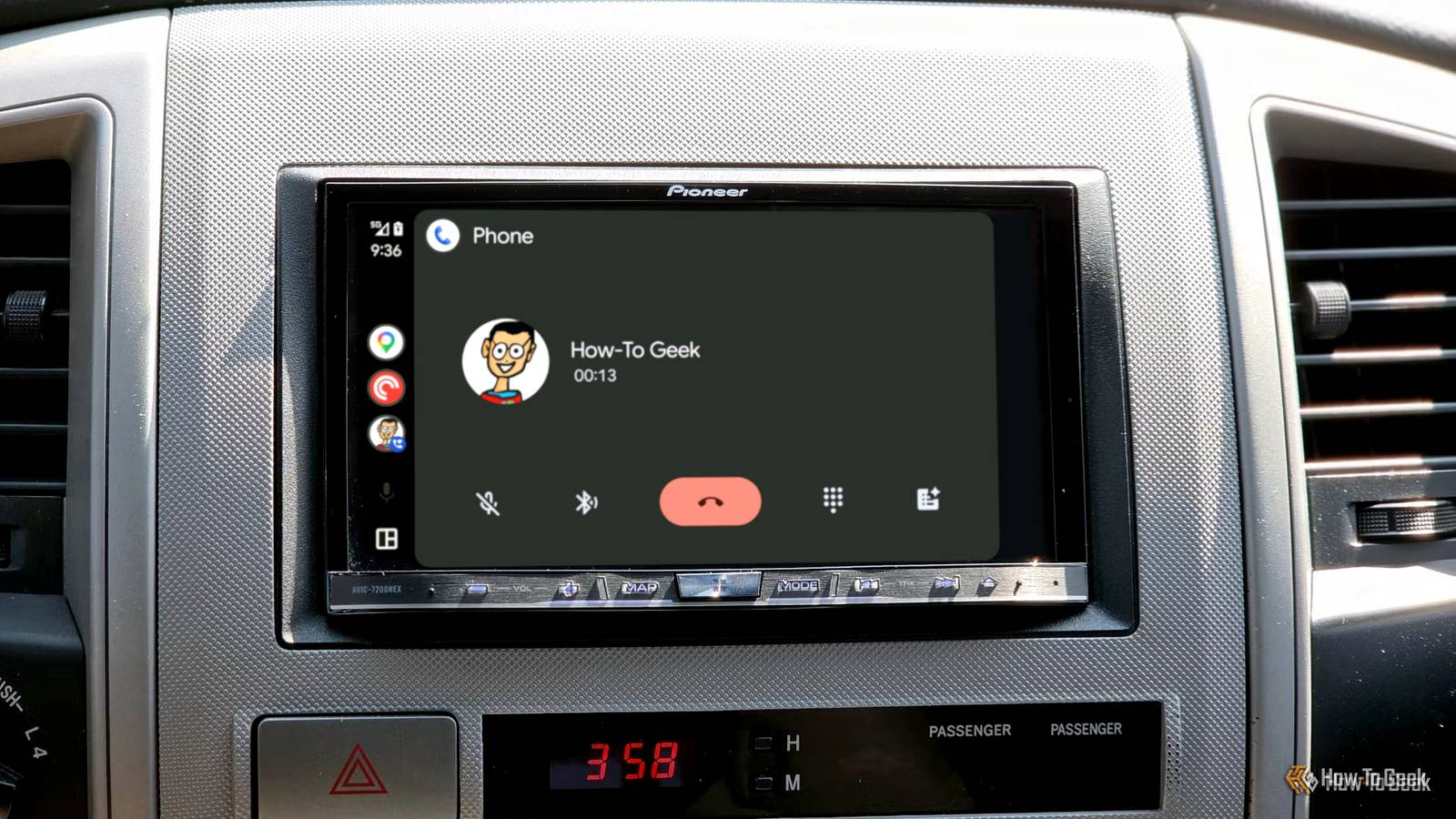
Published Sep 18, 2026, 1:30 PM EDT A Computer Engineer turned tech-savvy. Sanya is part of the How to Geek team with experience in writing tech-related blogs. She transforms complex topics into simple, accessible guides. Her forte is in iOS, macOS, and Windows software. Writing is something she truly adores, and she seeks knowledge in everything she encounters. Whenever I noticed an Android Auto feature missing in my car, I’d always blame my phone, Android Auto, or even the car’s software. I know these all matter too, but not in my case. I’d look up a feature, follow the exact steps, and still couldn’t find the option on my screen. Finally, I found the real culprit: my car’s small display. It turns out that Android Auto doesn’t look or behave exactly the same way on every car display. Screen size, resolution, and available space can affect how certain features appear or are arranged. That explained a few things that had been confusing me for quite some time. Once I figured out what was going on, these four Android Auto quirks suddenly made sense. The Android Auto taskbar is stuck My display decides where it goes Credit: Joe Fedewa / How-To Geek One of the first things that made me suspect my car’s display was the problem was the Android Auto taskbar. I’d seen multiple screenshots of Android Auto where the taskbar appeared along the side of the screen, giving the navigation map more room. On my car, however, it stubbornly stayed at the bottom. At first, I checked my settings to make sure my Android Auto and car software were up to date. Everything was current. Then, I compared my screen with screenshots from other cars and realized that the layout isn’t identical across every car display. Android Auto has to adapt its interface to different car displays. On my smaller screen, the taskbar at the bottom leaves less vertical room for Maps and other content. I'd prefer it on the side, especially when I’m driving and want to see more of the map. But Android Auto doesn’t let every user choose their preferred position. If your setup offers a taskbar-position option, check the Android Auto settings on your phone. If you don’t see one, you may not be missing anything — the available controls can vary depending on your car and display configuration. The split-screen layout isn’t the same Small screen, big squeeze Credit: Joe Fedewa / How-To Geek I noticed the difference even more when I started using Android Auto’s split-screen layout. It looks great when there’s plenty of room to play with. Maps can sit on one side while media controls or other information take up the other. On my smaller display, though, everything feels like it’s fighting for space. Nothing is necessarily broken, but there’s simply less room for each element. When I’m going to pick up my daughter, I want the route to take up as much space as possible and be easy to read. But when another panel shares the screen, the navigation area naturally gets smaller, leaving me with less room to see the map. That’s not a huge problem because I already know my way to my daughter’s class, but I wonder what it’ll be like when I have to follow a route somewhere unfamiliar and need to pay closer attention to turns and roads. So, while my car can still show a split-screen view, it doesn’t feel as spacious as the one in my dad’s SUV. I’m missing an Android Auto button Another button bites the dust The notification button is another small detail that can make Android Auto feel different from one car to another. In my dad’s SUV, notifications pop up on the screen, and the icon is clearly visible in the interface. On my car, however, I don’t see the button in the same place. That can be confusing when you’re following a guide and looking for a button that seems to be missing. The reason is fairly simple. There’s limited room for the interface, and Android Auto has to fit navigation, app controls, the taskbar, and other elements into the space provided by the car’s display. When that space is tighter, Android Auto may have to adjust how those elements are presented to fit everything on the screen. The notification button hasn’t necessarily disappeared. It may just be somewhere else on your screen. Even my app launcher changes My screen has other plans Credit: Joe Fedewa / How-To Geek All my Android Auto apps are right there, but the app launcher doesn’t always look the same. I assumed the app launcher would have a fixed layout because the apps come from my phone. Turns out, my car’s display gets a say too. Android Auto can adjust the App Launcher layout based on the vehicle’s screen width and height. On a wider display, the launcher can open beside the navigation bar, while on a portrait-oriented screen, it can appear above it. So even when two cars are running the same version of Android Auto, the app launcher can look different. And these aren’t the only differences Stop assuming that Android Auto is all about your phone. Now I know my car has a bigger role than I gave it credit for. So the next time I follow an Android Auto tutorial or sit in someone else's car and spot a difference, I won't assume something is wrong with my phone or start checking for another update. I’ll check my car’s display first.
I finally found out why these 4 Android Auto features look different in my car
Full Article
Original Source
Read the full article at Howtogeek →KhanList aggregates and links to publicly available news content. We do not host full articles from third-party sources. Always verify important information with original sources.