
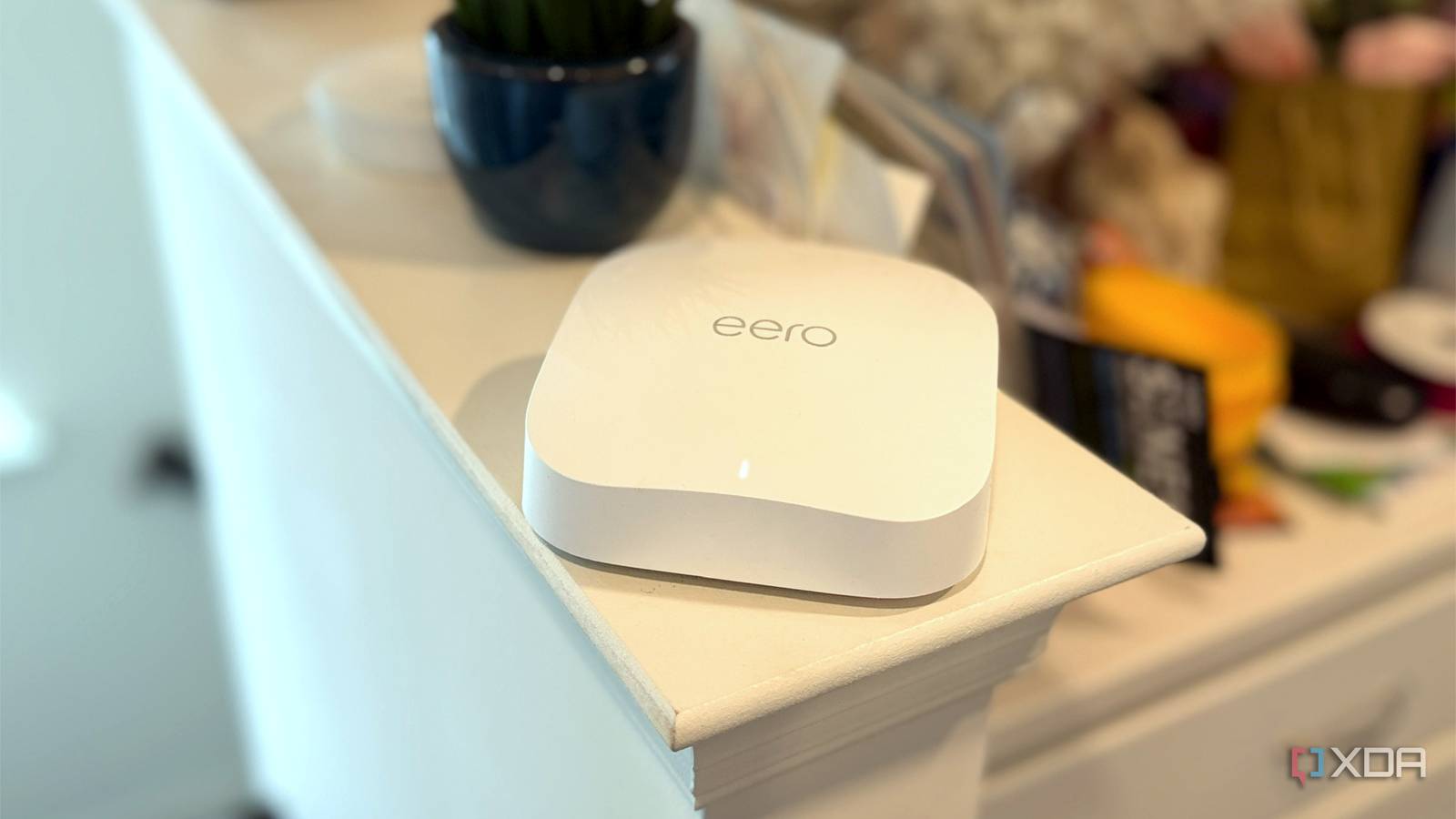
Published Oct 4, 2026, 10:00 AM EDT Maker, meme-r, and unabashed geek, Joe has been writing about technology since starting his career in 2018 at KnowTechie. He's covered everything from Apple to apps and crowdfunding and loves getting to the bottom of complicated topics. In that time, he's also written for SlashGear and numerous corporate clients before finding his home at XDA in the spring of 2023. He was the kid who took apart every toy to see how it worked, even if it didn't exactly go back together afterward. That's given him a solid background for explaining how complex systems work together, and he promises he's gotten better at the putting things back together stage since then. The smaller bedrooms upstairs have been my home's Wi-Fi black holes since I moved in. Video calls froze, my laptop dropped off the network, and my phone showed mostly full bars while refusing to load a single page. I did what everyone does and blamed the walls, then tried moving my second mesh node around, and even put a third into the cart just in case. The thing is, the hardware was never the problem. My router had plenty of range, and the fix didn't involve adding another node to my mesh system. It was a handful of settings buried in the advanced menus. So, after going through the router settings nobody checks and making sure the neighbors' Wi-Fi wasn't causing the issue, I dove into what other settings I could change to fix things. Not all of these are available on every router (including my Eero kit), but they're worth checking if nothing else works. Why my dead zone was never really about range Your phone can't shout as loud as your router Here's the part that took me far too long to understand. Signal bars only measure how well your phone hears the router, and routers transmit at far higher power than phones, which keep their radios quiet to save battery. So the router's signal reaches the smaller bedrooms just fine, but the phone's reply never makes it back, and the connection falls apart even though the icon looks healthy. Before I changed anything, I walked the house with a Wi-Fi analyzer app on my phone and logged signal strength and throughput in each room. That baseline matters more than any single setting because, without it, you're guessing. Turning transmit power down helped more than turning it up My router's transmit power was set to max, which sounds like exactly what you'd want for coverage. It isn't, at least not always. Cranking the power makes the router louder, but it doesn't make your phone any louder, so it widens the gap between how far the router can be heard and how far a device can actually answer. It gets worse with multiple access points. Extra power can add interference and convince devices to stay on a distant access point instead of a closer one. For band steering, you want the 2.4 GHz and 5 GHz cell sizes to be about the same; otherwise, it won't work correctly. That means if your 5 GHz is set to 18–21 dB, set 2.4 GHz to 12–15 dB (keeping a 6 dB separation), which gives you roughly the same signal coverage for both. Without this, your clients would likely stick to the 2.4 GHz band, and you'll notice slowdowns. Some routers also hide an eco or power-saving mode in their system settings that caps output, so check for that while you're in there. Sure, if you've got one router in a small apartment, full power is probably fine. But dead zones rarely live there. Channel width and DFS were quietly shrinking my coverage Wider channels trade range for headline speed Every router spec sheet loves 160 MHz channels, because wider channels mean bigger numbers. What the box doesn't mention is that each time you double the width, the noise floor rises by roughly 3 dB. That eats into your signal-to-noise ratio, and the devices furthest from the router are the first to drop to slower rates or lose the link entirely. My 5 GHz radio was set to 80 MHz, and I dropped it to 40 MHz, which made the network more responsive. On 2.4 GHz, 20 MHz is the only sensible choice, using whichever of channels 1, 6, or 11 is quietest where you live. Anything wider just means more overlap with your neighbors on an already crowded band. DFS channels are quieter, but there's a catch The DFS channels in the middle of the 5 GHz band (52 through 144 in the US) share spectrum with weather and military radar, which is why plenty of routers leave them out of auto channel selection. That also means they're usually far less crowded, which is great news if your neighbors have all piled onto the same few channels. The catch is that the router has to listen for radar before it can use one of these channels, so 5 GHz takes longer to come back after a reboot. If it detects radar while you're connected, it has to move, and it can't return to that channel for 30 minutes. A router set to a fixed DFS channel also won't hop back on its own after a radar event. My router's smart features were making the issue worse Band steering kept guessing wrong in the bedrooms Most routers now merge both bands under one network name and decide for themselves which band each device lands on. ASUS and Netgear call it Smart Connect, plenty of TP-Link models use the same name, and others just call it band steering. It works fine near the router, but at the edges of the house it can push a device onto 5 GHz it can barely hear, or bounce it between bands every few minutes. That's exactly what was happening in the smaller bedrooms. Devices were sticking to the main node in the basement, which was just at the edge of the usable 5 GHz range because the signal had to go through two layers of floor. The bars looked fine, the connection didn't, and the router's own logic was to blame. Splitting the bands is inconvenient but it works The fix is to turn band steering off and split your Wi-Fi into two networks, each with its own name, so you pick the band instead of the router. On most routers, that's a single toggle on the main wireless page, and you can give each band a separate name and password. Some models also expose the steering thresholds, like the Smart Connect Rule page on ASUS routers, if you'd rather tune it than kill it. The trade-off is that devices no longer switch bands on their own. I pointed the devices used in the smaller bedrooms at the 2.4 GHz network, which gets through walls far better, and left everything near the router on 5 GHz. It's less elegant, but the bedrooms stopped dropping out, and plenty of smart home gear only uses 2.4 GHz anyway. Beamforming was the setting that didn't help Beamforming is the other toggle sold as a range booster because it aims the signal at your device instead of spraying it in every direction. Netgear, for example, enables implicit beamforming by default and says it helps even older devices. Don't expect miracles. When SmallNetBuilder tested beamforming, it found modest throughput gains at mid-range but no extra range, and the link was still unstable at the weakest signal levels. Leave it on, since it doesn't hurt, but it won't rescue a dead zone on its own. My dead zone is gone, and I didn't buy a thing The smaller bedrooms now get solid, if slower, connectivity thanks to staying on the 2.4 GHz band, and every other room is fine on 5 GHz. None of it needed new hardware, just settings that shipped tuned for spec-sheet numbers rather than my house. That said, settings can't fix everything, and if your dead zone sits behind solid concrete or two floors away, a wired access point is still the fix you should aim for. If you want to try this yourself, go in order: transmit power first, then channel width and DFS, then band steering last. Change one setting, walk back to the same spots, and test again before touching the next. It's slower, but it's the only way to know which change actually helped, and which one quietly knocked your smart plugs offline.
I finally fixed my Wi-Fi’s dead zones, and all I had to do was change some hidden settings
Full Article
Original Source
Read the full article at Xda-developers →KhanList aggregates and links to publicly available news content. We do not host full articles from third-party sources. Always verify important information with original sources.