
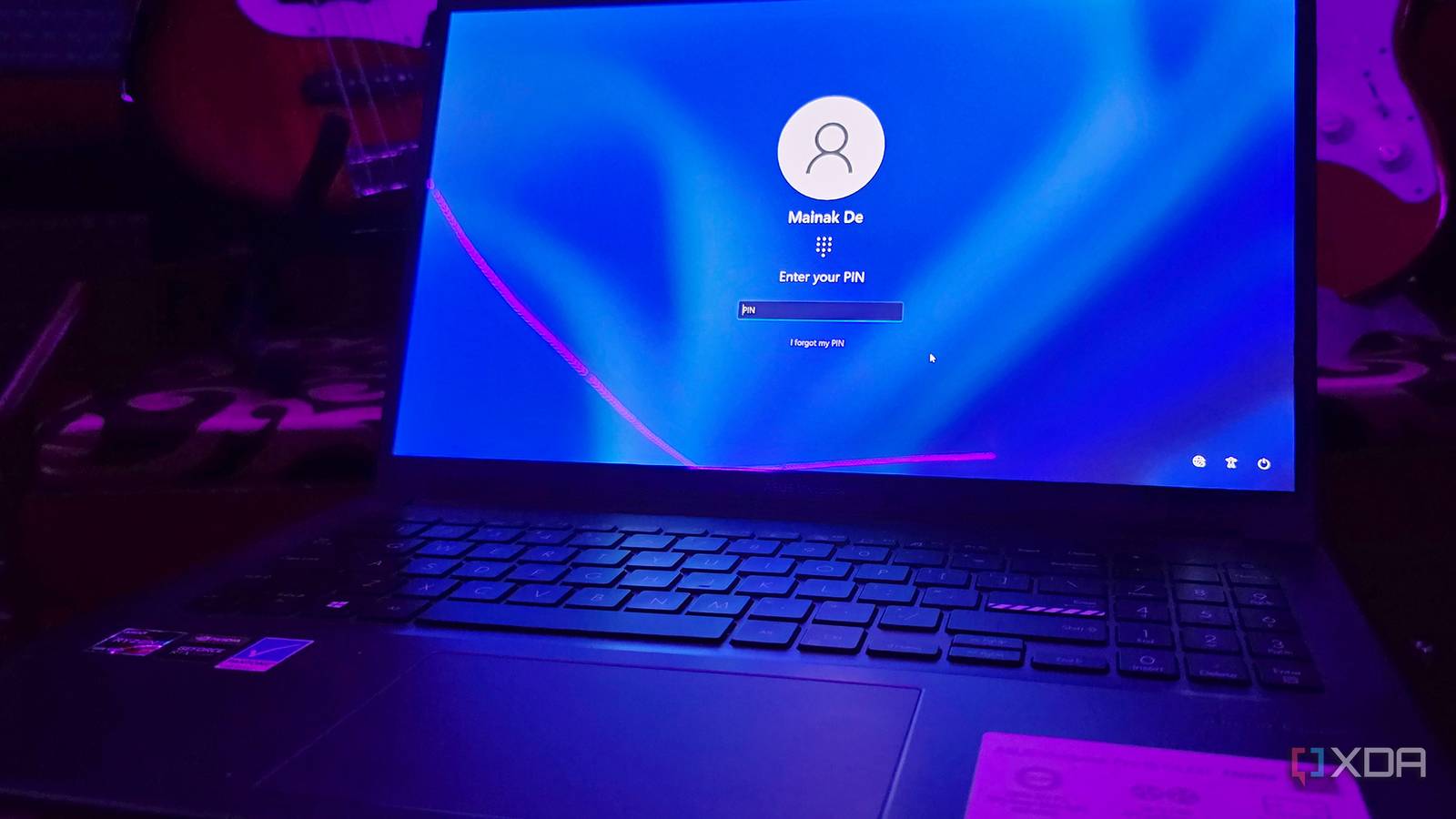
Published Nov 13, 2026, 9:00 AM EST Mainak is an ardent tech lover who grew up with computers. Since childhood, he has had the privilege of tinkering, taking things apart to fuel his curiosity. He is a computer science graduate specializing in programming, particularly memory management, as well as networking. Still, he has always had a soft corner for tech, which led him to develop a deep passion for tech journalism. Mainak loves explaining complex technical terms in simple layman's terms and lightening the conversation to set the mood right. Beyond tech, he is also a self-taught audio engineer and jazz guitarist who has mixed and mastered many audio projects. At some point, whilst using a Windows laptop or desktop, we have all dealt with that awful prrt, prrt, brrp crackling and popping sound coming out of nowhere while recording in OBS or any DAW, or even talking on Discord. The moment we alt-tab to see what's happening, nothing shows up. It's easy to think this kind of cracking or popping means something at the hardware level is broken, like a blown speaker or a faulty internal cable connection. But on my Windows 11 laptop, an Asus Vivobook, which is my daily driver, the hardware wasn't at fault. My laptop has seen better days, but it has beefy specs. For starters, it has a Ryzen 7 5800H, an RTX 3050, and 16GB of DDR4 memory. On paper, that hardware should be enough for even heavy multi-track recording, along with a considerable number of VST plugins and complex internal audio routing. Yet the pops were so random that they crept in even while recording, even under ASIO loads alongside a dedicated external audio interface. Frustrated, I decided to dig deep into what my system was doing, and the fix was pretty simple: I found my laptop was flooded with too many DPC calls, and the background processes were a bit much for my liking, so I reduced them. Hunting for a single broken driver is a literal waste of time Both AMD and Nvidia rigs choke when background tasks flood the CPU with too many interrupt calls If you spend an evening scrolling through forums to see why other people run into random audio distortion, you will realize that there is no single definitive culprit. Plenty of users blame Nvidia display drivers for this, while people on AMD laptops blame their own GPU drivers for these exact same audio dropouts. For example, if you open the LatencyMon software page, you will see too many parameters, and pointing fingers at that one exact one as the cause is almost impossible, and trying to do so won't get you anywhere. What I could verify on my end was that the graph inside LatencyMon was randomly going red, regardless of whether the Audio interface was plugged in. I was the first to blame the USB interface and thought the USB media controller was likely the issue, but no, even with the on-board Realtek audio chip, it's the same. Every running background app and service makes calls to the processor, and when too many hit the CPU at once, the audio buffer gets delayed, causing dropouts. I did trial and error with and without a WLAN adapter, but the pops were there, regardless. Putting my laptop on a strict background process diet Removing Asus Armoury Crate, de-bloating Windows, and waking up parked cores tamed the red graph The moment I saw so many processes and DPC calls, my goal was to cut them down. First, I uninstalled Asus Armoruy Crate and cleaned up every trace of its leftover services. Then I used Raphire's Win11Debloat utility to strip out unnecessary Windows bloat. After that, I turned off a few background processes that were relentlessly eating up my SSD usage, and even though the SSD usage shouldn't be responsible unless there is extremely heavy read/write activity, stopping that constant disk activity did help reduce the overall interrupt load on the system. Finally, I disabled CPU core parking. By default, Windows puts idle processor cores to sleep just to save power. On laptops, it does it even more aggressively, and it doesn't matter if you are plugged in or not. I used the Quick CPU application and chose its custom power plan. After that, all of my Ryzen 7 5800H's cores stayed awake even at idle, and the DPC graph settled fully in the green, with yellows rarely, but still manageable. Aggressive system tuning comes with its own set of curses Degraded battery life, lost OEM controls, and higher idle CPU temperatures are the prices to pay I was fully aware of the consequences that would come along. Battery backup took the biggest hit, because setting up a custom power plan using Quick CPU and completely abandoning the Armoury Crate software does indeed carry real trade-offs. Forcing all eight cores and sixteen threads to stay unparked prevents the processor from dropping into deeper sleep states (C-states); as a result, idle power draw rises, and baseline CPU temperatures increase. Fans spin up more often, and the laptop body also gets significantly warmer, even with third-party fan controls and a custom fan curve. On top of that, ripping out Armoury Crate and its background services strips away the laptop's built-in hardware toggles. Fan curves, the laptop's own power plan and thermal operating modes, and even GPU power-saving switches are all lost. Even certain keyboard hotkeys stop working. That being said, running de-bloat scripts like Win11Debloat also carries the risk of accidentally breaking Microsoft Store dependencies, Xbox services, or Windows Search indexing. However, if you are on a desktop PC, then it's a completely different story. While there isn't a battery-drain concern or cramped thermals caused by a custom power plan or unparked CPU cores, the risk of breaking Windows still exists. Which is why, if you do end up dealing with such problems, as I did, be sure to set up a full Windows System Restore point before running de-bloaters, just in case you break a feature you rely on. Freeing up CPU cycles is still the best defense against these audio dropouts Every machine is built differently, and software tweaks can only go so far Cleaning out background bloat and tweaking my power plan fixed the audio dropouts on my laptop, but every system is built differently. What worked for me may not fix the problems on your end. If you are unlucky like I was, random pops can get permanently imprinted onto your audio track during recording, and even spectral repair won't be able to fully save it. Reducing background CPU load is one of the best ways to stabilize real-time audio, though it won't fix a physical fault in either the motherboard or the audio interface's circuitry, which can also cause these kinds of audio dropouts. Still, if you encounter these issues, testing with an external audio interface, trimming background processes, or performing a clean OS installation are the best first steps.
I finally figured out what was causing my laptop’s audio to crackle, and the hardware wasn’t to blame
Full Article
Original Source
Read the full article at Xda-developers →KhanList aggregates and links to publicly available news content. We do not host full articles from third-party sources. Always verify important information with original sources.