
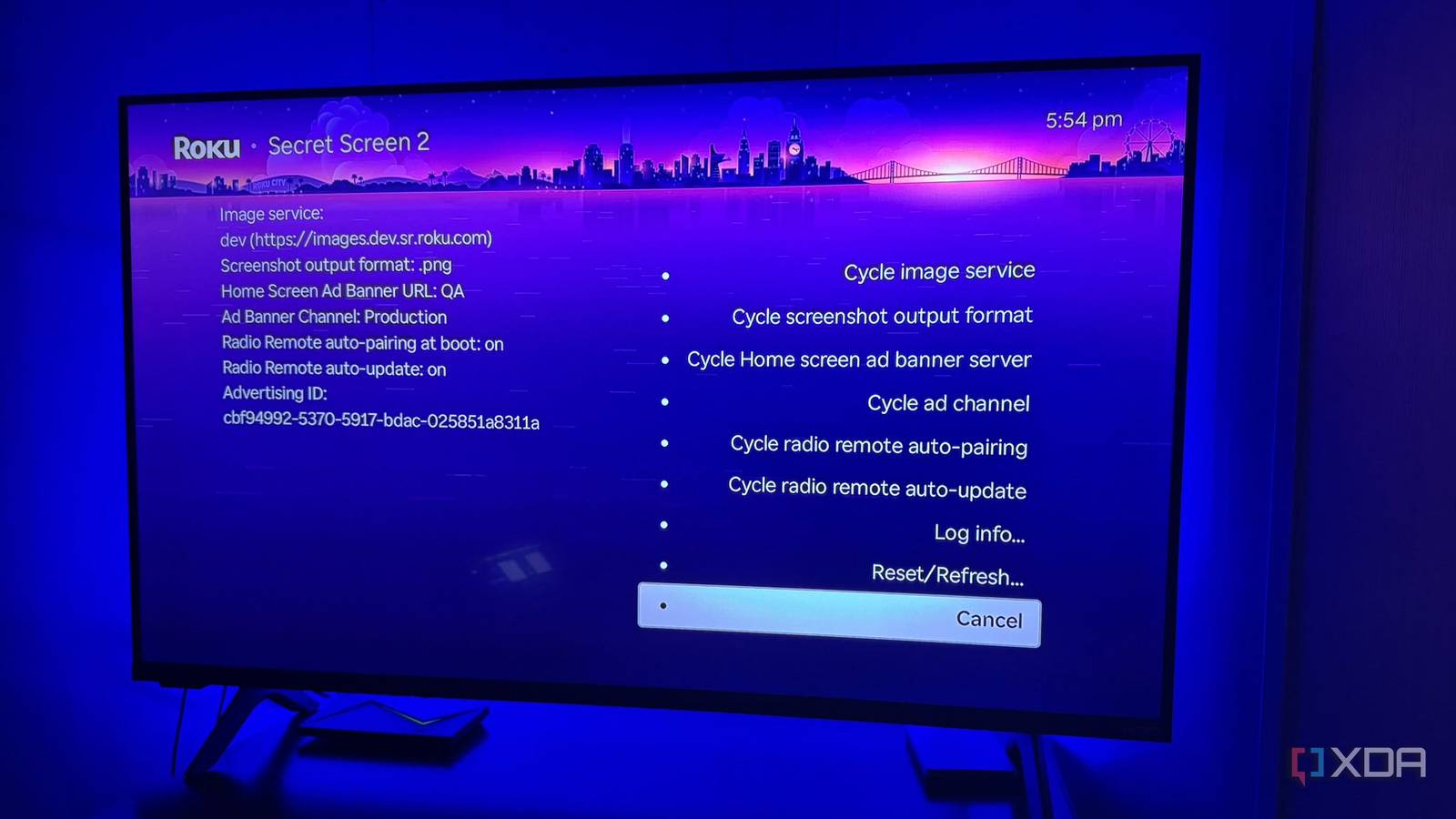
Published Sep 17, 2026, 3:00 PM EDT Based in rural Minnesota, Brian Burgess worked in IT for 10 years before finding his passion for writing about consumer technology. Brian earned his degree in computer and network technology in 2000. He held various IT positions, including help desk support, router installations for IBM, database administration, and other associate network administration roles. He's been a personal technology journalist for 18 years and has written thousands of articles about Microsoft products and services, Android, iOS, streaming, and more. He has written for notable tech sites including XDA, InformationWeek, How-To Geek, Byte, groovyPost, and others. When he is away from the keyboard, you will hear him playing guitar, working outdoors, and watching Star Trek. Among the mainstream streaming platforms, Roku is the least complicated. It might not be the prettiest or least clunky, but it's the most straightforward to use and least customizable. However, I found more beneath the basic UI than I expected once I started exploring its hidden menus. The menus let me do more than launch apps and watch streaming content. I can access many menus, from developer options to other hidden menus beneath the main experience. Accessing the menus is like cheat codes in gaming, where you press a specific button combination on the controller. But instead of a controller, you press the buttons on the Roku remote. There are more options than you think I figured I had a handle on my Roku device's straightforward menu system. I have a Roku HD stick, and I've used a Roku Ultra in the past, which I have since given to my mom as a straightforward streaming experience. However, more options lurk beneath the clunky interface than I expected. The hidden Roku menus include options for app developers, engineers, discovering app versions, and troubleshooting. Once I discovered these secret menus, I started digging into them. There are more Roku options than I realized, and I was surprised by what I'd been missing. I'm not a coder, so the developer screen wasn't much of an interest, but others let me troubleshoot apps and connectivity, do soft reboots, and much more. Secret reset screen Find device details and factory reset options This first menu lets you reset and update your device. A Soft Factory Reset reloads Roku software without completely wiping your account and Wi-Fi configuration. The Factory Reset option does what you would expect — erase everything and return it to factory settings. The USB Test option checks whether the Roku can detect and communicate with a USB drive if you have a port. For instance, I have a Roku Ultra that includes a USB-A port. The SWUP option is aimed at developers and engineers. It changes the server endpoint Roku OS uses for staged update deployments and Roku devices' support diagnostics, but it doesn't get your device updates sooner. This is an interesting menu, but you shouldn't access it unless Roku support tells you to. To access the secret reset screen, press the following button combination on the remote: Home 5 times > Fast Forward 3 times > Rewind two times. Discover which app version you're running Most of the time, a Roku will update apps in the background without you doing anything. However, sometimes the mechanism doesn't work, so the Roku ends up running the wrong app version. There could also be bugs in a particular app version that I need to troubleshoot. In any case, it can help to know which version of an app is running on your Roku. That is when you can turn to the hidden channel (Roku calls apps channels) information screen, where you can see exactly which version of an app is running on your Roku. This information can help if you're troubleshooting an app or trying to figure out why the app on your Roku doesn't have the features you expect. If you have a lot of apps, the list will be long, and you'll need to scroll down to the right one. To locate the hidden channel info screen, press the following button combination on the remote: Home 3 times > Up 2 times > Left > Right > Left > Right > Left. You probably don't need it, but it's cool to look at There are actually a few different hidden developer menu screens, but you likely don't need them unless you actually create and test apps on a Roku. Still, it's interesting to look at, and I even went so far as to sign up as a developer on the Roku website. However, if you aren't a developer, I don't advise making any changes; it's just interesting to look at. If you are a developer, the menu lets you enable the developer installer and sideload apps on your Roku. It also lets you sign up for and manage the Roku Dev user account. But if you don't know how to code or what you're doing, leave all the settings in this hidden menu alone. On your remote, press this button combination: Home 5 times > Up two times > Right > Left > Right > Left > Right. Manage annoying ads displayed throughout the Roku interface This hidden screen lets me change how ads appear on the Roku's screensaver, change image formats, and even turn off screensaver ads entirely, depending on the model and Roku OS version the device is running. It lets me change image services, ad banner layout, manage screenshot output, and more. This screen is powerful but tricky to use unless you know which settings you are configuring. I changed one setting at a time, went to the home screen to see what happened, then went back to adjust other ad placements. I couldn't turn off screens because I am running a new Roku HD stick with the latest version of Roku OS. Still, it's fun to play around with. To access Secret Screen 2, press this remote combination: Home 5 times > Up > Right > Down > Left > Up. Secret network settings See connectivity data and test signal strength If I'm having connectivity problems with my Roku stick, I can check the hidden network screen. I can view signal strength, antenna information, glitch rate, and logs; run a speed test; and reset the network. From this screen, I can also reset only the network to get a fresh start on my Wi-Fi. I often access this screen if my picture is buffering, freezing, or not playing at all. Or maybe the picture quality isn't what it should be, or I can't install apps. I can check this screen for signal glitch rates, reset the Roku's wireless settings, and reconnect to my network to improve connectivity. To access the Wireless Secret Screen, press the following combination on your remote: Home 5 times > Up > Down > Up > Down > Up. Hidden Roku screen for everyone I thought that I knew where everything was on Roku until I discovered its secret menus. I can do a lot with them to help troubleshoot apps, Wi-Fi connectivity, and more. It would be nice if they weren't hidden. The company probably thinks users will screw up their TVs, sticks, or boxes. However, adding the secret screens to an "advanced" section of the normal menu system would be nice, sans developer settings.
I finally discovered Roku’s secret menus and can’t believe what I was missing
Full Article
Original Source
Read the full article at Xda-developers →KhanList aggregates and links to publicly available news content. We do not host full articles from third-party sources. Always verify important information with original sources.