
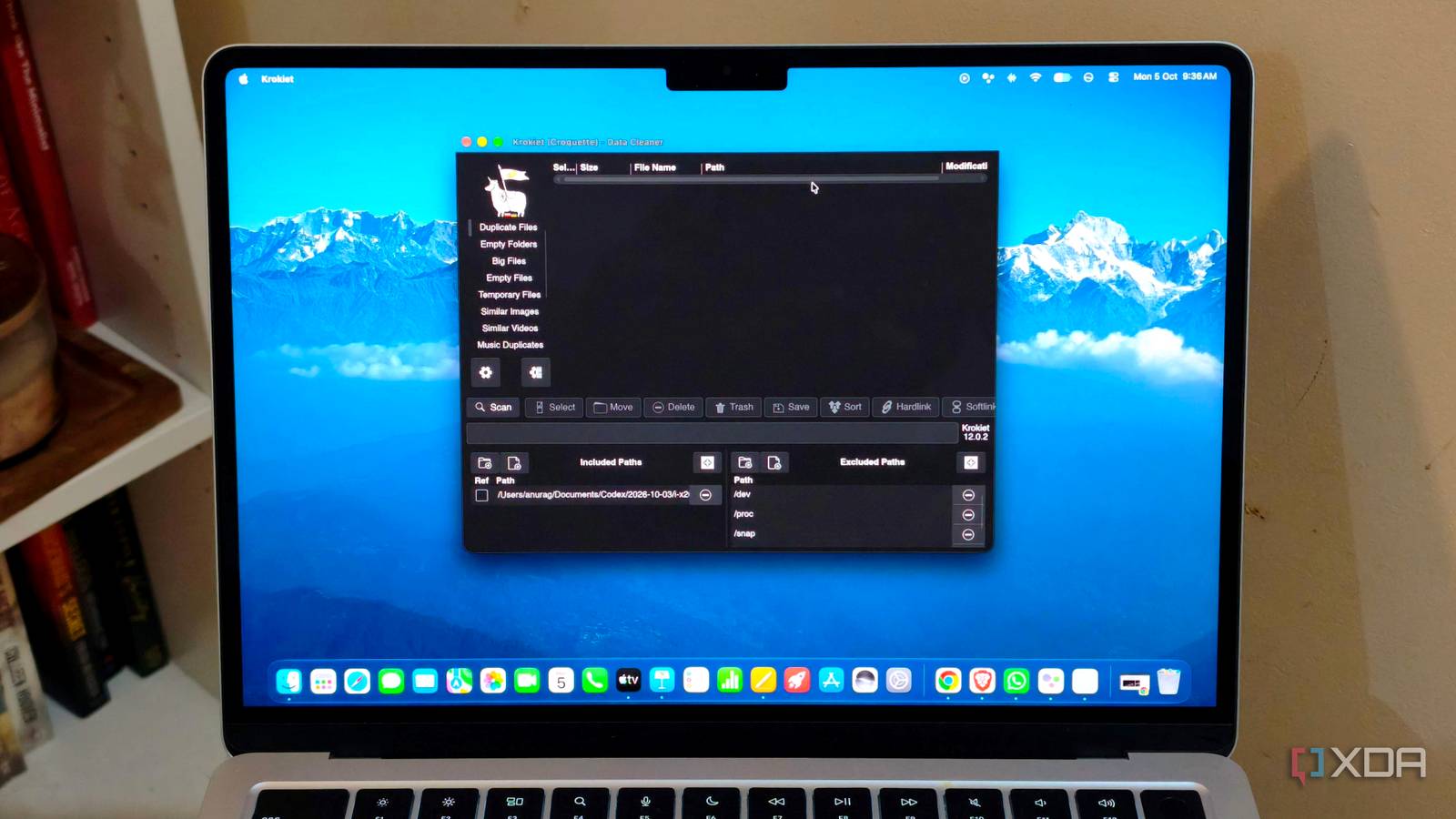
Published Oct 6, 2026, 5:00 PM EDT Anurag is an experienced journalist and author who’s been covering tech for the past 5 years, with a focus on Windows, Android, and Apple. He’s written for sites like Android Police, Neowin, Dexerto, and MakeTechEasier. Anurag’s always pumped about tech and loves getting his hands on the latest gadgets. When he's not procrastinating, you’ll probably find him catching the newest movies in theaters or scrolling through Twitter from his bed. I have close to 10TB of data on my NAS, including backups and a large movie library for Jellyfin. Some of that storage is used to keep multiple copies of the same files, and I’m responsible for a fair bit of it. I sometimes download a movie in 1080p, add the 4K release when it becomes available, and leave the older version sitting there. I also had repeated backups and plenty of identical videos saved under different names piling up. Going through all of that manually would take more time than I want to spend cleaning up my server. I used Krokiet instead, which is a free, open-source tool, to find those files from my Mac through the NAS’s network shares. Krokiet, which superseded Czkawka, can identify exact duplicates and similar videos, which makes it useful for the different movie releases I’ve accumulated. I’ve now deleted 900GB, with redundant movie files accounting for most of the recovered space. Krokiet does more than find duplicates It's a complete cleanup tool Krokiet is a free, open-source cleanup app for macOS, Windows, and Linux. If you’ve come across Czkawka before, it comes from the same developer and uses the same scanning engine. Krokiet replaces the older Czkawka desktop interface. Its duplicate finder lets you compare files by name, size, or hash. You can use hash matching to check the contents, so two identical files can appear together even if someone has renamed one or saved it in another folder. The tool first groups files by size, checks a small portion of their contents, and then calculates full hashes for the remaining candidates. For my movie library, Similar Videos is particularly useful. Since separate encodes of a movie have different contents, a hash-based duplicate scan won’t group a 1080p release with its 4K counterpart. Krokiet's Similar Videos feature compares video samples to find visual matches, with an audio comparison option as well. You can adjust how closely the samples need to match and preview the results using thumbnails. This feature requires FFmpeg to be installed. Krokiet also has tools for finding similar photos, empty folders, and large files. Choose the scan relevant to the cleanup you’re doing, then review the results before selecting files to remove. I can scan the NAS from my Mac I don’t need to install the app on the NAS itself I run Krokiet on my Mac and access the NAS through mounted network shares. Since the files stay on the server, I don’t need to copy my backups or movie library onto the Mac before checking them. I also don’t need to install the app on the NAS itself. The scan took roughly 36 minutes in my setup. My NAS holds close to 10TB of data, so I am not surprised the search took some time, especially with the files being accessed over the network. I didn’t run into any problems during the scan, though. I use the duplicate finder alongside Similar Videos since my folders contain both identical copies and different releases of the same movie. The exact matches include files from repeated backups and videos saved under different names. Grouping those matches together saves me from opening separate folders and trying to figure out whether their contents are identical. Similar videos brings up the movie releases that account for most of the space I eventually recover. Those results need a closer look because both versions are playable files. I have to decide whether keeping the older release still serves a purpose. Check what you’re about to delete Be careful with your media Krokiet does a good job of finding duplicates, but you still need to review the results before deleting anything. You can open a file or its parent folder directly from the results to check what you’re removing. Pay attention to the paths when identical files appear in different locations. If you delete one, you’re also removing it from whichever folder or app expects to find it there. You also need to be careful with repeated backups. For example, you don’t want to remove a copy that belongs to a backup you’re deliberately maintaining. If there’s a folder you want to preserve, you can mark it as a reference folder in Krokiet. The app includes its files in the comparison and protects them from deletion, so you can select the extra copies elsewhere. With the movie releases, I'd check whether I still use both versions. I'd remove an older 1080p release is worth removing if you’ve upgraded to 4K and no longer watch the original. Before deleting it, check for anything you want to keep, such as a different cut or audio track. Krokiet lets you select files by size or resolution, which helps when you have lots of matches, but I wouldn’t use those settings to choose movie releases without checking them first. I got 900GB back without paying I’ve now deleted 900GB from my NAS, with redundant movie releases accounting for most of that space. Krokiet costs nothing, and I can run it from the Mac I already use without installing anything on the server. I’m happy to spend some time reviewing the results when there’s that much storage to recover.
I dropped 900GB of duplicate files across my home server, and the tool that found them was free
Full Article
Original Source
Read the full article at Xda-developers →KhanList aggregates and links to publicly available news content. We do not host full articles from third-party sources. Always verify important information with original sources.