
Published Sep 4, 2026, 8:15 AM EDT Irene Okpanachi is a Features writer covering Android devices, laptops, portable projectors, VR headsets, software, and AI recorders for Android Police and Talk Android. She has five years' experience across the Tech, E-commerce, and Food niches, with over 1,000 posts published. The Tech space is where she geeks out most, particularly Android. Irene holds certifications in Graphic Design (HerTechTrail), Writing in Plain Language (LinkedIn), and English for IT (Cisco Networking Academy). Beyond writing, Irene is a gamer, singer/songwriter, food lover, and a Jack of all trades. I once promised gesture navigation would never be my thing, until I tried it. I no longer overthink the swipes. I even use the learning curve as a deterrent for anyone borrowing my phone who's still used to Android's on-screen buttons. Lately, I enhanced my experience with Glyf, which lets me draw commands on Android devices. My scroll rate has dropped for the better. Here's how. I just wanted to make nice gestures I can now show them on my phone every day Gesture navigation replaces Android's three-button bar with edge swipes. You'll swipe up from the bottom to go home, swipe up and hold for recent apps, and swipe in from either side to go back. Its main benefit depends on preference, though freeing up screen space is a major one. I learned of gestures beyond those three in Android's accessibility suite. Beyond TalkBack and others, this navigation has proven useful for anyone who wants to reach any function without multiple steps. I frequently use the music gesture on my Infinix phone, where I'll swipe left or right on the lock screen to control music playback. Google Pixel once offered this capability through radar-based gesture controls, exclusively on the Pixel 4, using Soli technology. You used a wave over your phone instead of interacting with it directly. Every OEM builds its own version, and you can add to it with apps from the Google Play Store. Searching for the feature's expansion is what led me to Glyf. Glyf meets my thumbs halfway Swipes translate to meaningful hero graphics saving the day True to its name, Glyf evokes the act of creating meaning through individual visual marks, where one symbol translates to what would otherwise be a sentence. It lets me draw on my phone's display and choose what to trigger. The app's interface splits into four tabs. The Flows menu features are locked behind a paywall, but I can access Apps, Actions, and Webpage for free. Adding a new gesture lets me assign it to launching an app, bundling several under one gesture, firing off an Android action, or opening a website. Drawing my glyphs wasn't as seamless as I expected, but I got used to it. I thought it would work straight from the lock screen, but it doesn't. You can only draw them through the persistent notification feature or home screen widgets, both of which require the screen to be on and unlocked. The former appears as a permanent notification, and you'll tap it to open the drawing pad. The latter lets you tap a circular or rounded widget to activate it. They don't leave much space to draw, compared with the resizable widget option. Unfortunately, two of the faster triggers, quick settings tile and floating bubble, are locked alongside it in the Pro tier. I skip all those methods and lean on Smart Action Notch instead. It's a workaround the Glyf app recommends. My phone's notch finally has a purpose I tapped into its untapped potential Smart Action Notch is a separate app that turns the camera cutout into its own touch zone. You'll get five gestures for free, and you can integrate it with Glyf. I set the single-tap and long-press functions to open the Glyf drawing overlay, while the double-tap action goes back. Left swipe is for notifications, and right swipe is for the notch menu. Unfortunately, Glyf still limits you to two gestures for Apps, Actions, and Webpages, which is fine. Under Apps, I've set a gesture for Feedly where I catch up with daily tech news. The other free slot is for stacked apps I use when I'm out: YouTube Music, Google Maps, Access More, Bolt, and Uber. Under Actions, I set both slots to dial the two contacts I call most. When I tap my notch, it summons the overlay, and I draw my sign. Then it shows all five apps, and I pick whichever one I need. If you want more out of the tool, Glyf offers a one-time payment for premium features. They include unlimited gestures, multi-stroke support, instant app launch, full offline privacy, complex flows, every trigger and style unlocked, and ad removal. You can try them first with a six-hour free trial. Shortcuts help my hands keep up Glyf introduced one more way to manage a 6.78-inch, 198-gram phone in my tiny hands. Keeping the widget low reduces my reach across my phone display. Likewise, tapping the notch gives a dormant strip of hardware a discreet job. I don't usually like having multiple apps on my phone. But lately, I haven't minded the growing pile of tools. Beyond Glyf, Quick Cursor is another way I navigate my phone's big screen. It turns one edge of the screen into a mouse pointer for the rest of it.
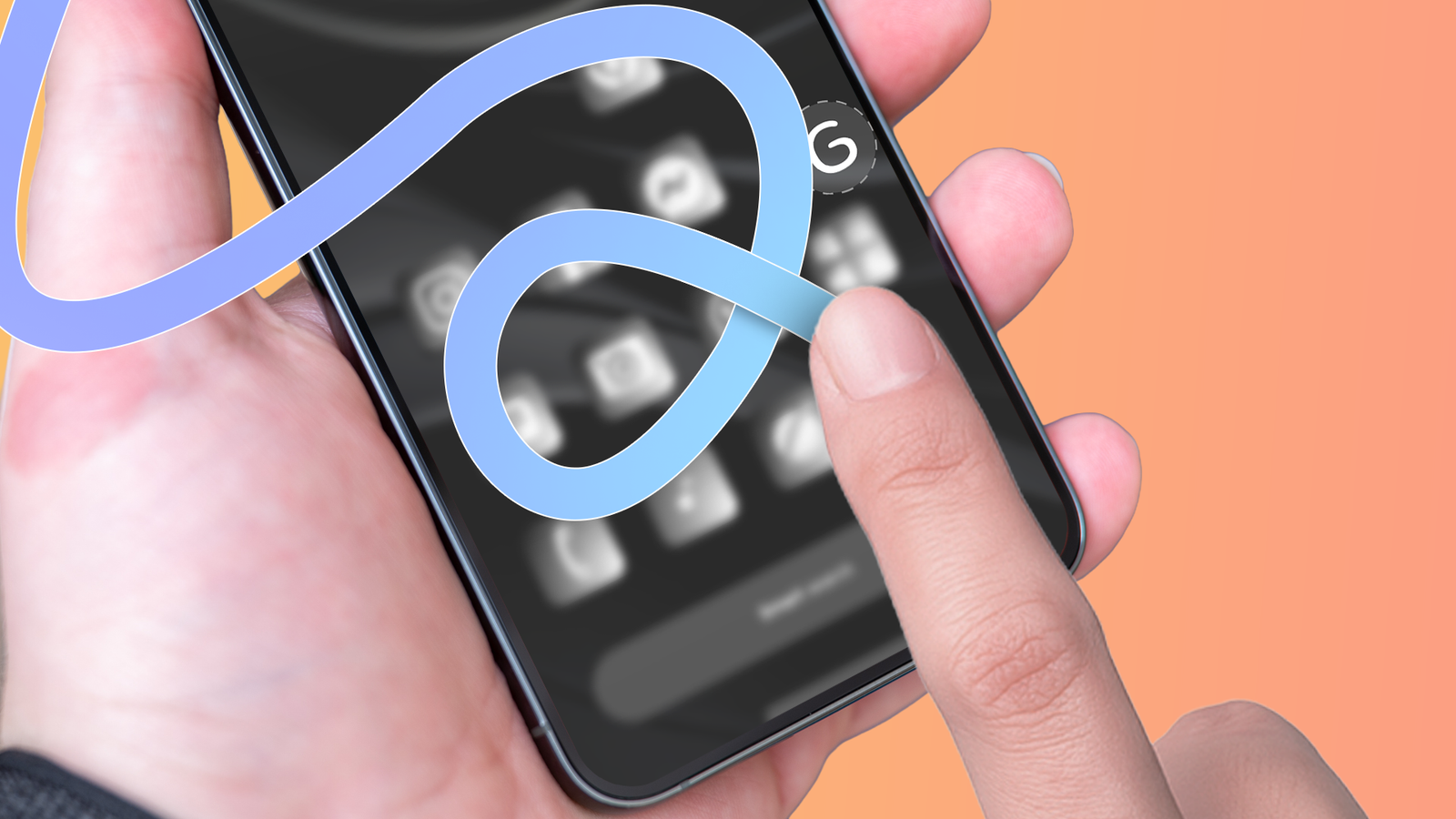
I drew custom gestures on my Android phone, then ditched half my navigation buttons
Full Article
Original Source
Read the full article at Androidpolice →KhanList aggregates and links to publicly available news content. We do not host full articles from third-party sources. Always verify important information with original sources.