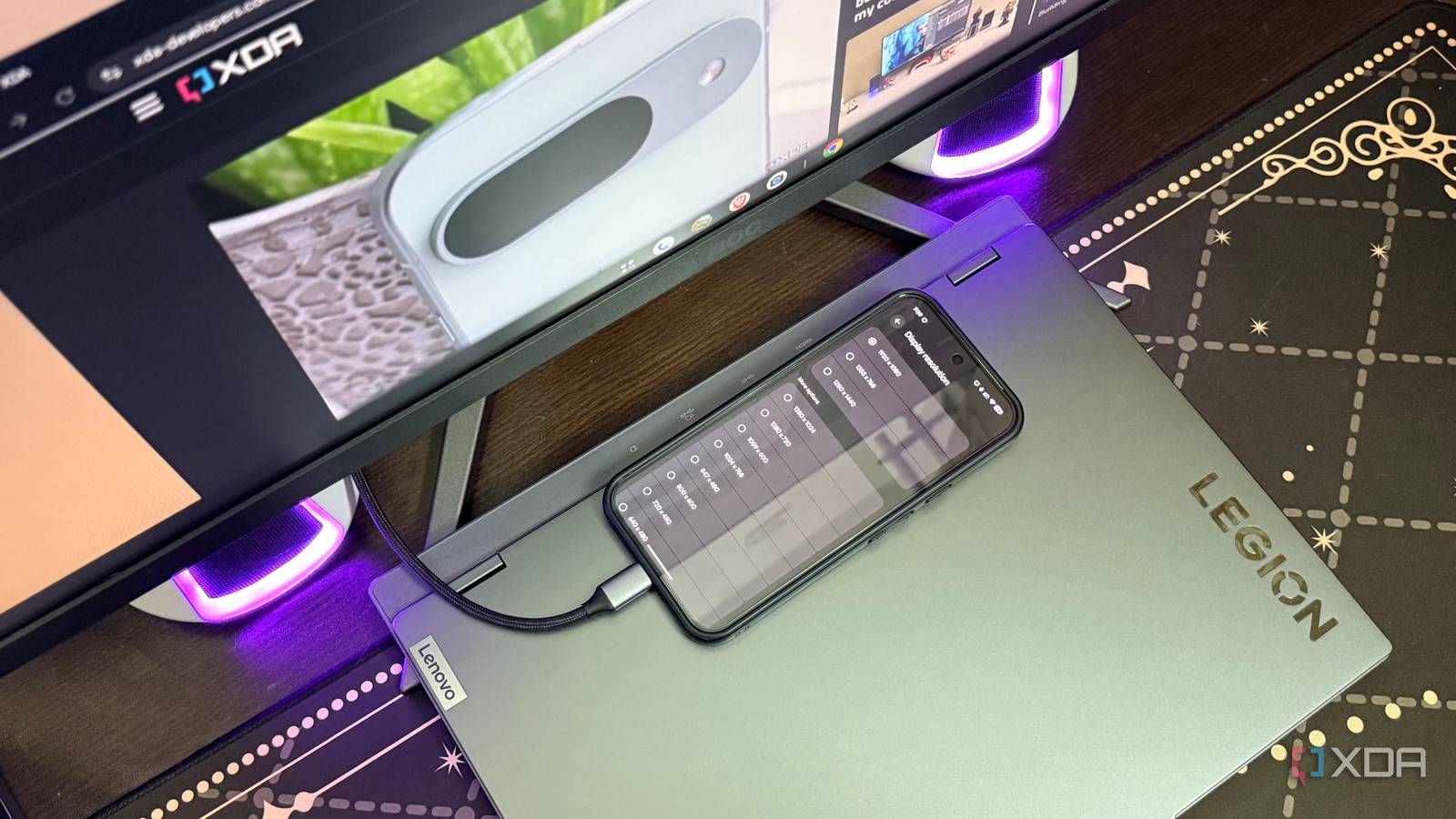
Published Jul 26, 2026, 7:00 AM EDT Abid covers consumer hardware, gaming, and platform updates with an emphasis on accuracy, clarity, and reader-first context. He holds a BSc in Computer Science and Engineering, and his work can be found in multiple publications, including Notebookcheck. Outside of work, he enjoys exploring new gaming hardware, testing system performance, and keeping up with developments across the broader tech landscape. Not long ago, relying on a phone instead of a laptop felt more like an idea than a practical reality. Samsung proved years ago that Android phones could actually offer a desktop experience with its DeX, and with Android 16, Google has officially brought something similar to its Pixel devices. As for how the desktop mode currently is, that's basically what I wanted to check out by docking my Pixel phone to a monitor for a week. While I didn't expect much, I found myself leaving my laptop on the side more often than not. I expected a novelty, but the Pixel desktop setup turned out to be quite capable The transition was easier than I expected, especially for my light workloads My Pixel desktop setup is pretty simple. The phone is connected to the monitor through a USB-C cable, and it's connected to a wireless keyboard and a mouse. Once the smartphone detected the external monitor, it switched to the desktop interface after the initial prompt instead of just mirroring the display. Within a few seconds, I was in a very familiar desktop environment with resizable app windows, support for running multiple apps side by side, and a proper taskbar. This first impression changed my expectations a bit, but I was still assuming that I would face many limitations to get things done with this setup. However, browsing through the web, replying to emails, and doing editorial work wasn't much different from what I would normally do on my laptop. By the third day, docking the Pixel became a natural routine instead of something I had to remind myself to test. Anker PowerExpand 9-in-1 PD Dock The Anker PowerExpand 9-in-1 USB-C PD Dock expands a single USB-C port into nine connections, and has 60 W charging support. My everyday workflow was already built for a phone to some extent Chrome and web apps did almost all the heavy lifting When the idea of replacing my laptop with a phone popped into my mind, I assumed that the biggest obstacle would be performance. But as I started to use the desktop mode of the Pixel phone, I realized that most of my everyday tasks can be handled by Chrome and a handful of web apps. Managing a couple of browser tabs, collaborating through messaging apps, jumping between documents, browsing files, and doing some light photo editing — all of these don't explicitly require a laptop with Windows or macOS. In fact, managing my workflow on the same device eliminated some small but constant annoyances. For instance, I didn't need to unlock my phone just to check and respond to a notification. This setup can also easily tackle my entertainment needs, as all the apps are available right on the phone. Of course, it's worth noting that not every app is optimized for a desktop environment. Some felt a bit awkward with a mouse and keyboard, and some didn't have a proper interface for a large screen. These issues will likely be addressed as the desktop mode gets more refined. More limitations surface when the workload becomes demanding A Pixel desktop setup isn't a complete laptop replacement While I didn't notice big compromises for everyday productivity, when the workload moved beyond Chrome and web apps, the real limitations started to surface. There isn't any desktop-class software, which can be a real limitation for many. For example, you can't really rely on Pixel Desktop Mode for professional video and photo edits. Another thing that's worth mentioning is that it's not possible to keep the phone's display turned off while using desktop mode. Keeping the screen on not only increases power draw, but it can eventually make thermals climb fast when the smartphone is handling resource-intensive tasks. A workaround that I leaned on is to keep a pure black picture open on the phone's screen. Given that modern Pixel phones come with OLED displays, the black picture will turn the pixels off completely, lowering power draw, heat, and eventually lowering chances of burn-in. I didn't replace my laptop; I changed how often I needed it Pixel's Desktop Mode proved that my workflow had already evolved This one-week-long experiment didn't prove that my Pixel phone can replace my laptop. Instead, it showed that for lighter workloads and entertainment needs, you don't really need a powerful system on your desk. Of course, even some light workloads may require desktop-class software, which is where the desktop mode found in Pixel phones will lag behind. However, if your everyday routine doesn't go beyond browsing the web, messaging, media, and web apps, you can easily get away with this setup. Gaming isn't an issue either, especially for native Android games. If Google continues to refine Android's desktop mode, I can even see myself reaching for my laptop even less in the future.
I docked my Pixel to a monitor for a week and stopped reaching for my laptop
Full Article
Original Source
Read the full article at Xda-developers →KhanList aggregates and links to publicly available news content. We do not host full articles from third-party sources. Always verify important information with original sources.