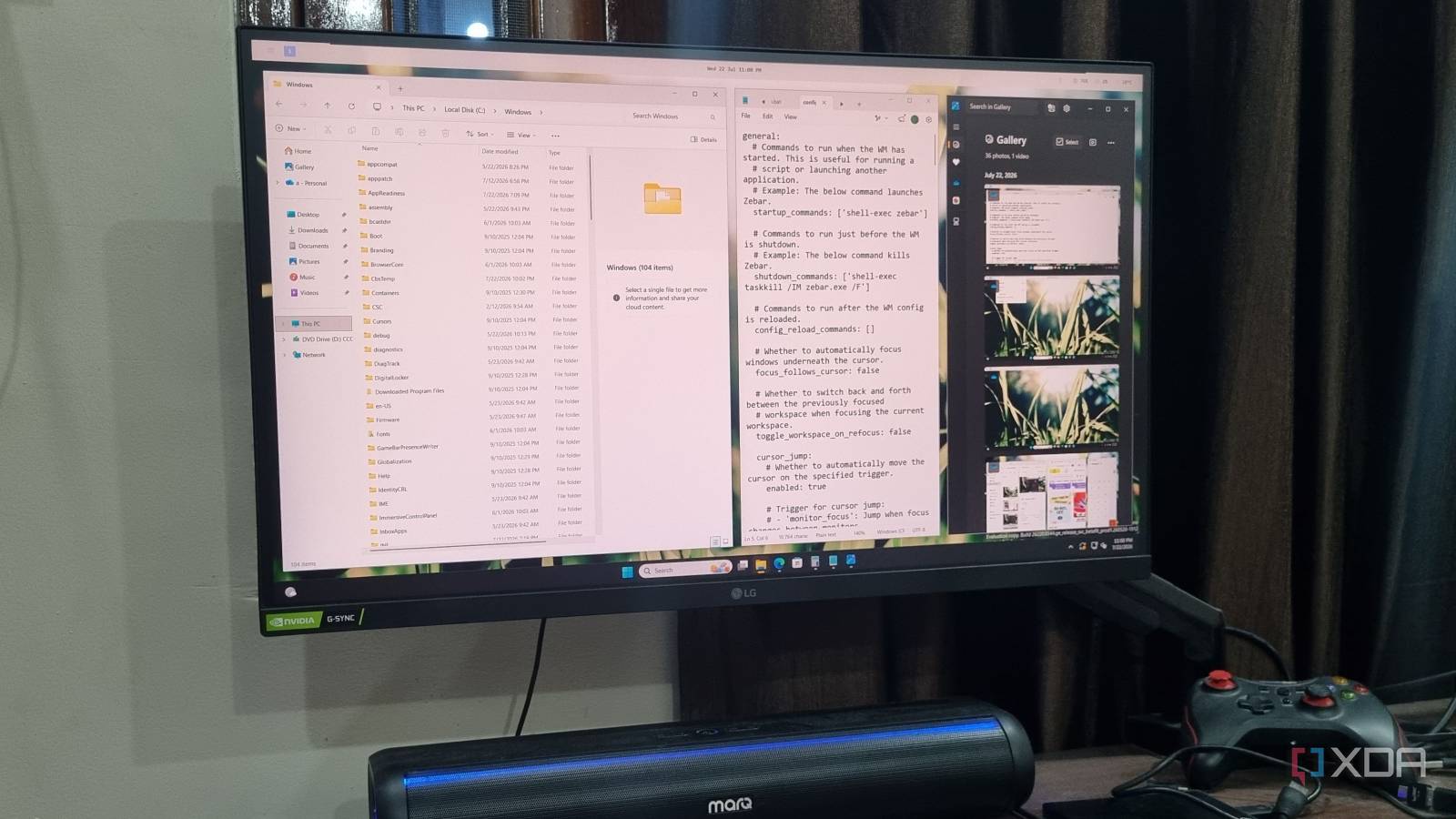
Published Jul 27, 2026, 4:00 PM EDT Abhishek is an author at XDA who covers computing. He has loved computers since he got the Lenovo G570 in 2012. Abhishek holds a master's degree in computer applications and began his writing career in 2018. He loves writing how-to articles, listicles, and informational posts on popular operating systems and web services. He closely follows the Windows Insider program and tests new Insider builds to discover upcoming experimental features and upgrades. His past work includes long-term collaborations with reputed publications like Tom's Hardware, and Windows Latest. When not writing anything, he is busy watching new episodes of One Piece or searching for something binge-worthy. Windows 11 added Snap Layouts and made it easy to organize open windows to some extent. You can hover your cursor over the maximize button, click on any of the suggested layouts, and then snap all the open app windows. This approach works for basic users, but if you compare it to an i3-style tiling manager present on some Linux distributions, the difference is stark. Snap Layouts feels like an immensely toned-down version of tiling managers, and I decided to switch to a dedicated one. Since I frequently try Linux distributions, I got a taste of Cosmic DE’s tiling manager on Pop!_OS. It was very convenient to snap windows in one place, create workspaces, and navigate everything with the keyboard. I sought the same experience on my Windows 11 machine and stumbled upon GlazeWM. Windows 11’s Snap Layouts are very basic Lacks crucial features I don't hate Snap Layouts in Windows 11, but it feels very restrictive and dull. The tool might have helped me discard the drag-to-edge style of window management, but it has too many flaws to be called a capable tiling manager. If I create a new layout and then close one of the apps, the place remains vacant. Snap Layouts doesn't make any effort to refill that space with another open app or adjust the active app windows appropriately. I have to do all these things manually. Snap Layouts has limited position memory and is not configurable to the extent of a dedicated tiling manager like GlazeWM. There's no option to create rules for windows, configure automatic behavior, or manage complex workspaces. I understand that these requirements seem niche, but most of us use the PC for a variety of tasks. You crave organization, and Snap Layouts, sadly, cannot do anything for you. There's another Microsoft tool that can solve the window management problem. PowerToys' Fancy Zones can remember window positions. You have to build custom layouts, and then you can open apps that'll snap to those areas. But it cannot create custom workflows or automatically arrange windows on the fly. GlazeWM tries to fill most of these gaps and is a free tool available on GitHub. Setting up GlazeWM A keyboard-driven approach You can download GlazeWM using Winget, which is my most-used method to install apps on Windows 11. Simply type winget install glazewm, and follow the on-screen prompts to download the tool on your PC. Thereafter, launch GlazeWM via the Start menu, and then you can start using the i3-style windows tiling method. If you have a few windows already open, launching GlazeWM will snap them into a pre-defined layout. Since GlazeWM uses a keyboard-focused management style, you have to accustom yourself to shortcuts. The most common ones that you’ll frequently use are Alt + Arrow key or Alt + Shift + Arrow key. The first shortcut lets you move focus between tiled windows, or rather, switch to it. For example, if you have three apps open, and you activate GlazeWM, it’ll horizontally arrange the windows in 33% screen space. When you press Alt + arrow key, you can navigate to any of the three windows. You don’t need to arrange windows manually. Whenever you open a new window, it’ll arrange it accordingly. Snap layouts cannot do this at all, and it is one of the reasons you might need a tiling manager. The next useful shortcut is Alt + Shift + Arrow key. You’ll need it after you focus on a tiled window. It can help reorganize the window in your preferred layout and is similar to what you can accomplish by pressing Win + arrow key in Windows 11. But the shortcut only cycles between a few predefined positions and is not as dynamic as GlazeWM. Once you master these two shortcuts, the next useful thing is workspaces. Windows 11 has a workspaces feature called Virtual Desktops, but it feels inept because Snap Layouts are static. In GlazeWM, you can switch between workspaces by pressing the Alt + number key shortcut. You can cycle between the numbers 1–9, but you can also create more workspaces. I don’t need more than five, let alone ten or more workspaces, so the default number works for me. Workspaces can help you isolate apps into their respective use case category. You can have work-related apps and browser profiles in one workspace, leisure/social apps and browser profiles in another, and so on. You can also shift a window to another workspace with the Alt + Shift + number key shortcut, and you can close active windows with Alt + Shift + Q. These are the default shortcuts that a new user can utilize to manage open windows in GlazeWM. But there’s more ground to cover. GlazeWM supports customization One configuration file to manage it all GlazeWM doesn't have a GUI app to help you customize everything; you get only a single configuration file. It can be overwhelming at first, but I suggest you start with simple elements like the top bar, gap between windows, effects, and a few other settings. These will help you adjust the appearance of the tiling interface without messing with any complex settings. Like you can tweak the gap by a few pixels by changing the value of the inner_gap: ‘20px’ element to something like 40px or more. Firstly, create a backup of the configuration file so you always have something to fall back on. Similarly, you can add more workspaces by adding one more entry called - name : ’10’ in the workspaces section. You can even rename the workspaces to a more understandable label, like work, productivity, etc. You can even specify apps that should launch in a particular workspace or define auto-start behavior. Cannot go back to Snap Layouts After using GlazeWM, it's difficult to go back to Snap Layouts. The feature feels like a rough implementation of what a tiling experience could actually be on Windows. It's a small tool, but window management is so addictive that you cannot settle for less. With a little more tweaking, you can force GlazeWM to act the way you want and create personalized workspaces. GlazeWM GlazeWM is a tiling window manager for Windows designed for keyboard users and with a range of customization options.
I ditched Snap Layouts for a free i3-style tiling manager, and Windows 11 never looked so good
Full Article
Original Source
Read the full article at Xda-developers →KhanList aggregates and links to publicly available news content. We do not host full articles from third-party sources. Always verify important information with original sources.