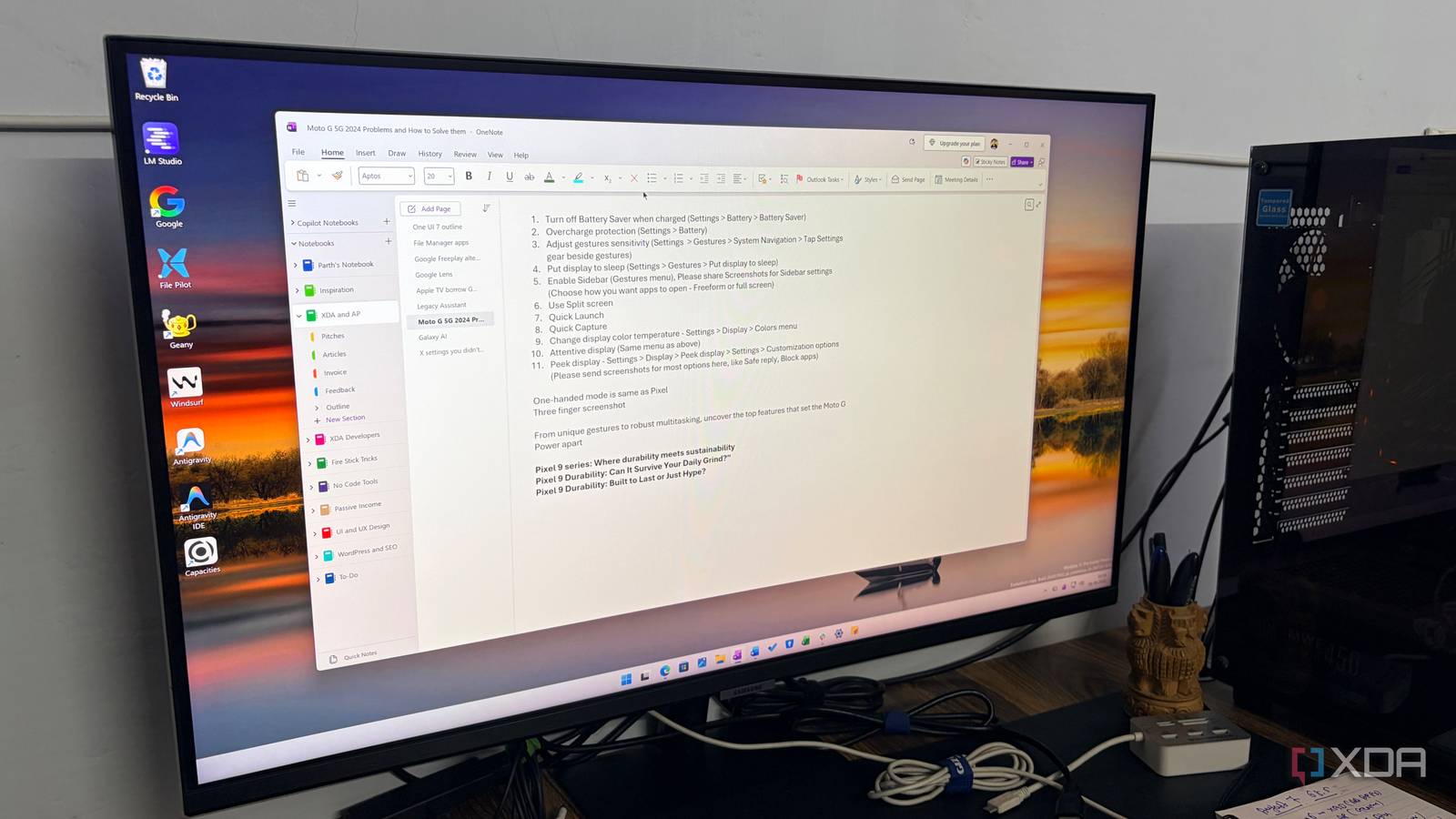
Published Aug 10, 2026, 7:30 AM EDT Parth, a seasoned tech writer, wields the keyboard (or pen) with finesse to unravel the intricacies of both Windows and Mac operating systems. He has covered evergreen content on mobile devices and computers for multiple publications over the last six years. You can find his work on AndroidPolice, GuidingTech and TechWiser. Whether it’s demystifying system updates, deciphering error codes, or exploring hidden features, Parth’s prose guides readers through the binary maze. When not immersed in tech jargon, you’ll find him sipping chai, pondering the next software review, and occasionally indulging in a friendly debate about mechanical keyboards. I have always had a love-hate relationship with OneNote. On paper, it checks almost every box I care about: flexible organization, excellent cross-platform support, handwriting tools, and enough features to handle everything from quick notes to long research projects. But there was one small design choice that kept getting under my skin every single day. I was almost ready to leave OneNote behind completely until I came across one overlooked setting that instantly fixed my biggest complaint. OneNote’s flexibility became its biggest annoyance The containers kept getting in my way OneNote’s freeform canvas was one of the reasons I liked the app in the first place. I could click almost anywhere on a page, start typing, drop in an image, add a table, or move things around without worrying about a document structure. However, most of the time, I don’t need an infinite canvas. I just want to open a page, start writing, and move through from top to bottom. OneNote kept reminding me that it was built around movable containers rather than a traditional document. OneNote containers became annoying when I was working on longer notes. I would occasionally click slightly outside the existing container and accidentally start another one instead of continuing the same block of text. Then I would end up with separate pieces of content side by side when all I wanted was one clean, continuous note. None of this made OneNote unusable, but it was the kind of small annoyance that became much harder to ignore when I encountered it dozens of times a day. That was one of the first things I noticed when I started using Obsidian more seriously. I could open a Markdown note, place my cursor at the end, and just keep writing. There were no floating boxes appearing around my text and no temptation to position every paragraph somewhere else on the page. For a while, that alone was enough to make me prefer Obsidian for longer notes and writing-heavy work. Found the setting I had missed for years Available on both OneNote for Windows and Mac The frustrating part is that OneNote had the solution sitting in its settings menu the entire time. I had spent all this time getting annoyed by note containers and compared the experience with Obsidian. On OneNote for Windows, I opened File -> Options -> Display and cleared the Show note containers on pages checkbox. That was it. There was no extension to install, no complicated workaround, and no need to change the way I structured my notebooks. The option is available on OneNote for Mac as well. There, I can head to OneNote -> Preferences -> General and turn off Show note containers on pages. The location is slightly different from Windows, but the result is essentially the same. The setting simply hides the borders and contextual controls that made those containers so noticeable in the first place. The difference was immediate. As soon as I turned the option off, my OneNote pages looked dramatically cleaner. I could move my pointer around a page without boxes constantly appearing around paragraphs, images, and other pieces of content. That might sound like a minor cosmetic change, but it made a big difference to the way I used OneNote. The containers had always pulled my attention toward the structure of the page. Writing finally stopped feeling fragmented It reminded me of what OneNote does better than Obsidian This was the closest I had managed to get OneNote to the clean writing experience I enjoyed in Obsidian, without giving up OneNote’s richer feature set. Now, writing in OneNote immediately felt more natural. I could open a page, start writing, and simply keep going. My attention stayed on the actual note rather than on how OneNote was arranging it behind the scenes. This became especially noticeable when I worked on longer research notes, article ideas, meeting notes, or anything where I wanted to develop a thought over several paragraphs. Once my biggest annoyance was out of the way, I started appreciating OneNote’s strengths again. Its notebook, section, and page structure still feels more natural to me when I am managing a lot of unrelated information. OneNote is also much better suited to notes that contain more than plain text. I can freely mix screenshots, images, tables, files, handwriting, checklists, and formatted text on the same page. The convenience matters to me. Obsidian can become powerful, but part of that power comes from configuring it exactly the way I want. One tiny change fixed my frustration Obsidian is still fantastic if I want a clean Markdown environment and endless customization, but OneNote simply asks less of me. I do not need plugins, themes, or hours of setup to make it useful. Disabling those distracting note containers removed the one annoyance that kept pushing me away from OneNote. I can now enjoy its freeform canvas, richer formatting, handwriting support, and familiar notebook structure without constantly fighting the interface. If you still haven’t explored Copilot integration in OneNote, check out my dedicated post to learn more about it. Microsoft OneNote Microsoft OneNote is one of the feature-rich note-taking apps out there.
I ditched OneNote for Obsidian until I found one setting that changed everything
Full Article
Original Source
Read the full article at Xda-developers →KhanList aggregates and links to publicly available news content. We do not host full articles from third-party sources. Always verify important information with original sources.