
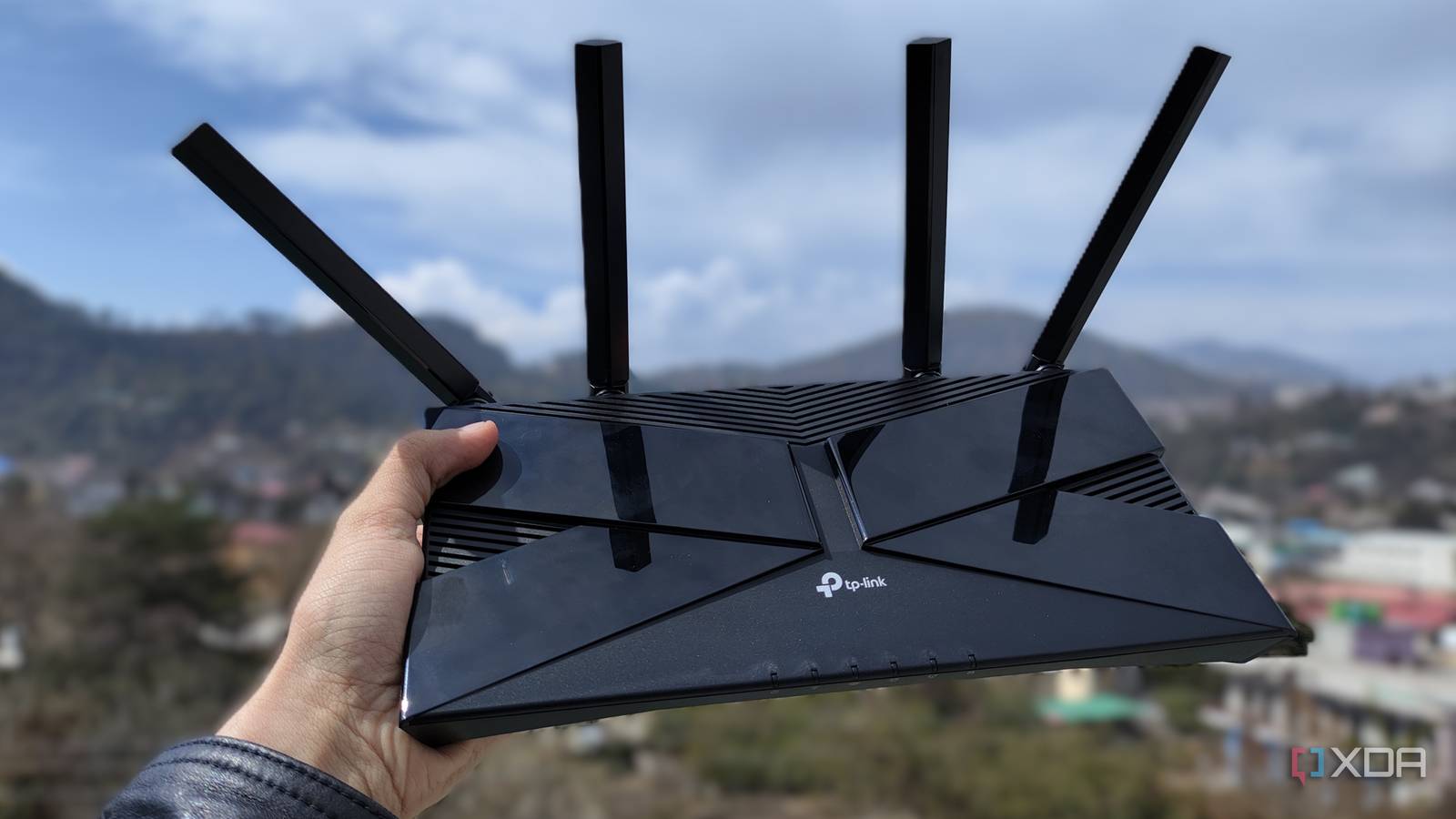
Published Aug 23, 2026, 8:00 AM EDT Jasmine is Software and PC Hardware Author at XDA with years of tech reporting experience ranging from AI chatbots right down to gaming hardware, she's covered just about everything. Whether it's breaking news about the latest AMD NPUs or creating video tutorials on social media platforms, Jasmine has contributed to the world of AI and tech in a variety of ways including interviewing the CEO of Razer, AMD's Director of Product Marketing and the VP of Lenovo. Passionate about gaming and PC technology, she has built countless computers, keyboards and other peripherals - knowing them inside and out. You might think the best option when you hit a Wi-Fi dead zone at home is to invest in an expensive multi-node mesh system to ensure full coverage. However, there are downsides to adding consumer mesh nodes around the house, including wireless backward congestion, doubled latency hops, roaming packet drops, and overlapping co-channel interference. The reality is that your existing standard router is likely more than powerful enough to eliminate dead zones in your home. It's just misconfigured. Specifically, running your router's wireless radios at the default 100% maximum power basically degrades your connection. Wi-Fi is a two-way conversation, not a broadcast tower. By calculating real-world link budgets, eliminating transmit-power asymmetry, and balancing 2.4GHz versus 5GHz self-footprints, a properly tuned single router outperforms an expensive, poorly placed mesh network in both latency and sustained throughput. How do radio frequencies work? The way your router transmits a signal might not be correct In order to understand how Wi-Fi works, you have to fundamentally understand how radio frequencies work and the physics behind them. One issue you might be encountering is an asymmetrical transmit-power trap. Essentially, your router could be yelling while your phone whispers in response. This is because a consumer router at max power broadcasts at around 25 to 30 dBm, whereas a smartphone, tablet, or handheld console transmits at only 12 to 15 dBm in order to preserve battery. This leads to the fake signal illusion. Your phone displays full signal bars because its antenna hears the router shouting from 40 ft away through two walls. When your phone tries to reply, its low-power transmitter cannot push packets back to the router, resulting in stored TCP handshakes, dropped ACK frames, and packet retries. Running router radio amplifiers at 100% capacity can actually push them into non-linear saturation. This introduces RF noise and harms error vector magnitude (EVM), preventing devices from negotiating top-tier modulation schemes and causing amplifier distortion and other signal issues. Are your Wi-Fi bands balanced? Be sure your devices are actually taking advantage of your 5 GHz band Most routers let you use two Wi-Fi bands: 2.4GHz and 5GHz. However, to make the best use of both, you need to ensure you've balanced the bands. 2.4 GHz RF waves penetrate dry water and concrete with significantly less energy attenuation than 5 GHz or 6 GHz waves. You might also have issues with the sticky 2.4GHz loop. This is when both radios are set to a default 100% TX power. The physical reach of 2.4GHz stretches far beyond 5GHz. This means that mobile devices roam onto 2.4 GHz because its raw RSSI appears stronger, and then you get your modern devices trapped on a legacy, congested, slow channel. You should stick to the 6 dB rule for band symmetry. This is a mathematical fix. By lowering your 2.4 GHz transmit power by 6-9 dBm relative to 5 GHz, it creates roughly equal cell coverage boundaries. This encourages dual-band devices to stay locked onto the high-speed 5 GHz band across the house without aggressive software band steering kicks. You can adjust settings before investing in a multi-node framework Your primary router might do the job just fine Before investing in a multi-node mesh framework, you might be better off tuning your primary router and adjusting settings so it actually reaches all the dead zones in your home. Before you start, it helps to set a baseline. You can do this with a Wi-Fi analyzer. Use a Wi-Fi analyzer on your phone and walk around your home to measure actual signal strength (also called RSSI) and your signal-to-noise ratio (SNR) in target rooms. The best tools to use are tools like Wi-FiMan or NetSpot. You should be targeting a clean signal of at least -65 dBm or better for 5 GHz at primary workstations/entertainment locations. The next step is to calibrate radio transmit power in your firmware. Drop your 2.4 GHz TX power to low or around 25% to 50%. This should bounce out to around 12 to 14 dBm. Then set your 5GHz TX power to medium or high (around 18 to 20 dBm) to stay within the power amplifier's linear sweet spot. Another often-overlooked factor is your antenna orientation and router placement. Make sure the antennas on your router are placed correctly based on the type of antenna you have. Adjust your external antennas at perpendicular 90° and 45° angles to maximize spatial diversity. For both horizontal laptops and vertically held smartphones, ensure you elevate the router away from near-field obstructions like metal desks, TVs, mirrors, and plaster walls. Give your router enough space to breathe and actually transmit the signals that you want around your home. You don't always need new hardware Placement and antenna orientation might make a big difference Consumer networking marketing convinces users that weak Wi-Fi is a hardware deficiency that requires investing in multi-node hardware bundles or a more expensive router. In reality, RF propagation is an engineering problem solved with calibration rather than brute force. You can fix many Wi-Fi issues by logging into your router's admin console today, lowering your 2.4 GHz power, adjusting your antenna angles, and auditing your signal balance. You should be able to enjoy high-speed, stable Wi-Fi across your entire home without spending a penny on new hardware.
I ditched my mesh router after discovering the one setting that actually matters
Full Article
Original Source
Read the full article at Xda-developers →KhanList aggregates and links to publicly available news content. We do not host full articles from third-party sources. Always verify important information with original sources.