
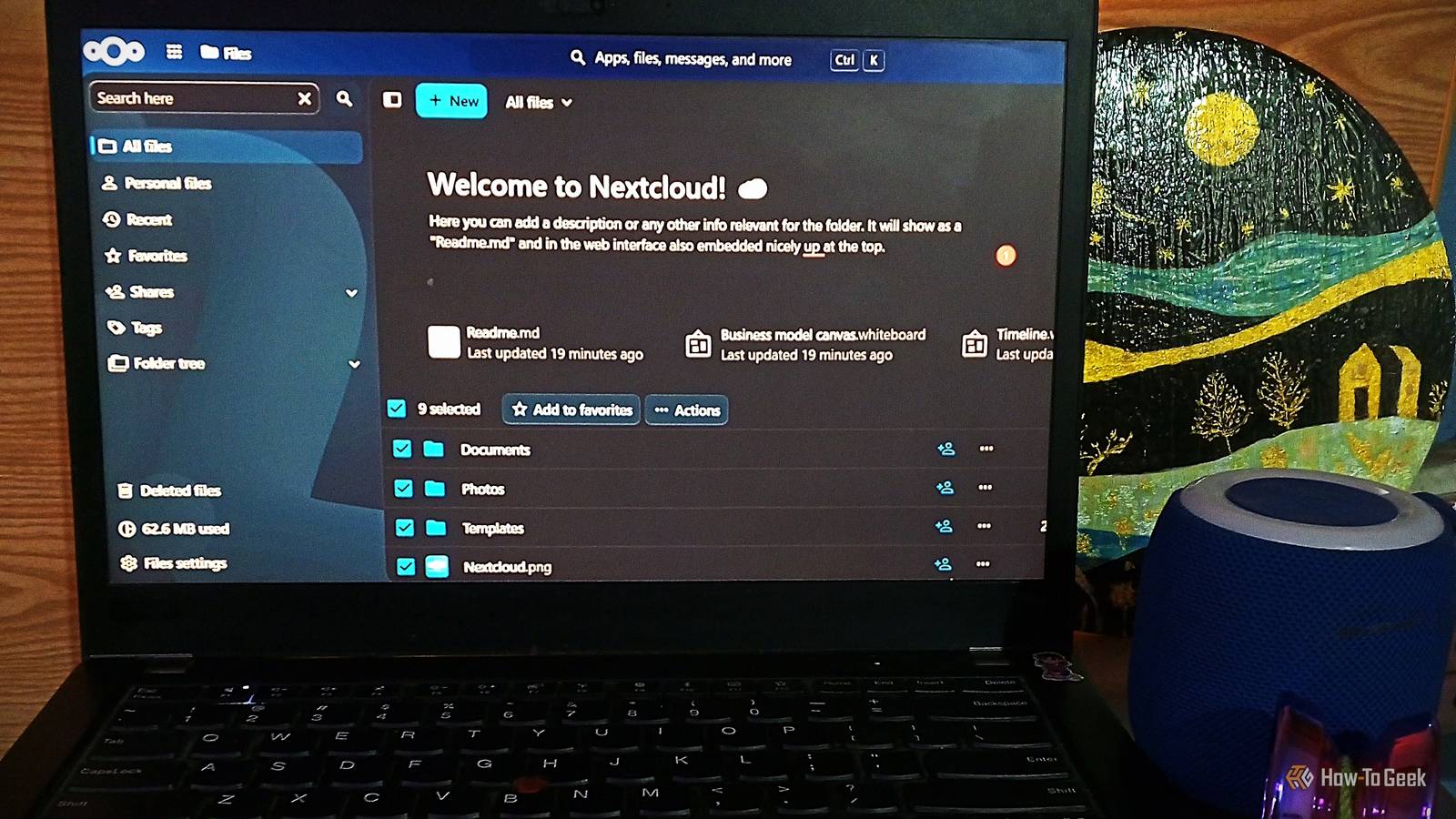
Published Nov 24, 2026, 1:30 PM EST Malaikah Chaudhry is a technical writer specializing in Linux, cybersecurity, and networking. With nearly two years of professional writing experience, she has contributed technical content covering cybersecurity concepts, software, open-source tools, and emerging technologies. She is CEH-certified and pursuing a bachelor's degree in digital forensics and cybersecurity. Outside of writing, she enjoys painting and exploring creative pursuits. Cloud storage makes everyday life easier by giving you one place to save all your photos, videos, and documents. Sharing files between your own devices or with others is all fun until you run out of space or start wondering how secure your data really is. That's exactly what happened to me when my Google Drive Storage ran out of space and started asking me to pay for more. I thought, if I can set up my own cloud storage for free, why pay for another subscription? That curiosity led me to explore Nextcloud. So, Nextcloud is open-source software that lets us store, sync, and share data. It's similar to Google Drive but gives you more control over where your data is stored. And the best part? The software is free! I started by turning Ubuntu Server into my own home server Setting up Ubuntu Server in VirtualBox I didn’t want to buy or dedicate another PC just for this, and I also didn't want to replace my go-to operating system. So, I installed Ubuntu Server in VirtualBox. Setting up a private server doesn't require a separate, expensive PC or external hardware. Can you guess what it takes to build your own cloud storage with Nextcloud? Yup, your old PC, with enough storage and an internet connection, can also work fine. I used Ubuntu Server for my Nextcloud setup. You can use a desktop if you want some graphics. After the installation, I switched the VM’s network to a bridged adapter so it could connect to my home network and get its own IP address. Docker made installing Nextcloud much easier Installing Docker and verifying that it works I needed a way that was less messy and complicated to install Nextcloud on Ubuntu Server, so I thought of using Docker. It is a tool that lets you run apps in separate containers. What makes it even better is that it keeps applications isolated from one another, making them easier to manage without interfering with the rest of the server. I installed Docker and Docker Compose and then verified that everything was working by checking their versions and running a test container: sudo docker compose version sudo docker run hello-world Seeing that everything worked gave me the green light to install Nextcloud. I ran Nextcloud inside its own Docker container Downloading and running the Nextcloud image After installing Docker, I downloaded the Nextcloud image. Once the image was downloaded, I used it to create a container for Nextcloud. Before checking Nextcloud, I also verified that the Docker Engine was running and used a few commands to inspect the container, start it, and confirm its status and port mapping. sudo systemctl status docker sudo docker ps sudo docker start nextcloud sudo docker ps -a sudo docker port nextcloud The ps command shows all the running containers. As we can see in our screenshot, the output shows a container named ‘nextcloud’ with ‘Up’ status and port mapping '8081->80.' This information shows that we can access Nextcloud through a web browser by entering the server’s IP and port, i.e., 8081. In my case, I entered my IP and port in the Google browser: http://192.168.0.114:8081 This led me directly to the Nextcloud setup page. I created an account, set a password, and boom! I was ready to use my Nextcloud. Nextcloud gives my private cloud more than just file storage Exploring the Files dashboard and uploading files Nextcloud has a very nice, user-friendly interface. While exploring it, I found some interesting features that grabbed my attention, like a calendar for managing events, Talk for private messaging and calls, and Memories for organizing photos and videos. Now came the part I did all this for: testing Nextcloud and seeing whether it actually works as an alternative to Google Drive. After installing the first few steps, Nextcloud asks you if you want to install Nextcloud on all your devices. To test Nextcloud, I uploaded a .pptx file to it. It successfully stored my file, and I can access my file from all my devices. Another thing I liked about Nextcloud is that you can always add more apps to it. It provides an app ecosystem that offers more diversity and functionality according to your needs. Nextcloud also gives you plenty of customization options, which are always fun to play around with. Why building my own private cloud was worth it I personally liked the whole concept of Nextcloud. It's really useful, gives you more control over your files, and saves you from paying for another cloud storage subscription every month. For a free, self-hosted cloud, it's a great option with an easy setup and plenty of features to explore. However, one important thing to keep in mind is that while Nextcloud gives you more control and features, it also comes with more responsibility. You have to manage everything yourself, including server maintenance, updates, storage, and backups. So, if you don't want that responsibility and prefer having things managed for you, Nextcloud might not be the right fit.
I ditched my Google Drive subscription for a free Nextcloud server on an old PC
Full Article
Original Source
Read the full article at Howtogeek →KhanList aggregates and links to publicly available news content. We do not host full articles from third-party sources. Always verify important information with original sources.