
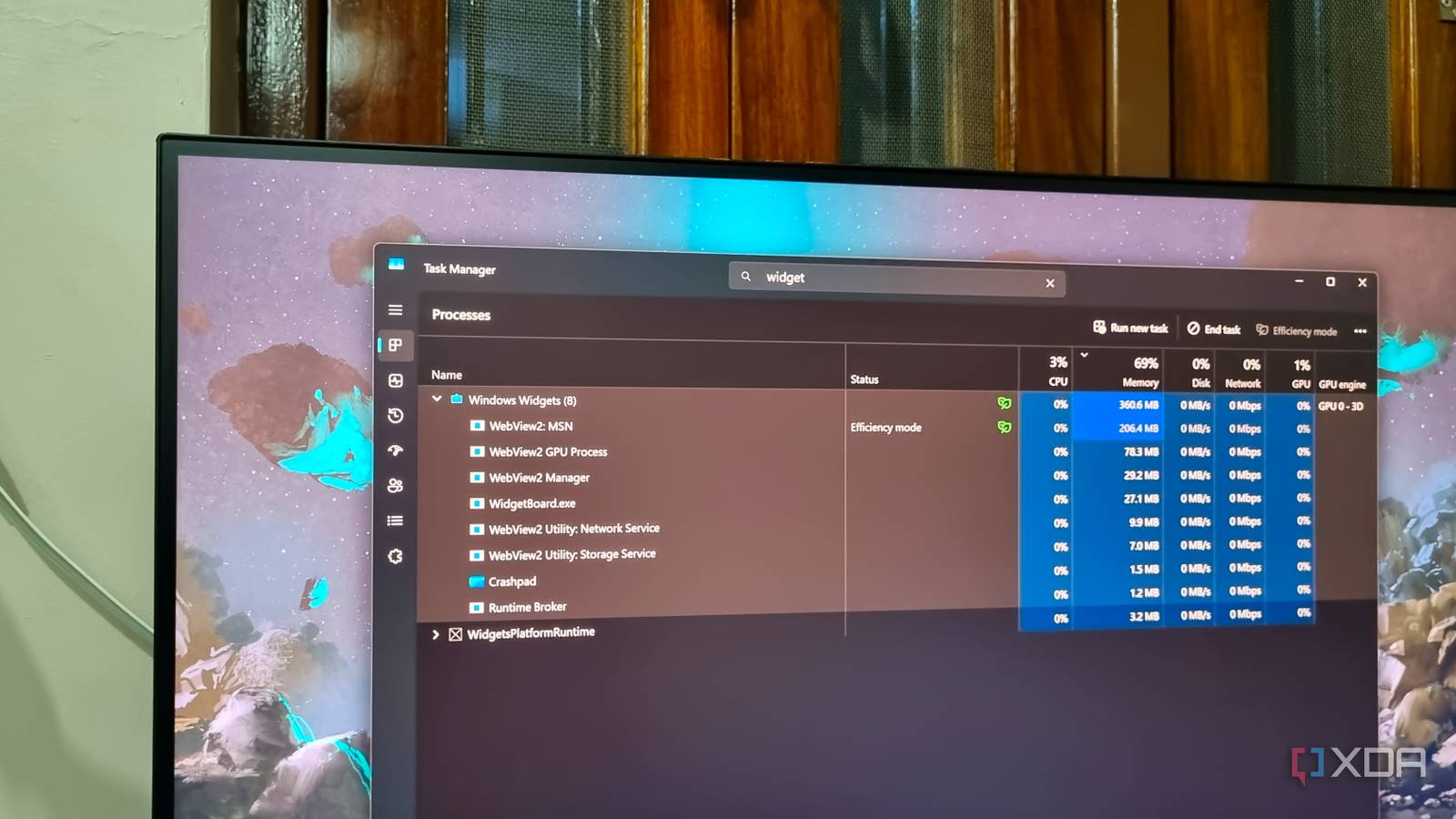
Published Oct 28, 2026, 9:00 AM EDT Abhishek is an author at XDA who covers computing. He has loved computers since he got the Lenovo G570 in 2012. Abhishek holds a master's degree in computer applications and began his writing career in 2018. He loves writing how-to articles, listicles, and informational posts on popular operating systems and web services. He closely follows the Windows Insider program and tests new Insider builds to discover upcoming experimental features and upgrades. His past work includes long-term collaborations with reputed publications like Tom's Hardware, and Windows Latest. When not writing anything, he is busy watching new episodes of One Piece or searching for something binge-worthy. Windows users always complain about performance issues and worry about the next thing an update might wreck. The preinstalled stuff, which Microsoft sees as necessary, is a big part of the problem. I call it a forced form of bloatware that absolutely disregards the user's peril. Every new installation adds a more complex form of Microsoft apps, services, and ads that becomes obnoxious to deal with. You can't purge certain apps and services, which makes the problem even worse. Even if I sympathize with the company for pushing their software into the limelight, it shouldn't come at the expense of performance. Many apps quietly work to ruin your OS experience and should be turned off at once. Let's look at a few Microsoft apps that fall on this list and the steps to disable them. Copilot AI is unnecessary I haven't used it in a long time Copilot is one of those pesky apps that slowly borrowed its way into the operating system. It started as an ambitious experiment that leveraged AI, and Microsoft was dead sure it would impress Windows users. But two years later, I can confidently say that no one asked for Copilot. There is no shortage of AI chatbots, and I really hate a preinstalled one on my PC. Earlier, it was just a web app that could load the chat experience on Windows. However, that changed when Microsoft began integrating the Copilot feature into File Explorer, Notepad, and more tools. My system doesn't meet the requirements to be called an AI PC, and I certainly don't want that option in every system app. It's not surprising if you notice nearly 500MB of memory usage, even when the app's not running in the foreground. It uses a little less memory when it’s minimized to the system tray. The only way to free up memory is to uninstall Copilot. Once you do that, you have one less startup problem and a silent background process. I don’t yearn for widgets anymore Microsoft’s Widgets Board idea ruins my memory of Windows 7 widgets. It’s now a huge board which pulls in a feed from MSN and can add some widgets. It’s one of those features that cannot be completely removed without a PowerShell script. But Windows is kind enough to offer an option in the Taskbar settings to turn it off. It’s not an app but a web wrapper that uses the WebView2 engine. Surprisingly, it’s the only app on my list that uses more than 600MB of memory when it’s active. Don’t fall for that tiny, harmless weather icon on your taskbar. The Widgets Board’s memory use can severely impact performance on systems with 8GB or less. Windows 11 already needs more than 2GB of memory to run, and these apps can shrink the resources available for useful apps and games. OneDrive doesn’t fulfill my needs I prefer a locally hosted solution The Windows Backup app is a nice way to save and sync your system preferences, credentials, and app list to your account. OneDrive is an additional backup component of this feature, but I don't use it. The free version of OneDrive has limited storage, which is one of the main reasons to self-host a local cloud storage server. OneDrive is accessible via File Explorer and doesn't have a full-fledged app like Dropbox. So it's easy to assume that it won't need much memory to operate. If you signed in to your Microsoft account and linked the PC during setup for backups, OneDrive becomes a dominant process on your PC. OneDrive needs to check and sync file changes, and to do that, it runs a few background processes. Don't be surprised if you see OneDrive using 100–300MB of memory during this silent operation state. Even if you unlink your account, the background processes still use about 100–150MB of memory. OneDrive also creates a startup entry and launches after your system boots. So, turning off this startup behavior and unlinking your account can free up more memory for other apps. Unlike Microsoft Edge, OneDrive supports a traditional uninstallation method. So, you can take a bold step and remove it permanently from your PC, as I did. Microsoft Edge isn’t my favorite browser The browser that's irremovable Edge is so tightly woven into the OS that Microsoft doesn't even offer an uninstall button. Many people don't like it, and that could be part of the problem. A lot of things rely on the browser’s WebView2 engine, kind of like how any app can open a mini browser window on your Android phone. The Widgets Board, Start Menu search results, and MSN feed need it. So, the best you can do is ignore the browser and switch to something like Chrome or Zen Browser. It's impossible to remove every Edge process from the system, but turning off a few features can reduce the impact. Edge uses a startup behavior to preload things in RAM, even if you don't use it regularly. The feature is called Startup Boost, and you’ll find it listed on the System and performance page. You can deactivate it to prevent Edge browser processes from running in the background. While you are there, also turn off the “Continue running background extensions and apps when Edge is closed” toggle. Until Microsoft adds a native way to remove Edge, these two options can help. A better Windows experience Turning off such meddlesome apps in Windows can improve performance. Since these apps no longer run at startup or keep running in the background when you aren’t using them, your PC feels a tad faster. You can even use a de-bloating script to remove ads and promotions, remove MSN results from the Start menu, and turn off telemetry. It’s useful for apps and features that lack traditional uninstallation options in the Control Panel or Settings app. Windows 11 Pro A USB installation drive and license key for Windows 11 Pro, with additional features like Hyper-V and Windows Sandbox support.
I disabled these 4 Microsoft apps, and Windows 11 felt noticeably faster than before
Full Article
Original Source
Read the full article at Xda-developers →KhanList aggregates and links to publicly available news content. We do not host full articles from third-party sources. Always verify important information with original sources.