
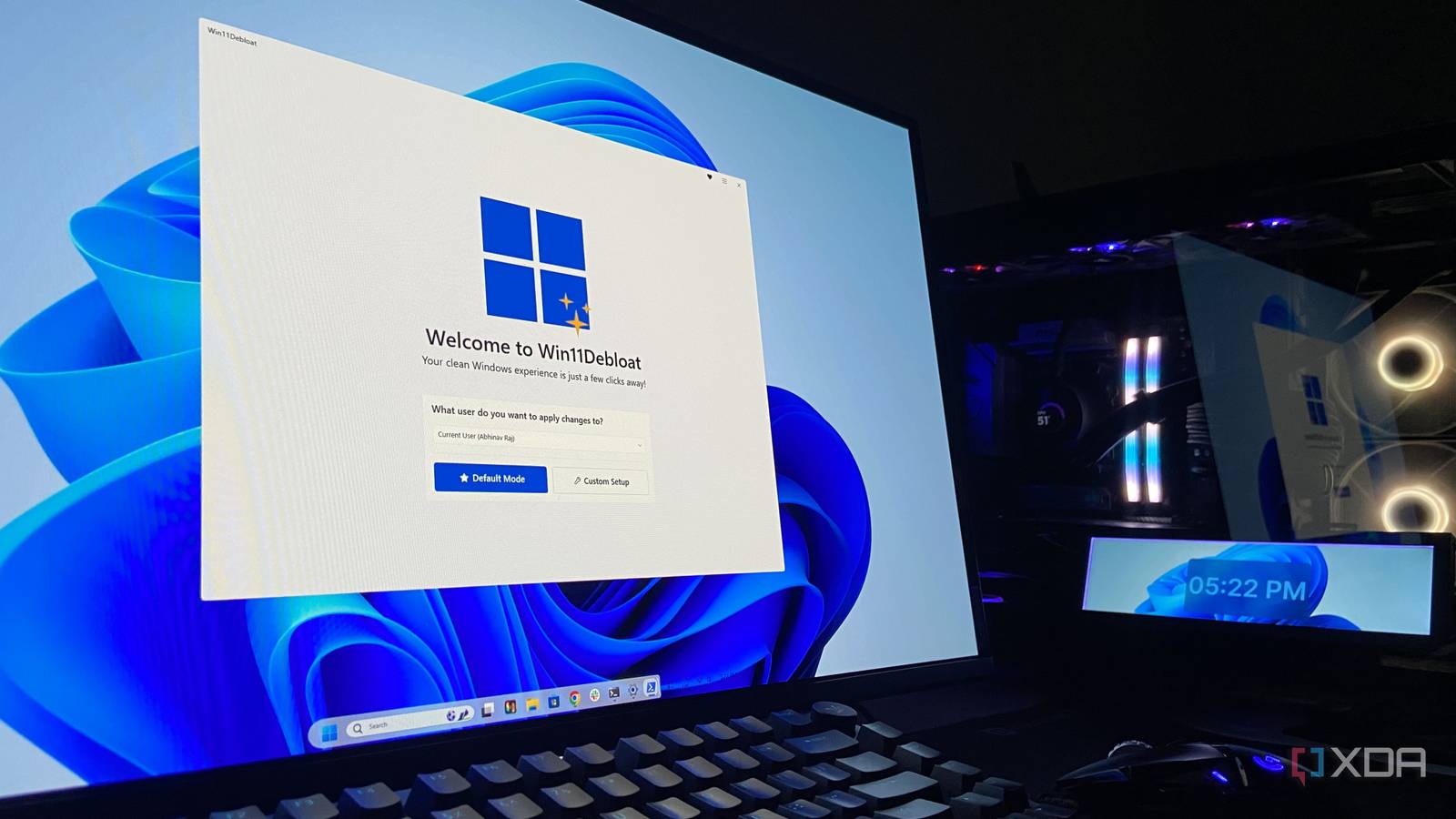
Published Sep 9, 2026, 9:00 AM EDT Abhinav pivoted from a career in banking to pursue his first love in writing. Even while working full-time, he continued contributing as an editor-at-large, a role he has held for more than 7 years. A lifelong tech enthusiast who has built three gaming and productivity powerhouse PCs since 2018, his passion for technology keeps him closely following the semiconductor industry, from NVIDIA and AMD to ARM. His MSc dissertation explored how artificial intelligence will reshape the future of work, reflecting his curiosity about the wider social impact of emerging technologies. Windows 11 has always had a bloatware problem, and most of it can be associated with Microsoft's hyper-enthusiastic push for its new AI services. Another issue that has further exacerbated this problem for long is that Microsoft never really offered users an option to opt for a lean version of the OS at the time of onboarding, which meant essentially all users were opted in to their ecosystem of bloatware and non-essential services. The problem has been so prominent, and for so long, that many utilities, PowerShell scripts, and dedicated debloating applications have turned up over the years, but the problem is, most of the guides don't really focus on what needs to be removed, and instead rely on the user's discretion to select what goes. This can be a little confusing, so here's my way of demystifying the process. Windows 11 debloaters are dime a dozen And most of them suffer from the same transparency problem The entire act of "debloating" a Windows installation relies on information that most everyday users simply do not have access to. After all, Microsoft never really specified what it's installing on your machine when you finished installing Windows 11, so how could you possibly expect to know what needs to be removed, and what should stay? What makes this problem slightly worse still is that most of the debloating scripts and applications that you can find online also tend to assume a level of user expertise, or at the very least, familiarization, with Windows apps and services. Some of these "one-click debloat" utilities also seem to have a transparency problem, in that, they are rather cryptic about what they're removing from your PC. This itself fuels anxiety amongst paranoid users, and at times, also sparks concerns surrounding privacy and security. Running such scripts and applications demands an enormous level of user trust, and as such, it's no surprise to see a lot of users just giving up on the idea altogether and suffering silently with a bloated, and often, resource-constrained machine. The easiest method is to just pick the right debloater And I've got just the right open-source utility for it My first recommendation for anyone who asks for a leaner Windows 11 experience is Raphire's Win11Debloat utility, which was released under the MIT license and has over 56K starts on GitHub. That adds enormous credibility and the utility itself has enough first-person accounts online to vouch for how good it is, but neither of those are the reason why it is an automatic recommendation. The reason why I personally prefer it is that it takes all the guesswork out of deciding what should and shouldn't be removed, which is the biggest failure mode when it comes to the de-bloating process. To run it, you just need to fetch the PowerShell one-liner from the official GitHub, which then fetches and runs the latest version of the script from the author's website. Once it's downloaded, it launches a neat little GUI with an option to either opt for the "Default Mode" or the "Custom Setup." It's recommended that you go for the latter, because it's a lot more transparent. It fetches you the apps that can be removed, along with their identification numbers, descriptions of what they do, and a color-coded recommendation ranging from green, yellow, and red against each. For the anxious and cautious, it's one of the most reassuring methods, because even before the process begins, the utility creates a registry backup and system restore point if ever you want to roll back the changes. There are also options to include Quick Select presets for some common bloatware that comes with Windows 11 and its OEM variants. It includes Xbox gaming components, pesky OEM software from manufacturers like Lenovo, Dell, HP, and LG, as well as other, well-hidden preinstalled apps from Microsoft. There are always things you should leave alone while debloating Only a couple, but worth watching out for Although trusted utilities like Win11Debloat make it reasonably foolproof, it's important to watch out for a couple of Windows apps that the utility, just like many others, still allows to be removed. Win11Debloat makes it hard to do so through its red flags and rather loud "Not Recommended" tags, but this warning still warrants a bit of explanation as to why it exists. One of the things you definitely want any debloating utility to come anywhere near is the Microsoft Store. This is because, for most of your built-in Windows apps, the Microsoft Store is also the primary delivery mechanism for updates to apply, in addition to being the primary storefront. If you accidentally remove it, it could be a little annoying to get it back, as you'd have to download the Store's .appxbundle and dependencies and side-load them. The next thing I'd leave alone is Microsoft Edge, no matter how much you don't use it. The reason for this is that Edge is the browser Windows Sandbox uses as a default, so removing it creates a fresh Sandbox session without a browser for loading web content, provided you're on Windows 11 Pro, Education, or Enterprise. This is also something Win11Debloat's warning covers, stating that it can affect the functionality of other apps. Although trusted utilities like Win11Debloat make debloating reasonably foolproof, it's important to watch out for a couple of essential Windows apps that are still allowed to be removed. But there's one more thing, and it's important to know Besides all of that, some of the more questionable debloater scripts can even go so far as disabling Windows Update, which, as you would expect, can become a security risk as Microsoft routinely ships patches for existing and new vulnerabilities. So, even if you're perfectly content with the build you're on, it's best to steer clear of this territory, as there's literally nothing to gain from this. If you stick with trusted (and forgiving) debloating tools, there's not really much to worry about.
I debloated Windows 11 without breaking anything, and here's what I deliberately left alone
Full Article
Original Source
Read the full article at Xda-developers →KhanList aggregates and links to publicly available news content. We do not host full articles from third-party sources. Always verify important information with original sources.