
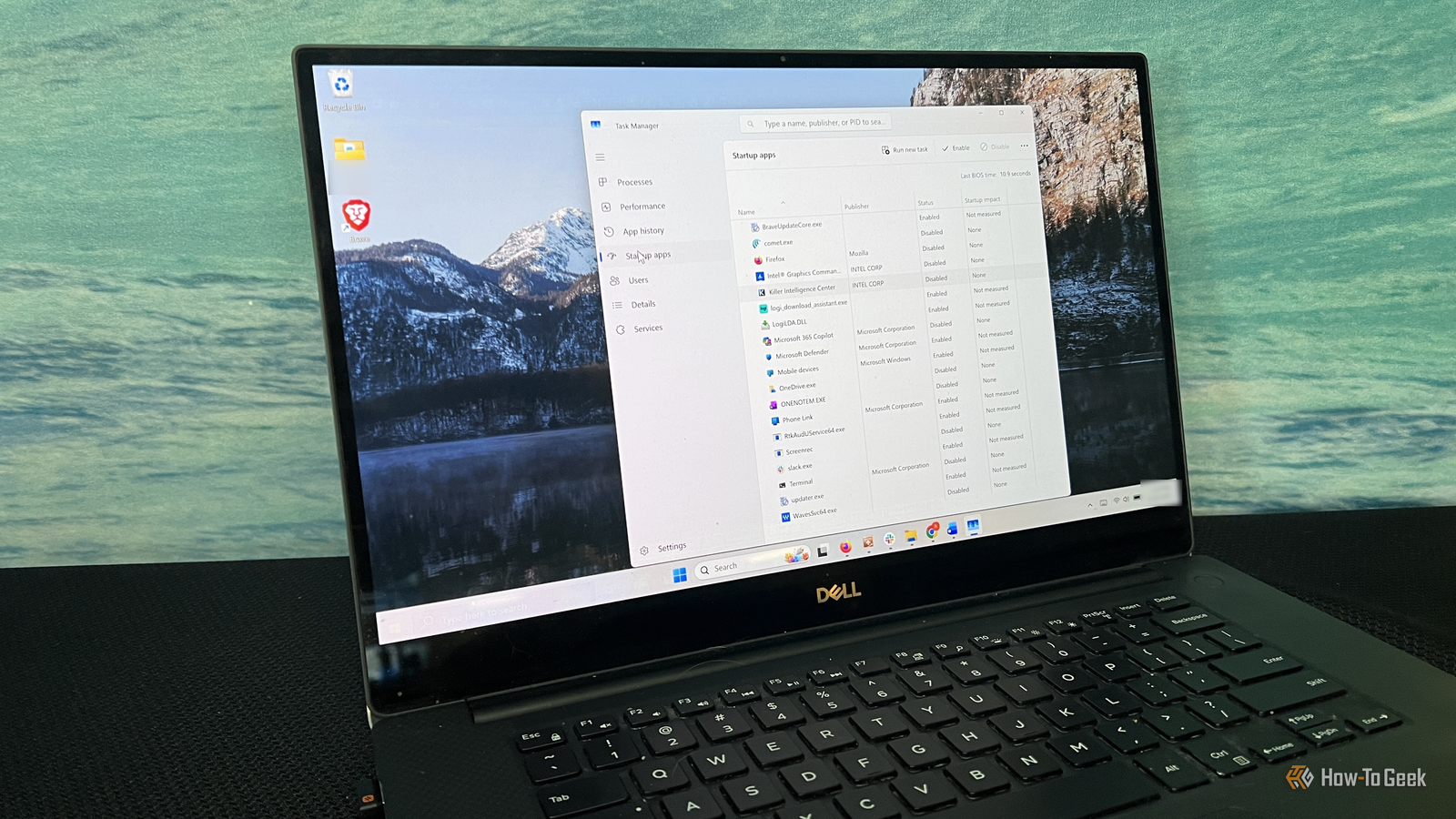
Published Aug 12, 2026, 6:30 AM EDT Aggy is a veteran writer and editor in the technology and gaming space. Having served as a Managing Editor for high-traffic digital publications, alongside being an editor and consultant for over a dozen sites. Aggy's published work spans a wide and respected array of tech and gaming outlets, including WePC, Screen Rant, How-To Geek, Android Police, PC Invasion, and Try Hard Guides. Beyond editorial work, Aggy's direct experience in the tech sphere extends to app development. Aggy has published two games under Tales and is always eager to learn and do more. He also likes working on computers and researching in his spare time. He knows about Windows, Linux, Audio, Video, and much more. Most people assume a slow boot comes down to hardware, and the obvious fix is buying a faster drive. I spent a while convinced of that too, but what actually made the difference for me wasn't new hardware at all. I didn't have to spend a dollar to make it boot faster, and you don't either. Turn on UEFI Fast Boot in your motherboard settings Before your operating system even starts loading, your computer's firmware has to wake up and check that all your hardware is actually there and working. This is called the Power-On Self-Test, or POST, and it can take longer than you'd expect on some machines. During a cold boot, your Unified Extensible Firmware Interface (UEFI) firmware works through a checklist. So it's going to initialize your RAM, scan for connected devices, check your storage interfaces, and set up basic inputs and outputs. All of that happens before Windows ever gets involved, and how fast your firmware gets through that checklist is what determines when control gets handed off to the Windows Boot Manager. If your motherboard is spending twenty or thirty seconds verifying RAM and polling empty USB ports or an optical drive you never use, no amount of NVMe speed is going to save you. The most effective thing you can do about this is to enable Fast Boot in your UEFI settings. This is not the same thing as Fast Startup in Windows. That's a separate feature that works by partially hibernating the Windows kernel. UEFI Fast Boot is purely a hardware-level setting. When you turn it on, you're telling your motherboard to skip the thorough hardware checks and go straight to your primary storage drive. Depending on your motherboard, this might also disable boot support for optical drives, network booting, and removable media. Some options go even further and suppress the manufacturer splash screen entirely, skipping USB controller initialization until Windows takes over. Since all of this happens below the operating system level, it's a one-time setup you do outside of Windows entirely. You'll need to get into your BIOS or UEFI utility, which usually means pressing Delete, F2, F10, or Escape repeatedly the moment your machine powers on. If your system already boots too fast to catch that window, you can get there through Windows instead by going into Advanced Startup and selecting UEFI Firmware Settings. Once you're in, find the Boot menu, switch Fast Boot from Disabled or Thorough to Enabled or Minimal, save your changes, and you're done. From that point on, your machine skips the invisible waiting period that was happening before the Windows loading screen ever appeared. Clean up your Windows startup list and settings Cut back on the programs that launch when your PC turns on Credit: Jorge Aguilar / How-To Geek If you're not comfortable messing with those settings, there's another option. The fastest way to speed up the handover to the boot manager is Fast Startup. With a normal shutdown, Windows closes everything down completely, which means every app and driver gets wiped from memory. Fast Startup takes a different approach. When you shut down, Windows signs you out of your account but keeps the system kernel alive. The next time you boot up, Windows just reads that saved state back into memory instead of rebuilding everything from scratch, which can cut your startup time by 30 to 60 percent. To turn it on, go to the Control Panel, open Power Options, click "Choose what the power buttons do," and check the box that says "Turn on fast startup." That said, even if Windows itself loads quickly, your boot can still feel slow if a pile of programs all try to launch the moment your desktop appears. If you refuse to do either of these, you can just lessen how much your computer has to do, like I did. To see what's running, press Ctrl+Shift+Esc to open Task Manager and click over to the Startup tab. This gives you a list of everything set to launch with Windows, along with a rough measure of how much each one slows things down. Anything marked "High impact" is burning through more than a second of CPU time or pulling over 3MB of disk activity right at startup. Go through the list and turn off anything you don't need immediately. I took down Steam, Epic Games, and all game launchers. I took down everything but Phone Link because if I need anything, I can just click it. It made my computer load so much faster after. Fast hardware won't fix a messy setup Software tweaks can only take you so far Credit: Jorge Aguilar / How-To Geek While I can confirm the above worked for me, there's more to it than this. It's okay to wonder what the point is of spending a bunch of money on hardware when this software fix will handle all of it. The thing is that hardware is just faster. NVMe drives are so fast that manual tuning barely has much to change. The numbers back them up, at least on the surface. Older SATA SSDs are capped at around 600 MB/s due to the limitations, while current PCIe 4.0 and 5.0 NVMe drives can supposedly hit speeds of 7,400 MB/s and upwards of 14,000 MB/s respectively. On top of that, the NVMe protocol was designed from the ground up for flash storage and can handle up to 64,000 simultaneous command queues, meaning it can absorb a heavy boot load without any issues. Still, even the fastest drive in the world would feel slow if the system it's running is a mess. The boot process can be held up by other things like CPU decompression, memory latency, and firmware-level hardware initialization. At that point, a bloated startup sequence becomes the real problem. An unmanaged system will constantly write unnecessary data in the background, things like pagefile resizing, indexing temporary folders, and maintaining hibernation files, all of which quietly eat into the drive's total write endurance over time. Raw speed also can't fix deeper issues like driver conflicts, software loops, or a desktop that takes thirty seconds to become usable because forty applications are all loading at once. Throwing faster hardware at a messy system doesn't fix anything. It just hides the problem, and it wears the drive out faster while it's at it. So you need to do stuff like this to keep things fast, even if you bought more hardware. There is a limit to this The truth here is that software fixes have a ceiling. If your drive is genuinely old or failing, no amount of trimming your startup list will paper over that. Still, most people running a reasonably healthy system will see a real difference before they ever touch their hardware. The UEFI change takes about five minutes, and clearing startup programs takes another ten. If your boot has been nagging you, those are the first two places to look.
I cut my Windows boot time in half without buying a faster SSD
Full Article
Original Source
Read the full article at Howtogeek →KhanList aggregates and links to publicly available news content. We do not host full articles from third-party sources. Always verify important information with original sources.