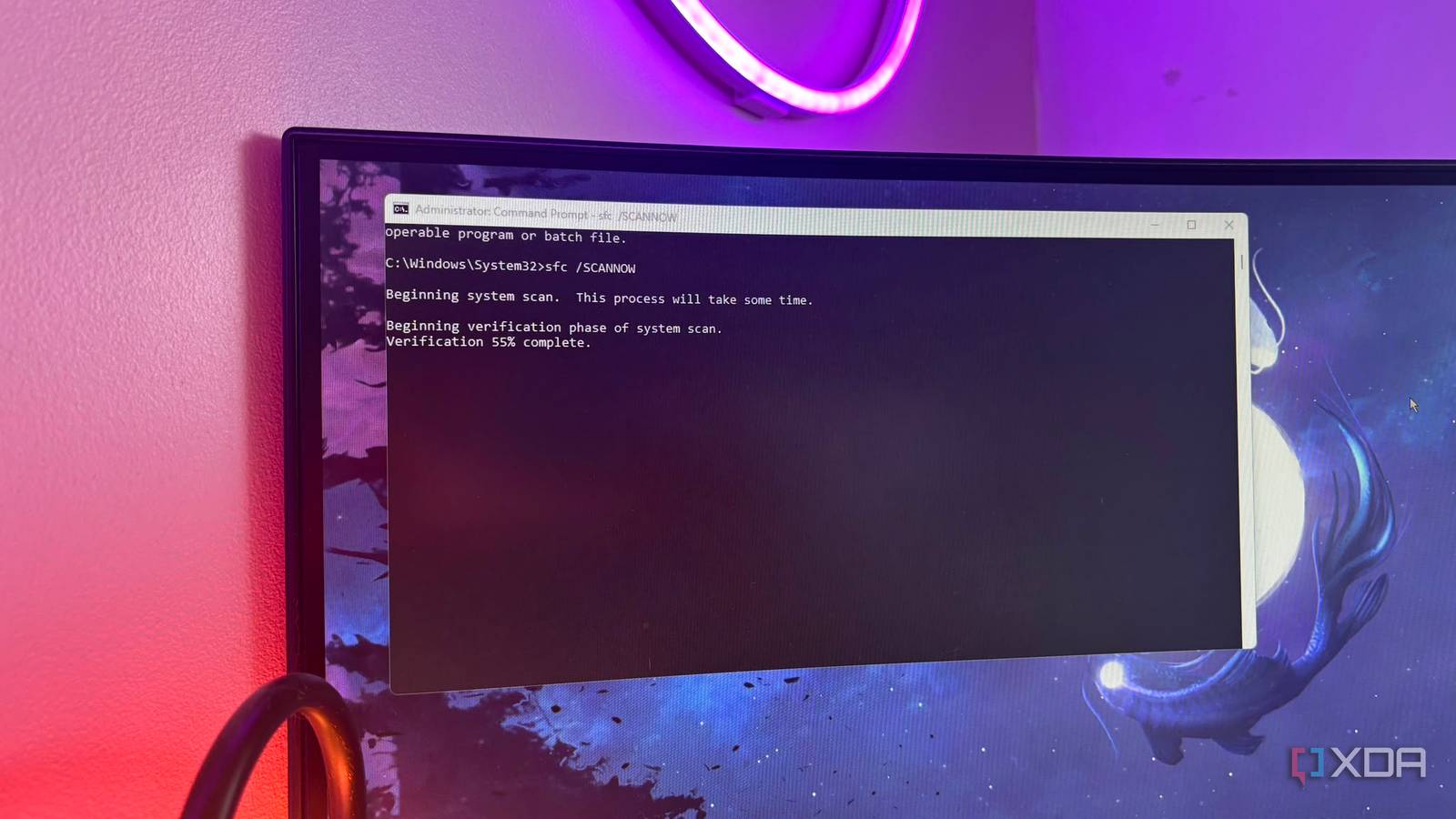
Published Aug 2, 2026, 7:00 PM EDT Jasmine is Software and PC Hardware Author at XDA with years of tech reporting experience ranging from AI chatbots right down to gaming hardware, she's covered just about everything. Whether it's breaking news about the latest AMD NPUs or creating video tutorials on social media platforms, Jasmine has contributed to the world of AI and tech in a variety of ways including interviewing the CEO of Razer, AMD's Director of Product Marketing and the VP of Lenovo. Passionate about gaming and PC technology, she has built countless computers, keyboards and other peripherals - knowing them inside and out. Over time you might notice that your boot times get slower even if you do have a lightning-fast NVMe SSD. If it ever gets to a point where it feels like pressing the power button leads to a delayed black screen and minutes of sluggish desktop responsiveness, you might actually have an issue in your hands. It's not always the fault of background startup apps, fast startup, or failing hardware. The real bottleneck could easily be Windows system file corruption, broken component store manifests, and orphaned registry boot pointers that force the OS bootloader into lengthy timeout and error recovery loops before actually reaching the desktop. You don't need a hardware upgrade or a full OS reinstall to actually fix a crawling Windows startup. By executing a simple 5-minute terminal routine to repair corrupted system files, clean up the component store, and rebuild broken boot caches, you can eliminate hidden initialization timeouts and cut your boot times in half. What's the issue behind your slow start up? Corrupted system files can cause a lot of problems So why do corrupted files actually lead to a significantly laggier startup? This is because of the way that Windows actually boots. The initialization sequence starts with your BIOS or UEFI, then goes to your Windows Boot Manager, then the OS kernel, then the Session Manager, and then your desktop environment. This means that when system files or driver manifests are corrupted or partially overwritten, the OS bootloader doesn't immediately crash. Instead, it repeatedly attempts to reach the corrupted file, encounters a checksum fail, can time out, and then falls back to a backup path. These invisible retry loops, which you might not even be privy to, can add an extra 10 to 30 seconds of pure idle delay to every single boot. If this retry loop continues over and over again, you might be sat waiting for minutes at a time. How to repair the problem Running these commands take a few minutes and costs you nothing Completing a free five-minute terminal routine can actually help rectify all of these issues. Even if you don't feel like you're encountering them, it's a great built-in maintenance command to complete every so often just to ensure that your PC stays healthy. The first step is to complete a system file integrity check. You can do this by opening your command prompt as an administrator and then running the sfc /SCANNOW command. This system file checker can scan protected system files and replace corrupted, modified, or missing binaries with a clean cached copy, which is located in your Windows cache. The next step is servicing your component store. This is a great option when the system file integrity check alone can't find a clean local copy to replace any corrupted files with. Run the DISM /Online /Cleanup-Image /RestoreHealth command in your command prompt, and then DISM will repair any underlying Windows image repository using official Microsoft update manifests. You can also run another command to complete a component store garbage collection. This is because purging superseded Windows update faults on old staging manifests can reduce the kernel startup indexing load. You can do this by running the DISM /Online /Cleanup-Image /StartComponentCleanup. You can run all of the commands with a single executable command chain as shown: sfc /SCANNOW; DISM /Online /Cleanup-Image /RestoreHealth; DISM /Online /Cleanup-Image /StartComponentCleanup Audit the results to see if it made a difference You can check the details of your boot times You can actually audit your boot time thanks to the fact that Windows has a built-in event logging mechanism that tracks boot performance down to the millisecond. This means instead of timing your startup with a phone stopwatch or counting on your fingers, you can actually use the Eventing Viewer to see the exact time the operating system spent initializing kernel services, loading drivers, and rendering the desktop environment before and after running your cleanup script. To begin with, open your Event Viewer by pressing Windows and R and then type in eventvwr.msc and press enter. Next navigate to the Diagnostic Log and in the left-hand tree, expand the folders in the following order: Applications and Service Logs -> Microsoft -> Windows -> Diagnostics-Performance -> Operational. Next, filter for boot events, which you can do in the right-hand actions panel, and then click Filter Current Log. In the Event IDs field type 100 and click OK. The event ID 100 specifically logs every system startup, while event ID 200 logs shutdowns. You can see the information as it is provided or you can hit the Details tab and switch to the XML view to look for more detailed metrics about your boot duration, the time spent between the initial Windows bootloader phase and the appearance of the desktop screen, as well as the exact time spent initializing background startup services and tray applications after the desktop becomes visible. You don't need a hardware upgrade Sometimes a clean up does the job Before throwing money at a newer SSD or resorting to the hassle of a clean Windows reinstallation, it might be better for you to run this quick cleanup built-in diagnostic tool that Microsoft has literally baked directly into the operating system. Open PowerShell as an administrator and execute this free five-minute cleanup script. Reboot your PC and then monitor the results. You might notice an instant zero-cost performance boost and an operating system that boots clean every time. Even if it doesn't make a difference, it's still worth running the script every so often as a way to maintain your PC health long term.
I cut my Windows boot time in half by running one simple command, and you can too
Full Article
Original Source
Read the full article at Xda-developers →KhanList aggregates and links to publicly available news content. We do not host full articles from third-party sources. Always verify important information with original sources.