
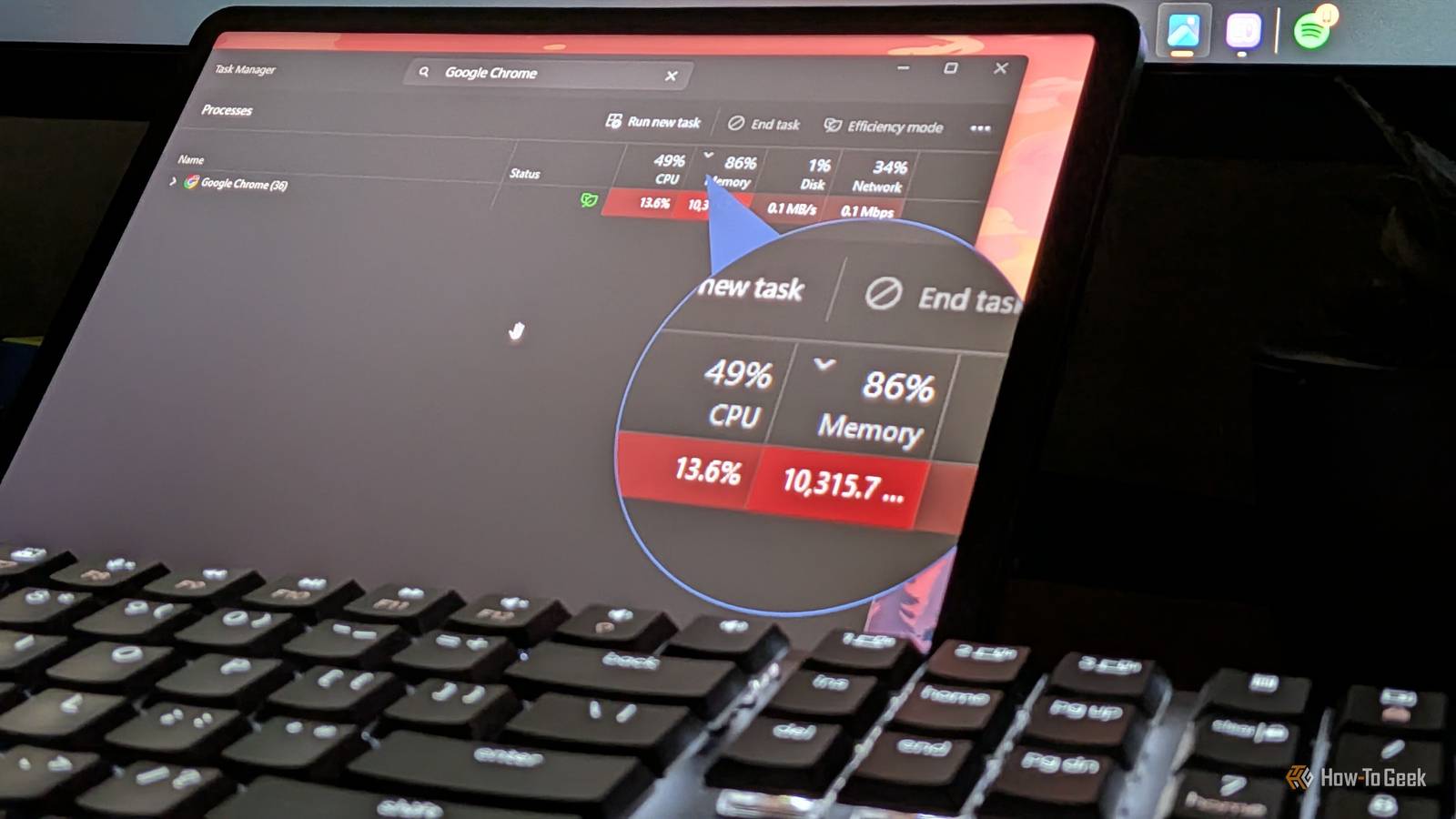
Published Nov 17, 2026, 5:00 PM EST Dibakar Ghosh is a tech journalist at How-To Geek with over a decade of experience using and writing about open-source software, Linux, Android, AI, and personal productivity. He writes about software, operating systems, and tools that help people get more from the technology they already use. Chrome has a reputation for hogging your RAM, and there’s no shortage of online tips promising to fix it. So, I decided to try every popular tip and hack out there to see which ones actually help reduce Chrome’s RAM usage and which are a waste of time. Following their recommendations, I turned on Memory Saver and set it to Maximum, turned off page preloading and hardware acceleration, cleared all my cookies and cache, switched off Chrome’s built-in Gemini features, and audited my entire extension list. Here’s what actually worked. First, how I set up the test I tried to keep this as relevant to normal use as possible I wanted to keep the test as close to real-world conditions as possible. So I didn’t perform a system restart and just tested it while my computer had already been running for two days straight. I also didn't close any of the routine apps I always have running in the background, such as Slack, Discord, Claude, and others. Now, before opening Chrome, my system was sitting at around 44% RAM usage. After starting Chrome and opening an assortment of 20+ tabs — typical of my everyday workflow — RAM usage settled at around 70%, which meant roughly 7.8GB of RAM was being used by Chrome alone. For reference, my system is running a Ryzen 5 5600G with 32GB of RAM. For the test, I created a bookmark folder containing 20+ popular websites, including Gmail, Google Docs, Sheets, Drive, Calendar, YouTube, Spotify, Reddit, X, LinkedIn, WhatsApp, Amazon, Claude, ChatGPT, and a handful of news articles. Every time I tweaked a setting, I restarted Chrome and opened the same websites from the bookmark folder to get an accurate idea of how much that setting affected RAM consumption, with everything else remaining the same. To measure RAM consumption, I used both Windows Task Manager, which showed how much memory Chrome was consuming as a whole, and Chrome Task Manager (opened by pressing Shift + Esc), which showed the memory consumption of individual sites and processes. The one fix with the biggest impact Extensions were the biggest culprit by far A quick look at Chrome Task Manager showed me that my extensions were consuming almost as much memory as some of the heavier websites. For example, the Adobe Acrobat extension was using about 500MB of memory — more than LinkedIn, WhatsApp, or Gmail. What's worse is that I only need that extension once or twice a month when looking at invoices. So, I decided to audit all my extensions. I deleted every single extension I no longer used or needed, disabled the ones I only use occasionally — such as Acrobat Reader — and kept active only the extensions I need during every browser session, such as Bitwarden, Grammarly, and Google Translate. After making these changes, Chrome's memory usage dropped from 7,766MB to 7,077MB, a reduction of around 690MB or 9 percent. The number of Chrome processes also went from 77 to 70. That was the biggest improvement of all the changes I tried. However, adding this one extension freed up RAM While disabling extensions offered the biggest improvement in RAM consumption, the second-biggest improvement actually came from installing an extension: uBlock Origin Lite. I already suspected this would happen, which is why I removed the extension before running the baseline test. This allowed me to measure exactly how much of a difference it made. And it turned out to make quite a difference. You see, uBlock Origin Lite stops ads and tracking scripts. Since loading and running ads consumes system resources just like loading and running the websites, blocking them is one of the easiest ways to reduce the load on your system. For instance, on one of the news sites I visited, a single Google ad frame was using about 216MB of memory on its own. Now, the actual performance difference. I had Chrome running at its baseline state, with all extensions enabled, when I installed uBlock Origin Lite. Its memory usage dropped from 7,766MB to 7,237MB, a reduction of 529MB, or roughly 7 percent. The number of Chrome processes also dropped from 77 to 54. And of course, you can’t leave out AI from the picture The third-biggest improvement in RAM usage came from disabling Chrome's AI features. Of course, if you actually prefer and regularly use Chrome's AI functionality, this tip probably isn't for you. But if you don't, disabling these features is an easy win. Just go to Settings -> AI Innovations and toggle off every feature you see. This single change reduced RAM usage by roughly 325MB. After combining all the tweaks — disabling unnecessary extensions, installing uBlock Origin Lite, and turning off Chrome's built-in AI features — Chrome's RAM usage dropped from 7,766MB to 5,882MB, a reduction of roughly 1.9GB, or 24 percent. The number of Chrome processes also went from 77 to 46. That's a solid win in my books and definitely something to consider if Chrome's memory footprint has been bothering you. What about everything else? They're useful settings, just not for freeing up RAM The standard recommendation for reducing Chrome's RAM consumption is to use its Memory Saver feature. It works by unloading inactive tabs you haven't visited in a while, freeing up the memory they were using for other tabs or applications. It's worth noting that when you click an unloaded tab to reactivate it, Chrome has to reload the page. This can disrupt your browsing experience, especially if you frequently switch between tabs. I personally dislike this behavior and would much rather reduce Chrome's overall memory footprint so everything I need can stay loaded in memory at all times. Then there's an option called "Continue running background apps when Google Chrome is closed," located under Settings -> System. When enabled, some Chrome processes can continue running in the background even after you close the browser, consuming RAM in the process. It's worth disabling this option to ensure that closing Chrome actually means closing it. However, it doesn't directly help reduce the browser's memory footprint while you're actively using it. Another setting worth mentioning is Page Preloading, located under Settings -> Performance. It lets Chrome preload pages it thinks you're likely to visit so they open faster. In theory, disabling it can make a difference because Chrome uses system resources to preload these pages. However, that only helps if Chrome preloads a page you don't end up visiting. If you do open it, preloading is a convenience rather than a burden. In my experience, Chrome's preloading algorithm was smart enough that disabling it made barely any difference to the browser's memory footprint. The final "hack" I tried was clearing the cache and cookies, but this also didn't result in any significant memory savings. Chrome primarily stores its cached files on your drive, not in RAM, so clearing the cache doesn't directly free up much memory. On the contrary, it can temporarily increase resource consumption because Chrome now has to download those assets all over again when you revisit websites. Switch browser if Chrome is still too heavy If you've disabled all unnecessary extensions, installed an ad blocker, turned off the AI features, and Chrome is still eating up most of your RAM, it might be time to switch browsers. Firefox would be my top pick because it uses its own, more resource-efficient browser engine. However, if you need to stick with a Chromium-based browser, believe it or not, Microsoft Edge is actually a decent alternative, especially on Windows. That said, if you're looking for a particularly lightweight Chromium-based browser, Brave Origin is worth considering, although it requires a one-time payment.
I cut Chrome’s RAM use by 24 percent without closing (or freezing) a single tab
Full Article
Original Source
Read the full article at Howtogeek →KhanList aggregates and links to publicly available news content. We do not host full articles from third-party sources. Always verify important information with original sources.