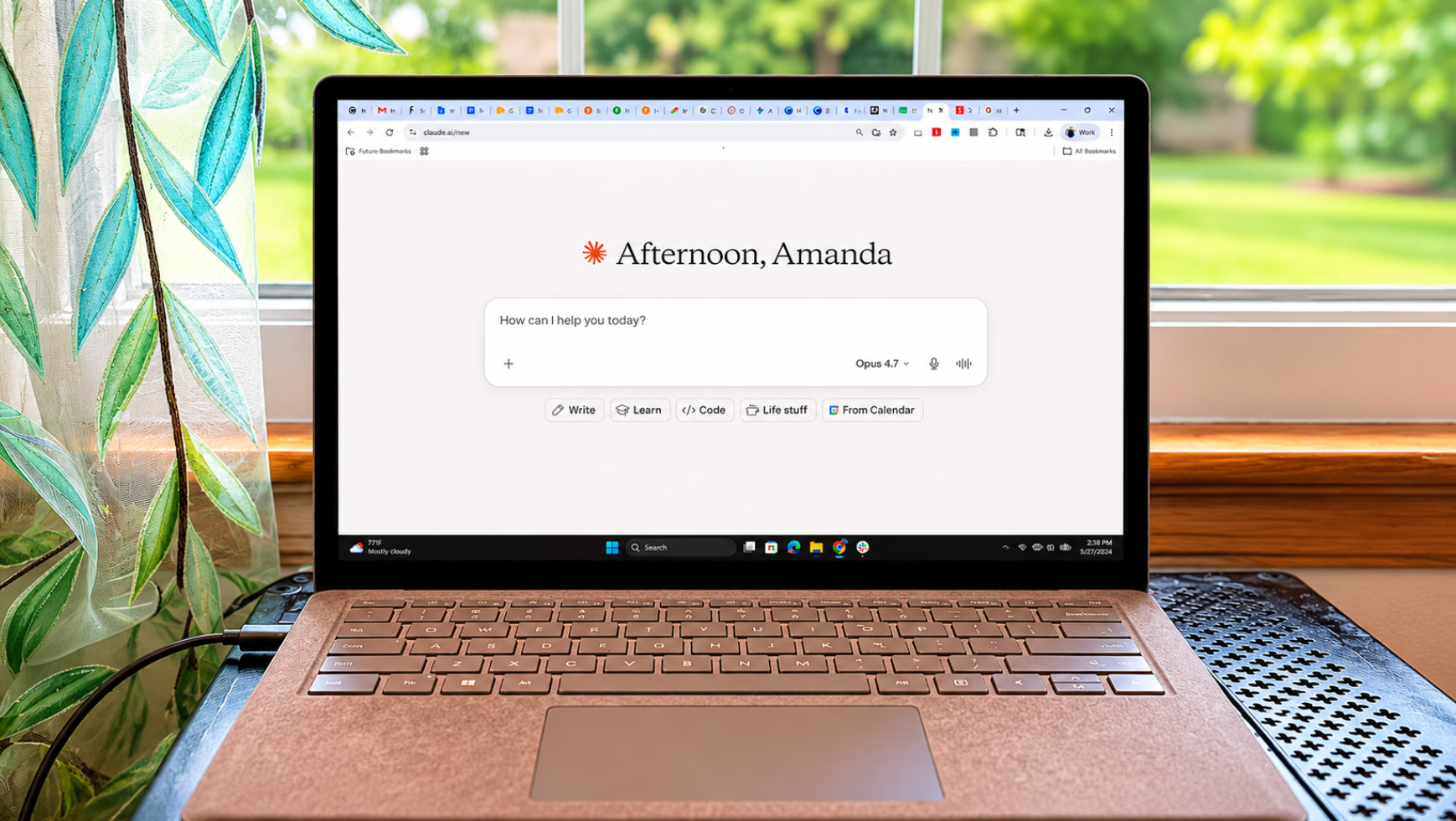
I've discovered that Claude Connectors can fill in some of the gaps in my workflow just by giving the assistant access to apps such as Gmail, Google Calendar and Notion. The good news is, you don’t have to paste in every email, meeting and project note before asking for help.Of course, that convenience requires handing Claude access to parts of your digital life you may prefer to keep private. The setup entails permission screens, and you’ll need to decide how much access you’re willing to grant. An AI could still misunderstand a sensitive document or make a change you didn’t intend.I tested five popular connectors to see which ones saved me time and which felt like one more thing to manage.Asking Claude to manage my busy day (Image credit: Future)I started with this prompt: Look at my unread emails, check my recent project notes in Drive, cross-reference my calendar and build me a realistic schedule for today.Claude found two unresolved PR questions in Gmail and pulled the background information from a Google Drive document. It then checked my calendar and found an uninterrupted two-hour window I could use for writing.Normally, I would have opened several tabs and gathered all of that information myself. Claude did the searching and matched the work to the time I actually had available. Here are 5 more ways Claude is worth using at work and the Connectors that make all the difference.1. Gmail (Image credit: Shutterstock)Best for: Finding buried conversations and drafting replies.Get instant access to breaking news, the hottest reviews, great deals and helpful tips.Searching my inbox through Claude felt surprisingly natural. I asked, “What client questions am I still waiting on?” and received a short summary instead of having to work through 40 unread messages.Claude drafted the replies without sending them, giving me a chance to check the wording first.2. Google Drive (Image credit: Shutterstock)Best for: Finding information in long PDFs and buried Google Docs.I often know I saved a document, but forgot where I put it. Claude searched Drive for the relevant feedback or research notes and brought the information into my current conversation.I didn’t have to reorganize my folders or click through documents hoping to recognize the right one.3. Google Calendar (Image credit: Tom's Guide)Best for: Finding focus time and planning a workday I could follow.I usually check my calendar to see where I need to be. Claude paid attention to the empty spaces.It found time for work that required more concentration, including writing, before meetings and smaller jobs took over the day.4. Notion or Slack (Image credit: Shutterstock)Best for: Recovering old research and decisions.Old Notion pages and Slack threads can hold plenty of useful information, assuming you can find it again. Claude searched past research, conversations and team decisions without sending me scrolling through months of messages.The better choice will depend on where your team tends to leave that information behind.5. Canva (Image credit: Shutterstock)Best for: Turning an outline into a presentation or visual asset.After developing an article, pitch or story idea in Claude, I could send that work to Canva without opening a blank design and rebuilding it there.I’d still review the finished design and make my own changes, but the connector cut down on the usual back-and-forth between writing and creating the visual.What to know before connecting your accountsThe setup takes some patience. Expect OAuth screens, permission settings and account confirmations, especially when connecting email or personal files.Each connector works a little differently. Some can only read information, while others can make changes. The available features may depend on your account, device or permissions set by your employer.Anthropic says Claude follows the permissions attached to your account. It shouldn’t be able to open a file or Slack channel that you couldn’t access yourself. You should still check what you’re sharing and which actions the connector is allowed to take.Bottom line Should you connect your apps to Claude? I wouldn’t go through the setup just to summarize the occasional email. The time savings came from letting Claude check my email, calendar and project notes in the same conversation.With that information available, the schedule reflected the work already waiting for me and the hours I had to get it done. I didn’t have to explain my day before Claude could help me plan it. And while this set up is similar to what Gemini and ChatGPT can do, it all comes down to perference. Give it a try and let me know what you think in the comments. Follow Tom's Guide on Google News and add us as a preferred source to get our up-to-date news, analysis, and reviews in your feeds. Subscribe to Tom's Guide on YouTube and follow us on TikTok. Finally, you can visit our dedicated Tom's Guide Savings Squad hub for expert help on getting the best products for less. More from Tom's GuideI put ChatGPT on my Ray-Ban Meta glasses — and it completely changed how I used themClaude is now watermarking every response — here's what that means if you use AI for writingGemini 3.7 Flash is here — and this prompt proves why it's known as Google's 'workhorse'
I connected Claude to my daily apps — here are the 5 that actually made it useful
Full Article
Original Source
Read the full article at Tomsguide →KhanList aggregates and links to publicly available news content. We do not host full articles from third-party sources. Always verify important information with original sources.