
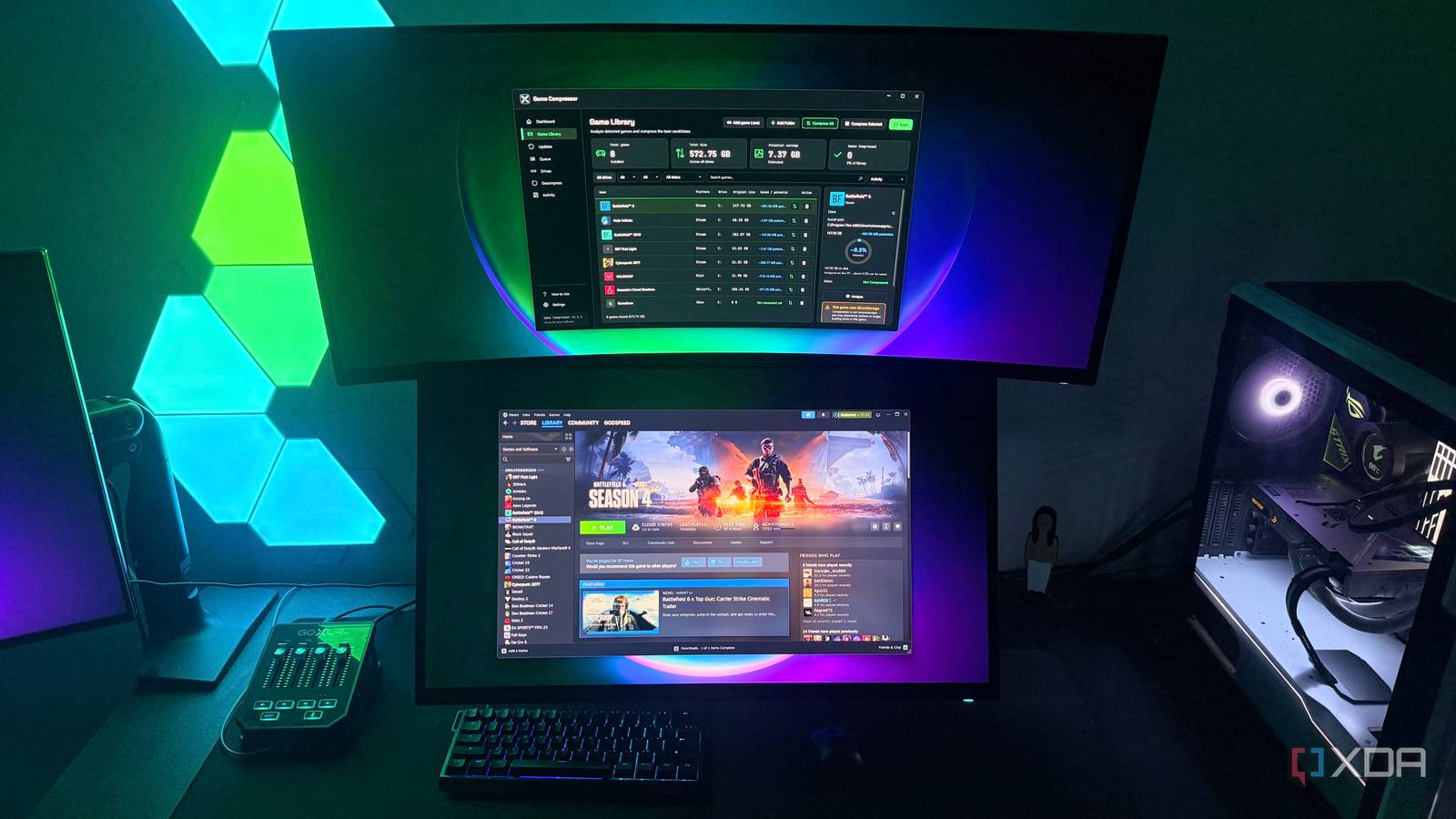
Published Sep 5, 2026, 6:00 AM EDT Hamlin has been in the tech field for over nine years. Since 2017, his work has appeared on MakeUseOf, Android Police, OSXDaily, Beebom, and more. He served as the Senior Editor at Valnet's MakeUseOf for over two years before joining XDA. He uses a high-end gaming rig for desktop use and a MacBook for traveling, but dislikes some of the quirks of macOS. You're more likely to catch him at the gym or on a flight than anywhere else. With AAA titles taking up more than 100GB of storage space these days, even a 2TB SSD won't cut it unless you're okay with uninstalling and reinstalling games as you need them. For years, I never really had more than four or five games installed on my PC at any given time, so storage space wasn't something I was worried about. That changed after I installed three AAA games that took up about 150GB each and watched my SSD fill up quickly. At that point, it's impossible not to consider a secondary drive. But over the last year, SSDs have become way more expensive, just like RAM, because of AI demand, with some mainstream drives costing nearly three times as much as they did a year ago. That's what convinced me to spend $6 on a compression tool that I randomly found on Steam. I didn't have any high expectations going into it, but it went on to free up hundreds of gigabytes of space, which was enough to stop me from even thinking about buying another SSD at these inflated prices for the time being. Some games gave me way more space than I expected You can see exactly which games are actually worth compressing The moment you open Game Compressor, you'll see all the games installed on your PC under the Game Library section of the dashboard, whether they're from Steam, Epic Games, Ubisoft Store, or Riot Client. And honestly, that immediately gave me a great first impression because I don't have to manually point it to each folder using File Explorer. To get started, click Scan in the top-right corner and wait for Game Compressor to analyze your library and show how much space you couldsave. It breaks down the potential savings for each game individually. While that's already enough to know which games are worth compressing, I recommend clicking each game individually because you don't want to compress a game that uses DirectStorage. Those games may stutter or take longer to load after compression. Also, games with little compressible data will probably only save you MBs. Battlefield 6 is a good example in my case, showing only 0.3% potential savings for a 100GB installation. Compressing God of War, on the other hand, freed up about 25GB of space, even though it was only 64GB originally. I personally don't bother compressing games that show less than 5% potential savings. This didn't change how I played my games Games still run normally because decompression happens on the fly At this point, you're probably wondering: why not just right-click on the game folder, go to Advanced, and choose Compress contents to save disk space? You can technically do that, but it can noticeably slow your games because it uses traditional NTFS compression (LZNT1). Game Compressor, on the other hand, uses Windows' LZX compression, which is better suited to files that are frequently read but rarely modified. And this compression happens at the file-system level, so the game can still access its files normally. Yes, games that use DirectStorage risk performance regression because file-system compression can interfere with its optimized I/O path. For other games, this shouldn't be a concern as long as you have a relatively new CPU because the CPU does the decompression on the fly. At least in the games I tested with my 5800X3D and RTX 4090, performance and loading times were mostly similar. You can even update your games like you normally do and continue playing, but you can recompress them from the Updates section of Game Compressor. I didn't have to spend $6 for this But the other options aren't nearly as convenient Game Compressor isn't some breakthrough tool, and LZX compression isn't exclusive to it. You can actually take advantage of it natively in Windows by simply using the compact.exe tool. The only problem is that you have to open Command Prompt and enter the appropriate commands every time you want to compress or decompress a game. CompactGUI makes this easier by giving you an interface. You just need to point it to the folder using File Explorer, choose LZX, and let the tool handle the rest. But what these free methods lack is convenience. You have to compress each game one by one, whereas Game Compressor detects all your games automatically and gives you more context to help you decide which ones are worth compressing. I like that you can simply click Compress All and it'll automatically avoid compressing games that use DirectStorage. And let's not forget how it shows the ones that need recompression once you update your games. All these features easily make it worth the $6 I paid, considering how much I spend on Valorant skins these days. That $6 stopped me from splurging on an SSD in today's market I see my purchase as an absolute win all around. It doesn't even cost as much as an indie game, yet it helped me get back a ton of storage space. Of course, this isn't a replacement for an SSD, but now I have enough breathing room to wait until prices come down. So if you're on the fence about getting a secondary drive, see how much space you can free up with this tool first. You're not limited to compressing games either, as you can manually add any folder that's taking up a lot of space on your PC. Game Compressor Game Compressor is software that scans and compresses your game library to save storage space without impacting performance.
I compressed my Steam library instead of buying another SSD, and got 400GB back
Full Article
Original Source
Read the full article at Xda-developers →KhanList aggregates and links to publicly available news content. We do not host full articles from third-party sources. Always verify important information with original sources.