
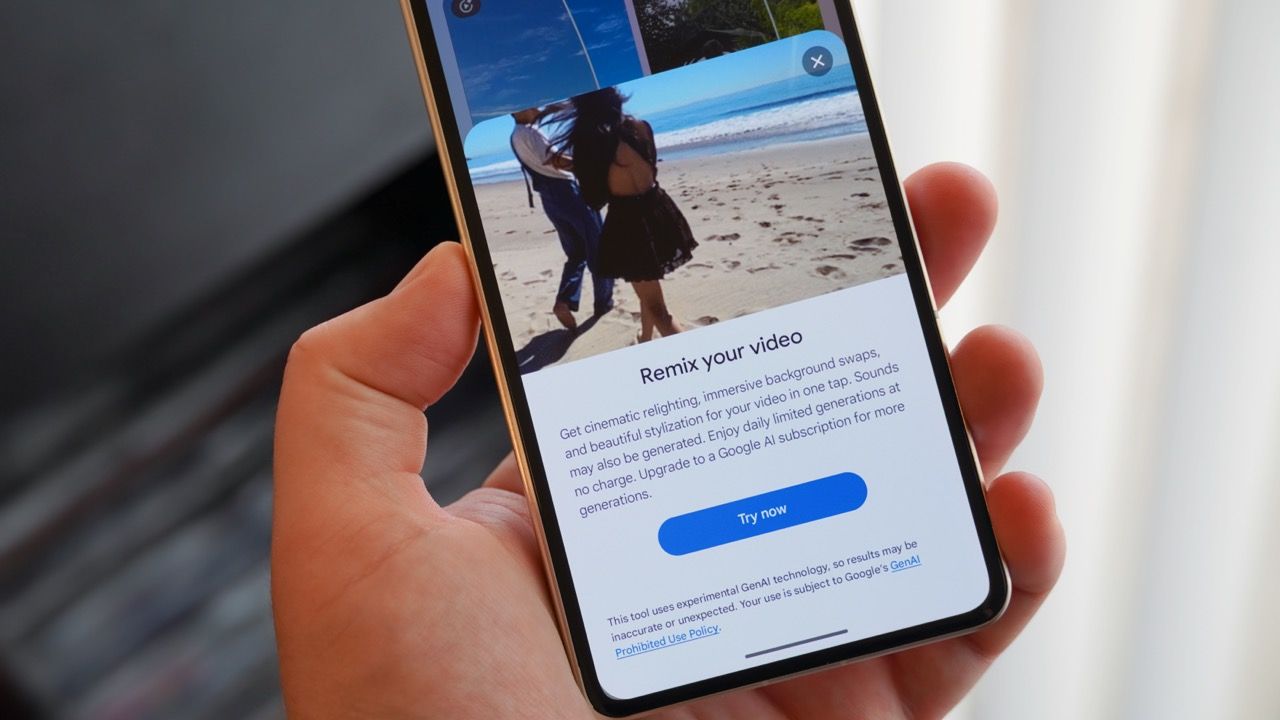
(Image credit: Brady Snyder / Android Central) Google's video-generation AI models are finally getting the Nano Banana treatment. Gemini Omni powers video creation in the Gemini app and replaces Veo. Now, the Gemini Omni model is coming to the Create tab of the Google Photos app. A new Video Remix feature helps you take simple video clips and transform them into something new using Gemini Omni, all without leaving Google Photos.I gave it a shot, and while it's not a replacement for the full Omni experience in the Gemini app, Video Remix is pretty fun to use. You select a 10-second video clip, choose a Remix template, and wait for the reimagined video to generate. The results were better than I expected, even if I wish Video Remix supported longer clips. Here's how you can try Video Remix for yourself.What you need to get started with Video Remix (Image credit: Brady Snyder / Android Central)Although the Video Remix experience is powered by Gemini Omni, you won't find it in the Gemini app. Instead, you can use Video Remix in the Create tab of the Google Photos app. It lives alongside Photo Remix and Reimagine, with the key difference being that Video Remix is made for short clips. Specifically, you can select a 10-second portion of a video to change using Omni and Video Remix.Video Remix uses the following prompt templates to shake up your clips:Relight my video with a morning glowAdd doodles to my videoSet my video in a greenhouseGive my video an orange sunset glowAdd shifting laser light strobesPaint my video in dreamy watercolorMake my video look like pixel artGive my video a tropical sunset backgroundPut my video in a gritty subway sceneCast a magic hour haze in my videoCast my video in cool blue hour tonesMy video as a stop-motion sketchTurn my video into a moving oil paintingPut my video in a Mediterranean villaGive my video a golden hour glowAs you can see, Video Remix templates vary from offering subtle lighting changes and background swaps to completely remaking clips in selected art styles. Google says that stable and steady videos work best with Video Remix, and warns that it might not always work as expected or could include audio.For now, Video Remix is rolling out for paid Google AI subscribers. It's available in the following countries:USArgentinaBangladeshBrazilColombiaEgyptIndiaIndonesiaJapanMexicoPakistanPhilippinesSouth KoreaTurkeyIf you're located in one of the above countries and have a Google AI Plus, AI Pro, or AI Ultra account, you're ready to start using Video Remix in Google Photos.Get the latest news from Android Central, your trusted companion in the world of AndroidHow I use Video Remix to reimagine my photosI take a bunch of videos I rarely revisit, so I thought using Video Remix could be a fun way to play around with clips lying dormant in my Google Photos library. I had videos of dolphins from a boating trip and Meta Oakley clips from summer runs, and I used Video Remix to change them up. Here's how I did it, and how you can too:1. Open the Google Photos app.2. Tap Create.3. Press Video remix.4. Choose a template.5. Select a video from your Photos library.6. If your video is longer than 10 seconds, use the grab handles to select a section of the video to remix. Then, press Generate.7. Wait for the clip to process. This may take up to two minutes. When finished, play the Video Remix output and press Save to add it to your library. Image 1 of 4 (Image credit: Brady Snyder / Android Central) Now, you've created your first Video Remix. You can try again if the results didn't turn out as you expected, or choose a different prompt to get a new output.Everything I made with Video Remix in Google Photos (Image credit: Brady Snyder / Android Central)Despite the short maximum video length, Video Remix's results were impressive. For my first test, I tried taking a POV-style video from one of my runs and turning it into a watercolor moving painting. Gemini Omni certainly nailed the effect, as you can see below. Video Remix watercolor test - YouTube Watch On However, the output felt too cartoonish for my liking. I tried the doodle Video Remix template next, hoping it would be more tasteful. The output was my favorite of all. It livened up a video of myself running across a bridge with sketched stars, outlines, and arrows. What was a mundane running clip turned into something ready for socials, which is the entire point of Video Remix. Video Remix doodle test - YouTube Watch On For those that want an even subtler effect, there are lighting templates for Video Remix. I used the morning glow template on a video of dolphins popping out of the water, and it definitely changed the clip's appearance. See for yourself in the video below. Video Remix morning glow test - YouTube Watch On All told, Video Remix does what it says it'll do — unless there are human faces involved. In some cases, Video Remix won't generate a clip if it thinks there are faces of minors in the original video. This certainly makes sense for safety reasons, but it doesn't always get it right. Even when generating remixes of videos containing adult faces, the outputs don't usually match the original subject closely.When to use Video Remix in Photos instead of Omni in Gemini (Image credit: Brady Snyder / Android Central)The Omni model in the Gemini app should still be your go-to for new video generations. However, for making small changes to existing clips, Video Remix in Google Photos is the better choice. I'd like to see Video Remix support longer clips and expand access to free Photos users. For now, it's still a great option for Google AI subscribers. The best Google AI phoneAI-powered features like Video Remix require a Google AI subscription. When you buy a Google Pixel 10 Pro, a full year of Google AI Pro is included free-of-charge — that's a $239 value. It'll give you 12 months of Video Remix access in Google Photos. Brady is a tech journalist for Android Central, with a focus on news, phones, tablets, audio, wearables, and software. He has spent the last three years reporting and commenting on all things related to consumer technology for various publications. Brady graduated from St. John's University with a bachelor's degree in journalism. His work has been published in XDA, Android Police, Tech Advisor, iMore, Screen Rant, and Android Headlines. When he isn't experimenting with the latest tech, you can find Brady running or watching Big East basketball.
I completely reimagined my videos with Video Remix in Google Photos — here's how you can, too
Full Article
Original Source
Read the full article at Androidcentral →KhanList aggregates and links to publicly available news content. We do not host full articles from third-party sources. Always verify important information with original sources.