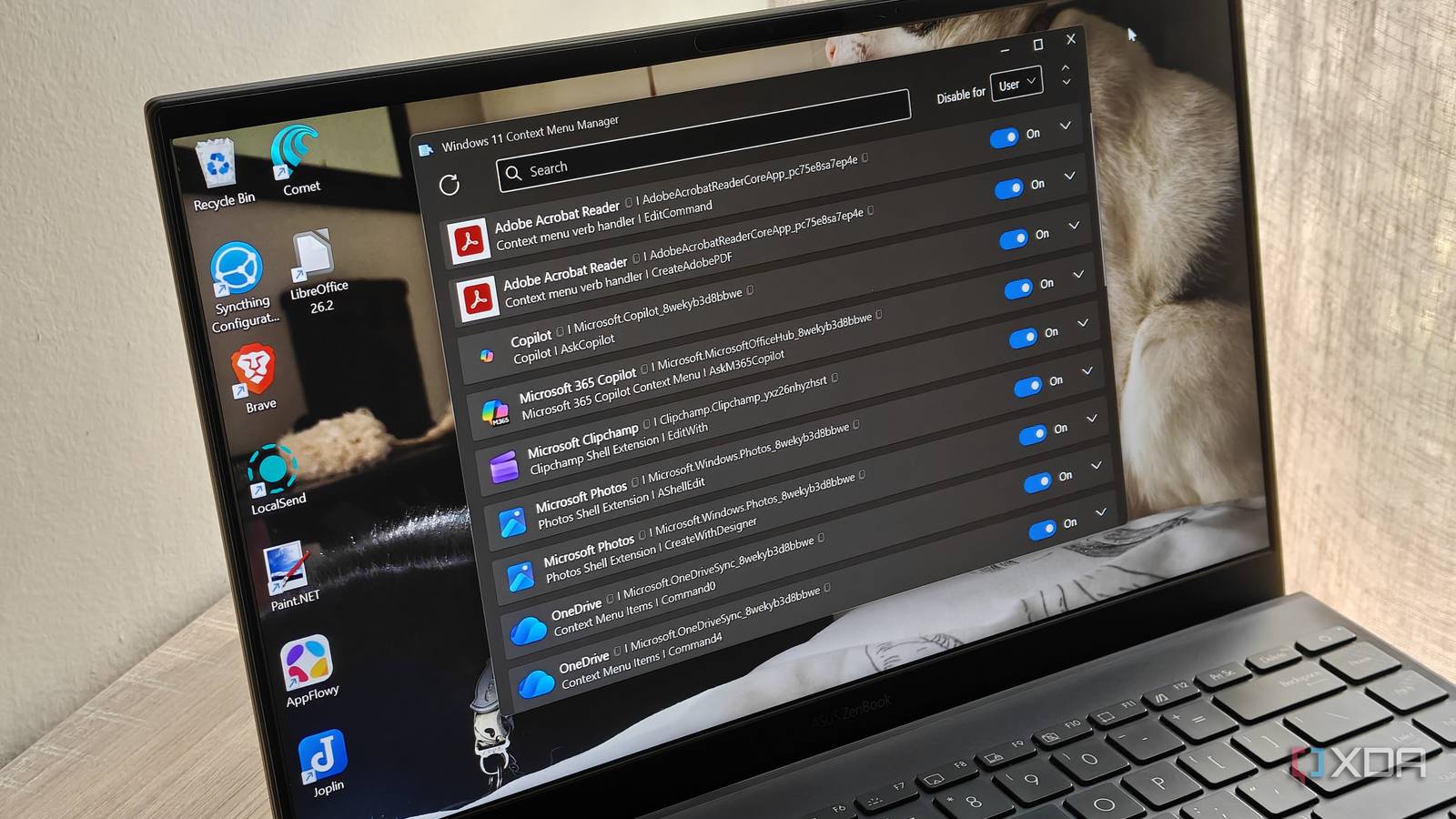
Published Aug 7, 2026, 8:30 AM EDT Megan is a Software Writer at XDA Developers who has been writing about consumer technology since 2016. With a postgraduate degree in New Media journalism, she has always been passionate about diving deep into topics and writing about them in a way that makes them easier to understand for everyday consumers. She runs her own blog called Tech Valkyrie and has contributed to Tom's Guide and Android Authority. She also worked at MakeUseOf as a Lead Editor. In her spare time she plays video games and geeks out about the latest tech. While I haven't really considered using any other platform than Windows on my PC, this doesn't mean I'm not frustrated with how cluttered the OS has become. The Start Menu has long felt barely usable for me, filled with app suggestions for software I don't actually use. I had to remove a number of Windows 11 features that I didn't want or need. And even my right-click menu isn't safe from a lengthening list of items I don't use. Luckily, I can customize my right-click menu (also known as the context menu) with a tool called Windows 11 Context Menu Manager. It's the type of tool that should've honestly shipped with Windows. Turning right-clicking into a nightmare When I used to right-click on a file on my PC, the context menu was filled with irrelevant options that contributed nothing but clutter. This was particularly noticeable for images, which tended to have the most options available. Now, some of these options were my fault, since I've installed software over the years that was added to the context menu. But plenty of the options are also simply part of the default options on Windows 11. This includes items like editing files with Clipchamp, Notepad, and Paint. These options also don't always reflect the type of file you have selected. While my PDF options are limited, images seem to prompt every editing option to appear — including the ability to edit the photo in a text-only app like Notepad. Some of the default shortcuts are helpful, like the ability to quickly rotate an image. But these actions are becoming buried between options Microsoft adds with updates, above these shortcuts. This includes the more recent AI actions and Send to My Phone options. Despite this increasing clutter, there's not a simple, native way to customize your context menu. This would involve editing the Windows Registry, which isn't something recommended for beginners. But one simple open-source app gave me some control over my context menu again, with little hassle. It's as easy as switching toggles I expected some setup with Windows 11 Context Menu Manager, but it's really as simple as starting the app and disabling specific items. The toggles that appear will depend on what services you have enabled on your PC. For example, my laptop included Copilot toggles, while my PC did not. Meanwhile, my PC included a toggle for VS Code, while my laptop didn't. Once you toggle an item, the effect is immediate — the item will disappear from your context menu in File Explorer. You can still access it using the Open with dropdown menu, but standalone buttons in the main context menu will be removed. If certain software is set as your default app for particular file types, you don't have to worry about the toggle interfering with this functionality. For example, I disabled Adobe Acrobat's toggle for my context menu, but it's still the default Open option for PDFs. The tool is so simple to use that it only took a few minutes to significantly reduce the bloat in my context menu. This was particularly helpful for my laptop, since the context menu had a scroll wheel due to the sheer number of items included. I'm eyeing some of those newer Windows shortcuts While I definitely recommend Windows 11 Context Menu Manager to people who want to debloat their context menu without completely replacing File Explorer, I wish I could trim down my menu a bit more. I've managed to remove shortcuts for most of the services I don't use, including OneDrive and Copilot, but a few unwanted items remain. This includes the AI actions shortcut and the option to Send to My Phone. However, it did inspire me to look up ways to remove those options myself. The AI actions shortcuts are linked to a toggle in Windows' app settings. I simply had to go to Settings -> Apps -> Actions and toggle off the recommended actions for Microsoft Office, Paint, and Photos. However, this didn't actually remove the AI actions shortcut; it just meant that the linked dropdown option had no options in it. The real problem is that Microsoft doesn't give users enough control over Windows, and when it does, these options are buried or require specific scripts. So here's hoping that tools like Windows 11 Context Menu Manager can expand their features to include some of these menu items as well. Yet another app proves that Windows 11 could be more customizable As I've tried more alternatives to Windows 11 tools — utilities that help you gain control over your PC — I've realized that more customization is possible on Windows — Microsoft just isn't providing it natively. This means that users either have to install additional Microsoft tools like PowerToys, or opt for third-party tools to help them manage the OS. As much as I don't like the idea of switching away from Windows, other platforms are becoming more tempting by the day. Windows 11 Context Menu Manager Windows 11 Context Menu Manager is a simple utility that helps you remove items from your right-click menu.
I cleaned up my Windows 11 context menu with one free app, and Microsoft should've built this in
Full Article
Original Source
Read the full article at Xda-developers →KhanList aggregates and links to publicly available news content. We do not host full articles from third-party sources. Always verify important information with original sources.