
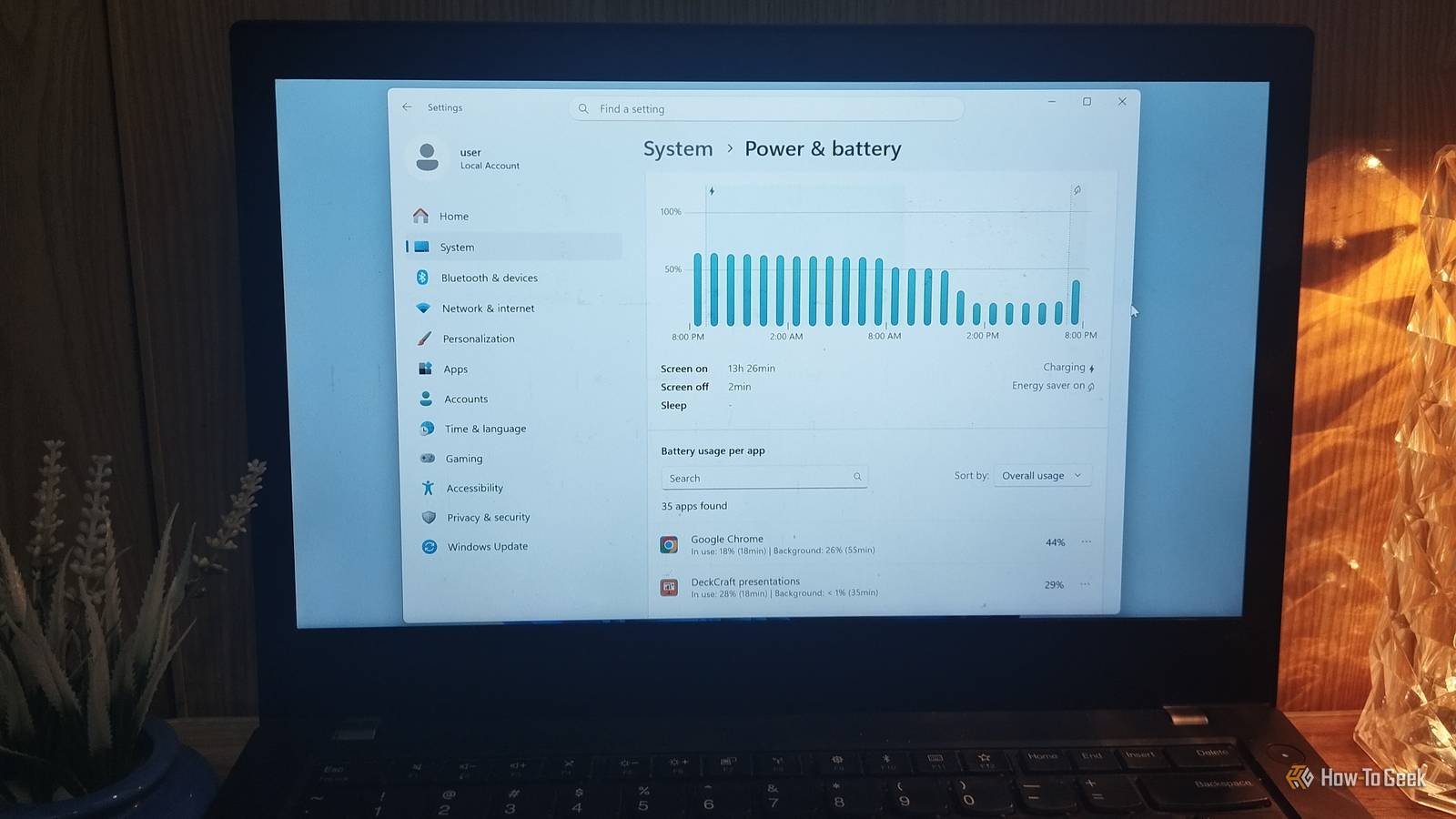
Published Nov 13, 2026, 8:00 AM EST Nimrah has spent the last five-plus years writing about technology, with Linux being one of her favorite subjects to explore. Her work covers everything from Linux and open-source software to databases, cybersecurity, and everyday software. She has contributed to Baeldung, Make Tech Easier, and LinuxHint. She particularly enjoys turning a concept that initially seems complicated into something anyone can understand. Away from tech, she loves to read, cook new recipes, and try new restaurants and cuisines. Your laptop battery shouldn't feel like it's racing against a countdown timer. Yet sometimes, even with a relatively light workload, you watch the percentage drop faster than expected. Closing a few apps, lowering screen brightness, and enabling Battery Saver might help, but they don't necessarily address the root cause. Windows 11 has several built-in tools that show which apps are consuming power, whether your battery has lost capacity, and whether your system has energy-efficiency problems. Knowing how to interpret these findings can help you address the actual cause instead of randomly changing settings and hoping for better battery life. Some apps consume more battery than you realize Check application consumption with Windows 11's battery usage page Windows 11's Battery usage page is the easiest place to start your investigation. You can find it under Settings -> System -> Power & battery -> Battery usage. It displays a battery-level graph alongside a breakdown of how much power individual applications have consumed over a selected period (last 24 hours or 7 days). This information is useful because the applications you actively use aren't necessarily the only ones draining your battery. Some continue running background processes, checking for updates, syncing files, or sending notifications even when you're doing something else. The usage breakdown can help you spot applications that deserve a closer look. If an application consistently uses more battery than expected, check whether it really needs to run in the background. You can restrict its background activity where Windows allows it, close it when you're not using it, or uninstall it if you no longer need it. Just don't assume the app at the top of the list is the problem. A video editor rendering a project or Docker running containers will naturally consume more power while you're using them. Your laptop might be working harder than it needs to Catch power-hungry processes with Task Manager The Battery usage page provides a broader picture of application consumption, but Task Manager helps you investigate what's happening right now. Press Ctrl + Shift + Esc, select Processes, and look at the Power usage and Power usage trend columns. These columns give you an indication of which processes are consuming the most power. Task Manager categorizes current power usage as Very low, Low, Moderate, High, or Very high, while the trend column provides a longer-term indication of consumption. Anything marked High or Very high when you're barely doing anything deserves a closer look. A background process might be stuck, an application could be repeatedly performing unnecessary tasks, or a browser tab might be using more resources than expected. If you spot a process consistently consuming excessive power, investigate it before ending it. Close unnecessary applications, check for available updates, or restart problematic software. If you don't recognize a process, look it up to determine whether it belongs to Windows or an application you installed. Remember that demanding applications naturally use more power. Task Manager helps you identify unusual activity, but it won't magically make resource-intensive software easier on your battery. Your battery might be the problem, not your apps Check battery health with Windows' Battery Report Sometimes, your laptop isn't consuming unusually high amounts of power. Its battery simply can't hold as much charge as it once could. To investigate this, Windows includes a Battery Report that you can generate using Command Prompt or Windows Terminal. Run powercfg /batteryreport and Windows will generate an HTML report, usually in your user folder. Open it in your browser and look for the Installed batteries section. Two figures deserve your attention: Design Capacity and Full Charge Capacity. The former represents how much charge your battery was designed to hold, while the latter shows how much it can currently hold when fully charged. As batteries age, their full-charge capacity naturally declines. For example, if your laptop originally had a 50,000 mWh battery but its current full-charge capacity is only 35,000 mWh, it can hold considerably less energy than when it was new. The report also includes recent usage and battery capacity history, helping you understand how your battery's condition has changed over time. If the Full Charge Capacity is significantly lower than the Design Capacity, no Windows setting will fix that. Your battery is wearing out, and replacing it is the most effective solution. There's little point in blaming your applications for a battery that has simply grown old. Investigate system-level issues with Windows' Energy Report Applications and battery health aren't the only things worth investigating. Hardware devices, drivers, and Windows power-management settings can also affect energy efficiency. Windows has another built-in diagnostic tool for this: the Energy Report. Open PowerShell as an administrator and run powercfg /energy. Windows will monitor your system for approximately 60 seconds, then generate an HTML report. The report is typically saved in the current directory or the Windows system folder. The report highlights potential energy-efficiency problems, including devices that prevent certain power-saving states, processor utilization issues, and USB-related power-management concerns. It also categorizes findings into errors, warnings, and informational messages. Don't panic if your report contains several warnings. Not every warning translates into noticeable battery drain, and some are simply suggestions for improving efficiency. Instead, look for recurring issues that make sense in the context of your laptop's behavior. For instance, if a USB device is interfering with power management, disconnect it when working unplugged. Also check for driver updates if Windows flags device-related issues. Treat the report as a troubleshooting guide, not a list of problems you must fix immediately. Turn your battery findings into better everyday habits Apply Windows' Energy Recommendations Monitoring only pays off when you act. Go to Settings -> System -> Power & battery -> Energy recommendations. Windows lists practical ways to reduce unnecessary energy consumption, such as shortening screen timeouts, lowering brightness, enabling sleep sooner, and switching to dark mode. Each recommendation comes with an Apply button, so you can make these changes directly. You don't have to apply every recommendation blindly. If you regularly work with demanding applications, for example, switching to the most restrictive power mode might affect performance more than you'd like. Instead, choose changes that suit your workload. I also recommend checking the Battery usage page occasionally rather than waiting until your laptop starts dying halfway through the day. New applications, background services, and software updates can change consumption patterns over time. The cheapest battery upgrade is paying attention Your laptop isn't being dramatic. It has been keeping records all along, and you just never opened them. Windows 11 gives you several built-in tools to identify power-hungry apps, check battery health, uncover power-management issues, and find ways to improve efficiency. Sometimes, closing an application is enough. Other times, your aging battery is the real culprit. Either way, investigate before randomly disabling features or spending money on a replacement.
I checked Windows 11's built-in tools to see what was draining my laptop battery
Full Article
Original Source
Read the full article at Howtogeek →KhanList aggregates and links to publicly available news content. We do not host full articles from third-party sources. Always verify important information with original sources.