
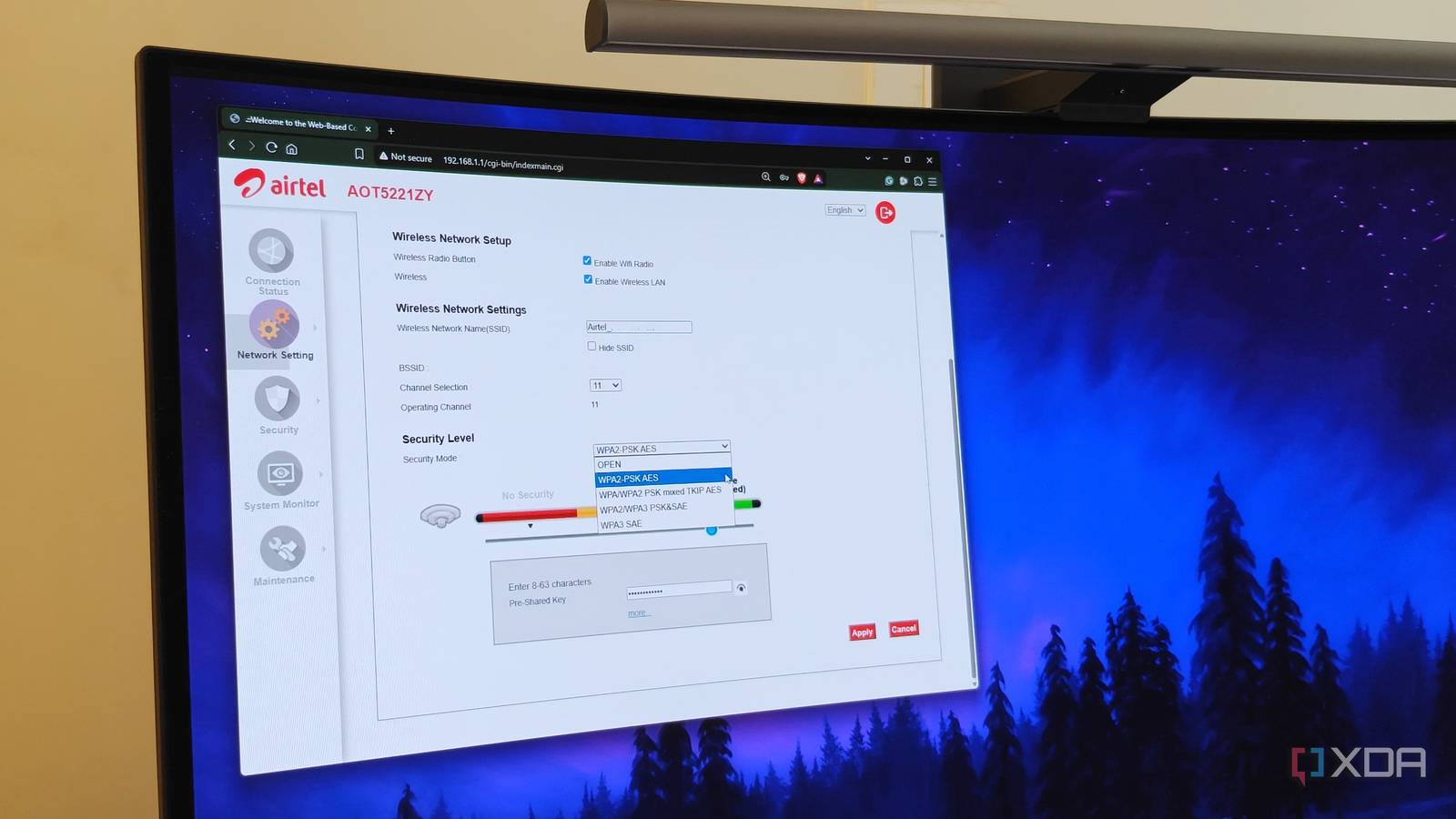
Published Nov 13, 2026, 1:00 PM EST After a 7-year corporate stint, Tanveer found his love for writing and tech too much to resist. An MBA in Marketing and the owner of a PC building business, he writes on PC hardware, technology, and Windows. When not scouring the web for ideas, he can be found building PCs, watching anime, or playing Smash Karts on his RTX 3080 (sigh). Users who are never satisfied with their Wi-Fi performance may keep tweaking their router's settings, but they often ignore the ones that could matter the most. Many such settings are rarely used, and hence are easy to forget about. I found I was in the same boat when I recently discovered some unsavory security-related settings were left enabled on my router's admin page. While hackers don't need to be trying to hack your specific router, leaving certain router settings unchecked can expose your network to unwanted access. It's not always malicious attacks that you need to worry about; your ISP can also access your router without your go-ahead. Lastly, some settings are left behind due to legacy encryption protocols, simplified connection methods, and compatibility reasons. You can almost always disable each one of the following settings. Remote management No one really needs this feature Remote management enables access to your router from outside your local network. If you want to change your router's settings remotely when you're away from home, remote management makes it possible. However, it also allows hackers to brute-force their way into your router's admin page. Automated botnets routinely scan for routers that can be accessed from the internet, increasing the attack surface and increasing the risk of compromised settings. Once an attacker gains access to your router's admin page, they can essentially control your network to redirect traffic to malicious links or change your credentials to block access. Most people don't need to change their router's settings when they're not at home. So, leaving this setting enabled will do you no good. It's best to disable it when you first set up a new router. Universal Plug and Play (UPnP) It's universally a bad idea UPnP is a feature that allows your network devices to automatically open ports without any additional authentication. While convenient for port forwarding, it doesn't differentiate between secure and malicious devices, basically allowing any device to open ports, poking holes through your firewall. This can let unauthorized external or internal traffic through, opening the door for a variety of cyberattacks. Malicious traffic, such as banking trojans and botnets, can exploit UPnP to open backdoors into the network, leak your sensitive data, or launch DDoS attacks from your network. Disabling UPnP means manually setting up port forwarding rules, but anyone who needs to do that already knows not to touch UPnP with a ten-foot pole. Most users have no need for it, so disabling it is the way to go. WPA2 encryption It should have been long gone by now While WPA3 became standard around 2020, WPA2 is still widely enabled on consumer routers. When WPA2-Personal is enabled on your network, your pre-shared key (PSK) or network password is easily cracked with brute-force or dictionary attacks. Hackers can capture the 4-way wireless handshake and arrive at your passphrase. This is why it's recommended to enable WPA3 whenever possible, since it uses stronger encryption and doesn't feature a single shared passphrase for every device. Modern routers support the newer standard, but to maintain compatibility with older devices, WPA2 or WPA2/WPA3 mixed mode is often enabled. This dependency on WPA2 leaves many home networks exposed to cyberattacks. If possible, you should choose the WPA3 SAE mode in your router's settings. I did that since I don't have any legacy devices or older home automation gear that lacks support for WPA3. For those of you who can't afford to upgrade tons of older smart devices, it's best to isolate them on a WPA2 guest network or VLAN, and shift every newer device to a WPA3-only network. In any case, use a long and complicated passphrase on the WPA2 network for another layer of defense. Wi-Fi Protected Setup (WPS) No protection to speak of WPS is perhaps the worst legacy feature still seen on modern routers. Before 2018, it was used to easily authenticate devices using an 8-character PIN, despite a security loophole discovered as far back as 2011. The 8-character code was made up entirely of numbers, and was broken down into two parts, making it way too easy for attackers to brute-force their way to the answer. Operating systems dropped support for WPS in 2018, moving to Wi-Fi Easy Connect. Still, nearly a decade after that, many modern consumer routers have the feature present in the settings, even if it may be disabled by default. It exists for compatibility with legacy hardware, but increases the attack surface for your network. Even the more secure physical WPS button can be exploited by neighbors or service personnel if they can gain access to your router long enough to press the button. In 2026, there's no reason to leave such a compromised feature enabled on your home router. Moving to WPA3, as I mentioned in the previous section, automatically removes WPS from the picture, since WPA3 doesn't support it. My router was left vulnerable for years Despite recommending others to optimize and secure their network for years, I forgot to protect my own network for so long. Once I spotted these security-related settings in my router's settings, I promptly disabled them. There was no resultant inconvenience to speak of, so I should have done this years ago. You must check your router's settings right away to ensure your network isn't exposed.
I checked my router's security settings and found features I should have disabled years ago
Full Article
Original Source
Read the full article at Xda-developers →KhanList aggregates and links to publicly available news content. We do not host full articles from third-party sources. Always verify important information with original sources.