
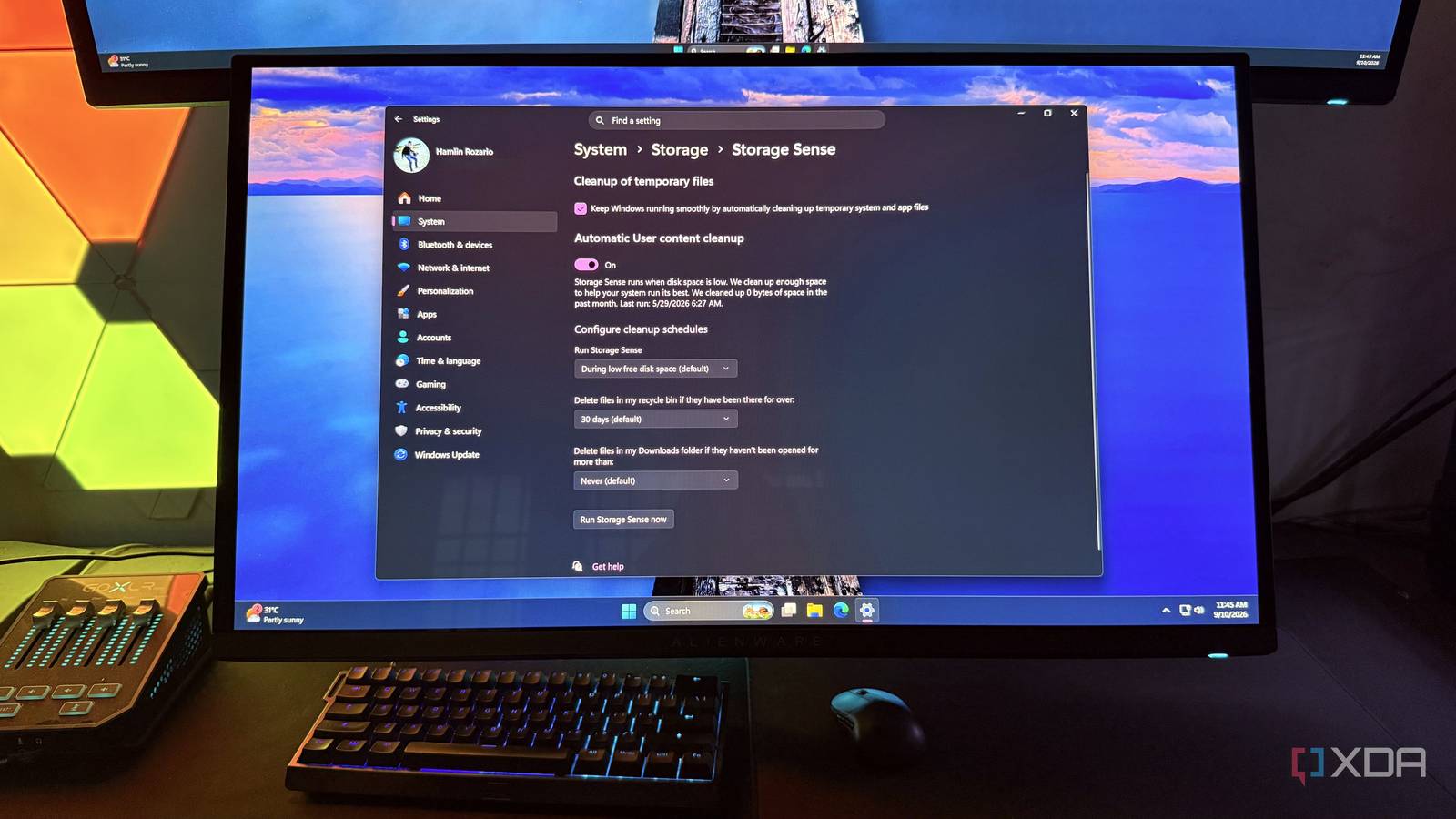
Published Sep 13, 2026, 5:00 PM EDT Hamlin has been in the tech field for over nine years. Since 2017, his work has appeared on MakeUseOf, Android Police, OSXDaily, Beebom, and more. He served as the Senior Editor at Valnet's MakeUseOf for over two years before joining XDA. He uses a high-end gaming rig for desktop use and a MacBook for traveling, but dislikes some of the quirks of macOS. You're more likely to catch him at the gym or on a flight than anywhere else. Storage Sense is one of those Windows features that you just turn on and forget about. I mean, that's kind of the whole point. Once you enable it, Windows automatically gets rid of temporary files and other unwanted junk in the background, so you don't have to worry about manually cleaning up your drive with a third-party cleaner. I enabled this feature when I first updated to Windows 11 and never looked back until recently, when I realized it wasn't actually doing anything. This isn't a flaw with Storage Sense itself, though. As it turns out, I overlooked one setting when I enabled it on my PC, and changing it made the feature work much more like I assumed. Out of curiosity, I manually ran Storage Sense afterward just to see how much junk had accumulated in the meantime, and it managed to free up about 30GB of space. Sure, that's not much considering my NVMe drive is 2TB, but that space is still enough to install a game like Valorant or store gameplay footage. Storage Sense's default setting is to blame It only runs when your drive is low on space unless you change it If you just go to Settings -> System -> Storage and toggle on Storage Sense, expecting it to regularly clean up your C: drive in the background, you're probably going to be disappointed. By default, Storage Sense is set to run when your drive is running out of space. Microsoft doesn't give us a specific threshold for when it triggers, but it wouldn't matter in my case because I still have over 700GB of free space on my 2TB SSD. At that rate, I could go months without Storage Sense ever having a reason to kick in. I don't see why Windows thinks it's better to wait until storage space is a problem before this feature kicks in. Cleaning up temporary files isn't going to break anything, so I'd rather have Windows get rid of them before they pile up in the first place. Otherwise, I'm basically keeping gigabytes of unwanted files around for no reason, just because I happen to have enough space for them. I've set Storage Sense to run monthly now It's the sweet spot when I'm not running out of space Windows gives you four options for how often Storage Sense runs, with During low free disk space being the default. I changed it to Every month after I ran Storage Sense manually and saw it free up about 30GB of space. There's also Every day and Every week, but both seem a little excessive when I still have plenty of space on my drive. And it's not like those files are going to give me trouble if they sit there for a couple of weeks. I just don't want them piling up indefinitely until I decide to manually run it. The monthly setting feels like a good balance. Storage Sense still gets to clean up a meaningful amount of space, and I don't have to worry about checking my drive or remembering to run it manually. Of course, this doesn't mean it's going to free up 30GB of space every month, but even 2-3GB of temporary files can add up over time, which is why I was able to clear that much when I manually ran it. The more frequent schedules make sense if you're constantly running out of space, but that's not the problem in my case. Clearing Downloads can free up even more space But that's the Storage Sense setting I won't be touching You don't really need to clean up temporary files this often, especially if you're not critically low on space. But if your goal is to free up as much space as you can, there's another Storage Sense setting that can make a much bigger impact. By default, Storage Sense doesn't touch the Downloads folder, but you can set it to delete files in there that haven't been opened in a while. I'm sure many of you have old installers, RAR files, videos, and other stuff sitting in there that you probably forgot about, and clearing them can potentially free up more than 30GB. But that's the last thing I would be doing on my PC. I use that folder to keep all sorts of important files I downloaded from Gmail, like my IDs, resume, invoices, and other documents that I might only need once or twice a year. Just because I haven't touched them in a while doesn't mean I don't need them anymore, and Storage Sense deleting them could ruin my day when I eventually go looking for them. Sure, I could move all those files to the Documents folder and let Windows clean up whatever's left, but I'd rather not have to remember where I moved anything. Storage Sense is almost pointless without a schedule I've always assumed the whole point of Storage Sense was to automatically clean up junk, but the default behavior doesn't really live up to that when having a decent amount of free space is enough to stop it from doing anything. Configuring it to run on a monthly basis fixed that without changing anything about what Storage Sense actually deletes. And if you haven't done this, you can run it manually to see how much space you free up before switching to a schedule. You can go back to forgetting Storage Sense even exists after this, except this time you know it's deleting unwanted files on its own instead of waiting until storage space is a problem.
I changed one Windows 11 setting in Storage Sense, and freed 30GB without breaking anything
Full Article
Original Source
Read the full article at Xda-developers →KhanList aggregates and links to publicly available news content. We do not host full articles from third-party sources. Always verify important information with original sources.