
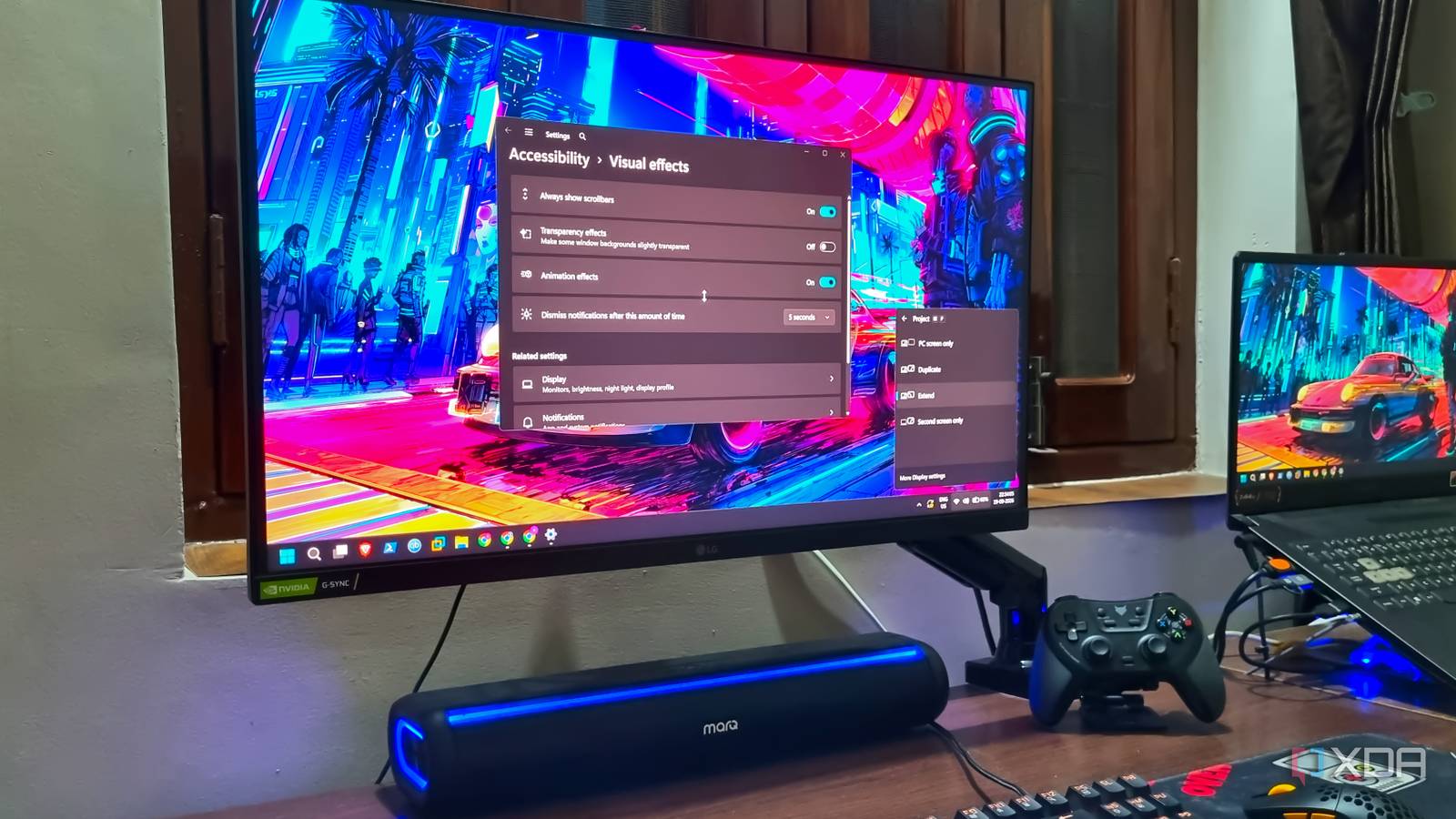
Published Sep 20, 2026, 8:00 PM EDT Abhishek is an author at XDA who covers computing. He has loved computers since he got the Lenovo G570 in 2012. Abhishek holds a master's degree in computer applications and began his writing career in 2018. He loves writing how-to articles, listicles, and informational posts on popular operating systems and web services. He closely follows the Windows Insider program and tests new Insider builds to discover upcoming experimental features and upgrades. His past work includes long-term collaborations with reputed publications like Tom's Hardware, and Windows Latest. When not writing anything, he is busy watching new episodes of One Piece or searching for something binge-worthy. Windows 11 is undoubtedly the best-looking OS release by Microsoft to date. Its design is modern and doesn't look out of place, even for an OS that's nearly five years old at this point. Windows 10's design felt quite flat when compared to something like macOS or some niche Linux distributions. So, Windows 11’s visual overhaul was much welcomed by today's standards. However, I'm not a fan of some of the visual effects, and they can feel slow after regular use. On a machine that has ample GPU resources to spare, the visual effects and their demands don't matter much. But on low-end systems and virtual machines with barely enough to keep running, having such effects enabled can have a small yet noticeable difference in fluidity and performance. Let's discuss how turning off the transparency effects made the OS feel better for me. Windows 11 transparency effects are not new Present since the Vista days Transparency effects aren't new. Even Windows Vista had Aero that resembled a transparent glass design. I will admit that Windows Vista and Windows 7 looked better with this Aero theme compared to any solid-color alternative. Windows 8 and 10 were kind of a letdown in this design approach because they prioritized a mobile-first GUI, and that sadly lacked a more prominent transparency effect. So, Windows 11 reintroduced this legacy with some new effects like Acrylic and Mica. Acrylic is sort of a translucent design, while Mica is more opaque. Both these effects are applied to the appropriate window, fly-out menu, and other UI elements, and the Desktop Window Manager (DWM) handles how these effects appear on the screen. Of the two, Acrylic uses slightly more resources because it acts like a pane of frosted glass. It has to look behind the window of each open app, apply a blur effect, add extra layers, and do this repeatedly whenever you open anything new on the screen. Mica is slightly less demanding and is thus used for longer-appearing app backgrounds. So, enabling these transparency effects system-wide takes a lot of effort. Resource consumption matters Low-end systems struggle with it Despite roadblocks meant to keep older systems from running Windows 11, many users still force it. Some have compatible systems, but their graphics hardware can't handle all the visual effects the OS includes. Clearly, it's a GPU-intensive setting that noticeably affects low-end systems, which explains why there’s an option to disable transparency effects in the Settings app. I run Windows 11 on multiple systems, most of which are severely underpowered. I ran it on a decade-old laptop and even have multiple virtual machines running with 2–4 cores for Insider testing. On such machines, keeping the transparency effects active has a visible performance cost. Every menu launch, app switch, or any other desktop interaction feels sluggish. These systems lack the GPU power to handle such visual effects and real-time transparency calculations; turning off these effects can improve the overall interaction experience. My virtual machine's CPU can only handle a limited amount of graphical load, and disabling transparency effects gave it enough breathing room. The machine felt snappier, but I cannot say the same about that old laptop. Anything above Windows 7 was a tussle for it, and Windows 11, with both transparency effects and animation effects disabled, couldn’t make it any snappier. It's the CPU's inherent weakness: a dual-core Intel i3 (second generation) cannot keep up with Windows 11’s visual demands on its integrated GPU. Results can vary Not every PC is incapable of handling Windows 11 As expected, my main laptop doesn’t have an issue with managing the transparency effects. It’s a Ryzen 7 machine with an RTX 3060, so it can easily handle Windows 11 and a few of its successors without breaking a sweat. Disabling transparency effects on such machines makes little sense from a performance standpoint. I tend to turn off animation effects because it removes that little delay, which is intentional for displaying the animation. It’s a personal preference, and you can give it a try. Modern processors with integrated graphics can handle Windows 11’s visual needs. But older processors, or limited CPU virtual machines, are better off without them. My virtual machines use the same Microsoft account, and I restore my preferences whenever I set up a new machine. The transparency effects remain disabled, as most of them have 4GB of memory with a dual-core processor allotment. I don’t add GPU pass-through to any of these machines, since they are mostly used to check upcoming features and play with OS settings and policies. The OS doesn’t look hideous after you turn off the transparency effects. The whole blur effect and color scheme matching vanish, and Windows feels a little flat, like Windows 10. I remember the Windows 7 days when I would turn off all the OS visual effects so much so that the fonts looked grainy, just to have maximum free resources to play a demanding game. Compared to that, turning off transparency effects is a minor trade-off that retains all the new OS design. Visual effects can take a toll Windows 11 is one of the most visually demanding operating systems, apart from a few Linux distros like Deepin OS and Pop!_OS with the COSMIC desktop environment. Each of these operating systems implements transparency effects and adds an extra burden on CPU resources. However, only systems with a very weak integrated GPU or a virtualized GPU actually struggle with the rendering demands of transparency effects. Most Windows 11 users may never need to make that sacrifice. If you prefer to reduce some additional GPU load, you can turn off animation effects. The System Properties window also offers a more powerful option: you can turn off every fade, peek, or small animation that appears when you interact with the OS GUI. Windows 11 Pro A USB installation drive and license key for Windows 11 Pro, with additional features like Hyper-V and Windows Sandbox support.
I changed one Windows 11 setting, and my PC instantly looked cleaner and felt faster
Full Article
Original Source
Read the full article at Xda-developers →KhanList aggregates and links to publicly available news content. We do not host full articles from third-party sources. Always verify important information with original sources.