
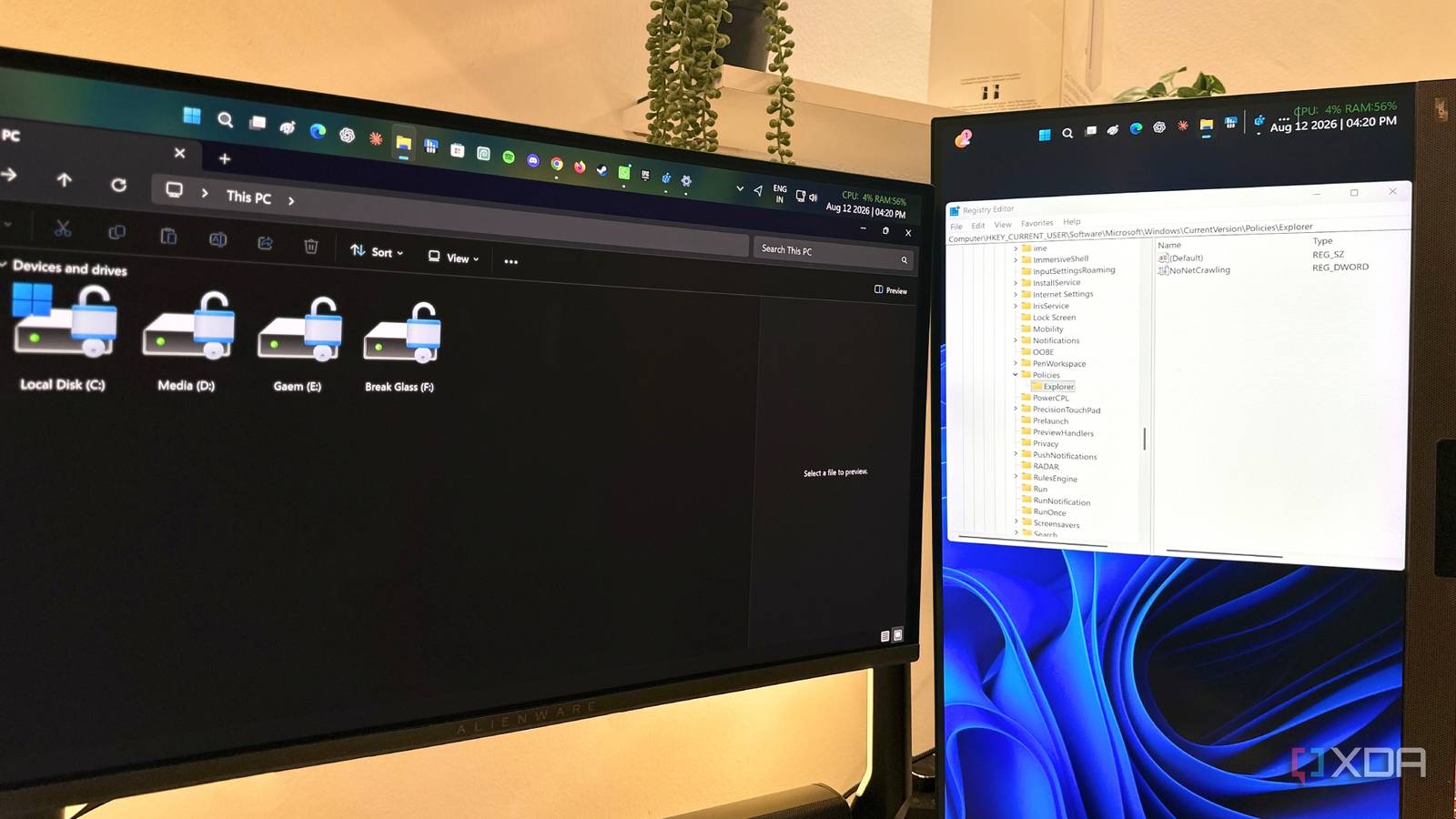
Published Aug 15, 2026, 1:30 PM EDT Gaming has been Samarveer’s greatest passion, and the Literature graduate in him takes immense joy in dissecting games for their themes, messages, and impact. Samarveer holds a deep appreciation of gaming, and considers the platform to be the most immersive and impactful across all media. He can be found engaging with gaming communities online, always ready to debate the finer points of ray tracing or itching to write an 8-page collegiate thesis on any game that impacts him emotionally. By and large, Windows' File Explorer stays out of the way, but there's nothing more noticeable when it does get in the way. Mine had developed a habit where folders would take their sweet time to open. The stalls clustered around the moments Explorer likes to glance at the network, as I opened a new window, clicked into the navigation pane, or expanded This PC. These were times when Explorer would pause, as if checking in with something before showing me what was already right in front of it. The culprit, as it turned out, wasn't my SSD, RAM, or another bloated background app. Instead, Windows was spending time worrying about storage locations I barely used. To fix it, I didn't engage in some dramatic Windows overhaul, but a small Registry Editor change did make the difference feel immediate. File Explorer might be waiting on storage you don't use Windows often remembers network storage after you stop caring about it File Explorer doesn't only keep track of the files sitting on your SSD, and can also maintain information about network locations and mapped drives. This allows Explorer to find and display any and all shared folders and storage locations it can, without treating every visit like a first introduction. On the face of it, this sounds pretty useful, especially if you regularly access a NAS, an office server, or a shared folder over your local network. The problem, however, is that Windows doesn't necessarily know whether that network storage is still there, awake, connected, or worth waiting for. If any of those network locations turn out to be slow, asleep, or gone entirely, Explorer can end up spending time reaching out to them and waiting on a reply that isn't coming. There's no point in asking a distant drive if it's ready when you're just trying to open the folder in front of you. As such, in double-checking every time that you're sure you don't need that one folder from 2019, this delay can show up when opening Explorer and navigating folders. Your SSD can remain perfectly healthy the entire time, and your system, too, can have plenty of RAM, but Explorer can still feel strangely hesitant because of this. If you don't use networked storage, disabling this behavior can make a compelling case for itself. There's no point in continuously asking a distant drive whether it's ready when you're only trying to open the folder sitting just a few inches away. How to disable automatic network discovery in Windows 11 One Registry change makes File Explorer feel instant again Before touching your Registry, it's always recommended to make a backup. For that, open up the Registry Editor by pressing Win + R and typing in regedit. Inside the Registry Editor, click File > Export, and select All under the Export range. Save the backup somewhere handy where you can find it. The Registry is where Windows keeps a rather unreasonable amount of its configuration, so having a way back is considerably better than promising yourself you'll remember what you changed. Once you've backed up the Registry, navigate to the following address: HKEY_CURRENT_USER\Software\Microsoft\Windows\CurrentVersion\Policies\Explorer Here, look for a DWORD value called NoNetCrawling. If it isn't there, right-click the empty space in the right pane, and choose New > DWORD (32-bit) Value. Name it NoNetCrawling. Double-click it, and set its Value data to 1, and click OK. Microsoft documents this value as controlling Windows' automatic search for network folders and printers; setting it to 1 disables that search. Afterwards, just restart Explorer by heading into the Task Manager and restarting Explorer.exe in the Processes tab. If the Explorer sub-key doesn't exist, right-click Policies > New > Key, and name it Explorer. You don't need to start deleting network drives or dismantling anything else. NoNetCrawling simply tells Windows to stop automatically crawling the network for new shared folders and printers. If you ever want to undo the change, return here and set the value to 0, or delete it altogether. It's a wonderfully old-school Windows fix: one tiny DWORD, buried in a Registry branch, quietly telling Explorer to mind its own business. The real reason File Explorer feels faster Sometimes, removing a wait matters more than adding performance NoNetCrawling isn't some secret performance switch that makes your SSD read files faster. What it does achieve, however, is that it stops Windows from automatically searching the network for shared folders and printers. That distinction matters, since the improvement doesn't come from any new, added performance, but rather from removing work you may never have needed in the first place. For me, this change didn't suddenly make File Explorer a blazing-fast tool with a rocket ship attached to it. Instead, it just eliminated the little moments of hesitation, which made all the difference. With Windows spending less time looking for things I hadn't asked it to find, everything felt quicker. Of course, this isn't a tweak I'd recommend blindly to someone who lives on a NAS or regularly browses shared folders and network printers. Those features exist for a reason, after all. But if your PC mostly deals with local storage, disabling automatic network crawling is a perfectly sensible trade. Sometimes, making Windows feel faster isn't about making it do more. It's about convincing it to stop doing things you never asked it to do. Windows 11 Pro A USB installation drive and license key for Windows 11 Pro, with additional features like Hyper-V and Windows Sandbox support. Windows tries too hard sometimes What I particularly love about tweaks like this one is that they don't try to replace anything or install another tool onto Windows. All they do is remove one small piece of behavior that has no business being there in the first place. It's why I don't expect this to transform every sluggish Windows 11 PC overnight, either. After all, if your storage is genuinely struggling, no Registry value is going to perform miracles. But when Windows itself is introducing little pauses for reasons you don't need, cutting those out can make the whole experience feel noticeably cleaner.
I changed one Registry setting and File Explorer finally stopped wasting my time
Full Article
Original Source
Read the full article at Xda-developers →KhanList aggregates and links to publicly available news content. We do not host full articles from third-party sources. Always verify important information with original sources.