
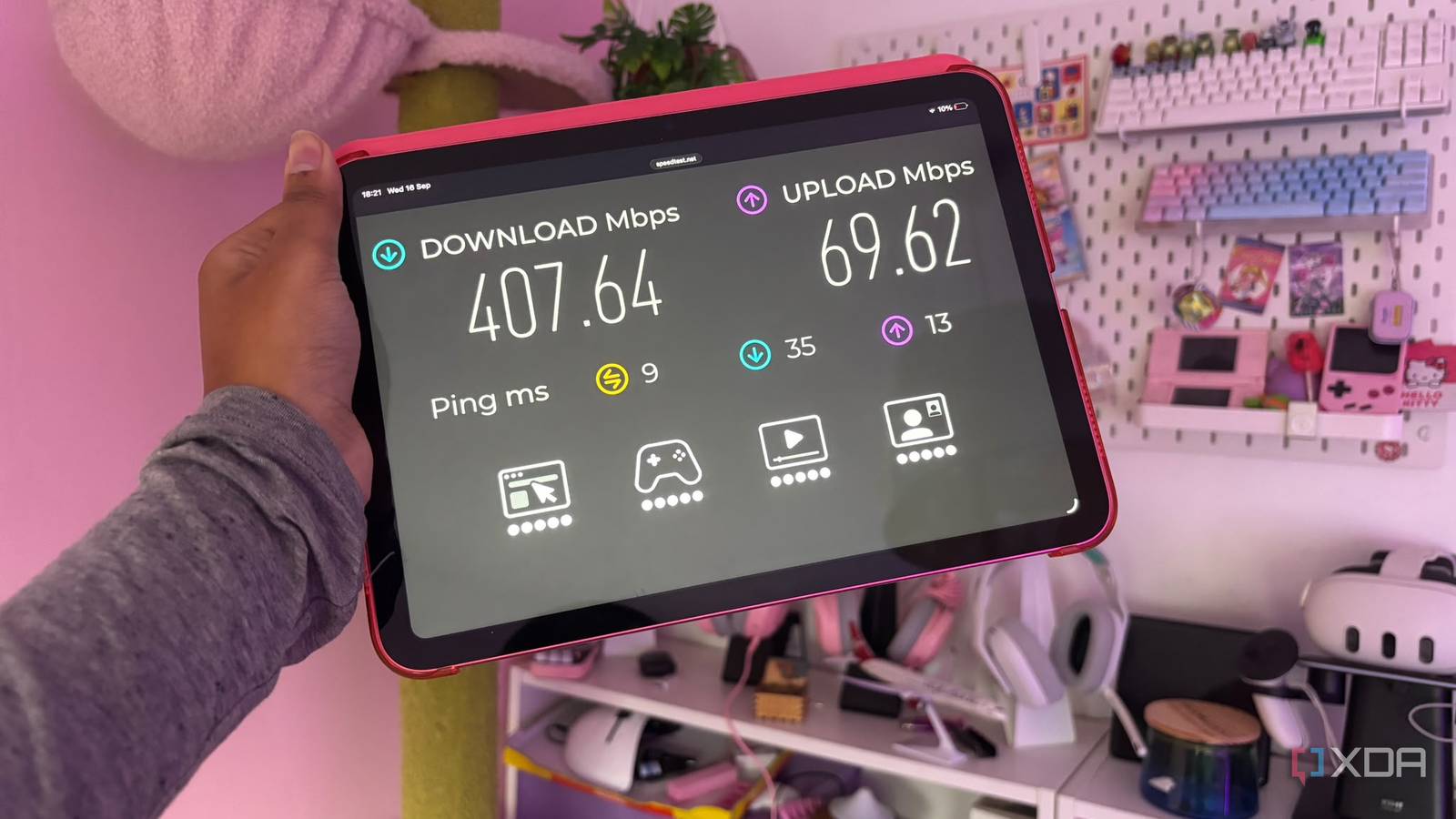
Published Sep 17, 2026, 8:00 AM EDT Jasmine is Software and PC Hardware Author at XDA with years of tech reporting experience ranging from AI chatbots right down to gaming hardware, she's covered just about everything. Whether it's breaking news about the latest AMD NPUs or creating video tutorials on social media platforms, Jasmine has contributed to the world of AI and tech in a variety of ways including interviewing the CEO of Razer, AMD's Director of Product Marketing and the VP of Lenovo. Passionate about gaming and PC technology, she has built countless computers, keyboards and other peripherals - knowing them inside and out. Even though you're paying for fiber internet, your devices may still cap at 250 Mbps during a speed test, even when you're right next to your modern router. This isn't because the hardware is slow or because your ISP is throttling you. It might actually be because your router was shipped with a conservative, safe factory default. Specifically, its 5GHz channel width may be locked to 20MHz or a throttled 40MHz, with co-channel fallback, to prioritize broad compatibility over raw throughput. By adjusting this setting, you might double your speeds without spending a single dollar on a fancy new router. What is the physics behind channel width? Selecting the right channel width is fundamental How does channel width affect the real-world speeds you get with Wi-Fi? It's all down to physics and IEEE modulation fundamentals. A Wi-Fi channel is like a highway lane, and a 20MHz channel is a single narrow lane, foundational on 2.4GHz and basic on 5GHz. Switching to a 40MHz channel essentially bonds two 20MHz channels, doubling the symbol transmission rate. An 80MHz channel bonds four channels together, yielding an instant 2x theoretical jump over 40MHz. A 160MHz channel, standard in Wi-Fi 6, 6E, and 7 architectures, bonds eight channels together, allowing modern 2x2 MIMO devices to negotiate PHY link rates of 2.4Gbps. Essentially, this is fundamental for those higher-speed internet packages. Client devices calculate speed by taking a standard modern phone with a 2x2 MIMO antenna array on an 80 MHz channel at 124-QAM, which negotiates a maximum theoretical link rate of 1,201Mbps. This means that in real-world use, you'll probably get around 750Mbps. If you restrict that same phone to a 40MHz channel, the maximum PHY link rate drops to 574Mbps, which also cuts your real-world rate by about half, if not more, to around 250Mbps after protocol overhead. So if the speeds are so much slower on these lower channels, why do some routers default to 40 MHz? Router manufacturers do this because they configure out-of-the-box settings for the lowest common denominator. This means your router needs to work with legacy devices if you're in a noisy apartment complex, and they need to avoid automatic channel collapse. To do this, manufacturers set the router to what will seemingly ensure all these different avenues are catered for. How to adjust your channel width Make sure you set a baseline before starting How can you unlock your radio frequency to calibrate your router correctly? There are some practical instructions that you can follow. Before you start, the best step is to run a local spectrum scan. Instead of guessing which channels the houses around you use, you can use free tools like Wi-Fi Analyzer, available on both Android and Windows. This will set a baseline for your speeds and Wi-Fi quality so you have a point of comparison after adjusting. Next, access your router's advanced wireless settings by logging into your gateway and navigate to the 5 GHz radio settings. These are sometimes buried in wireless settings or Wi-Fi settings, depending on your manufacturer. You might notice straight away that the channel width setting is set to auto or set to 20/40MHz. Switch this over to a higher channel width. Whether you choose 80MHz or 160MHz will depend on your home. You might also benefit from disabling coexistence/band steering. Some routers have a setting that can aggressively down-negotiate your links. Disabling this setting protects your speeds and ensures your channel width stays at what you selected. After adjusting the settings, you can run another speed test to see if the changes have actually made a difference to the real-world speeds that you're getting. If they haven't, your Wi-Fi issues may be caused by something else on your network. Where you live can play a major role Crowded areas will benefit from 80MHz channels Depending on where you live, your network may face environmental constraints. If you're living in a high-density apartment, then you actually might be better off opting for 80MHz over 160MHz when it comes to your channel width. If you live in a dense downtown high-rise with 40 visible SSIDs, shooting for 160MHz can feel like a mistake. Bonding 8 channels means you will collide with neighbor transmissions, leading to CSMA/CA airtime backoffs and packet loss. Essentially, your network is going to start to slow down, struggle, and stutter. In dense apartment buildings, a clean 80 MHz channel is almost always going to be faster and more stable than a crowded 160 MHz channel. For those who live in detached homes or suburban areas where neighbor RSSI is below 80 dBm, 160MHz is probably the better option. This is because it allows for modern Wi-Fi 6 and 7 laptops to fully saturate 1Gbps to 2Gbps of fiber internet over the air. The channel width you select should match your environment and home, so don't overdo it if it won't help your network. Upgrade your speeds without spending a penny You might be throttling your own network We spend thousands of dollars on flagship laptops, smartphones, and gigabit fiber subscriptions, only to let a default 80MHz toggle in an admin panel throttle our connections by more than 50%. Stop settling for mediocre wireless throughput. Open your router's admin panel tonight and set your 5GHz radio to an 80MHz or clear 160MHz channel and unlock the performance your hardware was built to deliver without needing to spend a penny on upgrades.
I changed one channel setting in my router, and my 5GHz Wi-Fi speeds doubled instantly
Full Article
Original Source
Read the full article at Xda-developers →KhanList aggregates and links to publicly available news content. We do not host full articles from third-party sources. Always verify important information with original sources.