
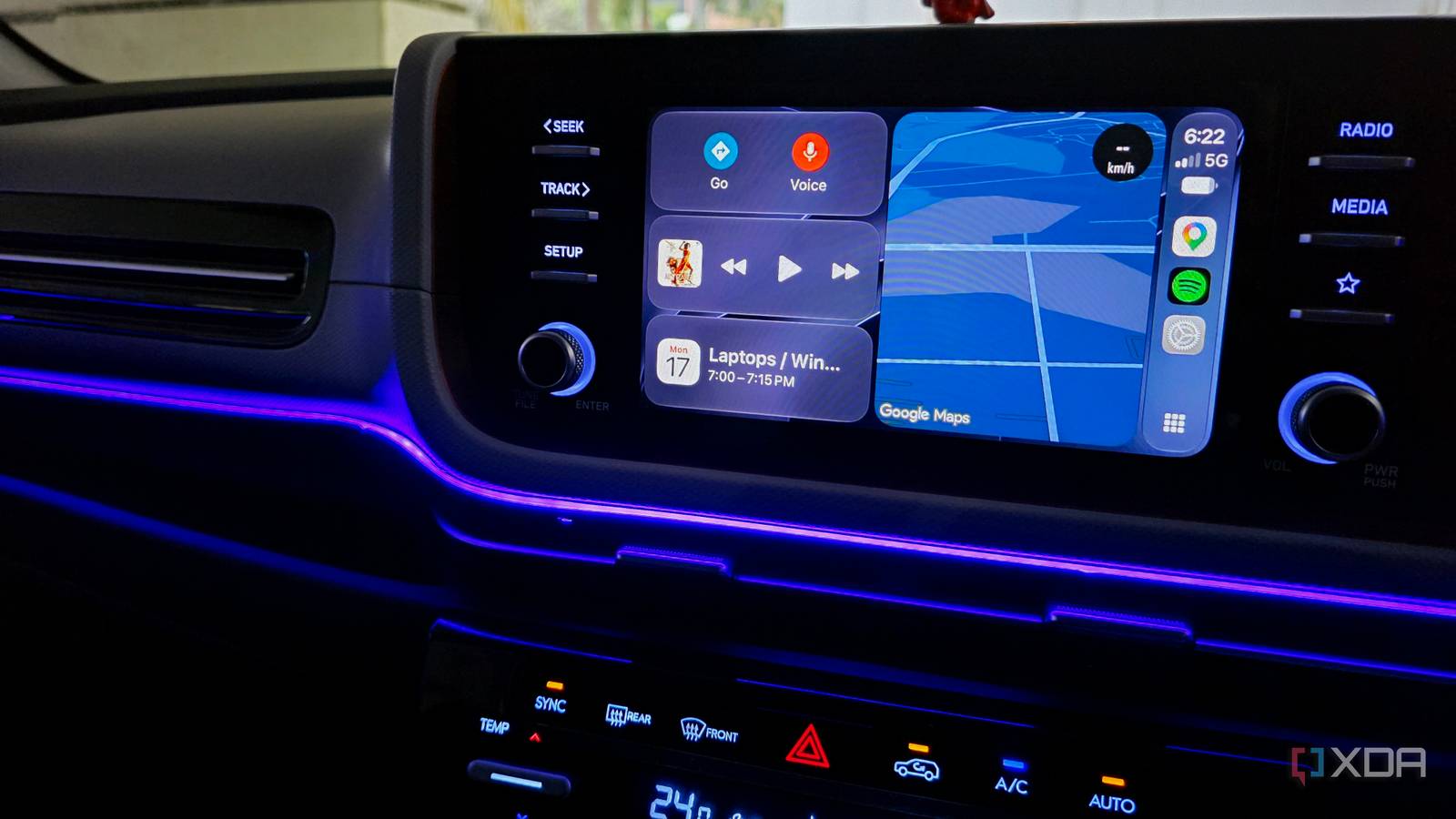
Published Aug 29, 2026, 6:00 PM EDT Parth, a seasoned tech writer, wields the keyboard (or pen) with finesse to unravel the intricacies of both Windows and Mac operating systems. He has covered evergreen content on mobile devices and computers for multiple publications over the last six years. You can find his work on AndroidPolice, GuidingTech and TechWiser. Whether it’s demystifying system updates, deciphering error codes, or exploring hidden features, Parth’s prose guides readers through the binary maze. When not immersed in tech jargon, you’ll find him sipping chai, pondering the next software review, and occasionally indulging in a friendly debate about mechanical keyboards. I have always liked how polished Apple CarPlay feels, but its interface can look awkward on certain infotainment screens. Depending on the display's size and shape, icons can feel oversized, cramped, or out of proportion with the rest of the dashboard. I assumed CarPlay was handling all of that automatically, so there wasn’t much I could do about it. As it turns out, Apple added a simple setting that gives CarPlay a much better chance of fitting the screen properly, and it made a bigger visual difference than I expected. CarPlay doesn’t look equally good everywhere Doesn’t fit every screen perfectly Apple CarPlay is designed to work across a huge range of cars, but that doesn’t mean it looks equally good on every dashboard. A large widescreen display can give the interface plenty of room to breathe, while a smaller or oddly shaped infotainment unit (the ones in BMW and Mini) can make the same layout feel cramped or poorly proportioned. I have noticed this most with app icons, spacing, and the amount of information CarPlay tries to fit on the screen at once. Sometimes everything feels a little too large, while on other displays, there can be unnecessary empty space. Until recently, I assumed this was simply down to the hardware in my car and that CarPlay didn’t give me much control over it. I found Smart Display Zoom almost by accident I almost skipped this CarPlay setting I found Smart Display Zoom almost by accident while digging through CarPlay’s newer iOS 26 options. The name didn’t exactly grab my attention. In fact, I initially assumed it was just another Zoom control that would make icons, text, and other interface elements larger, which wasn’t something I was looking for. But after trying it, I realized Apple is doing something much smarter here. Instead of simply blowing up the interface, CarPlay adjusts how everything is scaled for the display it is connected to. On a smaller unit, that can even mean shrinking certain elements so more content fits comfortably on the screen. It was one of those settings I could have easily ignored, but once I saw the difference, I understood why it exists. The difference is easier to notice on the home screen The home screen makes it obvious The Home Screen was where I first noticed the change. Before enabling Smart Display Zoom, CarPlay’s icons and spacing felt slightly oversized on my display, and I never really questioned it because that was simply how CarPlay had always looked in my Hyundai. Once I turned the feature on from the CarPlay Settings > Display menu, the layout immediately felt more balanced. The icons looked proportioned, spacing was tighter, and CarPlay made better use of the available screen instead of leaving everything feeling large. The Dashboard view benefited even more. Since it already tries to show navigation, media controls, and other information simultaneously, better scaling makes a bigger difference here. I could see more at a glance without the interface feeling cluttered or squeezed together. My car’s small display finally feels properly utilized A single toggle changes everything My car’s display isn’t particularly large, so every bit of screen space matters. That is exactly why Smart Display Zoom made such a noticeable difference for me. It is a small visual change, but on a compact infotainment unit, those small adjustments add up quickly. This is also the kind of CarPlay customization I want Apple to explore more often. I don’t necessarily need dozens of appearance toggles or complicated layout controls, but I do want CarPlay to adapt better to the hardware in front of me. After all, cars come with wildly different display sizes, shapes, and aspect ratios, so a one-size-fits-all interface will never be perfect everywhere. Smart Display Zoom feels like a sensible middle ground: I get a cleaner, better-optimized layout without having to manually tweak every little element. Fix your awkward CarPlay display Smart Display Zoom is a small CarPlay feature, but it made my setup feel more polished. I like that Apple isn’t simply giving me a traditional zoom control. Instead, CarPlay adjusts the interface to better suit the display it is running on, which is useful on smaller or unusually shaped screens. Once I enabled it, the Home screen, widgets, and Dashboard all felt better balanced and made smart use of the available space. It also goes well with the rest of the Liquid Glass-inspired design elements that Apple introduced with the iOS 26 update.
I changed one Apple CarPlay setting and my car’s display instantly looked better
Full Article
Original Source
Read the full article at Xda-developers →KhanList aggregates and links to publicly available news content. We do not host full articles from third-party sources. Always verify important information with original sources.