
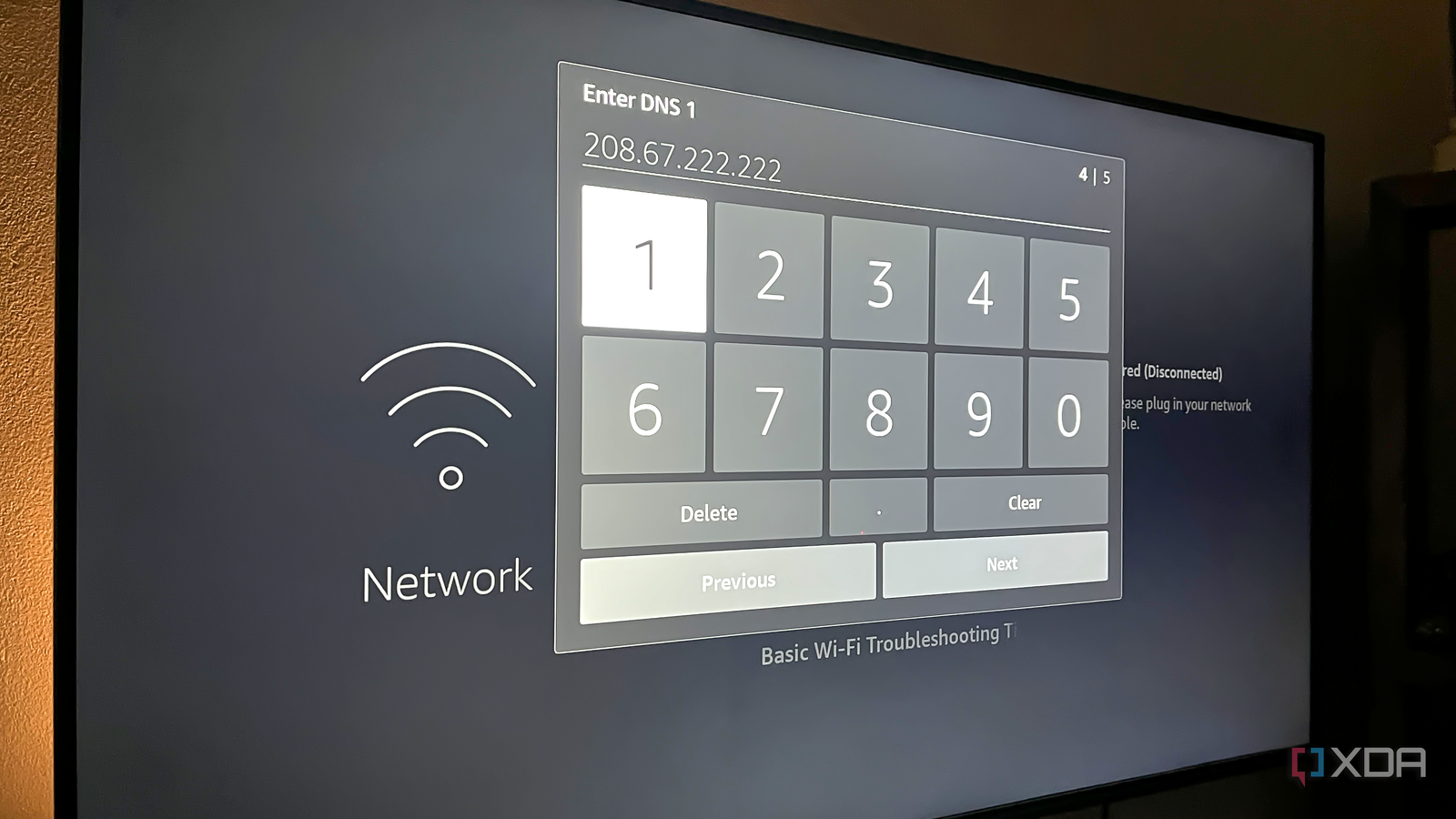
Published Oct 1, 2026, 6:00 PM EDT With over five years of experience in the tech industry, Kazim excels at simplifying complex topics, making them accessible to tech enthusiasts and general readers alike. He has extensively covered the Windows ecosystem, from Windows 7 to Windows 11. When he’s not writing, you’ll find Kazim planning weekend getaways or diving into tech verticals beyond his expertise. In the past, I have often managed to bypass geo-blocking and other restrictions by switching DNS servers. It's the most feasible option, since a VPN generally slows down your connection. So, I tried the same with my Fire TV Stick, and to my surprise, it fixed a much bigger problem, something that I wasn't even actively focused on. For those who are unaware, DNS or Domain Name System, often called the internet's phone book, is simply put, a database. While we use domain names like "xda-developers.com" to access websites, machines use IP addresses. And this is where DNS comes into the picture. It translates human-readable domain names into machine-readable IP addresses. The problem is that the default DNS on routers and devices isn't always the best for performance, and switching to another DNS server can do wonders. It improved connectivity Faster loading and less buffering As surprising as it may sound, changing your Fire TV Stick's DNS, or even the one on your smart TV, improves connectivity and minimizes related issues. Also, content loads faster and buffers less, as long as you're on a decent internet plan. If the internet speed itself is slow, switching DNS won't do much good. Let's understand how switching DNS can help with streaming. A better-performing DNS connects your Fire TV Stick to a better server, improving load times. This difference in performance becomes noticeable if the default DNS is slow, overloaded, or directing you to a less-than-optimal server. For my Fire TV Stick, I picked Cloudflare's DNS since it's one of the most reliable, at least as far as I know. Google's public DNS is good too, and I would have tried it next had Cloudflare's DNS not performed well. But it didn't come down to that. Maybe I will try Google's in a week or so. Keep in mind that you can also change the router's DNS. Since I was simply trying to bypass content restrictions on the Fire TV Stick, I didn't want to reconfigure things at the network level. But that should work too, if you are more comfortable with that. Changing DNS on Fire TV Stick is simple It takes about two minutes You can easily change the DNS on your Fire TV Stick. It's not as straightforward as switching DNS on a PC, but it's pretty simple. First, open Settings on your Fire TV Stick, go to Device and Software, then into About, and scroll down to Network. You should now see the IP address, Gateway, and current DNS on the right. Take a picture of this, as we'll need this information in a minute. Now, go back to Settings, then into Network, select the connected network, and choose Forget this network. Then reselect the network from the list, enter the password, and select "Advanced" at the bottom. It will now ask you for the IP address. Enter what you captured in the picture earlier. Similarly, fill out the Gateway field. For Network Prefix Length, enter the number currently shown in the field, then proceed. You will now be asked for the DNS details. Since we are using Cloudflare's DNS, enter 1.1.1.1 under DNS 1 and 1.0.0.1 under DNS 2. That's it. Your Fire TV Stick now has a new DNS. To confirm everything is in order, do a quick reboot, then check whether the new DNS holds. For most of you, it should. But it is still worth checking. It won't unlock more content You are better off with a dedicated service Frankly, switching to Cloudflare's DNS didn't do what I expected, and I was a little disappointed at first. But as soon as I realized that it improves the streaming experience, it felt like I should have made the switch long ago. For a streaming stick or even a smart TV, the streaming experience is far more important than bypassing restrictions and unlocking more content. That said, you can unlock more content by changing your DNS settings. You absolutely can, but you will need a specialized smart DNS service. Options range from Smart DNS Proxy to SniDust. They aren't as secure as a VPN because a smart DNS service doesn't encrypt your traffic, but it also doesn't slow down your connection, which can be a real damper. A simple change can upgrade your streaming experience So, if you are looking to upgrade the streaming experience on your Fire TV Stick, switching DNS is one of the easier options. Other built-in features are worth exploring, too. Keep in mind this may not work for everyone, and switching to a more crowded DNS may make things worse. But as long as you are a little smart about the changes, it's worth a try, given that there are no major downsides to switching to Cloudflare's or Google's DNS.
I changed my Fire TV Stick’s DNS to unlock more content, but it fixed something even more annoying
Full Article
Original Source
Read the full article at Xda-developers →KhanList aggregates and links to publicly available news content. We do not host full articles from third-party sources. Always verify important information with original sources.