
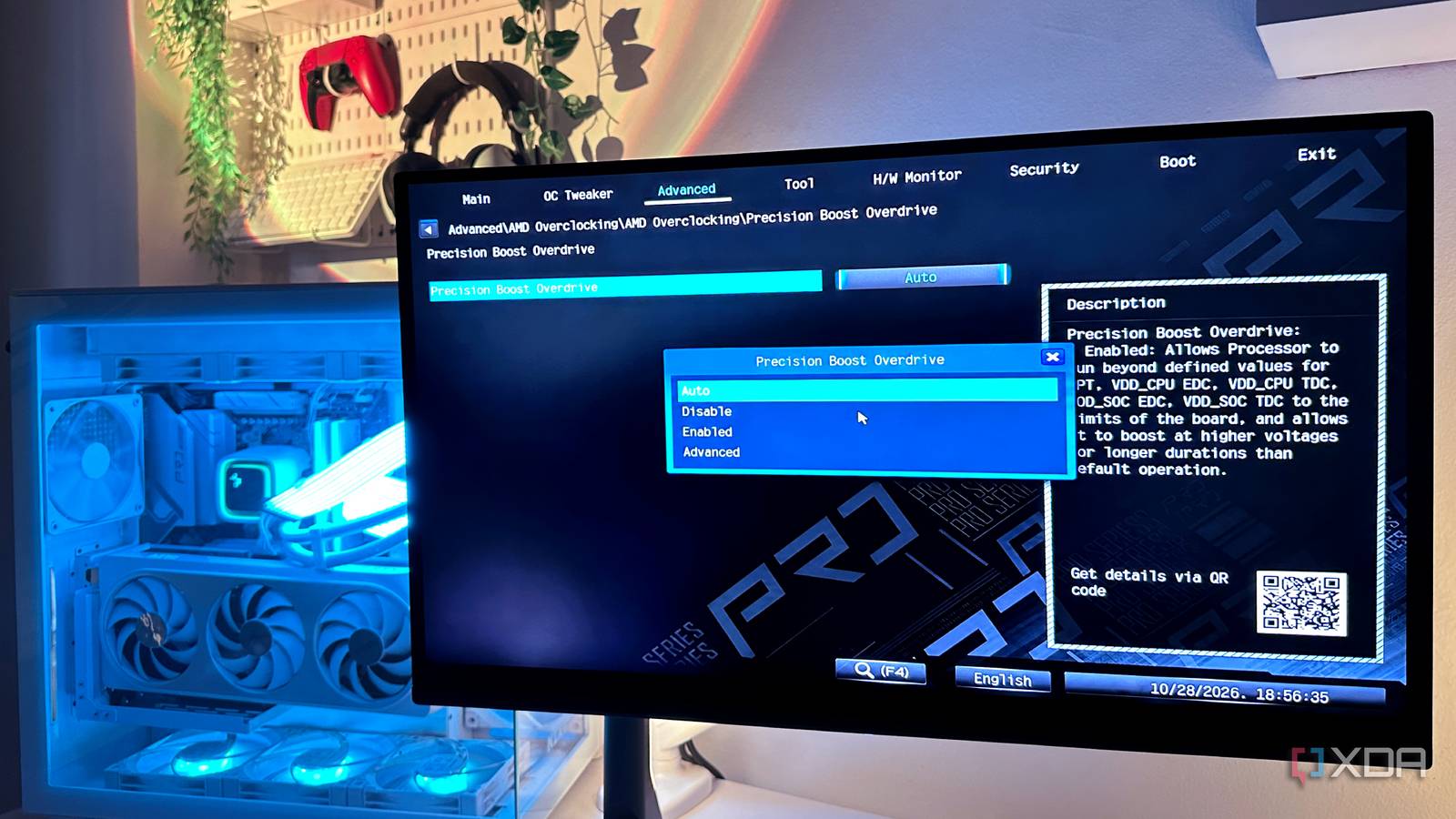
Published Oct 29, 2026, 12:00 PM EDT Gaming has been Samarveer’s greatest passion, and the Literature graduate in him takes immense joy in dissecting games for their themes, messages, and impact. Samarveer holds a deep appreciation of gaming, and considers the platform to be the most immersive and impactful across all media. He can be found engaging with gaming communities online, always ready to debate the finer points of ray tracing or itching to write an 8-page collegiate thesis on any game that impacts him emotionally. Even if you bought the most expensive consumer PC possible, you'd be lying if you said you weren't trying to squeeze every last frame out of it. The best components don't work the way they should unless you also spend a couple of hours tinkering with their settings, and that's before you even touch overclocking. I've spent enough time tweaking PCs to know that the default configuration they ship with just isn't the best or most optimized for gaming. That's understandable, too, since motherboards have to ship while prioritizing stability and compatibility instead of performance. Even though I wouldn't touch overclocking with a barge pole since new parts today cost a fortune, there are plenty of settings in my motherboard's BIOS I've tweaked that have genuinely improved my gaming PC's performance with viable real-life returns. Enable XMP or EXPO for faster memory Your expensive RAM isn't running at its advertised speed by default Credit: Source: XDA Every time I mention XMP or EXPO, it feels redundant, since it's easy to assume that every single person building a gaming PC knows about it. And yet, the truth is that power users remain only a small percentage of PC gamers, and the general user still buys the best parts they can (or are sold) without knowing how to maximize their performance themselves. XMP/EXPO is perhaps the top feature that the average user neglects, letting their RAM sit at slower speeds. Buying a 6,000MT/s DDR5 kit doesn't mean your motherboard will actually run it at 6,000MT/s. By default, most motherboards leave performance on the table in the interest of safe first boots. Thankfully, fixing that takes seconds. Intel's Extreme Memory Profile (XMP) and AMD's Extended Profiles for Overclocking (EXPO) are preconfigured memory profiles that let you actually run your RAM at its advertised speed, timings, and voltage printed on the box. The exact name and location vary between motherboard manufacturers, but it's usually straightforward to find. Technically, enabling XMP or EXPO counts as memory overclocking, even when you're simply activating the kit's advertised specifications. However, it's the most reliable and stable form of RAM overclocking that the manufacturer actually expects you to do, so it's always a safe bet to turn on. Set custom fan curves for quieter gaming Your motherboard doesn't know how much noise you're willing to tolerate Motherboard manufacturers have no idea whether you'd rather have a whisper-quiet gaming PC, or a tower mimicking a jet taking off. The default fan curves in a motherboard are rather generic, and they ramp up pretty aggressively with temperature spikes. Either that, or they let components run hotter than necessary. The only way to fix that is to take control of your own fans and their curves. Head into your BIOS and find the hardware monitoring or fan control section. This is where you can adjust the fan curves for your CPU cooler as well as your case fans. Setting a gentler curve at lower temperatures keeps everyday workloads quiet, but you can also use a steeper ramp under sustained loads to ensure that your cooler gets enough airflow to your CPU when you're gaming. That helps prevent the CPU from reaching its thermal throttle limit, and for those running Ryzen CPUs, it's a particularly useful move to set and tune their fan curves. Don't simply set everything to the minimum speed and call it a day, though. Your CPU and GPU need sufficient airflow to sustain boost clocks without thermal throttling. This part requires some elbow grease and focus, but it's well worth the effort to monitor and use your own temperature readings from actual gaming sessions for fine-tuning your curves. Enabling Precision Boost Overdrive Let your Ryzen CPU push its limits automatically Credit: AMD's Ryzen processors are superb at squeezing performance out of their silicon, but their default power and boost limits can leave some headroom unused. If your Ryzen CPU supports it (AMD Ryzen 5000, 7000, and 9000 series desktop processors and Threadripper chips), Precision Boost Overdrive (PBO) can let the chip push beyond the stock limits, as long as the temperature, power delivery, and cooling allow it. You don't have to fret over every single clock speed on the CPU, so it isn't as delicate as manual overclocking, but it still lets the processor stretch its legs. You'll find PBO in your BIOS, usually under AMD Overclocking or a similarly named submenu. Set it to Enabled or Advanced, depending on your motherboard, and let the processor manage its boost behavior automatically. Don't expect a miraculous double-digit FPS uplift in every game, though, since actual gains vary from CPU to CPU, depending on how you fared in the silicon lottery. Intel processors don't have a direct equivalent to AMD Ryzen's PBO, but they do have Turbo Boost technologies, which automatically raise CPU clock speeds according to the workload, temperature, and power headroom. However, they operate strictly within Intel's default, hard-coded power ceilings out of the box. Enabling Resizable BAR improved my GPU's performance Stop making your CPU ask for GPU memory in tiny chunks Source: Nvidia Your graphics card might have gigabytes of VRAM, but that doesn't automatically mean your CPU can access all of it at once. Traditionally, systems expose a relatively small portion of GPU memory through the PCIe interface, which potentially creates unnecessary overhead when games need to transfer large amounts of data. Resizable BAR changes that by allowing the CPU to access the entire GPU frame buffer when supported. Enabling it usually involves switching on Resizable BAR (a no-brainer) in your motherboard's BIOS. You'll also need a compatible processor, motherboard, graphics card, and BIOS configuration. The one thing you must ensure in your own BIOS settings is that Resizable BAR is actually set to "On," and not "Default" or "Auto." AMD's equivalent is called Smart Access Memory (SAM), which uses Resizable BAR to let compatible Ryzen processors access the GPU's VRAM buffer. You will, of course, need compatible AMD hardware and enabled BIOS support, but the underlying technology remains the same. Performance gains depend heavily on the game, with some titles benefiting more than others. However, many users also report ReBAR hurting their performance, which is why GPU vendors maintain game-specific profiles. The best way forward here is to test your usual games instead of just assuming that ReBAR is a one-size-fits-all performance enhancement. My AM5 boot times halved with Memory Context Restore It became a non-negotiable for my PC If you've ever wondered why your AM5 gaming PC takes an eternity to boot despite having a fast SSD, DDR5 memory training might be the culprit. After enabling EXPO, your motherboard has to establish stable memory parameters, and repeating that process at every startup can add an absurd amount of time to your morning routine. Enabling Memory Context Restore (MCR) in your BIOS can fix that, since it reuses previously established training data instead of starting from scratch. Depending on your motherboard, you'll find MCR under your BIOS's DRAM settings or AMD CBS submenu. On systems that spend 45–50 seconds training memory, enabling it can bring boot times down to roughly 10–20 seconds. Your results will vary, but shaving half a minute off every startup without buying anything is a pretty compelling upgrade. Unfortunately, MCR is also known to introduce memory instability and failures to POST in some AM5 PCs. That problem has largely stabilized as AM5 has now had plenty of time to mature. Pairing it with Power Down Enable can help maintain stability, though results depend on your hardware and BIOS. Make sure you test things thoroughly, but also be prepared to disable MCR or clear your CMOS in case your PC refuses to cooperate. You can always upgrade your PC without buying new hardware It can be immensely satisfying to get more out of your PC without spending an extra dime, especially when you've already spent a small fortune building it in the first place. All it often takes is what your motherboard has been doing behind your back. Of course, BIOS tweaking isn't about blindly enabling every setting that sounds performance-oriented. Every system is different, and what works beautifully on one configuration might cause headaches on another. The best thing to do is to make one change at a time, test your results, and keep track of what you've adjusted. ASRock B650 Pro RS The ASRock B650 Pro RS is one of the most affordable B650 motherboards on the market. It doesn't have Wi-Fi, but you get Gen5 M.2 support, a total of 3 M.2 sockets, 2.5GbE LAN, and a 17-phase VRM design. The I/O is robust, and you can enjoy one of the lowest VRM temps on any B650 board.
I changed 5 BIOS settings and improved my gaming PC’s performance without touching overclocking
Full Article
Original Source
Read the full article at Xda-developers →KhanList aggregates and links to publicly available news content. We do not host full articles from third-party sources. Always verify important information with original sources.