
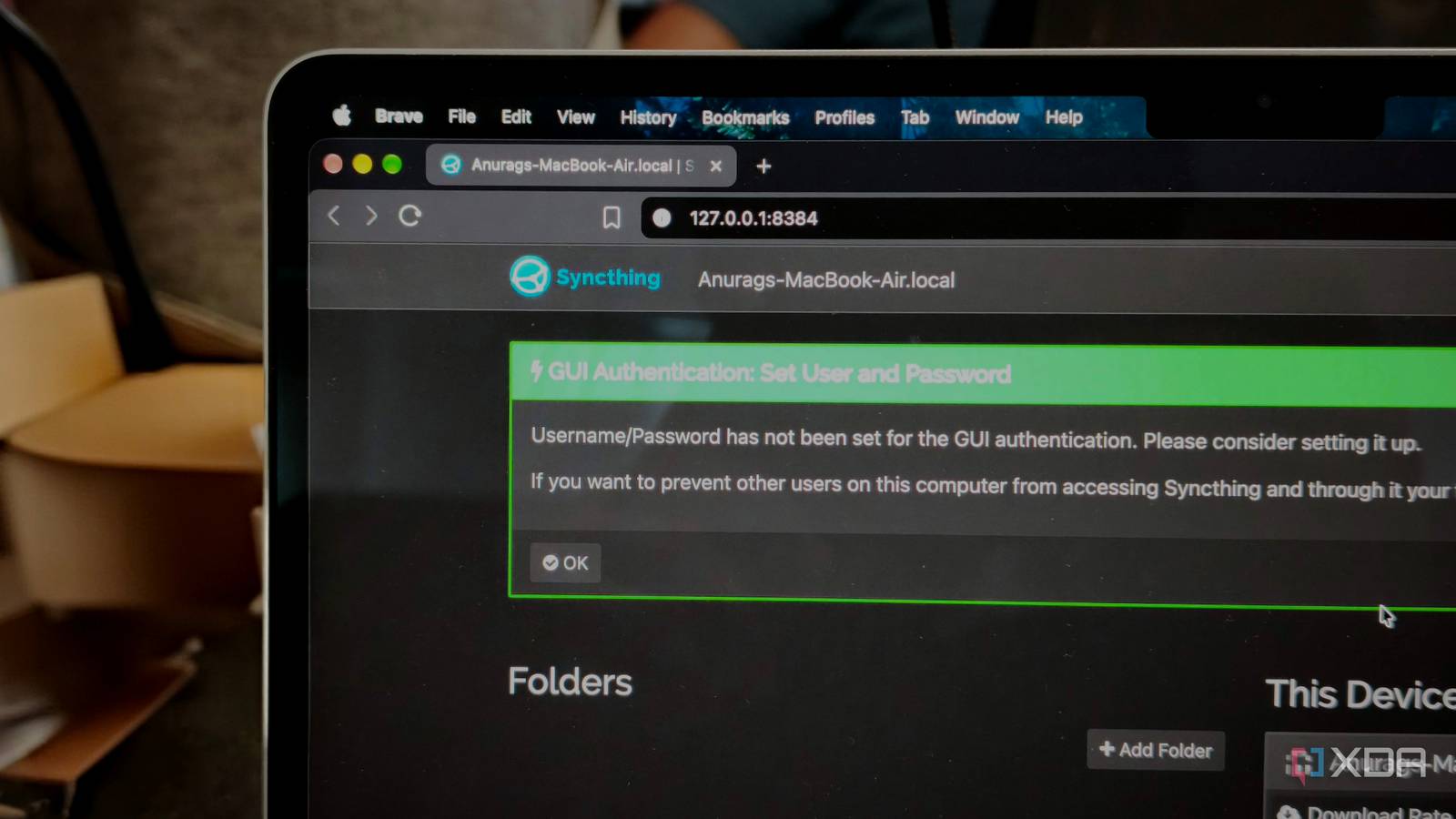
Published Sep 26, 2026, 7:30 AM EDT Anurag is an experienced journalist and author who’s been covering tech for the past 5 years, with a focus on Windows, Android, and Apple. He’s written for sites like Android Police, Neowin, Dexerto, and MakeTechEasier. Anurag’s always pumped about tech and loves getting his hands on the latest gadgets. When he's not procrastinating, you’ll probably find him catching the newest movies in theaters or scrolling through Twitter from his bed. I use multiple PCs for work because I am constantly testing new software, and what works on macOS might not work on Windows or Linux. I often have to share files between these devices, but doing that isn’t a very straightforward process. I use a MacBook, a Windows laptop, and a desktop PC. The easiest way for me to share files between these devices is to sync a folder across all devices with the cloud, so I can put things in that folder and access them from every PC I have. This worked, but I wanted to see if I could do that without sending that data to the cloud first. I actually found a way to do that. I'm using Syncthing on all my devices, and I can keep a folder in sync across every computer I own without cloud storage. Syncthing works without cloud storage And it can work with as many devices as you want Syncthing keeps a copy of the same folder on each connected computer. When you add or change a file on one computer, it syncs that change to the others. No cloud storage account holds a copy of the folder in between, which is what I wanted to avoid. Each computer has its own device ID. You add the computers to Syncthing, choose the folder you want them to share, and the app takes care of transferring changes. The computers need to be online at the same time to exchange files, though. If I shut down one laptop, it won’t receive anything new until it’s running again and can connect to another computer that has the folder. That doesn’t mean Syncthing never uses an outside server. It can use a discovery server to help computers find each other across networks, or a relay if they can’t connect directly. A relay passes along encrypted traffic — it doesn’t keep a stored copy of my files. Syncthing also lets you turn those features off if you only want to sync over your local network. Setting up one folder across my computers Install and run Syncthing on all your devices Syncthing needs to be installed and running on each computer. You manage it through a web interface that opens in your browser, even though the files stay on the computer itself. You can use the Sync folder Syncthing creates when it first starts, or click Add Folder and choose an existing folder. For this setup, set the folder to Send & Receive so changes on any computer reach the others. Next, the computers need to know about each other. Syncthing gives every device a unique ID, which you can find under Actions, then Show ID. On another computer, click Add Remote Device and enter that ID. Both computers have to accept the connection before they can sync. You then share the folder with the new device and accept the folder invitation there. When accepting the folder, you choose where its copy will live on that computer. That path doesn’t have to look the same on macOS, Windows, and Linux. Syncthing uses the folder ID to recognize that these are copies of the same shared folder, so you don’t need to create three folders separately and try to match them by name. Repeat the process for the third computer. If you connect each computer to the other two, any pair can exchange changes while the third is switched off. Syncthing copies deletions as well as new files and edits. That’s what keeps the folder consistent across computers, but it also means deleting something by mistake on one PC can remove it from the others. You need to have a backup if the data stored in the folder is important. You can turn on file versioning to keep older copies when a change arrives from another device. It works for the files I actually move Not just images and screenshots My synced folder has become a place for the mix of files I use while testing software — screenshots, PDFs, documents, videos, and whatever else I need on another computer. I put them in the folder and open them from the computer I’m using, without having to move each file manually. Screenshots and documents are one thing, but I also wanted to know whether the setup would hold up with heavier video files. It has worked just fine with those, too. Larger files take longer to transfer, of course, but I haven’t needed a separate way to move them between computers. There are a couple of things to watch when moving between operating systems, though. Linux can treat Notes.txt and notes.txt as two different files, while Windows and many Mac setups treat them as the same name. If both files end up in the shared folder, Syncthing can report a conflict because it can’t put them both on every computer. Consistent file names avoid that problem. I’m keeping this setup Syncthing gives me the shared folder I wanted without storing my files in the cloud. The tradeoff is that an offline computer has to come online alongside another device before it can catch up, and the synced folder still needs a separate backup. That works for people with multiple computers who want control over where their files are stored and don’t need instant access from every device. It works for me, too.
I built one folder that automatically stays in sync across every computer I own without cloud storage
Full Article
Original Source
Read the full article at Xda-developers →KhanList aggregates and links to publicly available news content. We do not host full articles from third-party sources. Always verify important information with original sources.