
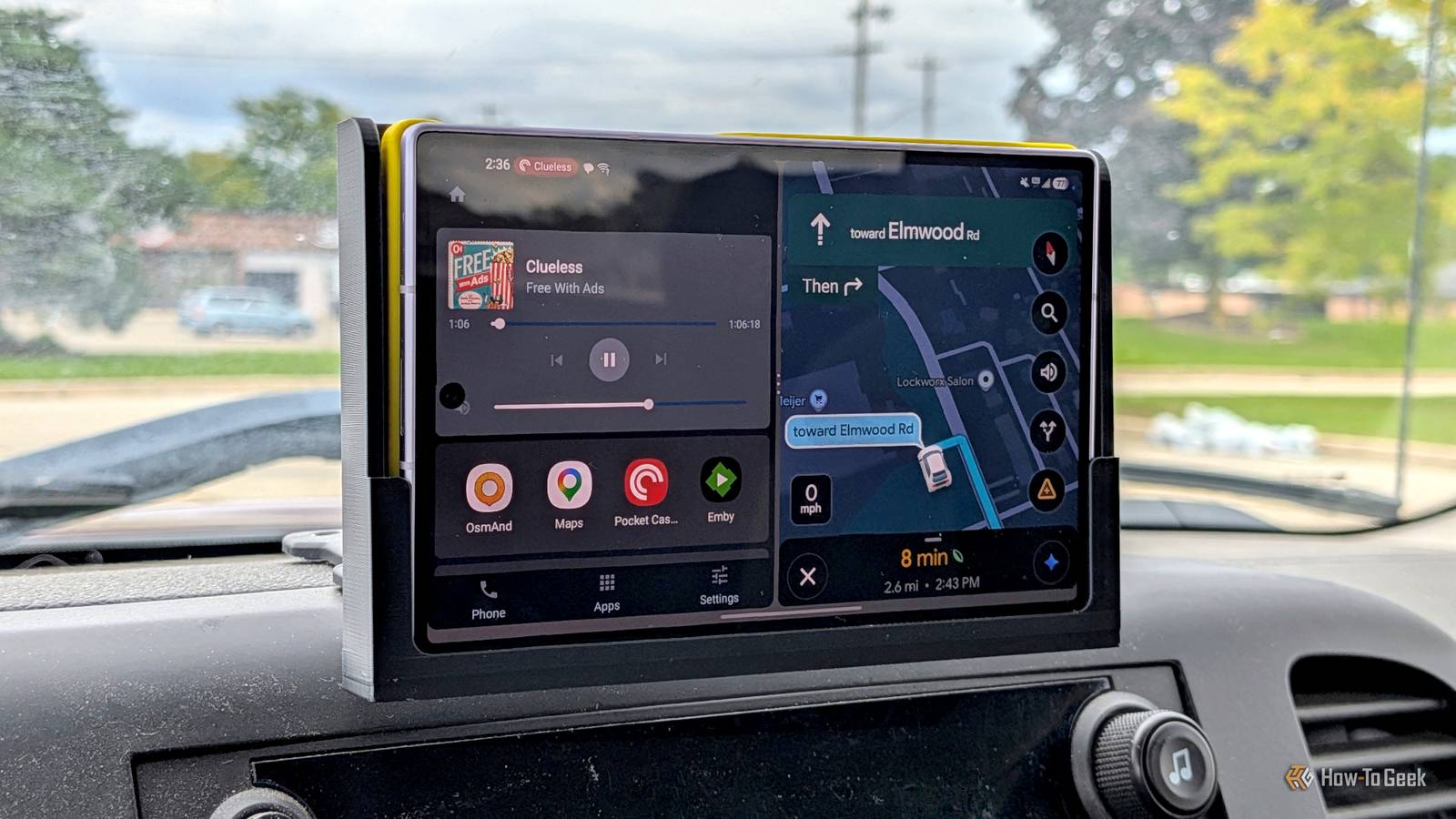
Published Sep 24, 2026, 3:30 PM EDT Joe Fedewa has been writing about technology for over a decade. Android and the rest of the Google ecosystem have been a focus for years, as well as reviewing devices, hosting podcasts, filming videos, and writing tutorials. Joe loves all things technology and is also an avid DIYer and food blogger. He has written thousands of articles, hundreds of tutorials, and dozens of reviews. Before joining How-To Geek, Joe worked at XDA-Developers as Managing Editor and covered news from the Google ecosystem. He got his start in the industry covering Windows Phone on a small blog, and later moved to Phandroid where he covered Android news, reviewed devices, wrote tutorials, created YouTube videos, and hosted a podcast. From smartphones to Bluetooth earbuds to Z-Wave switches, Joe is interested in all kinds of technology. After several years of jailbreaking and heavily modifying an iPod Touch, he moved on to his first smartphone, the HTC DROID Eris. He's been hooked ever since. Some of us are still driving around in vehicles without fancy infotainment displays. There are several methods for bringing Android Auto into a car, but what if you just want to use your phone? I came up with a way to optimize my phone for the car without custom launchers or emulators. This was not my first attempt at using my phone as an Android Auto display. However, recent changes caused me to reevaluate my previous setup. The good news is, I believe I now have something that works a bit better and more reliably. Before I get too far, I want to mention that I used Samsung's Modes & Routines app for this project. It's only available on Galaxy devices. You may be able to replicate the process with third-party automation apps. Android 17 broke a cool Android Auto hack It's not as seamless anymore In the past, I've written about using an old tablet as a wireless Android Auto head unit and a phone itself as an all-in-one solution. Both of these projects took advantage of an excellent app called "Open Headunit." The Open Headunit app is essentially an Android Auto emulator. It can receive transmission from a secondary device, like the display in a vehicle, or run Android Auto directly from the phone it's installed on. The latter was how I liked to use it. I could simply slide my phone into a mount in my car and not worry about keeping some other device charged up. The thing that made this method even better was the easy automation. I could configure Open Headunit to automatically open into "Self" mode, and select the Bluetooth audio receiver in my car as the "trigger" to automatically open the app. It was a very smooth, hands-off experience. Unfortunately, Android 17 — Android Auto 17.4 and newer, more specifically, added an extra layer in this process. Now, you have to enable the developer menu in Android Auto and manually start the headunit server. Every so often, you have to re-enable this, and sometimes it prevents Android Auto from starting. Again, this only applies to "Self" mode — connecting a secondary device hasn't changed. It's a friction point that I don't want to deal with. So, I set out to find a better solution. You can do this on other phones, but it won't be as easy My first thought was to use a home screen launcher specifically made for head units. Open Launcher is one of the nicest I've found. This would give me an Android Auto-like experience without the trouble of running an emulator. It was a good solution — until I opened an app. The problem is, the launcher approach only really works if it's set as the default. Otherwise, I'll be bumbling around with the driving-unfriendly Android phone interface as soon as I open maps or a media app. Swapping default launchers every time I drive is far more cumbersome than starting the headunit server. So, I had to take a different approach. As I mentioned, this heavily relies on Samsung's excellent Modes & Routines app. I believe you could accomplish something similar with MacroDroid, Automate, or Tasker, but it would not be as easy. Here's what I came up with. First, when my Galaxy phone connects to the Bluetooth audio receiver in my car, it opens a car-friendly launcher called Dashline and enables reading notifications aloud for Google Messages. I chose Dashline for two reasons: it has a big media player with controls, and I was able to customize it to work well in portrait mode. The latter is important for the next part. Dashline is configured with shortcuts to the apps I use while driving. I created routines that automatically put those apps and a few others into a split-screen app pair when they're opened while the Bluetooth device is connected. This is how I got around the default home screen problem. The result of all these routines running together is a pieced-together Android Auto-like split-screen interface. Dashline automatically opens when I'm in my car, and the app automations ensure that Dashline stays on the screen when I venture out of it. DIY is the way I'm not going to pretend this is a perfect outcome. Ideally, I'd be able to automate changing the default home screen, but that's not possible without more in-depth methods. Still, I'm pretty proud of the solution I was able to create with the built-in tools on my phone.
I built my own Android Auto alternative using Samsung Galaxy routines
Full Article
Original Source
Read the full article at Howtogeek →KhanList aggregates and links to publicly available news content. We do not host full articles from third-party sources. Always verify important information with original sources.