
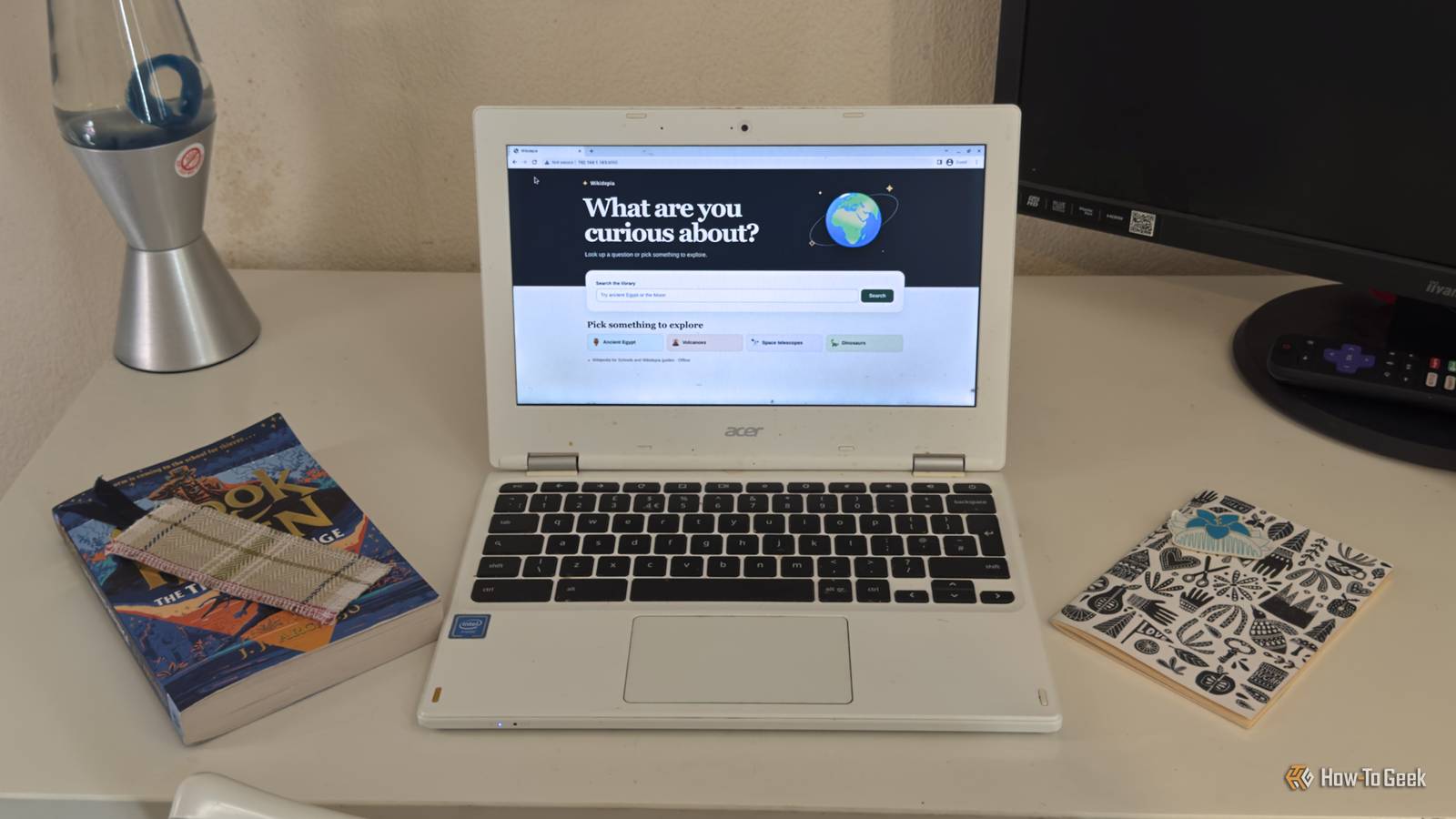
Published Nov 26, 2026, 10:30 AM EST Adam has a degree in Engineering and has a life-long interest in technology. He has been writing for over a decade for various print and online publications, with a focus on consumer tech. He joined How-To Geek in 2024 while working at Pocket-lint. As well as being a long-term fan of Apple products, he also has a strong interest in smart home tech, running a Home Assistant server at home to automate all his smart home devices. He believes that the ideal smart home should work with minimal interaction from the user, with automations running as if by magic rather than requiring you to push buttons on a control panel. You can find more of his work on Muck Rack. The internet is an incredible source of information. If there's something you want to know, you'll probably be able to find it somewhere online. The problem is that there's a lot more than just useful information to be found online. I wanted to try to set up a safe way for my kids to look up genuinely useful information without facing the Wild West of the open web. I decided to see if I could set up a smaller, safer version of the internet. As a parent, the internet is a scary place I wanted them to be able to look stuff up safely The internet is great until the moment you become a parent. Then it suddenly becomes a frightening place where threats and inappropriate content lurk around every corner. The problem is that my kids love "searching stuff up" online. I don't want to rob them of access to such an incredible source of information, but I also don't want to have to sit looking over their shoulders at every website they visit. Internet filters can help, but they're far from flawless. They can often be overly aggressive, blocking safe content, but they can also still miss inappropriate sites. I wondered if I could set up a small internet of their own which only contained content that I'd added myself. An old office PC can serve a website over Wi-Fi I was already hosting an offline copy of Wikipedia The system runs on an old Dell OptiPlex PC that also runs many of the self-hosted services in my home. I'd already set it up to host a copy of Wikipedia that I used to create my own version of the long-departed Googlewhack game. The computer is running Kiwix, a tool that lets you download and browse offline copies of large websites. A Wikipedia download can include the articles, images, and other content that Kiwix needs. I set up a simple web page hosted on the OptiPlex that lets you search through the Wikipedia archive. My first thought was to try to set up filters so that my kids could search the whole of Wikipedia but be blocked from inappropriate pages. Unfortunately, this didn't work effectively; by clicking through articles, I was quickly able to access a page that I wouldn't want them to see. A school edition gives them thousands of safe articles to explore The full Wikipedia wasn't suitable for kids With a bit of research, I found Wikipedia for Schools. This is a curated selection of articles intended for use by children, with any unsuitable sections or external links edited out. It contains about 6,000 articles on topics from ancient Egypt to fractions. While Wikipedia for Schools is good, it had some notable gaps; its archive dates back to 2009, so it lacks pages on modern topics. I tried to fill these gaps as best I could with other age-appropriate guides that I'd found on subjects such as solar panels and artificial intelligence. The results are all accessed from the same simple search box, and the setup gives more rounded results than Wikipedia for Schools could give alone. There are still some gaps. The beauty is that if my kids want information on something that's missing, I can continue to add more content. I'll still always have control of the content that's available to them. An old Chromebook only displays the custom website A proxy rejects external websites The final part of the project was to find a way for them to use the website while blocking them from accessing any other sites. The last thing I wanted was for them to just open another tab and start using Google, as that would completely defeat the entire purpose of setting this up. I had an old and battered Chromebook lying around, and I thought that it would make a good dedicated terminal for them to use, since they were unlikely to want to use it for much else. The trick was to set up the Wi-Fi network connection to use a manual proxy. A proxy is essentially a middleman for web requests. When the browser makes a web request, it's sent via the OptiPlex first. The proxy accept requests for the site I set up (called Wikidepia, a completely different spelling from the well-known online encyclopedia), but blocks requests to any other site. If my kids try to access any other website, the page won't load. It means that I can leave them to "search up" whatever they want without having to worry about them accidentally stumbling upon something they shouldn't. It's not a perfect system, since it's possible to change the network settings and gain full access to the internet again, but to figure that out, they'd need to look it up on the internet that they can't access. I'm sure it won't be long before they outgrow it, but for now it's a simple solution that offers some peace of mind. If you don't like the internet, build your own This project was pretty easy to set up, and it does exactly what I wanted. The hardest part was finding a suitable archive that would be genuinely useful without containing anything untoward. The best part about building your own stuff is that you get to have complete control.
I built my kids their own internet that doesn't need the internet
Full Article
Original Source
Read the full article at Howtogeek →KhanList aggregates and links to publicly available news content. We do not host full articles from third-party sources. Always verify important information with original sources.