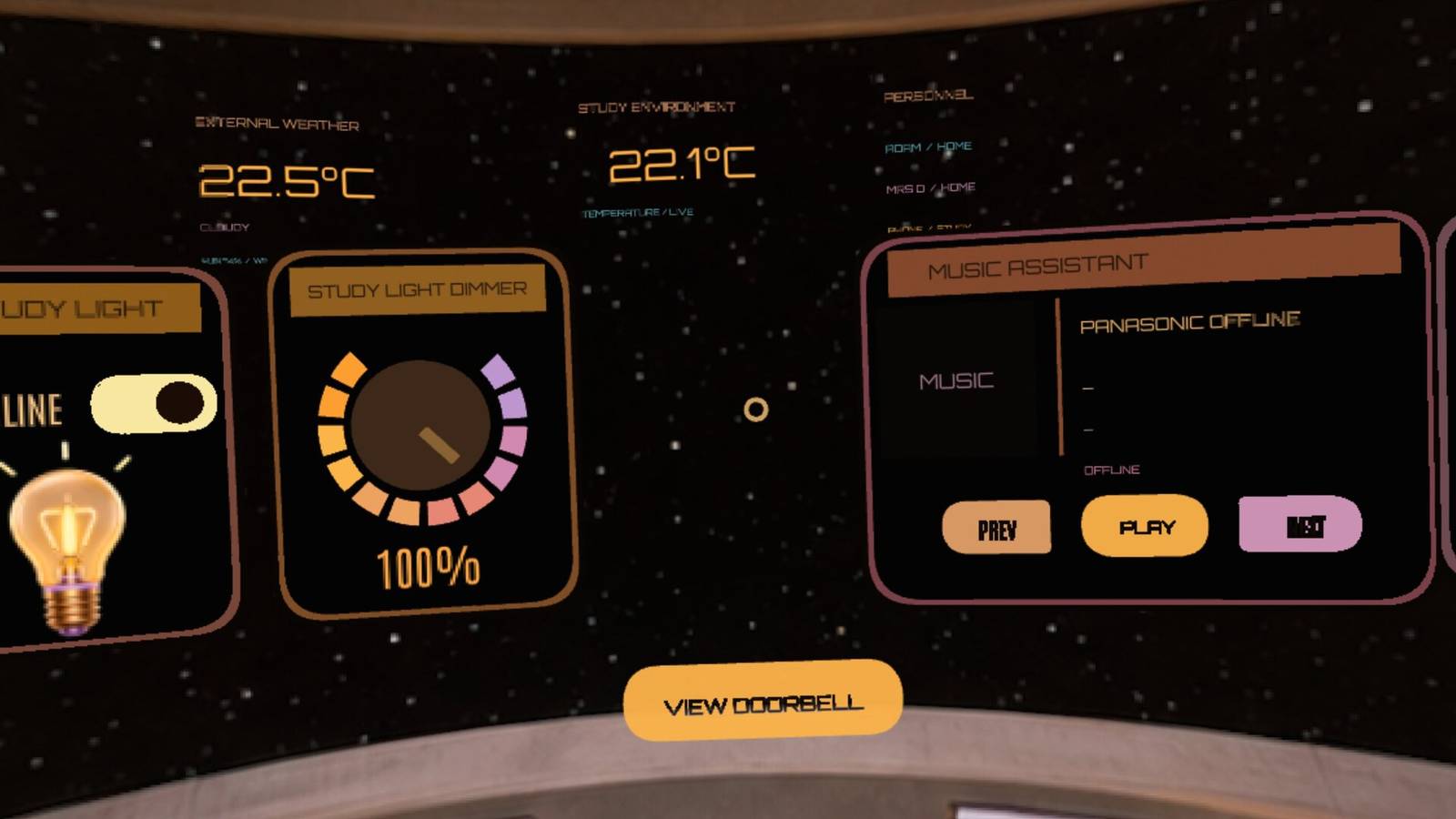
Published Jul 31, 2026, 9:00 AM EDT Adam has a degree in Engineering and has a life-long interest in technology. He has been writing for over a decade for various print and online publications, with a focus on consumer tech. He joined How-To Geek in 2024 while working at Pocket-lint. As well as being a long-term fan of Apple products, he also has a strong interest in smart home tech, running a Home Assistant server at home to automate all his smart home devices. He believes that the ideal smart home should work with minimal interaction from the user, with automations running as if by magic rather than requiring you to push buttons on a control panel. You can find more of his work on Muck Rack. I'm not a big fan of smart home dashboards. My ideal smart home is one that works automatically without me having to control things manually. When I got my hands on a VR headset, however, I wanted to see if I could build a virtual smart home dashboard in 3D space. For $20, it felt like a no-brainer Credit: Adam Davidson / How-To Geek I'm always looking for bargains for my smart home. There's often a lot of useful smart tech that gets sold on secondhand sites such as Facebook Marketplace. I recently spotted a post from someone who was selling some Meta Quest 2 VR headsets. The headsets did not come with controllers, but I'd seen online that it was possible to bypass the default setup process that requires you to use controllers and then set up hand tracking so that you can navigate through the menus using gestures. I ended up paying $20 for the headset, and by following a very useful Reddit thread, I got hand tracking working. Watching some VR videos through YouTube was really impressive, and using the SKYBOX VR app, I was able to watch my movie collection via Jellyfin in a giant virtual movie theater. It was fun interacting with things in a 3D virtual environment using just my hands. I wondered if I could create a VR dashboard that I could use to control my smart home. Meta Quest 3 Resolution (per eye) 2064 x 2208 (pixels per eye) Storage 128GB or 512GB Discover Meta Quest 3: the ultimate VR headset with cutting-edge performance, stunning visuals, and an all-in-one design. Explore immersive games, apps, and experiences like never before. Building a virtual Home Assistant dashboard was easier than I expected An AI chatbot can build it for you I assumed that creating a 3D space in VR would be a lot of hard work and that I'd need to spend ages building the 3D environment and placing all of the objects within the 3D space. It turned out to be way easier than I expected. I had no idea where to start, so of course I asked an AI chatbot. I explained that I wanted a 3D virtual dashboard that resembled the computer interfaces from Star Trek: The Next Generation. ChatGPT created a rough prototype as a web page that could be opened in the browser on the Meta Quest 2 and viewed in VR. It built the basic 3D environment, added floating control panels, and connected them to the relevant Home Assistant entities. Testing the web page required me to run a small web server on my Mac that could serve the page to the Meta Quest 2. I used Android Debug Bridge (ADB) to map the Meta Quest 2's localhost:8080 address to port 8080 on my Mac over USB, so that requests to localhost:8080 on the headset were forwarded to the web server running on my Mac. This meant I could make changes and immediately see them by refreshing the web page in the Meta Quest 2's browser. It took some tweaking to get everything right Getting information onto the bridge screen was harder than I thought My first experiment worked way better than I expected, but it was still very rough around the edges and did not look like the clean dashboard I'd imagined in my head. I continued to iterate on the design to try to make it look more like what I wanted. One of the biggest challenges was getting information to appear like it was displayed on the screen of the bridge. It always looked like it was floating some distance in front of the screen. Eventually, by increasing the distance of those elements from the viewer to ridiculous levels, I managed to get the look I wanted. Once I was happy with the design, I moved the server for the web page from my Mac to a lightweight container running in Proxmox on my mini PC. I couldn’t use the web page in VR mode unless it was served over HTTPS, so I installed Caddy as a reverse proxy to provide the secure connection required by the browser. I can now access the VR dashboard at any time by visiting the address of the web page. I can look at a control to select it instead of waving my hands Credit: Meta Using my VR Home Assistant dashboard is actually easier than navigating my way around the Meta Quest 2 menus. With the Meta Quest, I have to point to elements with my hands, and the response isn't always perfect. It can be tricky to point to exactly the element that I want. With my VR dashboard, I can select buttons and other elements just by looking at them. If I look directly at the light toggle, for example, the control pops out of the screen a little to show that it's selected. I can then pinch my fingers to toggle the control. Selecting by looking at elements is so much easier and more accurate than using hand gestures. My rotary knobs are even better. I can look at a knob, and it pops out of the screen a little. I can then pinch my fingers and slide my hand left or right to rotate the knob, which I see rotating in real time. It makes changing the volume or turning up the brightness way more fun. When I started working on this project, I thought it would take me a long time to get anything remotely usable. I was really surprised to end up with a genuinely interactive VR dashboard that works exactly how I intended. A VR dashboard is fun, but not very practical While my VR dashboard is very cool, it's not really practical. If I want to turn on the lights in my home office, I'm not going to strap on a VR headset, open a specific website, launch the VR mode, and then toggle a switch, when I could just pick up my phone and ask Home Assistant's voice assistant to do it in a couple of seconds. This is kind of how I feel about real wall-mounted dashboards; they look cool, but I just don't see why I'd ever want to use one.
I built a virtual reality dashboard to control my smart home—and it actually works
Full Article
Original Source
Read the full article at Howtogeek →KhanList aggregates and links to publicly available news content. We do not host full articles from third-party sources. Always verify important information with original sources.