
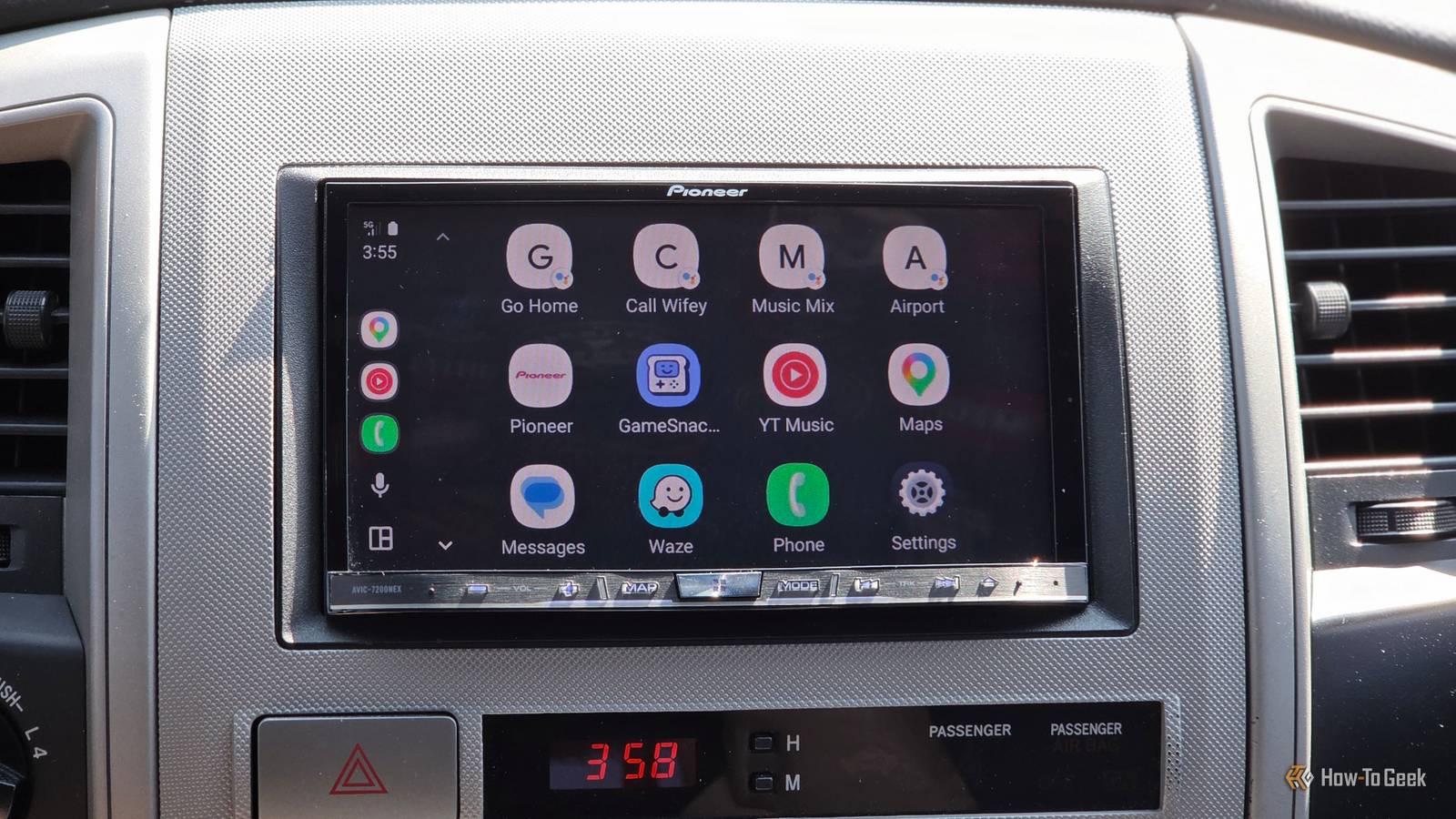
Published Sep 12, 2026, 9:00 AM EDT Cory Gunther is a senior author and Newsletter Editor at Valnet, covering cutting-edge tech, Android, and more for How-To Geek. He's covered Android, cars, and technology for over a decade. When he's not reviewing the latest gadget, you can find him off-roading in his Toyota truck, fixing said truck, or doing something outdoors with friends and family. He's covered CES, SEMA, and MWC and reviewed countless phones, TVs, speakers, EVs, e-bikes, and more. Before Valnet, Cory worked for GottaBeMobile. His writing has also appeared on SlashGear, InputMag, and AndroidCentral. He's written over 9,000 articles. Android Auto is great and easy to use, especially in wireless mode. You hop in the car, the phone connects, and you're good to go. However, that doesn't help with all the settings, controls, playlist selection, and other things that distract you on the road or make you sit in the driveway for a few minutes before leaving. That's why I built a one-tap shortcut that changes everything at once. If you're a fan of Android Auto, did you know you can quickly set up a few automations and routines that'll take your in-car experience to the next level? When I get into my truck and start the engine, as soon as my phone connects, I tap a single icon and hit the road. And yes, they're better than using voice commands, too. Here's how to get started. Automate everything with Routines How to set up Routines in Android Auto What we'll be doing is taking advantage of Google Assistant routines inside Android Auto. Once we're done, instead of fumbling with controls or settings (on your phone or stereo), opening apps, and choosing a playlist, one button will do everything automatically. Instead of saying, "Hey Google, navigate to work," and then, once it's done, using another voice command to play music, or tapping on the screen, then following that with another prompt — you won't have to do anything but tap your screen once. Now, you'll get in the car and tell Google "I'm driving" or tap the "I'm Driving" Routines shortcut, and that's all. Google Assistant will start, put your phone in do-not-disturb mode, fire up your preferred navigation app, avoid traffic, start your favorite podcast app, turn on dark mode, or anything else you choose to set. You can even set another routine that'll instantly text your significant other saying that you're headed to work and to have a good day. Credit: Lucas Gouveia/How-To Geek Above, you can see several icons that each initiate a different Routine inside Android Auto, and they're game-changers. Here's how to do it yourself. We're not building this inside the Android Auto app, but instead, inside the Google Home app. So, to start, open your Google Home app, tap the Automations tab at the bottom right. From here, select the + Create button, and choose Automations. In the Automations section, you'll have three main options: Starters, Conditions, and Actions. This is where the magic happens. Starters are how you'll trigger this specific routine, whether that's voice commands, location-based, or even the time of day. For example, when you leave for work each day at 8:00 AM. However, that doesn't really matter once we make it a shortcut on your infotainment display, but it's a good way to make these completely automatic. Conditions ensure that any specific automation or routine doesn't start unless you actually want it to. It's not as important for this one-tap shortcut, but it's still useful for certain scenarios. Then, Actions are where you take full creative control. Create an action, like navigating to work, driving at all, or starting a road trip. Then follow that up with a second action to put your phone in DnD mode, a third to launch Spotify or PocketCasts, and so on. If you have a smart home, you can even add an action to close the garage door. Once you're happy with the creation, tap Save automation. Now, we need to add that to Android Auto, which I'll explain below. Before I tell you how to add these routines to Android Auto, feel free to make a few more. Some I use include an "Arriving Home" automated routine that opens my garage door, turns on lights in the house, adjusts the thermostat, and takes my phone out of DnD mode. I also have a "Daycare" model that triggers when I reach my daycare location. It'll instantly start a different playlist, text my wife that I'm on the way home, and navigate home so I can avoid any potential traffic. Put a one-tap routine on your Android Auto home screen It's more helpful than you think Credit: Ismar Hrnjicevic / How-To Geek After you create one or two Routines in Google Assistant, head to Settings on your phone and open Android Auto. Find the option labeled Customize Launcher, tap Add a shortcut > Assistant actions > and pick the routine you just created. Now, that "Driving" routine is sitting right on your Android Auto display, ready to go. A single tap will initiate all the settings, controls, and apps you set up. For me, the "Driving" button puts Android Auto in dark mode, my phone on DnD (with an exception for my wife), opens Waze instead of Google Maps, and starts my favorite YouTube Music playlist. I have a different routine set for driving to the airport that does much of the same, only lowers notifications and instantly starts navigation, and things of that nature. The magic is that you can customize it as you see fit, add it to the screen, then handle everything with a single tap. A better Android Auto experience Android Auto has a similar setting called "Assistant actions" in the Customize Launcher controls, but it isn't quite as powerful as Google routines. If you want complete control and flexibility, or to create a few that a passenger can use right from your head unit, create routines, add them to the screen as shortcuts, and enjoy a better Android Auto experience.
I built a one-tap "I'm driving" mode that makes Android Auto even better
Full Article
Original Source
Read the full article at Howtogeek →KhanList aggregates and links to publicly available news content. We do not host full articles from third-party sources. Always verify important information with original sources.