
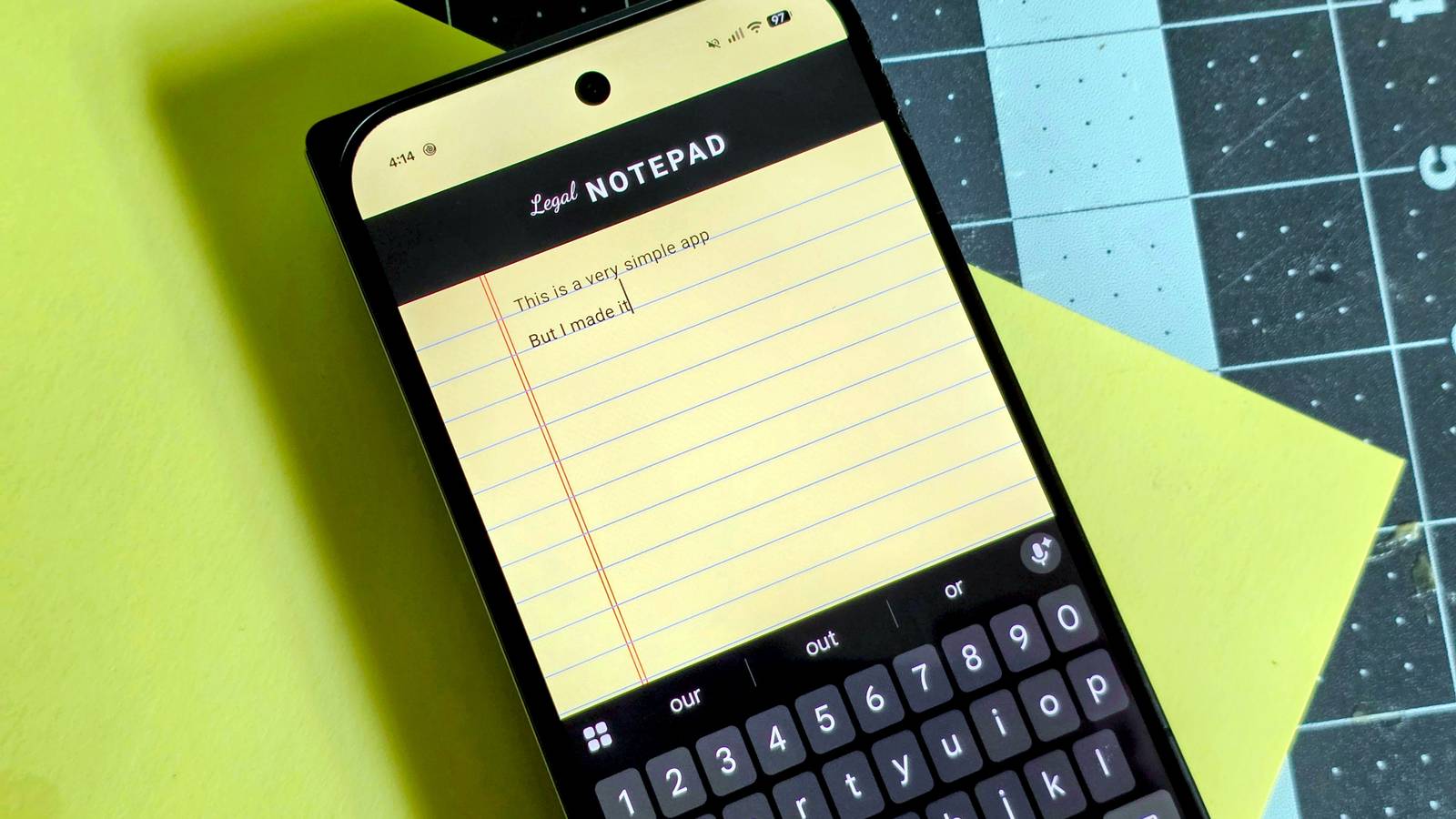
Published Aug 16, 2026, 8:00 AM EDT Joe Fedewa has been writing about technology for over a decade. Android and the rest of the Google ecosystem have been a focus for years, as well as reviewing devices, hosting podcasts, filming videos, and writing tutorials. Joe loves all things technology and is also an avid DIYer and food blogger. He has written thousands of articles, hundreds of tutorials, and dozens of reviews. Before joining How-To Geek, Joe worked at XDA-Developers as Managing Editor and covered news from the Google ecosystem. He got his start in the industry covering Windows Phone on a small blog, and later moved to Phandroid where he covered Android news, reviewed devices, wrote tutorials, created YouTube videos, and hosted a podcast. From smartphones to Bluetooth earbuds to Z-Wave switches, Joe is interested in all kinds of technology. After several years of jailbreaking and heavily modifying an iPod Touch, he moved on to his first smartphone, the HTC DROID Eris. He's been hooked ever since. Finding the perfect app in the Play Store can sometimes feel impossible. You’re trying to fit your specific needs with solutions that were made for other people’s needs. Now, with AI-powered coding in Android Studio, it’s remarkably easy to simply make your own app. Let me show you. I’ve been playing around with Gemini in Android Studio a lot since Google released it a few months ago. My first project was a custom Wear OS watch face. From there, I had the confidence to try something much more ambitious: a webOS-inspired home screen launcher. So, this is not my first rodeo, but I wanted to fully demonstrate just how easy it is to create an app from scratch with Gemini. Building a custom markdown editor in Android Studio From idea to functional app in less than an hour Note-taking apps are a dime a dozen, but if you’re passionate about taking notes, you know how hard it is to find the perfect one. Some of the most popular apps don’t support markdown and have a lot more than that going on. A simple markdown editor sounds easy to find, but we all have our own unique preferences. This is a good excuse to try making our own app. To get started, download Android Studio on your Windows, Mac, or Linux PC. After the installation is complete—be aware that this is a big application—click “New Project” to get started. Select Phone and Tablet > Empty Activity. Give your app a name and click “Finish.” Android Studio will generate a new project and do a bunch of background work to get it ready. When the loading bar at the bottom of the screen goes away, click the chat bubble icon in the right-hand sidebar to open Gemini. This is where the fun begins. Now, the exact prompt that you use will depend on what type of app you’re trying to make. A markdown editor is just one example. However, this first prompt will set the foundation that subsequent prompts will build on, so don’t be afraid to be descriptive and include reference images. For my example app, I decided to make a markdown editor styled after vintage legal pads. Here’s the prompt I entered: I would like to create a simple note-taking markdown editor app styled after vintage legal pads, like the one in this image. [attached image] After you send the prompt, you can watch Gemini write code and make changes in real time. It “shows its work” in the conversation view as well. Typically, Gemini will spit out a plan of attack and ask if you’d like it to proceed. Simply reply “proceed” or “go ahead,” and it will do its job. In my case, Gemini rendered a preview of the app right in the conversation, but it’s always better to see it on a real device. You can add a virtual device to test it right on your PC, or connect to a physical phone over wired or wireless USB debugging (this is my preferred method). 10 minutes later, I had an app ready to be deployed to my phone, and it worked—mostly. It was indeed a text editor, and it was indeed styled after a vintage legal pad. As basic as it was, it literally took one sentence and a fuzzy reference photo to get there. Pretty incredible. Troubleshooting with Gemini It won’t get it right from the start As I said, the initial prompt will set the foundation, but it’s very unlikely that it’ll work perfectly. Think of it as a rough draft. Now, it’s time to do some troubleshooting. Gemini makes this part east, too. For example, my app wasn’t visually showing what the text would look like with the markdown effects, and the text was majorly misaligned with the horizontal notepad lines. Fixing the first part was simple enough, but the latter proved to be a bit more complicated. Markdown is not working correctly and the text is not aligned with the blue horizontal lines. It helps to use the same terminology that Gemini uses to make sure it knows exactly what you’re asking for. Gemini referred to the notepad lines as “blue horizontal lines,” so that’s what I called them. Gemini quickly fixed the markdown, but it took several attempts to get the text alignment correct. I just kept telling it that the alignment was not right. At one point, I suggested increasing the spacing between the lines. Eventually, we found a solution: moving the lines to the text, rather than trying to move the text to the lines. Once you’re happy with the app, you’ll need to package it up as an APK. To do this, go to Build > Generate App Bundles or APKs > Generate APKs. You can then put that APK on your phone and sideload it just like you would any other app. I’m not going to try to convince you that this app is amazing or that it needed to exist at all. But it shows what you can do in very little time with Gemini in Android Studio. This was less than an hour of work—I have spent many more hours on my webOS home screen launcher. The point is, if you have an idea for an app, you can create it.
I built a markdown note app in less than an hour using Gemini in Android Studio
Full Article
Original Source
Read the full article at Howtogeek →KhanList aggregates and links to publicly available news content. We do not host full articles from third-party sources. Always verify important information with original sources.