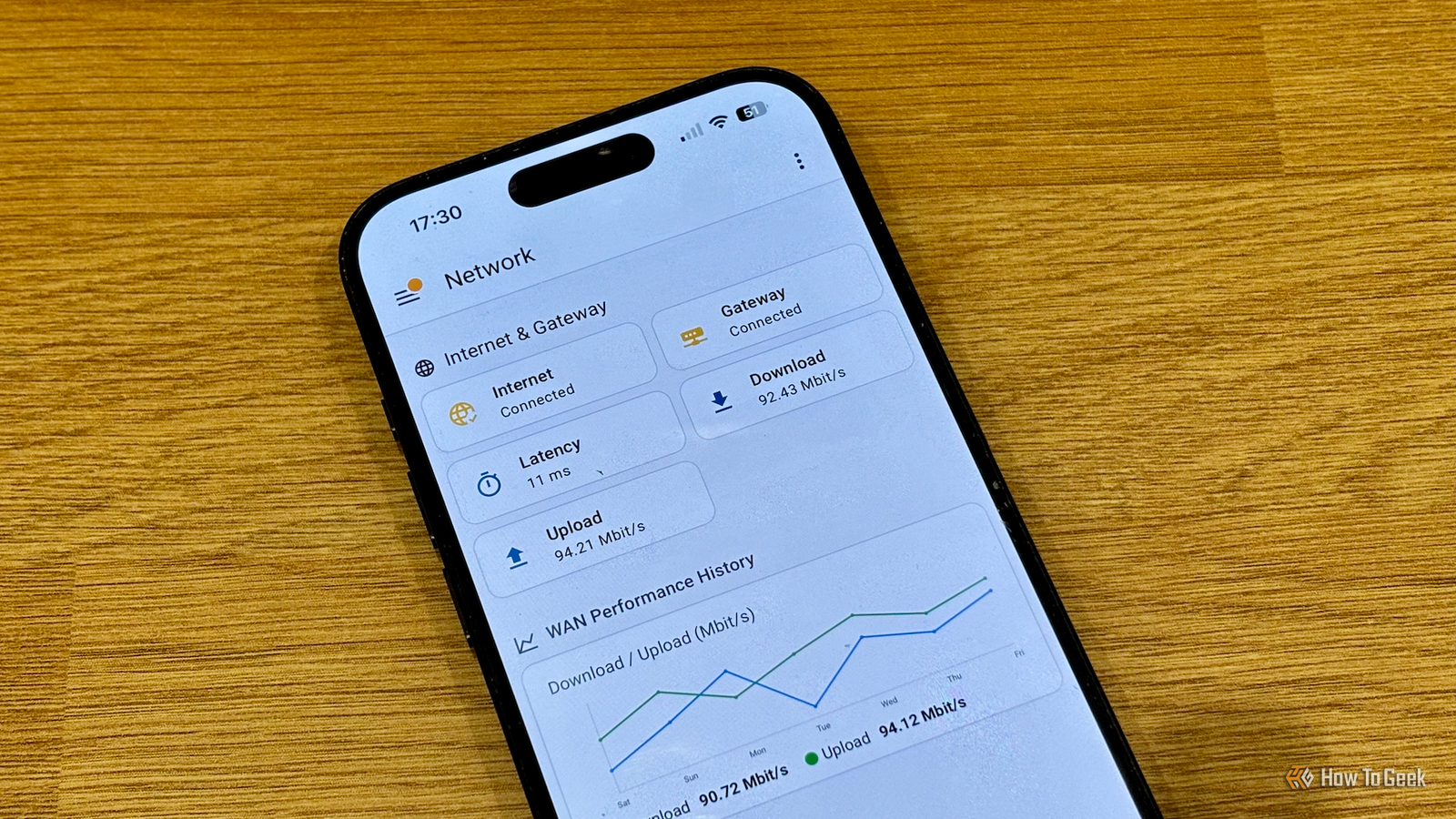
Published Jul 26, 2026, 8:00 AM EDT Adam has a degree in Engineering and has a life-long interest in technology. He has been writing for over a decade for various print and online publications, with a focus on consumer tech. He joined How-To Geek in 2024 while working at Pocket-lint. As well as being a long-term fan of Apple products, he also has a strong interest in smart home tech, running a Home Assistant server at home to automate all his smart home devices. He believes that the ideal smart home should work with minimal interaction from the user, with automations running as if by magic rather than requiring you to push buttons on a control panel. You can find more of his work on Muck Rack. If you want to monitor your home network, router apps can often provide useful information. Some of these apps require paid subscriptions to access the most useful data. I built my own network monitoring dashboard in Home Assistant, and it cost me nothing. Home Assistant already has everything you need Three free integrations, one dashboard, zero subscriptions Apple may have said that "there's an app for that," but when it comes to Home Assistant, the phrase really should be "there's an integration for that." Almost every time I think of something I want to set up in Home Assistant, I can find an integration or custom component that can help. There are three useful integrations I used to build my network monitoring dashboard. The first is the Ping (ICMP) integration. This creates a simple reachable/unreachable binary sensor. I have two different sensors; one pings the gateway IP of my router to confirm whether my home network is up. The second pings an external target to confirm that I have internet access. The status of both sensors is displayed on my dashboard, so I can see at a glance whether my home network and internet connection are available. The second integration is the Speedtest.net integration. This runs scheduled speed tests and exposes the ping, download speed, and upload speed results as sensors. It runs a real speed test that uses bandwidth, so I don't have it running every 10 seconds. The third integration is Pi-hole. I wasn't able to get the native Pi-hole integration working with Pi-hole v6’s session-based API. Instead, I’m using a community fork installed via HACS. Home Assistant Green Dimensions (exterior) 4.41"L x 4.41"W x 1.26"H Weight 12 Ounces Home Assistant Green is a pre-built hub directly from the Home Assistant team. It's a plug-and-play solution that comes with everything you need to set up Home Assistant in your home without needing to install the software yourself. The feature that beats most router apps A week or more of history that costs you nothing Some basic router apps will show only live data or data from the past 24 hours but no earlier. Some subscription-based apps give access to longer periods of data, from a week up to 30 days, but you may need to pay for a higher subscription to access historical data beyond this. This is where Home Assistant really comes into its own. Home Assistant's recorder keeps detailed state history for 10 days by default, but eligible sensors with a state_class attribute also generate hourly long-term statistics that are kept indefinitely. My Pi-hole and Speedtest sensors fall into this category. You can also export data using integrations such as InfluxDB, allowing you to keep as much data as you want for as long as you want, outside of the recorder. What this means is that with Home Assistant, you can have unlimited access to your network monitoring data for as far back as you want to store it. The best part is that it doesn't cost you a penny. Where paid apps still beat my setup I can't get per-device bandwidth Credit: Rich Hein/HowToGeek.com My setup is fairly limited, because my router and Eero mesh only expose a limited amount of information. One big thing that's missing is per-device bandwidth attribution. I can't see which devices are hogging the bandwidth. Eero does expose this data, but only with a paid subscription, and even then, I can't pass that information to Home Assistant through Eero's API, so I can't add it to my dashboard. This isn't a Home Assistant limitation; it's a limitation of my networking hardware. It means that with a paid app, I can see some information that isn't available on my network monitoring dashboard. With different hardware, however, things would be different. With the right router, you can do even more A UniFi router adds even more possibilities Credit: Patrick Campanale / How-To Geek If you have the right routers, you can expose even more information to your network monitoring dashboard. If you have a UniFi router, such as a Dream Router 7, for example, then the official Home Assistant UniFi integration gives you access to a lot more data. You get per-client and per-device bandwidth and uptime data, PoE port control so you can remotely power-cycle a connected PoE video doorbell, for example, and presence detection based on association state, including both wired and wireless clients. The per-client bandwidth data means instead of just knowing that your network is slow, you can see that it's because your kid's console is pulling 150Mbps at midnight when they should be asleep. UniFi’s own app may provide less historical detail than you want to keep, but with a little effort, you could set up an integration that writes this data to an InfluxDB database so that it outlives UniFi's own storage. UniFi Dream Router 7 9/10 Brand Unifi Range 1,750 square feet The Unifi Dream Router 7 is a full-fledged network appliance offering NVR capabilities, fully managed switching,a built-in firewall, VLANs, and more. With four 2.5G Ethernet ports (one with PoE+) and a 10G SFP+ port, the Unifi Dream Router 7 also features dual WAN capabilities should you have two ISP connections. It includes a 64GB microSD card for IP camera storage, but can be upgraded for more storage if needed. With Wi-Fi 7, you'll be able to reach up to a theoretical 5.7 Gbps network speed when using the 10G SFP+ port, or 2.5 Gbps when using Ethernet. Wi-Fi Bands 2.4/5/6GHz Ethernet Ports 4 2.5G USB Ports None MU-MIMO 2x2 MU-MIMO Mesh Network Compatible Yes Supported standards 802.11a/b/g/n/ac/ax/be Speeds 5.7 Gbps Security Fully managed Chipset/memory Quad-core ARM Cortex-A53 at 1.5 GHz, 3GB Dimensions 110 x 184.1 mm Price 279.99 Home Assistant can give you a lot for free One of the best things about Home Assistant is that it can save you serious money. I ditched my Ring subscription and replaced it with a local video doorbell and Frigate, and it's a better experience than I was paying for before. If you don't want to pay for a network monitoring app, there's a lot that Home Assistant can do.
I built a free network dashboard in Home Assistant that beats expensive router apps
Full Article
Original Source
Read the full article at Howtogeek →KhanList aggregates and links to publicly available news content. We do not host full articles from third-party sources. Always verify important information with original sources.